Use this VEX review checklist before closing a scanner finding on the strength of a supplier statement. Match the advisory and the exact software you deployed, check the supplier’s reasoning, then record who approved the decision and when it should be reviewed again. If the statement covers a different build or an unverified configuration, keep the finding open for your deployment. If you already have the advisory and deployment record, go straight to the decision matrix or copy the ticket fields.
Table of Contents
A software bill of materials (SBOM) lists components. Vulnerability Exploitability eXchange (VEX) communicates a claim about the status of a vulnerability in a specified product. The statement helps a security team decide what to do with a component match. Your deployment records establish whether the claim applies locally. If the inventory itself is in doubt, start with the SBOM intake checklist.
VEX review checklist for supplier statements
Use this workflow for one advisory and one deployed product scope at a time. Collect the original VEX document, scanner finding, deployment inventory and any supplier release notes before the review. If the decision spans several environments, list each separately so that a decision for one cluster or edition cannot silently close another.
1. Confirm who issued the statement
Retrieve the document through the supplier’s advisory portal or another channel your team already trusts. Record the issuer, document identifier or revision, and when you obtained it. If a reseller forwarded the file, use the supplier’s published record or a support case to confirm that the statement represents the vendor’s position.
Keep the source file beside the ticket. A copied status can lose the original product list, revision and conditions. If your organization requires a signed statement, verify the signature according to its existing trust policy and preserve the verification result.
2. Match the vulnerability identifier
Find the advisory identifier on the scanner result and on the statement. When identifiers differ, confirm the alias using the corresponding advisory and record the cross-reference. A vendor bulletin can cover multiple issues. Review each issue independently when the bulletins assign different statuses or mention different releases.
Keep a separate record for each issue and deployment scope even if your scanner groups them by component. That makes it possible to reassess a single advisory without reopening every finding associated with the same library.
3. Match the claim to what runs in production
Compare the claimed product with deployment evidence. Check edition, release or build, and platform when those distinctions matter. For container deployments, capture the running image digest and platform. If the vendor publishes only a release name, use a vendor release record or response to connect the named release to your artifact.
A matching library version is useful for locating a finding. The vendor’s product identifier tells you which build its statement describes. If a component appears in several deployed products, evaluate each product separately. For a changed build, use the SBOM diff review to locate relevant inventory changes before carrying a decision forward.
4. Read the status and its supporting rationale
CISA’s minimum requirements describe four statuses: affected, fixed, not affected and under investigation. For a not-affected statement, the CISA document calls for an impact statement when the issuer supplies no justification. When reviewing a supplier document, read that rationale alongside its product scope. The status describes the vendor’s claim for the listed product and advisory.
An issuer might say a component is absent from a particular edition or that a documented mitigation applies in a specific deployment. Ask what evidence supports that claim and whether its conditions match your environment. For a profile that inherits metadata from the document, resolve those values before making a decision. See CISA’s minimum requirements for VEX and the OpenVEX specification for their respective rules.
5. Resolve conflicting or superseded evidence
Compare revisions for the same issuer, product and advisory. Record publication or update dates alongside the date you retrieved the document. A later bulletin for a different product line may leave the original statement untouched. A newer revision that explicitly corrects the same claim should trigger review of decisions based on the old version.
If the statement conflicts with your artifact inventory or with another supplier advisory, record both sources and ask the vendor which one governs the exact build. Leave the finding open while the conflict is unresolved. The goal is a defensible decision supported by the available evidence.
6. Keep the decision as narrow as the evidence
Record exceptions against one advisory and the verified set of deployed artifacts. Name the person responsible for approving the decision and preserve the underlying scanner record. If your tool supports only a blanket rule across products or repositories, keep a ticket-level disposition or choose an equivalent scoped control instead of applying that global rule.
A vendor’s fixed status often names a release that must still be installed. Verify the deployed build or rollout inventory, then confirm that every asset in the closure scope received the update. A mixed fleet may need one closed ticket and one open ticket, with separate evidence for each group.
7. Set a review date and explicit triggers
Choose a recheck date under your own vulnerability management policy and name the owner. Reopen sooner if the vendor revises the advisory, the deployed artifact changes, a relevant feature is enabled, or new evidence conflicts with the rationale. If a supplier is still investigating, set a follow-up date and keep any interim controls visible in the ticket.
An exception without an owner tends to outlive the context that justified it. At the review date, read the current supplier statement and deployment record together. Close the review task only after the new evidence supports the existing or revised decision.
Where OpenVEX and CSAF put the evidence
The field names change with the format. Use this cross-check to reach the same review decision from either document. Read the format’s specification when checking inherited metadata or publisher-specific product identifiers.
- OpenVEX: Find the statement for the advisory and read its
products,vulnerabilityandstatus. Resolve inherited timestamps and product identifiers before recording the evidence. Fornot_affected, read the justification or impact statement and tie it to your deployment. Read the OpenVEX specification. - CSAF 2.0 VEX profile: Find the vulnerability entry and its
product_status. Resolve the referenced product IDs against theproduct_tree. Forknown_not_affected, look for the related flag or impact threat for that product. Read OASIS CSAF 2.0, §4.5.
In either format, save the publisher’s identifier and your inventory identifier side by side in the ticket. If the mapping is missing, keep the finding open and assign someone to establish it.
VEX review checklist decision matrix
Use this table during triage. The second column gives the action and the evidence a colleague needs to check your decision.
| Supplier status | Decision and record |
|---|---|
| Not affected, within scope | Approve an exception if policy permits it. Keep: Supplier rationale, build match, owner and review date. |
| Not affected, outside scope | Keep the finding open. Keep: Scope mismatch and supplier follow-up. |
| Affected | Assign remediation. Keep: Vendor guidance, owner and due date. |
| Fixed in a named release | Confirm rollout before closing. Keep: Installed build and verification result. |
| Unknown or conflicting | Keep open and set a review date. Keep: Unresolved question, owner and interim decision. |
Public advisory example: Red Hat and XZ Utils
Red Hat’s public advisory for CVE-2024-3094 says its investigation identified the packages in Fedora 41 and Fedora Rawhide within its community ecosystem, and it explicitly excludes Red Hat Enterprise Linux (RHEL) from impact. The advisory shows why a finding named for the same upstream project still needs a product and package provenance check. Read the Red Hat advisory.
- RHEL with a verified vendor package: Record the advisory, the deployed operating system and the package’s source. If those records establish scope, document the vendor’s not-affected finding under your exception policy.
- Fedora, a custom build, or an image with unknown provenance: Review the applicable distribution or supplier evidence for that artifact. Keep the finding open if you cannot establish what was installed or where it came from.
This is a reading of a public vendor advisory. Your decision still needs evidence from the deployed build, especially when teams ship their own packages or use images from several sources.
Worked example: One advisory, two deployment groups
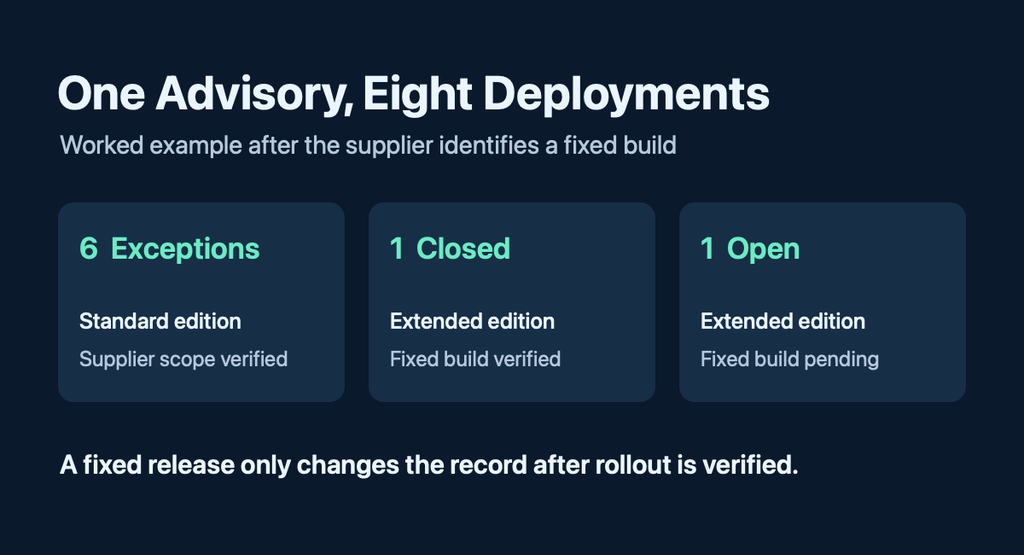
Consider a fictional product called RelayDesk. A scanner flags advisory DEMO-017 for a library listed in both the standard and extended editions. The supplier publishes a not-affected statement for the standard Linux build and explains which code was omitted from that package. The extended edition is still under investigation.
The production inventory shows six standard deployments and two extended deployments. The security reviewer matches the six standard installation identifiers to the vendor’s release list and captures the rationale in the ticket. Under the team’s policy, those six records qualify for a scoped exception. The two extended deployments stay open with an assigned owner, a vendor follow-up and a recorded interim decision.
A week later the supplier identifies a fixed extended release. The deployment owner verifies that one of the two extended environments now runs that release. That environment can be closed after verification. The second environment stays open for rollout. At this point the team has six scoped exceptions, one verified closure after an update and one outstanding deployment. A blanket suppression would have concealed the outstanding work.
Copy this VEX review checklist into a ticket
- Finding: Advisory identifier, scanner reference and component identifier.
- Deployment: Product edition, version or digest, platform and asset group.
- Supplier statement: Issuer, source link, revision, issue date and retrieval date.
- Applicability: Evidence connecting the statement to the deployed artifact and any relevant conditions.
- Decision: Keep open, remediate, verify rollout, or approve a scoped exception.
- Follow-up: Decision owner, next review date and events that reopen the ticket.
If you need clarification, send the vendor the advisory ID and the product identifier approved for sharing. Ask for the status for that precise build, the rationale behind a not-affected claim, and whether the answer depends on a configuration or platform. Request a revised statement or a reference to the published advisory so future reviewers can trace the decision.
Example ticket entry (fictional): DEMO-017 • RelayDesk 2.4 Standard for Linux • inventory evidence: approved rollout record and supplier build mapping • decision: scoped exception for six verified deployments • owner: release security • next check: at the next rollout or supplier advisory revision, whichever comes first. The two Extended deployments have their own remediation records.
Apply the VEX review checklist when evidence is incomplete
The same version label points to several builds
A vendor says version 5.2 is fixed, but your inventory lists only a mutable image tag and the product’s About screen. The procurement record may identify the intended purchase, and the screen may show the marketing release. Ask the deployment owner for the installed build record, then ask the supplier to map that build to the advisory. In the VEX review checklist, mark the deployed scope as unverified until those records connect.
Write the issue as a testable question. “Does our deployed build belong to the fixed release named in advisory X?” gives the owner a clear task. If the supplier confirms one architecture but cannot confirm another, use separate rows. You can close the verified group when the evidence supports it and continue tracking the rest.
A statement depends on a configuration you cannot verify
Suppose a supplier says an optional integration must be disabled for its not-affected statement to apply. A default setting in the product guide describes how a new installation starts. Capture the approved evidence for the running environments, including any deployments that are managed outside the main configuration system.
Run the VEX review checklist separately for confirmed and unconfirmed environments. If the setting can change at runtime, name the team that can verify it again. Document the change event that reopens the decision. Where you have no reliable inventory, give the uncertainty its own ticket and prioritize it with the same criteria you use for other unresolved findings.
An update notification arrives after a decision is closed
Start by checking whether the supplier changed the issue, the affected releases, the rationale or the recommended action. When the change applies to your recorded scope, reopen the decision and preserve the old record alongside the revised one. The history should show what changed, who handled the new evidence and when the disposition was updated.
If your scanner can only mute a package across all environments, keep the VEX review checklist in the ticket and leave the alert visible in the tool. A broader scanner rule can turn one defensible exception into several invisible findings. The trade-off is additional triage work, so make the ticket searchable by advisory ID, product identifier and decision owner.
The vendor response has no expected resolution date
Record the supplier’s current status, the date you last checked it, and your internal review date. Use existing escalation rules to decide who should see the unresolved item and whether to adopt an interim control. Choose an owner who can obtain vendor evidence or coordinate the deployed change. If the vendor sends a new statement sooner, apply the VEX review checklist to that revision and update the ticket while the evidence is fresh.
Hand off a decision another reviewer can reproduce
A useful VEX review checklist separates evidence you received from evidence you verified. Put the supplier’s claim and source in one field, your deployment proof in another, and the reviewer’s disposition in a third. If someone later changes the status in your scanner, the ticket should still show how the previous decision was made.
For a fleet with several release channels, keep a line for each channel. Include the count of deployed assets, the artifact evidence, and the date of the inventory snapshot. Treat unidentified assets as a separate open group and assign an owner to reconcile them. This prevents a well-supported decision for part of the estate from being mistaken for complete coverage.
When one team owns the scanner and another owns the rollout, ask the rollout owner to attach the build evidence. The reviewer can then check the evidence against the advisory without relying on a verbal update. For an exception, record where it was applied and the condition that ends it. For a patch, record when the last asset in scope was updated and who verified it.
For a review meeting, sample one closed record and one open record. The VEX review checklist should let a colleague answer three questions using the ticket alone. What did the supplier claim? Which deployments does that claim cover? What evidence or change would alter the decision? If any answer depends on an inbox or an undocumented assumption, add the missing evidence or reopen the decision.
Record the scope using the same identifiers that your next reviewer can retrieve. A date-stamped rollout export or approved internal record usually ages better than a link to a mutable dashboard. If retention controls prevent storing an export, record the query scope and timestamp along with the internal reference. Take the same approach to the supplier statement by preserving its revision or a stable advisory URL.
Common questions about reviewing VEX
Can an unchanged SBOM carry the decision forward?
An unchanged inventory can support the review. Check the statement’s scope, the deployed artifact, the relevant configuration and any revised advisory before reusing the decision.
What if the vendor provides an advisory instead of a VEX file?
A traceable vendor advisory may support a manual decision if your policy permits it. Record the issuer, exact scope, status, explanation and date. If your intake process requires machine-readable VEX, keep that requirement visible as a separate supplier follow-up.
How long should an exception last?
Set a review date using the team’s escalation policy and the significance of the affected assets. Revisit it early when applicable evidence changes. A date in a ticket gives the owner a deadline even when the supplier publishes no update.
Apply it to one open finding
Try the VEX review checklist on one finding with an attached supplier statement. Match the advisory and build, use the matrix to choose a disposition, and copy the evidence into the ticket. Once a second reviewer can explain which assets the decision covers, apply the same process to the next record.