Linux disk full, but du shows less usage? Run these two checks against the real write path. The first checks space available for new data. The second checks the supply of file entries. The example uses /var/log. Substitute the nearest existing parent of the path in your error.
On this page
df -hT -- /var/log
df -i -- /var/log
Low Avail: Confirm the mount and measure visible files. Low IFree: check inode usage. Large gap on the same mount: look for deleted files still open.
The checks use GNU/Linux utilities. journalctl applies to systemd hosts. Run the commands in the affected service’s filesystem view, especially for containers, and use a shell authorized to inspect that service.
Linux disk full: choose the next check
| What you see | Next check | What it can show |
|---|---|---|
| Low available bytes, free inodes | Mount-scoped du | Visible directories using allocated blocks |
| Available bytes, few free inodes | Inode usage | Pressure from many small files |
| Large df/du gap on the same mount | Unlinked open files | Space held by running processes |
| No large unlinked files found | Filesystem accounting | Snapshot retention, hidden files, or reserved space |
1. Confirm the affected mount
Find the actual write destination in the error or service configuration. In these examples it is /var/log. If the destination file has not been created, use its nearest existing parent directory. A failed upload, a database write, and a system log entry can land on three different mounts even though all their paths start with /var.
df -hT -- /var/log
findmnt --target /var/log -o TARGET,SOURCE,FSTYPE,OPTIONS
Read the mount target, source, and filesystem type before choosing a directory to scan. For instance, if findmnt returns /var as the target, use /var as the root for the scan in step 3. If it returns /, start at /. Check the path from the service’s own mount namespace if a container or service wrapper sees a different layout. The findmnt manual documents how --target resolves a path.
2. Check inodes and bytes separately
df -hT -- /var/log
df -i -- /var/log
A high Use% with little Avail points to a shortage of blocks available for new writes. A high IUse% with little IFree points to inode pressure on filesystems that report inode limits. For example, a cache with millions of tiny files can exhaust inodes while several gigabytes remain available. Start with file counts in that branch. Consult the GNU df documentation for the output fields.
If both readings show headroom in the service’s view, read the exact error again. Disk quota exceeded, a read-only mount, and No space left on device lead to different checks. Also confirm that the failure is current. A scheduled job may have filled the mount overnight and then released the space before you logged in.
3. Measure visible files on one filesystem
sudo du -xh --max-depth=1 /var | sort -h
sudo du --inodes -x --max-depth=1 /var | sort -n
Run the first command for byte usage and the second for inode usage, replacing /var with the target identified above. -x keeps the scan on one filesystem. Each run includes a total for the starting directory. To drill down, rerun the relevant command on the largest child that is still on the affected filesystem. A scan of a large directory tree can add I/O, even with the depth limit, so scope it to the mount and avoid repeating it on a busy system.
Leave error output visible. Permission errors or files disappearing during the scan can make the total incomplete. For a closer block-based comparison, capture df -B1 -- /var and sudo du -sx -B1 /var close together. Read the Used column from df. The two tools have different accounting boundaries: df reads filesystem totals and du walks reachable files. GNU du normally reports allocated space. --apparent-size switches to logical sizes and can produce a very different result for sparse files.
4. Find deleted files that are still open
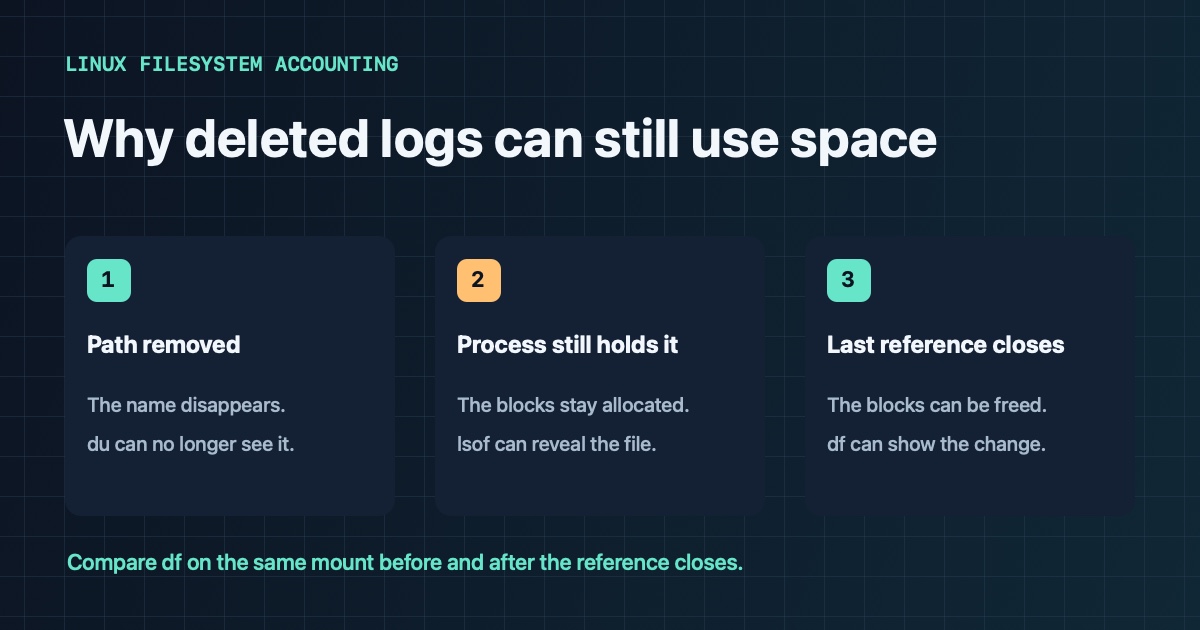
sudo lsof -nP +aL1 /varUse the confirmed mountpoint as the argument. The lsof manual describes +aL1 as selecting open, unlinked files on the specified filesystem. If the pathname has been unlinked while a process holds it open, du can no longer reach it through that name. The filesystem retains allocated blocks until the last reference closes. If lsof is unavailable, record that gap and use your distribution’s approved tooling.
Look for a regular file with a large SIZE/OFF value and a recognizable process owner. Treat the size as a clue. Sparse files may use fewer allocated blocks than their logical size suggests, and multiple rows can refer to the same file. For a prospective fix, identify the service and check whether its documented log-reopen procedure applies. If it requires a restart, use the service owner’s change process. A deleted database file or temporary work file can still matter to recovery, so preserve evidence before releasing it.
A documented RHEL case: a deleted 32 GiB log
In a verified Red Hat support case, Java still held a deleted application log open. These fields are transcribed from the published lsof example, with the account and directory omitted.
COMMAND  PID    FD   TYPE  DEVICE  SIZE/OFF    NAME
java     49097  77w  REG   253,6   33955068440 server.log (deleted)
Read the row from left to right. 49097 is the process ID. 77w is a descriptor open for writing. REG identifies a regular file. (deleted) shows that the pathname was unlinked. The size field is about 31.6 GiB in this case. Compare DEVICE with MAJ:MIN from findmnt --target /var/log -o TARGET,MAJ:MIN for your own failing path. The two commands use different separators for the same pair of device numbers.
Red Hat reports that disk space returned after the Java process was stopped and restarted. Its public example gives an lsof row and the recovery outcome. For your own Linux disk full incident, record the actual before-and-after df output and confirm that the service can write again. Use the documented log-reopen procedure when the service supports one.
5. Confirm which logs are growing
sudo journalctl --disk-usage
sudo du -xh --max-depth=1 /var/log | sort -h
On a systemd host, journalctl --disk-usage counts active and archived journal files. Check that the journal storage you plan to change is on the affected filesystem. If the growth is from a text log, identify the writer and review application log settings or log rotation. When the journal is the source, retention and archival changes should follow your evidence requirements. The systemd journalctl manual explains the distinction between disk usage and operations that remove archived files.
If the host rebooted during the incident, use the previous-boot journal guide to recover the timeline if persistent logs are available. Compare the first write error with the deployment, batch job, or rotation event. Timestamps on surviving logs may cover only a fragment of the incident.
6. Check mounts, snapshots, and filesystem accounting
If a Linux disk full incident persists after a mount-scoped scan and the open-file check, use the filesystem type and mount layout to choose the next check. Confirm the device and existing mountpoint before substituting your own paths in the examples.
| Storage or mount | Read-only check and interpretation |
|---|---|
| ext4 | sudo tune2fs -l /dev/DEVICE on the verified ext4 device. Compare Reserved block count, Free blocks, and Block size. A reserve can shrink the space available to ordinary writers. tune2fs manual |
| Btrfs | sudo btrfs filesystem usage /MOUNT. Inspect data and metadata profiles, allocated versus unallocated capacity, and estimated free space. Use the platform’s snapshot inventory to see which snapshots exist. The usage command reports filesystem-wide figures. Btrfs filesystem manual |
| NFS or managed storage | Check the storage provider’s volume, quota, and snapshot metrics. The NFS client reports space supplied by the server. Red Hat NFS snapshot case |
| Child mount covering an existing directory | findmnt --submounts --mountpoint /MOUNT. A child mount identifies where older files on the parent filesystem might be hidden. Coordinate further inspection with the storage owner before changing mounts. |
For Linux disk full errors that occur despite apparent free space, record which account attempted the write. A quota or reserve can affect that writer differently. Match any proposed recovery to the filesystem evidence and record the expected change before applying it.
7. Verify recovery on the same mount
After resolving the Linux disk full incident, rerun both df checks using the same path and environment. Compare available blocks or free inodes with the before-state. Check that the service resumed its normal writes and watch the filesystem through one relevant rotation, upload, or batch cycle. Record the growth rate if usage starts climbing again.
How to read common Linux disk full results
The application and your shell show different filesystems
If the service writes inside a container, read the checks in the service’s existing execution environment using your approved management tool. Preserve the same application path both times. A path can resolve to a writable container layer in one environment and to a host directory in another. Record the host and container results separately. Ask whoever manages the runtime to map the volume or writable layer to its backing storage before assuming that either result explains the other.
In a Linux disk full incident that affects one service, record its user, the exact path in the error, and whether that write was a new file or an append. That distinction matters when most inodes are used. If new names fail but existing logs can still grow, inode exhaustion is consistent with those symptoms. Check quotas when two services write to the same mount and only one account fails. Use the error reported by the service and the applicable user, group, or project limit to confirm the branch.
Compare the two numbers at the same scope
findmnt --target /var -o TARGET,SOURCE,FSTYPE,MAJ:MIN
df -B1 -- /var
sudo du -sx -B1 -- /var
This set assumes that /var is the mountpoint you established in step 1. If it is a directory on the root filesystem, du -sx /var counts only that subtree, while df /var reports the entire root filesystem. A large difference in that comparison could simply be files elsewhere on root. For a comparable check, run du from the actual mountpoint and record how long the scan took. A scan during an active ingestion job can straddle changes in use, so take a second df reading immediately afterward.
One way to avoid comparing a partial result is to run the du measurement without piping it to sort first. Review any errors and its exit status before trusting the total. The diagnostic question is whether visible, reachable files on this mount account for the blocks reported as used. If they do, investigate the largest relevant subtree. If the unexplained gap is substantial, move to the open-file or storage-accounting branch.
Available space is low and the used totals are close
A Linux disk full alert can be consistent with closely matching df and du values. First establish which working data grew and who owns it. A cache, active database, log archive, and backup staging directory have different cleanup policies. Check capacity against the next operation’s expected size as well. Free space that looks sufficient for a routine write can still be too small for a large index rebuild, restore, or temporary export.
If the bytes are mostly visible in one subtree, use timestamps and the relevant job or service logs to explain why they accumulated. Keep the supporting evidence tied to the mount. A large but static archive is a different finding from a directory that grows by several gigabytes between checks. Review your incident’s change window and confirm who owns the retention setting before requesting changes.
The error text points to a different write constraint
When a Linux disk full report comes from a generic application message, capture the underlying error if the service makes it available. ENOSPC means the write encountered a space-related constraint. EDQUOT points to a quota. EROFS points to a read-only filesystem. Treat these as distinct branches. The right follow-up may be an inode check, a quota report for the writer, or a review of mount options and recent filesystem errors. If a filesystem unexpectedly became read-only, preserve the logs and route that finding to the storage owner.
Collect evidence before closing the incident
A useful Linux disk full handoff contains three independent observations: what failed, what consumed the relevant resource, and what changed after the response. Capture the filesystem source and mount target with the time of each observation. If you have to hand off an active incident, include the current failure rate or affected job and the next check that can discriminate between the remaining causes. Preserve exact counts or byte values in the incident record even when the team discusses rounded figures.
For a deleted-log case, record the application name, PID, file type, device pair, and size field. Redact sensitive path components when sharing extracts. If the same file appears several times in lsof, compare its device and node before counting it twice. After the owner performs an approved reopen or restart, confirm the process has a writable log and rerun the two df checks. Observe one normal workload cycle, so a renewed surge has a chance to show up.
For inode exhaustion, close the Linux disk full incident against IFree and a successful new-file operation by the affected service. For visible block usage, compare Avail with both the service’s expected peak write requirement and the next scheduled batch. For a storage snapshot case, obtain the corresponding storage-side observation. This makes the recovery evidence match the cause even when several thresholds were near their limits.
If the explanation remains uncertain, log that uncertainty explicitly. For example, record that bytes fell after log rotation and that the process’s prior open-file list is unavailable. That still documents recovery while keeping the cause provisional. Escalate when the remaining space keeps shrinking, a managed storage metric disagrees with the host, or the service fails its normal write check. Those are reasons to investigate the existing incident further.
For recurring alerts, set the follow-up around whichever resource ran out. An inode-heavy cache needs a file-count or inode signal. Bursty transfers need free-space headroom measured before the transfer window. A deleted-log issue needs a check of the service’s rotation and reopen behavior. Pair the alert with the affected mount and path so the next responder can begin with the same scope.
Linux disk full incident record
Copy this record into your incident notes. Keep values from df and du separate so the next operator can tell which scope each number covered.
Time and timezone:
Service and exact write error:
Path, mount target, and filesystem type:
Available bytes and free inodes before:
Visible du total and scan errors:
Open deleted file or storage-layer evidence:
Approved change and service owner:
Available bytes and free inodes after:
First successful write and follow-up check:
Linux disk full FAQ
Why didn’t deleting a large log free space? A process may still have the unlinked file open, or the deletion may have occurred on a different filesystem. Check the mount and open-file list before taking another action.
Why does the application report no space when df -h looks fine? Check inode usage, then check the write destination in the application’s namespace and inspect quota limits applicable to that service. A byte check from the host alone only answers for the filesystem it measured.
Which check should I run first? Run df -hT and df -i against the failing path. Take the mount target into the next step. That keeps a large but unrelated directory from sending you down the wrong branch.