Sources, review date and section shortcuts
Key claims reviewed: October 19, 2026. WSL and a VMware guest share host resources but do not automatically share one network boundary.
Primary documentation · VirtualBox NAT, Host-Only, and Bridged: 7 Lab Lessons
Go straight to: Decision check · Main workflow · Further detail
Keep global WSL settings separate from a single distro
Microsoft distinguishes global WSL2 settings in .wslconfig from per-distribution wsl.conf. Record the file and scope before changing an example setting. Save work before the documented shutdown step because it affects all running distributions. For network diagnosis, label each observation as originating in Windows, WSL or the guest; localhost and firewall behavior depend on that context. A working connection from one environment does not establish the path from the other. Source and scope.
Reviewed October 16, 2026. This documentation-based guide helps you diagnose a Windows host running WSL2 alongside a Kali VMware guest. It reports no personal benchmark, measured time saving or independently tested baseline. The commands and settings below are proposed checks, not actions performed on your computer.
Use WSL2 for tasks that benefit from Windows integration, and a Kali VM when the exercise needs its virtual devices, network layout or rollback workflow. Run both together only when that combination serves the task. Diagnose a slowdown before changing memory, deleting snapshots or buying hardware.
This guide concerns side-by-side workloads on a compatible Windows host. Running WSL2 inside a Windows VMware guest is nested virtualization and has separate requirements. Installing two products is not proof that all their features work together on every CPU or Windows build.
Start with One Reproducible Symptom
“The lab feels slow” can describe unrelated problems: a long boot, terminal input lag, a CPU-heavy local operation, a stalled file search, or an unreachable service. Pick one operation you can repeat without contacting systems outside your authorized scope. Record elapsed time, errors and host CPU, memory and disk activity.
Compare three conditions: WSL2 alone, the VMware guest alone, then both with the same other applications open. Keep the input data and guest configuration consistent. Distinguish a cold start from a repeat run with cached data. Several observations are more useful than one unusually fast run; a before/after difference is a clue, not proof of its cause.
Check 1: Verify Versions and Virtualization Compatibility
Record the Windows edition/build, CPU architecture, VMware release and whether Kali is running under WSL1 or WSL2. These read-only PowerShell commands are described in Microsoft’s WSL command reference. They show different things: WSL component version, default/status information and each distribution’s WSL generation.
wsl --version
wsl --status
wsl --list --verbose
Broadcom documents Workstation using Windows Hypervisor Platform when Hyper-V/VBS is enabled on compatible systems. That does not establish support for every host or nested workload. Match the current product requirements to your exact build and retain the error text when a guest cannot start.
Do not treat disabling Memory Integrity, VBS, endpoint protection or the firewall as a routine speed fix. First establish whether you have a support problem or resource contention. A compatibility warning and high CPU usage are different findings. On a managed computer, follow the organization’s approved configuration.
Check 2: Budget Memory Across the Whole Host
Apply a Measured Limit, Not a Universal Split
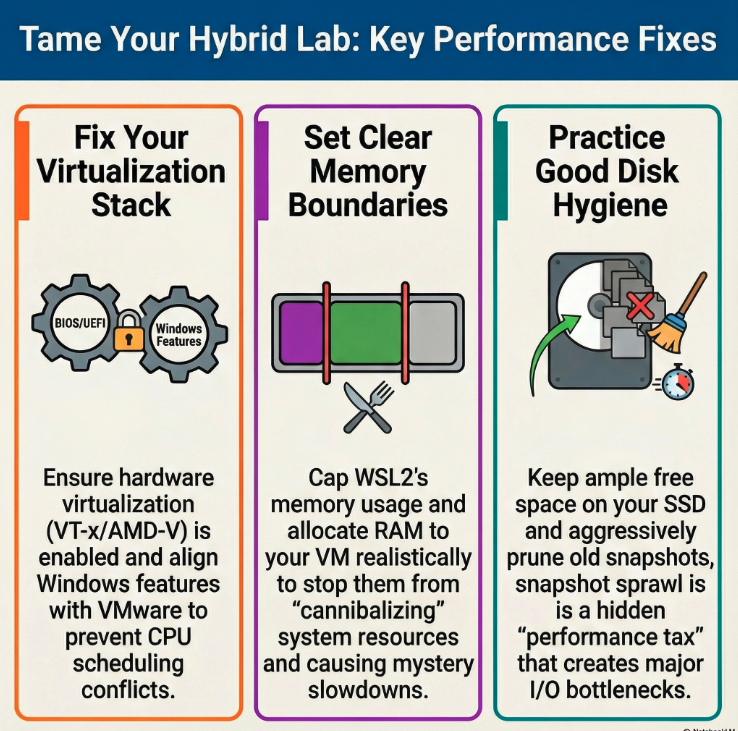
Microsoft recommends using WSL Settings where available. Its configuration guide also documents %UserProfile%\.wslconfig: settings under [wsl2] apply globally across WSL2 distributions, unlike per-distribution /etc/wsl.conf. This example caps WSL2 memory at 4 GB; it is not a recommended allocation for every host.
[wsl2]
memory=4GB
Back up any existing configuration and change only the intended setting. Save work and stop services before wsl --shutdown: it stops all running WSL distributions and the WSL2 utility VM. Restart and verify the configuration took effect. A memory cap is not reserved spare memory for Windows or VMware, and disk-based swap is not extra physical RAM.
Example: Check the Arithmetic Before Changing Limits
Hypothetical planning example: from a 32 GiB host, set aside a chosen 10 GiB host reserve, budget up to 6 GiB for WSL2 and allocate 8 GiB to a Kali VM. The unallocated planning margin is 32 − 10 − 6 − 8 = 8 GiB. This excludes additional overhead and future workloads; it predicts neither actual consumption nor responsiveness. Observe memory pressure, swapping and application behavior before adjusting the budget.
Check 3: Locate the Files Used by the Slow Operation
Microsoft’s filesystem guidance recommends keeping files in the Linux filesystem when working with Linux command-line tools. Compare an appropriate working directory under /home with a Windows-mounted path such as /mnt/c only when the same workload and permissions make the comparison meaningful. Do not infer that every cross-filesystem operation will have the same penalty.
Separate Working Data, VM Storage and Recovery Copies
Record where the WSL virtual disk, active VMware disks, snapshots and backups live. Check available host space and disk activity during the slow task. A separate drive may help only if it addresses the measured constraint. A removable SSD can disconnect, and moving active virtual disks by hand can break a working environment; use a documented migration process after preserving a recovery copy.
Check 4: Diagnose the Actual Network Path
Microsoft documents NAT as the default WSL network architecture and mirrored networking on Windows 11 22H2 or later. Mirrored mode changes connectivity behavior; it is not a generic speed switch or an isolated VMware segment. Verify version support, firewall behavior and the intended path before considering a mode change.
Write Down Source, Destination and Service
For each test, identify whether it starts in Windows, WSL or the VMware guest, and record the destination address and port. “localhost” refers to a context, with forwarding behavior that varies by mode. A failed ping does not prove that a TCP service is unreachable, and a working ping does not prove the application or its authentication works.
Keep vulnerable targets on a deliberately controlled guest segment. VMware host-only includes the host; NAT permits outbound paths. Do not add broad port forwards or disable firewalls to hide a routing problem. Review VPN routes and every adapter before assuming WSL and a guest share the same boundary.
Check 5: Choose the Environment the Task Requires
Match Features, Not Product Labels
A terminal task may fit WSL; a GUI task may fit WSL or a VM depending on its requirements. Kali’s official WSL documentation describes the supported setup route. Do not assume a GUI requires VMware or that WSL includes every virtual-device feature of a conventional guest.
For work that depends on a particular kernel, device, packet-capture viewpoint or USB peripheral, verify that exact capability before choosing an environment. Tool installation alone does not establish hardware access. Keep one primary copy of project data where possible and document how you transfer only the files the task requires.
Check 6: Plan Recovery Before Snapshot Cleanup
Keep Rollback and Independent Backup Separate
Snapshots support a rollback workflow, but a snapshot on the active datastore is not protection against losing that datastore. Do not delete a snapshot branch because a generic guide says to prune monthly. First identify which state you need to retain, preserve an independent recovery copy, check free space and follow the product’s documented workflow.
Snapshot consolidation can require time and storage activity. Schedule maintenance away from the measurement you are trying to compare. If the VM remains slow without the suspected condition, investigate other causes instead of repeatedly removing recovery points. No snapshot deletion or disk modification is performed by this article.
Check 7: Observe Background Activity Without Weakening Security
Look for concurrent downloads, updates, backup jobs, indexing and other VMs during the same task. Record their activity before attributing the delay to a hypervisor. Repeating a local test when ordinary background work has finished can help isolate contention. Keep security controls enabled and do not create blanket exclusions for downloads, tools or VM storage as a general recommendation.
Check 8: Run Both Only When Both Are Useful
Simplify Around a Concrete Requirement
Use WSL alone if the required task works there and integration is useful. Use the VMware guest alone if its devices, topology or reset workflow are required. Use both when they perform distinct jobs that justify the shared resource cost. Consider a dedicated host only after a measured constraint and a maintenance budget support that choice; a larger lab is not automatically a better learning environment.
Check 9: Save a Baseline You Can Reproduce
Record the Host and Guest Conditions
Write down CPU model, physical RAM, active storage, free space, power mode, Windows build and relevant software versions. Add WSL limits, Kali VM memory/vCPU settings and the set of other running guests. A hardware specification without this context cannot establish comfortable capacity.
Repeat One Defined Task
Record the input, command or UI action, start/end condition, elapsed time and errors. Keep security and network boundaries consistent. Change one reversible setting, repeat the task and restore the prior configuration if it does not help. Include unsuccessful results so the next diagnosis does not repeat the same guess.
The useful comparison is between your recorded conditions, not an unverified claim that another person’s 32 GB laptop was smooth. The virtualization platform comparison explains when changing platform roles may be worth evaluating.
Mistakes That Make Measurements Hard to Trust
Changing several settings together hides which change mattered. Mixing a cold boot with a cached repeat run gives an unfair comparison. Timing a live download adds network variability. Measuring only the guest ignores host contention. Removing security controls changes the conditions and can introduce a separate risk.
Before Spending Money: Match the Upgrade to Evidence
| Observation | What to check first | Limits of the conclusion |
|---|---|---|
| Memory pressure during concurrency | Run fewer guests; review measured budgets. | More RAM does not fix an unsupported host or wrong route. |
| Disk activity during a local task | File location, free space and competing work. | A faster SSD may not address CPU or service errors. |
| CPU saturation during the task | Concurrent processes and actual guest workload. | Extra assigned vCPUs do not guarantee faster execution. |
Check the device manufacturer’s upgrade support before buying memory or storage. Some laptops cannot accept the proposed upgrade. Estimate purchase cost, setup time and recovery effort using your own figures; this guide has no verified time-saving or payback calculation.
Keep Training Boundaries Explicit
WSL integrates with Windows, and a VM also has configurable integration paths. Neither label guarantees malware containment. Keep unknown binaries away from the daily host and sensitive files; deliberately vulnerable training targets need controlled networks, reviewed forwarding and appropriate handling of shared folders, clipboard and device passthrough. Only test owned or expressly authorized systems.

FAQ
Is WSL2 Faster Than a Kali VM?
There is no universal result. Compare the task, required features and observed host conditions. A quick launch is not the same metric as sustained throughput or network correctness.
Is 16 GB or 32 GB Enough?
Neither number guarantees comfort. Sum the actual workload needs with a host reserve and observe pressure during representative use. Reduce concurrency before assuming a purchase is necessary.
Does a Slow VM Mean I Should Delete Snapshots?
No. Check evidence first and preserve recovery options. Storage growth is one possible cause; background work, memory pressure and changed software can produce similar symptoms.
Which Network Mode Should I Use?
Choose the permitted connectivity the task needs. Map the path and review all adapters and routes. Host-only includes the host; NAT is not an offline boundary. Avoid placing deliberately vulnerable guests directly on a shared LAN.
Can Multiple Targets Run Alongside WSL2?
Possibly, within the measured limits of your host. Keep targets powered off when unused and add workloads incrementally. A VM count alone says little about capacity.
What Should I Check After an Update?
Compare versions and errors with the saved baseline. Test WSL and the guest separately, then together. Review current vendor requirements before changing settings; keep a known recovery copy.
Use the Result to Choose the Next Change
If the symptom disappears when one workload stops, record that finding and investigate shared resources. If only a service is unreachable, follow the network path rather than changing memory. If a guest will not launch, resolve compatibility first. Keep the conclusion as narrow as the evidence.
Next Session: A Local Verification Checklist
These checkboxes are a planning aid in this page only. They do not inspect or modify your computer, save a configuration, or certify isolation.
Once the lab is repeatable, use the OSCP preparation priorities to focus practice on skills, evidence and reporting. Faster infrastructure is useful when it supports the learning task; it is not evidence of exam readiness.