Sources, review date and section shortcuts
Reviewed: October 19, 2026. Inspect the exact share token, shell quoting, session identity and status when tree connect fails.
Primary documentation · Related practical guide
Go straight to: Decision check · Main workflow · Further detail
Open the Tree-connect single-change record for this guide’s task-specific fields and next action.
Change one evidenced input
Samba share names are case-insensitive, so capitalization alone is not a general explanation for failure. Separate the shell’s treatment of spaces and special characters from the SMB service name and any subdirectory path. Record a baseline and one justified comparison. If identity, dialect and spelling all changed at once, a successful retry does not identify which change mattered. Reference and scope.
The “One Character” Purgatory
Inspect the exact share token, shell quoting, session identity and status when tree connect fails.
Tree-connect failures need the exact service token, shell quoting, session identity and returned status. Samba share names are case-insensitive. A successful retry after changing several inputs does not establish capitalization or a trailing slash as the original cause.
The Reliability Protocol
- 01 Get the exact share name
- 02 Connect cleanly (no trailing /)
- 03 Validate -N vs -U before protocol tweaks
One change at a time. No flag roulette. Copy. Paste. Prove.
Quick interpretation
If smbclient reports “tree connect failed,” preserve the accompanying NT_STATUS code. BAD_NETWORK_NAME points toward the requested service; ACCESS_DENIED points toward an operation/policy restriction. Use the published share name in '//IP/Share', then check accepted identity and share permissions. Samba share section names are case-insensitive; filesystem filename case is a separate matter.
Who this is for / not for
For: you’re seeing “tree connect failed” after finding a share
- You can list shares, but connection fails on a specific one.
- You’re on a Kioptrix-like lab box, old Samba, or a quirky SMB server that behaves like it woke up in 2003.
- You want a repeatable checklist, not “try random flags and pray.”
Not for: you need Windows domain troubleshooting
- Complex AD/Kerberos, GPO, or enterprise file server hardening workflows.
- Cases where you can’t even reach
TCP/445orTCP/139(that’s network-level, not tree-connect).
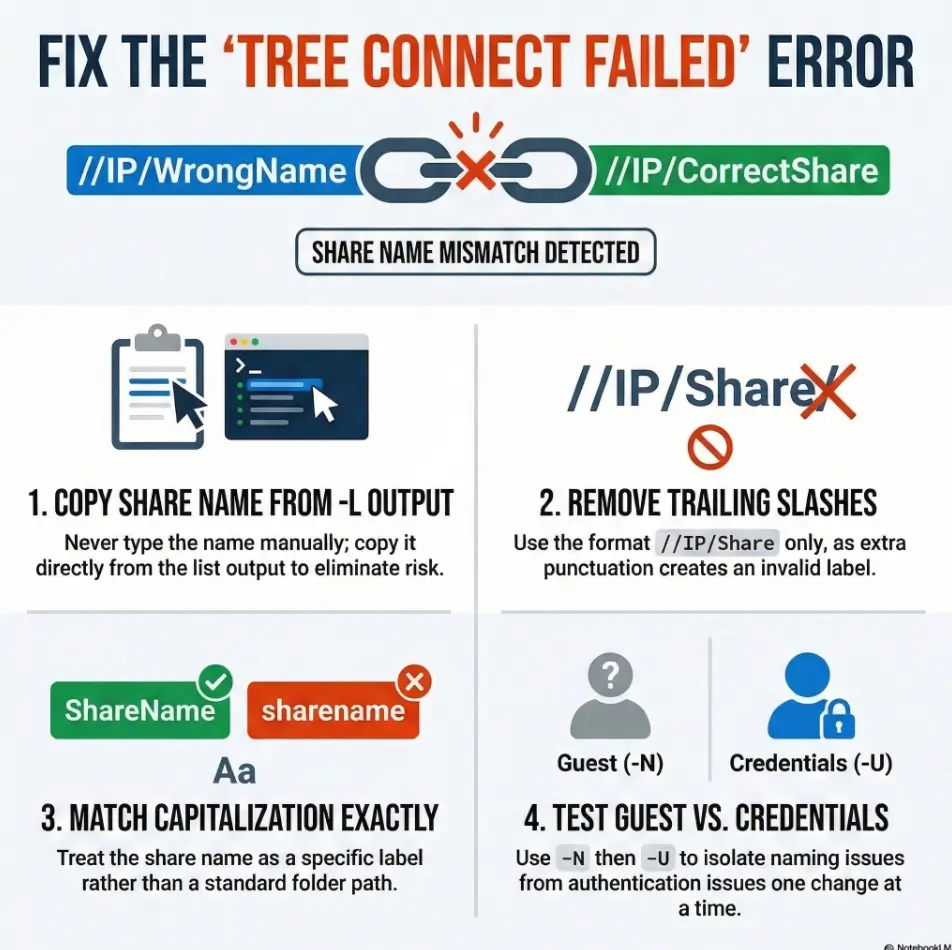
- Fix the share name first (exact copy from
-Loutput). - Remove trailing slash and weird punctuation.
- Only then test credentials and SMB dialect.
Apply in 60 seconds: Re-run smbclient -L, copy the share name with your mouse, and paste it into the connect command.
Tree connect failed: what it actually means (and what it doesn’t)
The SMB mental model: “server” vs “share” vs “path”
SMB has phases. You “meet” the server, you negotiate a dialect, you authenticate, then you ask to attach to a specific share. That attach step is the tree connect. If the server rejects that step, smbclient often compresses the whole tragedy into: tree connect failed.
That’s why this is so annoying: you can successfully list shares (which is a different request) and still fail when you try to mount a specific one. It’s like being able to read the restaurant menu outside, then being denied entry because you said the name wrong.
Why listing shares can work while connecting fails
- Share enumeration can be allowed for guest/anonymous, even if the share itself requires credentials.
- Enumeration might be answered by one service, while tree connect to a share is validated against a different rule set.
- On older targets, the server might be forgiving in listing output but strict on the tree label you request.
Quick decode: common failure flavors hidden behind one message
- Share name mismatch: wrong label, wrong case, extra slash, hidden whitespace.
- Auth mismatch: guest can list, but can’t enter.
- SMB negotiation mismatch: modern client defaults vs SMB1-only server behavior.
- Server-side restrictions: host allow/deny, user allow, or share-level ACLs.
Show me the nerdy details
In SMB, a “tree” is a logical connection to a shared resource (a share). Clients establish a session, then issue a Tree Connect request to access a specific share. If the server can’t resolve the share name, rejects access, or enforces restrictions, the tree connection fails even though the session may be valid.
Operator truth: in Kioptrix-style labs, the first two causes (name mismatch and “guest vs actual access”) account for most failures. Save the protocol gymnastics for after you’ve proven the string is clean.
Trailing slash traps: the one character that ruins your day
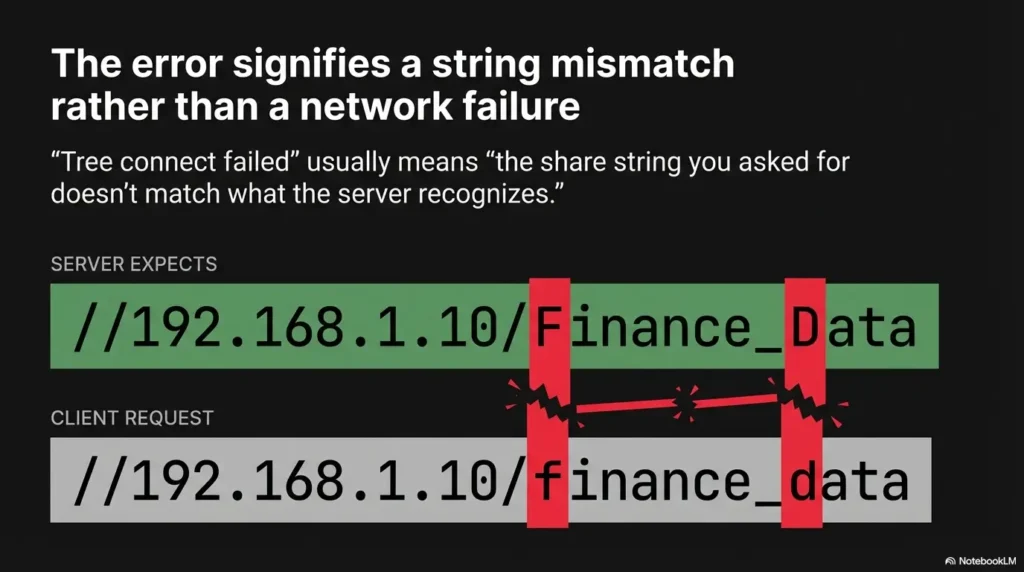
The classic foot-gun: //IP/share/ vs //IP/share
Use the documented service form '//server/share' for a clean baseline. A trailing slash is unnecessary, but its handling varies by client/version and it does not universally create a different Samba share. To browse a subdirectory, connect to the share and use cd; record the exact status before assigning the cause.
Copy/paste safe patterns
- Canonical target format:
smbclient //<IP>/<Share> - With explicit user:
smbclient //<IP>/<Share> -U username - Anonymous test:
smbclient //<IP>/<Share> -U '%' -N(no password prompt)
When quoting helps: spaces, special chars
If the share name includes spaces or characters your shell might interpret, quote the whole target string:
smbclient "//10.0.0.5/My Share"smbclient '//10.0.0.5/Weird$Name'
Micro-check: “If you typed it fast, you typed it wrong”
Do this tiny ritual: run smbclient -L, then drag-select the share name from output and paste. The mouse is boring, but it’s also loyal.
- Use
//IP/Share, not//IP/Share/. - Quote the whole
//IP/Sharestring when in doubt. - Copy from enumeration output instead of retyping.
Apply in 60 seconds: Remove the last character (the slash), re-run, and see if the error text changes.
Capitalization quirks: when TMP works but tmp doesn’t
Samba share names and case: why labs can be weird
Samba share section names are case-insensitive. Its filename case-sensitivity settings concern paths within the share, not the share label itself. Copying the published name prevents transcription mistakes, but changing TMP to tmp alone is not a demonstrated Samba access fix.
If your lab notes say “connect to tmp,” but enumeration prints TMP, trust the server output. Labs are full of little “gotchas” that aren’t vulnerabilities, just friction.
The “match exactly” rule (yes, even if it feels petty)
- Lift the share name directly from
smbclient -Loutput. - Match capitalization exactly:
//IP/TMPif it showsTMP. - Watch out for trailing spaces in copy/paste (rare, but I’ve seen it in hand-made lab configs).
Pattern interrupt micro-H3: Here’s what no one tells you…
Share labels and filesystem paths are separate. A published Samba share named TMP is matched without regard to case, while a directory inside it may follow different filename rules. If a wrapper changes the supplied service string, inspect that independently rather than attributing it to Samba share-name case.
Show me the nerdy details
Samba documents case-insensitive section names, and ordinary share sections define shared resources. Copy the published label to avoid typos, but do not use filename case rules as evidence that share names are case-sensitive.
Enumeration first, always: list shares like a forensic accountant
Minimal commands that remove guesswork
When you’re frustrated, your brain starts “helpfully” rewriting the target in your head. Don’t let it. Make enumeration output your single source of truth, then act like an accountant auditing a receipt.
smbclient -L <IP>smbclient -L <IP> -U '%' -N(anonymous/guest listing test)smbclient -L <IP> -U username(explicit credentialed listing test)
Don’t trust your memory, trust the output
- Share name: exact spelling and capitalization.
- Comment: sometimes reveals intent (public, printer, home dirs).
- Availability: does it show up consistently or only with auth?
Private vs public shares: what “hidden” sometimes looks like
“Hidden” can mean different things depending on server config and client behavior. In practice, in lab land, it often looks like:
- The share only appears with valid credentials.
- The share appears in the list, but tree connect fails unless you authenticate.
- You can tree-connect but can’t list directories (permission at root vs inside).
Quick operator habit: after you connect, always run a root listing immediately. If you can’t list anything, note whether the error is about listing or about the initial tree connect. They’re different doors. If you want a wider “do this first, every time” rhythm, borrow the skeleton from a fast enumeration routine for any VM.
Auth & guest confusion: “it listed shares, so why can’t I enter?”
Anonymous enumeration vs authenticated tree connect
This is the classic trap: listing shares works, so you assume access works. But SMB servers can allow share enumeration to anonymous users while requiring credentials to actually connect. So you get a list, pick a share, and… slam into tree connect failed.
Lived experience: this one gets people because it feels like the system is lying. It’s not lying. It’s being technically correct in the most emotionally damaging way.
Two clean test paths
1) Explicit anonymous attempt
Use -U '%' -N to submit an empty username and password. -N alone suppresses the prompt and does not select Anonymous; server mapping may still produce Guest:
smbclient //<IP>/<Share> -U '%' -N
2) Explicit credentialed attempt (and how to avoid shell history leaks)
Prefer interactive password prompts rather than embedding secrets in commands. For a lab, you might not care, but learning good habits early saves you later. If you’re curious why this matters, read up on bash and zsh history leaks.
smbclient //<IP>/<Share> -U username(then type password at prompt)
Micro-check: wrong user, right password still fails
Old Samba targets sometimes care about formatting. If the box is not a domain member, a “domain\user” format can confuse it. If it is using a workgroup name, you may need that prefix. The point is not to guess wildly, but to test formats cleanly, one variable at a time.
Money Block: Eligibility checklist (yes/no)
- Yes/No: Can you list shares with
smbclient -L <IP>? - Yes/No: Does the share appear without credentials (
-N)? - Yes/No: Does tree connect succeed with
-U username? - Yes/No: Does root listing work after connect (
ls)?
Neutral action: Write down which step flips from “works” to “fails” before changing anything else.
SMB dialect & old Samba: negotiate like you mean it
When the server is stuck in the past
Some Kioptrix-style targets behave like SMB time capsules. Modern clients may default to newer SMB dialects or stricter auth expectations. Older servers might only speak SMB1, or they might negotiate in a way that newer defaults don’t love.
Here’s the practical rule: do not reach for protocol forcing until you’ve cleaned the share string. Name mismatch issues are more common than dialect issues in beginner labs, and they’re faster to fix.
Symptom pattern: connects fail instantly after negotiation
If your error happens immediately and consistently across shares (or you can’t connect to anything even with correct names), then dialect becomes a more serious suspect. You’re basically translating between decades of SMB behavior.
Pattern interrupt micro-H3: Let’s be honest…
Half of “tree connect failed” is not hacking. It’s translation between eras. You’re not losing. You’re learning how old systems speak.
Show me the nerdy details
SMB dialect negotiation and authentication behavior can differ sharply between legacy Samba/SMB implementations and modern client defaults. When a server only supports older dialects, connection attempts may fail early or behave inconsistently across operations (like listing vs tree connect). Keep your troubleshooting loop strict: verify naming first, then isolate protocol-related changes.
Money Block: Decision card (When A vs B)
When it’s probably naming (A): You can list shares, but one specific share fails; error changes when you change case or remove a slash.
When it’s probably dialect/auth behavior (B): Everything fails consistently, even with copied share names; you see negotiation weirdness or blanket failures.
Neutral action: Classify your failure as A or B before you try new flags.
Commercial-entity signals (neutral, relevant): you’ll see these issues discussed across tooling like Kali (client defaults), Metasploit (auxiliary SMB modules), and documentation from organizations like Microsoft and Samba that describe SMB behavior and compatibility expectations.
Path & service mismatch: you’re asking for a share that isn’t real
The typo that looks correct: share vs folder
This is the other silent killer: you saw /tmp in a writeup, so you try //IP/tmp. But a share name is not “a folder on disk.” A share is a published service label. The server maps that label to some underlying directory (maybe /tmp, maybe not). You only get access through the published share name.
If the share label is TMP and its server-side path is /tmp, request '//IP/TMP'. Samba also accepts the case-equivalent label tmp; the server path /tmp is not itself a client service name.
“But I saw /tmp in the box writeup…”
Walkthroughs often collapse two different realities into one sentence: “There’s a share that maps to /tmp.” Your brain hears “the share is /tmp.” Your terminal then requests a share that doesn’t exist. Result: tree connect failed, and your confidence dissolves like sugar in hot coffee.
Sanity test: map the share, then list root
After a successful connect, immediately test root listing to prove you’re in the right tree:
- Connect:
smbclient //<IP>/<Share> - Then inside
smbclient:ls
Money Block: Coverage tier map (signal clarity tiers)
- Tier 1: Ports open (445/139 reachable).
- Tier 2: Share listing works (
-Lsucceeds). - Tier 3: Tree connect works (you enter the share).
- Tier 4: Directory listing works (
lsreturns items). - Tier 5: Write test works (only if you’re allowed).
Neutral action: Identify the highest tier you’ve reached before changing flags or credentials.
Common mistakes (the ones that waste 45 minutes)
Mistake #1: adding a trailing slash “because URLs do that”
SMB is not a URL. Treat the share name as a literal token. If you add a slash, you may be asking for a different token than the server published.
Mistake #2: changing capitalization “because Linux isn’t picky”
Files within a share can have case-sensitive behavior. Samba share labels themselves are case-insensitive; copy the label to avoid spelling errors rather than expecting a capitalization fix.
Mistake #3: treating a folder name like a share name
/tmp is a directory path. TMP is a share label. They might map to each other, but they are not the same concept.
Mistake #4: assuming guest == access
Guest enumeration is common. Guest access is not guaranteed. The server can let you peek at the lobby without letting you upstairs.
Mistake #5: hammering flags without re-checking the share string
Flags can help, but if your base string is wrong, you’re just decorating a broken request.
Don’t do this: “random-flag roulette” that muddies the signal
Anti-pattern: changing three variables at once
If you change share name case, add a workgroup option, and try a different username format all at once, your result is unreadable. You might “fix” it without learning why. Then the next target breaks and you’re back to superstition.
A cleaner loop: one change, one outcome
Use a tiny troubleshooting log. It feels slow. It’s actually faster, because it prevents you from repeating the same mistake in new costumes.
- Baseline: copied share name, no trailing slash, no quotes unless needed.
- Change 1: add quotes.
- Change 2: switch
-Nto-U user. - Change 3: only then consider dialect-related changes.
Money Block: Mini calculator (time-saved estimate)
Inputs (mental math is fine):
- Attempts so far: ____
- Average minutes per attempt: ____
- Clean-loop attempts (target): 4
Output:
Time you stop burning today: (attempts so far − 4) × minutes per attempt.
Neutral action: Commit to four clean attempts before you add any new tool.
It was a quiet Saturday lab session, the kind where you make tea, open a terminal, and promise yourself you’ll be “methodical.” I found the shares. Beautiful, clean output. One of them looked like the path I needed. I typed the connect command like I’d done a hundred times: smbclient //IP/share/. Instant failure. Again. And again.
I toggled usernames, guessed passwords, changed workgroups, muttered at my screen like it owed me rent. Forty minutes later, I re-ran -L just to “reset my eyes,” and I noticed the share name was uppercase and I’d added a trailing slash out of pure habit. I removed the slash, matched the case, and it connected immediately. The lesson wasn’t “be smarter.” The lesson was: when you’re frustrated, your fingers start freelancing. Don’t let them.
Proof-of-fix checklist: the 60-second “green lights” sequence
Step 1: confirm reachability and open SMB ports
You don’t need fancy. You need confidence. Confirm the target is reachable and SMB is actually listening. If SMB ports aren’t open, tree connect is not your problem.
Step 2: list shares and copy exact share name
Run smbclient -L, then copy the share name directly. This is the moment you stop improvising and start operating.
Step 3: connect with no trailing slash, exact case, quoted if needed
smbclient //<IP>/<Share>- If spaces/special chars:
smbclient '//<IP>/<Share>'
Step 4: list root and confirm permissions (read vs write)
Once connected, run ls at the root. If you can read, you’ve proven tree connect. If you can’t write, that may be expected. Don’t conflate “can’t write” with “can’t connect.”
- Green light #1: tree connect succeeds.
- Green light #2:
lsworks at root. - Green light #3: you can explain the result in one sentence (name vs auth vs dialect).
Apply in 60 seconds: After connect, run ls immediately and note whether it’s read, write, or neither.
Next step: one concrete action
Do this now (2 minutes)
- Run share listing, copy the share name exactly, then reconnect using
//IP/Sharewith no trailing slash, matching capitalization, and quote it if there are spaces. - Write down the exact error change (if any). That delta is your clue.
Money Block: Quote-prep list (what to capture)
- The exact share name as printed by
-L(including case). - Your exact connect command (sanitized if needed).
- Whether you used
-Nor-U. - The exact error text before and after your change.
Neutral action: Save these four lines in your notes before you try anything new.
FAQ
Why does smbclient -L show shares but connecting says “tree connect failed”?
Because listing shares and connecting to a share are different operations. Servers can allow enumeration to guest/anonymous users but require authentication (or stricter validation) for the tree connect step. Also, listing output can be forgiving while tree connect expects an exact share token.
Does a trailing slash really break smbclient share connections?
It can, especially on older Samba/SMB implementations and lab targets. The trailing slash may cause the request to reference a different share label than what the server published. Remove it first because it’s the fastest, cleanest variable to eliminate.
Are SMB share names case-sensitive in Samba?
Samba share section names are case-insensitive. The case sensitive setting applies to filenames inside a share. Copying the published label is useful for accuracy, but TMP versus tmp alone should not explain a Samba tree-connect failure.
What’s the difference between a share name and a folder path?
A share name is a published label on the SMB server. It maps to some underlying directory path on disk, but the label is what the client requests. You connect to //IP/SHARE, then you browse directories inside it. You don’t connect directly to /tmp unless the share label itself is literally tmp.
How do I connect to a share with spaces or special characters?
Use single quotes around the service, such as smbclient '//IP/My Share' or smbclient '//IP/Weird$Name'. Double quotes preserve spaces but still allow shell expansion of $variables, so they do not protect every literal share name.
When should I force SMB1 or change the SMB protocol version?
Only after you’ve proven the share token is correct (no trailing slash, exact case) and you’ve isolated authentication tests (-N vs -U). If everything fails consistently even with correct names, then dialect/compatibility becomes a reasonable suspect on legacy targets.
What credentials format should I try for old Samba or Kioptrix boxes?
Start simple: a local username with -U username. If the environment uses a workgroup/domain context, then try the workgroup-qualified format. The key is to change one format at a time and record which change affects the result.
Is “tree connect failed” always a permissions problem?
No. It can be permissions, but it’s very often a naming problem (wrong share label, wrong case, trailing slash) or an auth-context mismatch (guest can list but not enter). Prove the share token first, then prove auth, then consider dialect.
Conclusion
Here’s the loop you can trust when SMB starts gaslighting you: share string first (exact copy, exact case, no trailing slash), then auth context (guest vs user), then dialect/legacy translation. The curiosity loop from the hook closes here: that “mysterious” tree connect failed is usually not a dark art. It’s a literal-token mismatch or a lobby-vs-upstairs permissions boundary. Boring, yes. Also very solvable.
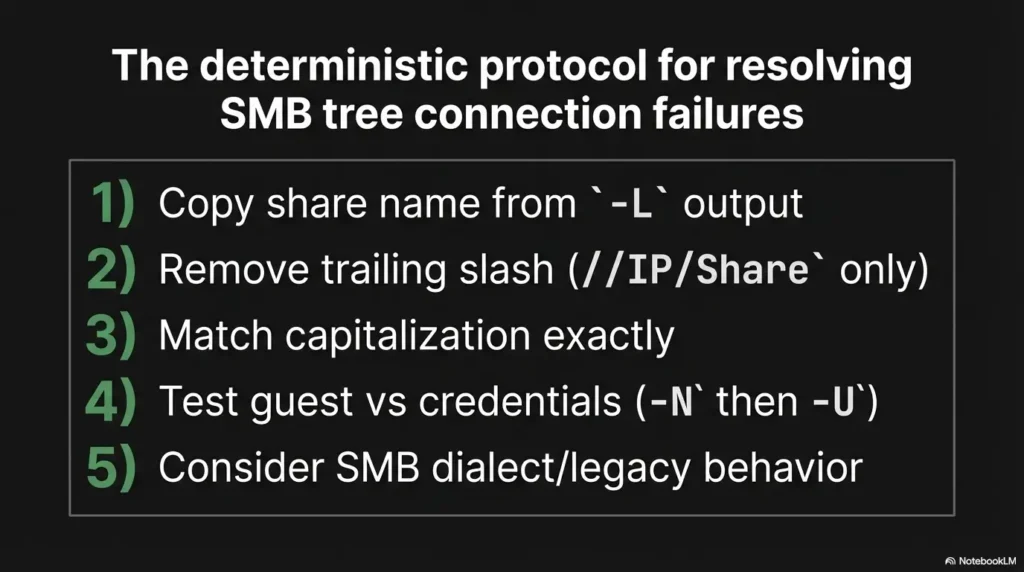
Infographic: The “Tree Connect Failed” Map
If you typed it, you invented risk.
//IP/Share only. No extra punctuation.
Treat it like a label, not a folder.
-N then -U. One change at a time.
Only after naming + auth are proven clean.
If you want a quick “next 15 minutes” win: re-run -L, copy the share name, remove the trailing slash, match case, and attempt -N then -U. If the error text changes, you’ve learned something real. If it doesn’t, you’ve still boxed the problem into a smaller, sharper shape. That’s progress you can cash.
Original review: 2026-03-01.
Technical guidance updated: 2026-10-13. Corrected Samba share-name case behavior, literal shell quoting, anonymous credentials and tree-connect error interpretation. A successful test after multiple changes does not establish that capitalization or a trailing slash caused the original failure.
Tree-connect single-change record
Use these fields to turn this guide into a record for your own task. Keep the actual scope, evidence and unresolved questions together.
On a small screen, scroll the table sideways to read all columns.
| Field | What to record | Your evidence / next check |
|---|---|---|
| Baseline request | Preserve the literal share token, quoting and session context. | To complete |
| First failure | Keep the exact status and failing operation. | To complete |
| Justified change | Record one input changed and the reason for that comparison. | To complete |
| Result boundary | State what the new result establishes and what remains uncertain. | To complete |
Next action: Retain the original request so a successful retry can be interpreted without guessing.
Related task: Use smbclient Lists Shares but Cannot Read Files for that separate part of the workflow.
Worksheet change record — October 20, 2026
Added four task-specific fields, a next action and a related guide. This is a blank editorial working aid, not a completed test or validated assessment. Existing source-review dates retain their own scope; this addition is not a new verification of every statement.