Open the practical working record for this guide’s task-specific fields and next action.
Contain a suspected secret without replaying it
Record the account, history source, access permissions and a redacted description of the suspected credential. Do not paste the value into notes or try it against another system merely to validate a leak. Ask the owner to revoke or rotate the credential and check known reuse locations through the incident process. History deletion cannot invalidate a credential already copied elsewhere. Bash history settings also do not control process arguments, audit collection or application logs. Source and scope.
The Invisible Debt: Triage and Hardening for Shell History Leaks
A credential leak doesn’t always arrive with fireworks. Sometimes it’s a tired one-liner—run once at 2:11 a.m.—that keeps paying interest in the worst possible way.
Bash/Zsh history leaks are accidental exposures of secrets—passwords, API keys, tokens, or SSH material—that get saved in shell history files like ~/.bash_history or ~/.zsh_history. Because history preserves real operator behavior, it often reveals “human shortcuts” long after everyone forgot they happened.
If you’re triaging a Kioptrix-style lab box or an authorized production incident, guessing is the expensive path. You risk misreading empty history as “clean,” missing service-account trails, or rotating a secret without finding where it was actually reused.
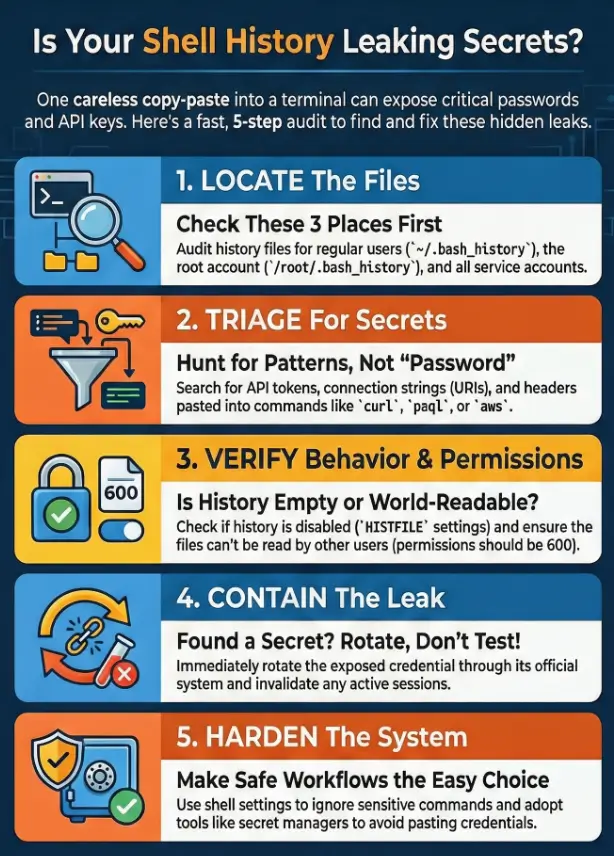
This post gives you a 10–15 minute, operator-grade workflow: fast triage first, proof second, and hardening that reduces repeat leaks without breaking productivity. It’s evidence-minded, scope-respecting, and built for the moment you’re busy and still need to be right.
Then harden the defaults—so copy-paste stops being a risk.
~/.bash_history, ~/.zsh_history, /root/.bash_history, and any service accounts.
Then verify whether history is being written safely (permissions, HISTFILE, timestamps, and ignore rules).
If you find real secrets, rotate them via the system of record and harden shell settings so the leak can’t happen again.
Table of Contents
Who this is for / not for
Who this is for
- Blue team and SOC analysts doing post-incident triage
- Pentest learners using Kioptrix for OSCP-style practice working only inside a legal lab (Kioptrix-style boxes, CTFs you’re allowed to touch)
- Sysadmins hardening multi-user Linux hosts where “someone copied a token once” becomes “everyone gets paged”
Who this is not for
- Anyone attempting unauthorized access to systems you don’t own or don’t have explicit permission to test
- People looking for “quick hacks” instead of a defensible audit trail
- Start with the highest-signal files first.
- Confirm history behavior before drawing conclusions.
- Rotate real secrets instead of “testing” them.
Apply in 60 seconds: Identify the current shell and the active HISTFILE for your user.
Start here: “history is the crime scene”
What you’re actually hunting for (in plain English)
- Secrets typed: passwords, API keys, JWTs, session tokens
- Secrets pasted into commands:
curl,wget,psql,mysql,aws,kubectl - Private material: SSH private keys,
.pemfiles, clipboard dumps
The useful mindset: you’re not “searching for passwords.” You’re searching for human shortcuts. And humans love shortcuts—especially when the build is failing, the ticket is urgent, and someone says, “Just run this one command.”
Micro-check: “Did someone paste a whole config?”
- Long base64-like strings, JSON blobs,
-----BEGINblocks - Anything that looks like an env export:
export KEY=... - Connection URIs that include credentials (they won’t always look like “password”)
- Yes/No: Do you have written permission (or a lab scope) for this host?
- Yes/No: Are you collecting evidence for IR, not “trying things” live?
- Yes/No: Can you rotate secrets quickly if you find them?
Neutral next action: If any answer is “No,” pause and get scope + a rotation plan before you dig deeper.
Show me the nerdy details
History leaks often correlate with high-friction workflows. When secret management is slow, people paste tokens into commands. This is why CIS-style hardening and least-privilege policies matter, but also why developer experience matters: safer defaults beat perfect rules.
Bash history triage: what to audit first (and why)
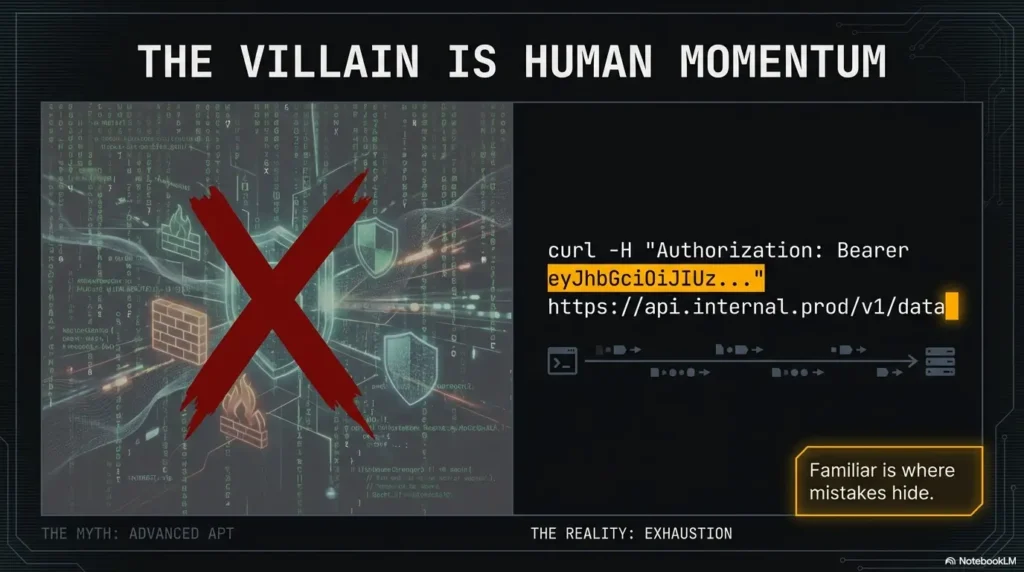
Bash is the default shell on a lot of Linux boxes, and its history behavior is familiar enough that people stop thinking about it. That’s the trap. Familiar is where mistakes hide.
The big three files people forget
- User:
~/.bash_history - Root:
/root/.bash_history - “Ghost” history files from backups/cloned home directories (old dotfiles, copied user profiles)
High-signal command patterns (the ones that leak the most)
ssh,scp,rsyncused with inline secrets or key pathsmysql,psql,mongoshwith connection strings (often includes usernames and hostnames)curl/wgetwithAuthorization:headers, tokens in query params, or pasted JSON payloads
Let’s be honest…
Most leaks aren’t “advanced.” They’re one exhausted copy-paste at an ugly hour. The command works, the ticket closes, everyone moves on. Then history becomes a time capsule of your worst five seconds.
- Audit user + root history, not just “your” account.
- Look for patterns, not keywords.
- Keep context: surrounding lines often tell you what the secret was used for.
Apply in 60 seconds: If you spot a suspicious command, capture 5–10 lines around it for context before taking action. (If your initial service discovery seems weird, sanity-check scans for Nmap -sV service detection false positives and revisit easy-to-miss Nmap flags before you assume the host is “lying.”)
Zsh history isn’t Bash history (and that matters)
Where Zsh hides the good stuff
- Common:
~/.zsh_history - Also possible: a custom
HISTFILEpath configured in dotfiles - Framework-installed configs (common with popular Zsh setups) can modify history behavior without much ceremony
Why Zsh can be more revealing than Bash
- Extended history can include timestamps and command metadata
- Options like
INC_APPEND_HISTORYcan write mistakes sooner than you think - Multiple shells may share history (useful for reconstruction, risky for privacy)
Here’s what no one tells you…
Dotfile repos can “optimize” history for convenience. That’s not evil. It’s just… incomplete. If the setup improves productivity but ignores secret hygiene, you get faster work and a bigger blast radius.
Show me the nerdy details
In Zsh, history-related options determine not only what gets written, but when and how it’s merged across sessions. That affects incident timelines. If history is appended incrementally, you’ll see mistakes near-real-time. If it’s buffered until logout, you may see “missing time” that looks like tampering but is just session behavior.
The “history settings” audit: prove whether leaks are likely
Before you celebrate (or panic), confirm how history is configured on this host. Otherwise you’ll misread an empty file as “clean,” or misread a short file as “someone scrubbed it.”
Check whether history is being written at all (or redirected)
HISTFILE,HISTSIZE,HISTFILESIZE- Shell framework or dotfile manager settings
- Multiple shells (Bash login shell vs Zsh interactive shell)
Check whether secrets are supposed to be excluded
- Bash:
HISTCONTROL(e.g., leading-space suppression) and ignore behaviors - Bash:
HISTIGNORErules (pattern-based ignores) - Zsh: ignore/trim options that shape what makes it into the file
Curiosity gap: “Why is history empty?”
Empty history can mean good hygiene. It can also mean someone disabled history for speed… or for cover. Don’t guess. Verify configuration and session behavior first.
Add 1 point for each “Yes.” Total your score and use it to prioritize.
- Yes: Multiple users share the host.
- Yes: Service accounts exist (deploy/CI/cron users).
- Yes: History files are readable beyond the owner.
- Yes: You see frequent
curl/wget/sshusage in history. - Yes: Tokens/headers/URIs appear in command lines.
- Yes: History is merged across sessions or appended instantly.
- Yes: There’s no clear secret-management workflow.
- Yes: History appears empty without an obvious config reason.
- Yes: Past incidents or “mystery logins” have happened here.
Neutral next action: Score ≥5? Focus on rotation readiness and containment steps before deep parsing.
Permissions & ownership: the quiet leak nobody notices
What “good” looks like
- History files readable only by the owner (commonly
600) - Home directories not broadly readable in shared environments
- Clear boundaries between human users and service accounts
Red flags
- History files world-readable or group-readable without strong justification
- Shared accounts where multiple people write to the same history
- Root history stored where non-root users can read it
Quick gut-check: If you wouldn’t paste an API key into a public Slack channel, you shouldn’t leave it in a file other users can read.
- Validate owner + permissions before deep inspection.
- Assume service accounts are the first place hygiene breaks.
- Think “who can read this,” not only “what’s inside.”
Apply in 60 seconds: Confirm the history file isn’t readable by unintended users. (If you’re tightening access broadly, align it with Kali SSH hardening basics so “quick fixes” don’t accidentally create new lockouts.)
Timeline reconstruction: make history useful in incident response
If you’re doing incident response, history isn’t only “what happened.” It’s also when the secret first appeared, and whether it got reused later. That second part—the reuse—often determines how ugly the cleanup becomes.
When timestamps exist (Zsh, or Bash with configuration)
- Use timestamps to correlate with auth logs and process activity
- Identify the “credential moment”: first appearance of a token, then subsequent use
- Look for patterns: the same endpoint hit repeatedly, the same host accessed, the same tool invoked
Curiosity gap: “Was the secret reused later?”
The real risk isn’t the pasted secret. It’s the trail it leaves behind: which services it touched, which machines it reached, which accounts it unlocked. This is where frameworks like NIST incident handling guidance helps—not because it’s fancy, but because it forces a sequence.
If you want those correlations to hold up under pressure, you’ll get cleaner results when you pair history review with disciplined host-side evidence capture—especially Kali Linux lab logging that preserves timelines.
Service accounts & non-human users: history you’re not checking (but should)
Service accounts are where “temporary” becomes permanent. CI/CD runners, deployment users, and cron-maintained accounts often have just enough access to be dangerous—and just enough neglect to keep secrets around.
Where service accounts leave trails
/home/<svcuser>/history files- Build runner directories and deploy user homes
- Hidden “ops” accounts that exist only for automation
Curiosity gap: “Which account did the deploy actually use?”
The account that owns the app is often not the one that deployed it. If you only audit the “app owner,” you miss the actual operator.
Show me the nerdy details
Service accounts can accumulate credentials through interactive maintenance sessions, explicitly enabled history, or deployment tooling that logs commands. Standard non-interactive Bash/Zsh scripts do not normally write interactive shell history, but their output and custom logs can still expose secrets. Review the actual logging configuration.
In a Kioptrix-style workflow, it’s worth practicing how you’d pivot from “I found something” to “I can prove what it enables.” That’s where a simple, repeatable escalation baseline like the Kioptrix Level 1 privilege escalation checklist helps you stay methodical instead of reactive.
Common mistakes (credential hunting edition)
Mistake #1: Grepping only for “password”
Leaks often look like tokens, headers, base64 chunks, or connection URIs—not the literal word “password.” If you only search for one keyword, you’ll miss most of the real exposures.
Mistake #2: Treating one history file as “the truth”
Multiple shells, multiple users, multiple machines, and copied home directories can all create multiple “truths.” History is a record of behavior, not a single authoritative log.
Mistake #3: Reading without preserving context
A single suspicious command can be meaningless without the lines before and after it. Context tells you whether a token was used once, reused repeatedly, or embedded into a workflow.
Mistake #4: Forgetting root and sudo boundaries
A user’s history and root’s history can tell different halves of the same event. If you only read one, you only get half the story.
- Verify shell + history settings first.
- Expand your search beyond obvious keywords.
- Keep context so you can defend your conclusions.
Apply in 60 seconds: If history looks “too clean,” check whether history is disabled or redirected.
What to do if you find credentials (the containment sequence)
If you find real credentials in history, your job changes. The goal is no longer “interesting discovery.” It’s containment and reduction of harm. And yes—this is where people make the worst mistake: they “test” the secret to see if it works.
Confirm exposure, then rotate (don’t “test it” recklessly)
- Document what you found while minimizing copies
- Rotate passwords/tokens/keys via the system of record (not by guessing)
- Invalidate sessions where possible
Look for downstream blast radius
- Same token reused across services
- SSH keys present on multiple hosts
- Database creds reused in scripts and cron jobs
A practical note: if you’re in a lab like Kioptrix, rotation may be simulated or out of scope. In real environments, rotation is the difference between “this was a mistake” and “this becomes a breach.” Tools and frameworks like NIST incident response guidance exist because humans under stress tend to skip steps.
- If the secret grants broad access.
- If you can’t quickly confirm reuse paths.
- If exposure likely extended beyond the host.
- If rotation will break critical systems.
- If you have monitoring and containment in place.
- If you can map reuse paths within hours.
Neutral next action: Choose a path, write it down, and assign an owner for verification.
In training environments, it can help to practice the “containment mindset” alongside a structured exploitation-to-escalation flow like RCE shell to privesc fundamentals, so your instincts stay procedural under stress.
Harden so it doesn’t happen again (without breaking workflows)
Hardening isn’t about punishing people for being human. It’s about making the safe path the easy path—especially for time-poor teams. This is where standards bodies (CIS benchmarks), operational guidance (NIST), and community security practices (OWASP) point in the same direction: reduce secret exposure by default.
Safer shell history defaults
- Limit what gets saved (use ignore patterns for sensitive commands where appropriate)
- Prefer workflows that avoid inline secrets (environment injection, secret managers, ephemeral creds)
- Review dotfiles and frameworks that modify history behavior silently
Training the team: two rules that prevent most leaks
- Don’t paste secrets into one-liners (especially not in shared terminals or recorded sessions)
- Don’t store secrets in shell variables in shared sessions
One more small, honest confession: even good teams slip when the incident clock is running. So build guardrails for the “bad day,” not the perfect day.
If your team lives in Zsh day-to-day, the most painless way to harden behavior is to start from a known-good baseline and then add guardrails—especially if you’re already using a dotfiles framework. A practical starting point is a Zsh setup for pentesters that keeps history usable but safer.
FAQ
1) Where is Bash history stored on Linux?
Most commonly in ~/.bash_history for a user and /root/.bash_history for root, but the actual location can change if HISTFILE is set.
Always confirm the active HISTFILE for the current shell session.
2) Where does Zsh store command history?
Often in ~/.zsh_history, but Zsh can write to a custom file if configured.
Dotfiles or shell frameworks frequently change history options, so verify HISTFILE and history-related options.
3) Why is my .bash_history empty even though I ran commands?
Common reasons include history disabled, history written only on logout, history redirected to a different file, or a non-interactive shell. Don’t assume tampering—confirm configuration and session behavior first.
4) Can other users read my shell history?
Review file ownership, mode, ACLs, parent-directory traversal and privileged access together. A broadly readable home directory does not by itself expose a mode-600 history file. The current shell’s HISTFILE setting also does not establish another account’s or a previous session’s history path.
5) Does sudo write commands into root’s history or my user history?
It depends on how shells are invoked and configured. In many cases, you’ll see commands in the invoking user’s history, while root’s history captures activity when an interactive root shell is used. For investigations, treat user and root histories as complementary.
6) How do I exclude commands from being saved in history safely?
Use shell-supported ignore behavior carefully (patterns and rules), and prefer workflows that don’t place secrets on the command line in the first place. The strongest fix is changing how secrets are supplied, not hoping history ignores everything.
7) What command types most commonly leak credentials?
High-risk patterns include commands that embed headers, query strings, connection URIs, or inline secrets—commonly curl, database clients, cloud CLIs, and ad-hoc SSH usage.
Look for tokens and URIs, not just “password.”
8) If I find a token in history, what should I do first?
Treat it as sensitive. Minimize copying, record the surrounding context, and follow your organization’s rotation and incident process. Avoid “testing” it; rotate and invalidate access paths through the proper systems.
Next step
Do a 10-minute “history-first” audit on your Kioptrix box (or any authorized lab host): locate user + root + service account history files, confirm permissions, and inventory lines that contain tokens/keys/connection strings. Then practice the containment mindset: if it were real, what would you rotate first, and how would you confirm reuse paths?
- Minute 1–3: Identify active shell and confirm
HISTFILE - Minute 4–7: Review user + root history for high-signal command patterns
- Minute 8–10: Check service account homes and validate permissions
Conclusion
Remember the open loop from the start—“Why is history empty?” Now you can answer it without guessing. Empty can mean “hygienic,” “buffered,” “redirected,” or “disabled.” Your job is to prove which one it is.
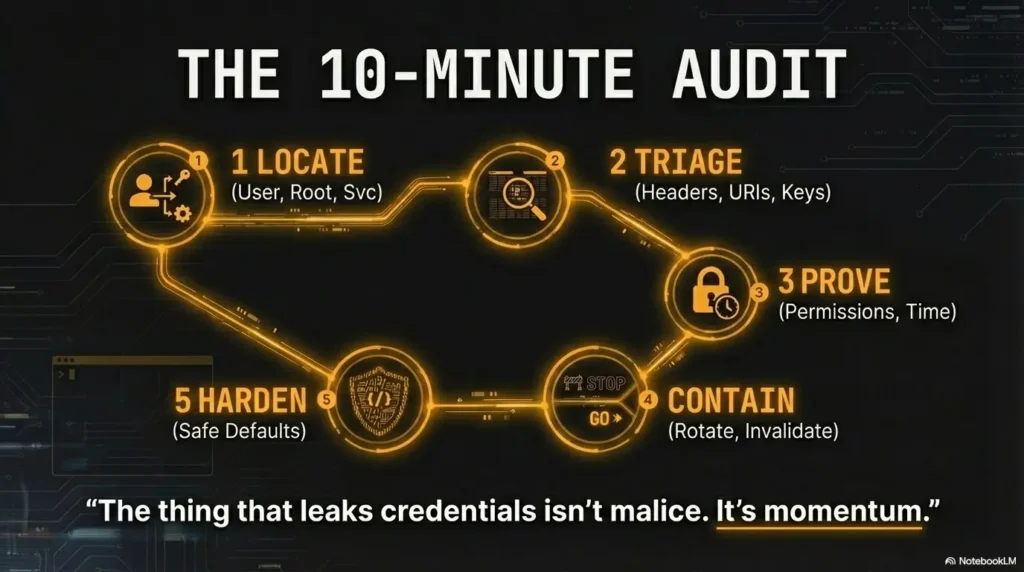
If you do only one thing today: stop treating history as an afterthought. Treat it as a habit record. Because the thing that leaks credentials isn’t malice. It’s momentum.
User, root, service accounts. Confirm the active HISTFILE.
Scan for high-signal patterns: headers, URIs, keys, DB clients.
Is history appended instantly, merged, redirected, or disabled?
If secrets exist: rotate, invalidate, and confirm reuse paths.
Safer defaults + better workflows so copy-paste stops being a risk.
Tip: The fastest audits follow the map left-to-right. The cleanest teams repeat it quarterly.
Original review: 2026-01.
History is not a tamper-proof audit log. Standard non-interactive Bash/Zsh scripts do not normally save interactive shell history; service-account history usually comes from an interactive session or explicitly enabled/custom logging. An empty history file does not establish clean behavior. File mode 600 protects against ordinary unintended readers, but a broadly readable home directory alone does not make a 600 file readable; ACLs, ownership, and privileged access also matter.
Leading-space suppression is conditional: Bash needs an appropriate HISTCONTROL setting, and Zsh needs HIST_IGNORE_SPACE. Neither guarantees the secret is absent from audit logs, process arguments, recordings, or other copies. Prefer a tool’s prompt or protected credential source. Environment variables are not a secrecy guarantee, and deleting a history line does not revoke an exposed credential. See the Bash history documentation.
Technical guidance updated: 2026-10-13. Clarified non-interactive history behavior, file-permission limits, and why ignore rules or environment variables do not guarantee secret protection.
History exposure response card
Use these fields for your own task. Keep the actual conditions, evidence and unresolved questions beside the next decision.
On a small screen, scroll the table sideways to read all columns.
| Field | What to record | Your evidence / next check |
|---|---|---|
| Exposure source | Record account, history location and access scope without the secret. | To complete |
| Containment owner | Assign credential revocation or rotation through the agreed process. | To complete |
| Other copies | Identify known reuse and retention locations for owner review. | To complete |
| Evidence handling | Keep redacted notes separate from restricted originals. | To complete |
Next action: Do not replay a suspected credential merely to prove that a history value is sensitive.
Related task: Use Kali Lab Logging: Journal Persistence and Audit Scope for that separate part of the workflow.
Worksheet change record — October 20, 2026
Added four task-specific fields, a next action and a related guide. This is a blank editorial working aid, not a completed test or validated assessment. Existing source-review dates retain their own scope; this addition is not a new verification of every statement.