

Kali Dual Boot: Fix GRUB After Windows Update
If your laptop started booting straight into Windows after a patch, this guide is built for that exact cold-stomach moment. The pain is modern and specific: Windows Boot Manager suddenly autoplays, your firmware “forgets” Kali, and every random command you find online feels like it could make things worse.
Keep guessing and you risk turning a simple UEFI pointer problem into a real recovery project—lost time, broken boot, or a BitLocker surprise. You’ll learn the least invasive path first, then the controlled repair that works when the easy win fails—so you can restore a clean GRUB menu without reinstalling or touching partitions.
\EFI\Microsoft\, and GRUB typically lives under \EFI\kali. If the ESP is intact, recovery is usually straightforward.
This walkthrough sticks to a calm operator rhythm: verify, mount, chroot, reinstall—then prevent the repeat.
When Windows Update “removes” Kali from boot, your data is usually still there—Windows often just resets the UEFI boot order back to Windows Boot Manager. The fastest no-data-loss fix is to boot a Kali Live USB in UEFI mode (even on Secure Boot systems), mount your Linux root and the EFI System Partition, chroot, reinstall GRUB (UEFI), and rebuild the config. If GRUB still won’t show, restore the EFI entry/boot order with efibootmgr.
Assumptions (US + intent + risk): US Windows 10/11 laptop user with Kali + Windows UEFI dual boot; Windows Update now boots straight to Windows; intent = restore GRUB without reinstalling or losing files; risk = moderate (wrong mode/mount can break boot).
Table of Contents
GRUB vanished? Start here (60 seconds)
If your laptop boots straight to Windows after a Windows Update, you don’t need a philosophy degree. You need a fast diagnosis. The goal of this section is to stop you from doing the one thing people do in panic: “random command roulette.”
- Boots straight to Windows: likely UEFI boot order or default entry changed.
- GRUB shows but Kali won’t boot: likely config/UUID/kernel mismatch.
- grub rescue / blank screen: likely GRUB can’t find its files or the ESP isn’t being used.
Apply in 60 seconds: Write down which of the three symptoms you see before you touch anything.
Boots straight to Windows (most common)
This is the “Windows Boot Manager took the wheel” scenario. Your Kali partitions are usually fine. Windows is simply first in line. Think of it like a playlist: your GRUB track still exists, but Windows set itself to autoplay.
GRUB shows but Kali won’t boot
This looks scarier because you see GRUB, but Kali errors out. Common culprits: root partition UUID changed, the initramfs/kernel entry is stale, or GRUB config wasn’t rebuilt after a change.
grub rescue> / blank screen / “no bootable device”
This is the “GRUB can’t find home” scenario. It can still be recoverable, but you’ll want the most careful path: verify partitions, verify UEFI mode, then repair in a controlled way.
Mini gut-check: If Windows boots normally and your disk still appears in UEFI, you’re usually not dealing with data loss. You’re dealing with boot choreography.
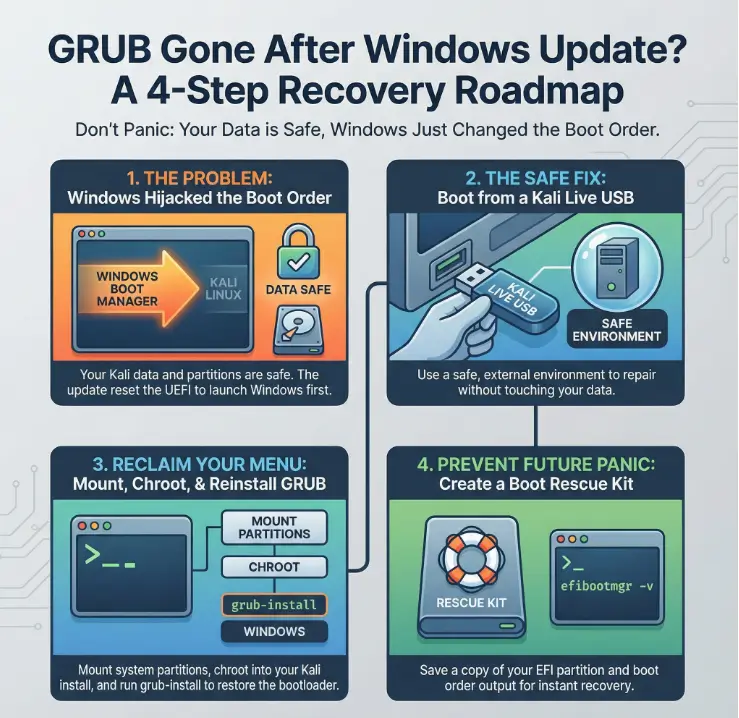
Data-safe proof first (don’t touch partitions yet)
Before we “fix” anything, we prove two things: (1) your Linux partitions still exist and (2) you’re booted the Live USB in the same mode your system uses—almost always UEFI on modern Windows 10/11 laptops in the US.
Confirm Kali partitions exist (Live USB)
Boot a Kali Live USB that you know boots reliably in UEFI (or any trusted Linux live environment). Then identify your disks and partitions. You’re looking for:
- The Linux root partition (often ext4)
- The EFI System Partition (ESP): FAT32, typically 100–500MB, often labeled “EFI”
Show me the nerdy details
On a UEFI system, the ESP is where bootloaders live as files (not magic). Windows has \EFI\Microsoft\Boot\.... GRUB usually lives under \EFI\kali or a similar folder. If the ESP is intact, your odds are good.
Confirm you booted the Live USB in UEFI mode
This matters more than people admit. A Live USB can boot in UEFI mode or Legacy/CSM mode depending on your firmware menu choice. If you repair GRUB in the wrong mode, you can create a mismatch that wastes an afternoon.
Let’s be honest…
If you repair GRUB in the wrong mode, it can feel like the laptop is “possessed.” It’s not. It’s just booting a different rulebook than the one you repaired.
Quick operator tip: In many boot menus you’ll see two entries for the same USB, one prefixed with “UEFI:”. Choose that one.
Money Block: Eligibility checklist (yes/no)
- Yes: Windows still boots normally → good sign for disk health.
- Yes: You can see Linux partitions from Live USB → likely no data loss.
- Yes: You can identify an EFI System Partition (vfat/FAT32) → recovery is usually straightforward.
- No: Disk not detected in UEFI/BIOS → stop and check hardware/firmware first.
Neutral next action: If you answered “Yes” to the first three, proceed to the EFI explanation and decision tree.
The real culprit: the tiny EFI menu Windows rewrites
This is the section most install guides don’t emphasize—because they’re focused on getting dual boot set up, not rescuing it after an update.
What Windows Update typically changes
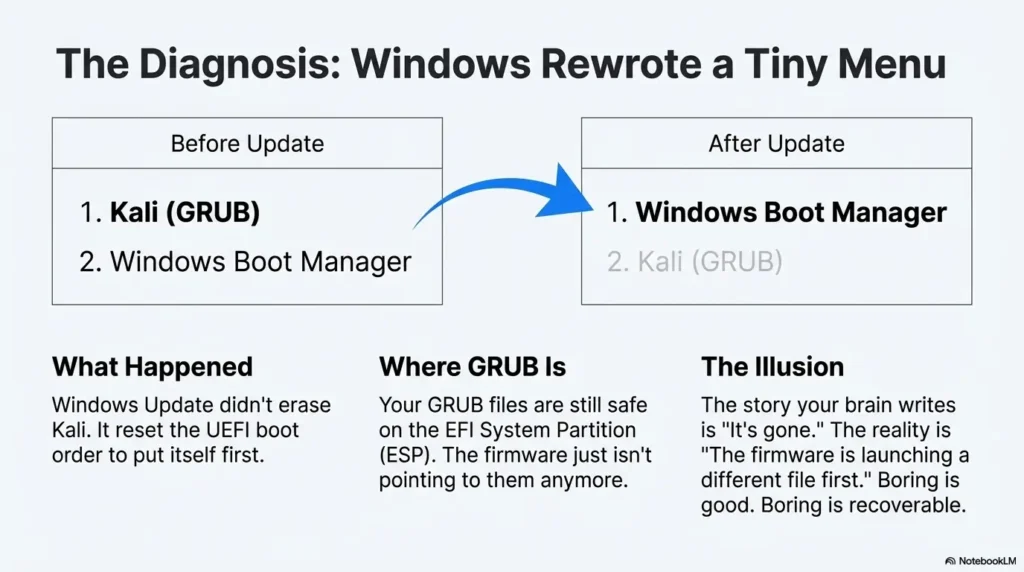
On UEFI systems, Windows updates can reset the default boot entry to Windows Boot Manager and push it to the top of the boot order. That’s why GRUB “vanishes” even though nothing on your Linux filesystem changed.
Where GRUB is usually still sitting
GRUB isn’t a mystical creature. It’s usually a set of files on the EFI System Partition. Your Kali installation can be perfectly healthy while the firmware simply stops pointing to GRUB first.
The “missing OS” illusion (boot path ≠ disk erased)
A lot of fear comes from the story your brain writes in two seconds: “It’s gone.” But the more common story is boring: “The firmware is launching a different file first.” Boring is good. Boring is recoverable.
Show me the nerdy details
Why this happens: UEFI uses NVRAM boot entries that point to an EFI executable on the ESP. Windows tends to ensure its entry remains present and preferred. Restoring GRUB is often restoring that pointer and the boot order.
Choose your fix path (decision tree, 3 minutes)
We’ll keep what the best guides get right—caution, UEFI awareness, step-by-step clarity—while switching the framing from “install Kali” to “recover GRUB after Windows Update.”
Money Block: Decision card (When A vs B)
When A (Boot order fix) is best: Kali still exists, Windows just hijacked the default boot entry.
- Fastest: often 2–5 minutes
- Lowest risk: no filesystem changes
- Best symptom match: boots straight to Windows
When B (Reinstall GRUB) is best: GRUB entry is missing/corrupt or GRUB loads but can’t find Kali.
- Still safe if done carefully
- Fixes more scenarios at once
- Best symptom match: grub rescue or broken Kali boot
Neutral next action: Pick A or B based on your symptom, then follow the matching section exactly.
If Kali entry still exists in UEFI → reorder first
If you can see a Kali/GRUB entry in your firmware boot list, you may only need to move it above Windows Boot Manager. That’s the least invasive win.
If Kali entry is gone → reinstall GRUB (UEFI) from Live USB
This is the “repair from outside” route. It feels scarier, but it’s predictable when you mount the right partitions and stay in UEFI mode.
If Secure Boot is on → expect one extra step
Secure Boot can block unsigned bootloaders. Depending on your setup, you might need to disable Secure Boot temporarily or use a signed shim/MOK workflow. Choose the least disruptive option your machine supports.
The “7 scary minutes” fix (Live USB → mount → chroot → GRUB)
This is the fix I use when I want one controlled path that works across most UEFI dual-boot breakages. The rhythm is simple: boot Live USB, mount your installed system, chroot in, reinstall GRUB, rebuild config, reboot.
Mount the right partitions (root + EFI System Partition)
Identify partitions, then mount your Kali root partition to /mnt and the ESP to /mnt/boot/efi.
lsblk -f
# Look for:
# - Linux root partition (ext4) e.g., /dev/nvme0n1p6
# - EFI System Partition (vfat/FAT32) e.g., /dev/nvme0n1p1
sudo mount /dev/<YOUR_LINUX_ROOT> /mnt
sudo mkdir -p /mnt/boot/efi
sudo mount /dev/<YOUR_EFI_PARTITION> /mnt/boot/efichroot without skipping the bind mounts
for i in /dev /dev/pts /proc /sys /run; do sudo mount --bind $i /mnt$i; done
sudo chroot /mnt /bin/bash
Reinstall GRUB for UEFI, then regenerate config
# Inside chroot
grub-install --target=x86_64-efi --efi-directory=/boot/efi --bootloader-id=Kali
update-grub
# or:
grub-mkconfig -o /boot/grub/grub.cfg
Here’s what no one tells you…
A “successful” GRUB install can still be useless if the EFI partition wasn’t mounted. GRUB writes into a directory that looks correct but isn’t actually the ESP. Mounting the ESP correctly is the difference between “7 minutes” and “7 tabs of doom.”
Show me the nerdy details
Why chroot works: it uses your installed system’s libraries and tools, so GRUB is installed and configured in the environment it will actually boot from. It’s less brittle than hand-editing from the outside.
Boot order surgery (efibootmgr: the quiet win)
If your system boots straight to Windows, this section can be the whole fix. You’re not reinstalling anything; you’re telling UEFI which entry should launch first.
Read current boot entries safely
sudo efibootmgr -vSet GRUB/Kali first (and keep Windows chainloadable)
# Example only: replace with your Boot numbers
sudo efibootmgr -o 0003,0001
If the entry is missing: recreate or use a fallback strategy
If Kali’s entry is missing, the chroot reinstall usually recreates it. If not, you may need to add an entry pointing to GRUB’s EFI binary on the ESP. This is where careful beats clever.
- Minimal risk: no partition changes.
- Fast: often under 5 minutes.
- Reversible: you can always put Windows first again.
Apply in 60 seconds: Run efibootmgr -v and save the output in a stress-proof note before changing anything.
If you land in grub rescue (escape hatch, minimal damage)
The grub rescue> prompt feels like a horror movie because it’s silent and unhelpful. But it’s also honest: GRUB can’t find what it expects. The goal is to boot once, then repair permanently.
Identify root/prefix, load normal, boot once
- List partitions from GRUB
- Find the partition that contains
/boot/grub - Set
rootandprefix, load the normal module, boot
Operator mindset: This is a bridge, not a home. Boot once, then reinstall GRUB properly.
After boot: reinstall GRUB properly (don’t live in rescue mode)
Once you boot into Kali, use the chroot method or a standard reinstall to make the fix permanent.
BitLocker + Fast Startup (the two Windows gotchas)
Two Windows features can complicate an otherwise clean boot fix: BitLocker and Fast Startup. Neither is “bad.” They’re just built for a single-OS world, and dual-boot is not that world (a hybrid setup can be calmer).
If BitLocker is enabled: what changes (and what doesn’t)
BitLocker may prompt for the recovery key if it detects boot environment changes. Make sure you can access your recovery key before you alter boot settings.
Fast Startup: why it makes Linux-side disk work riskier
Fast Startup can leave Windows partitions in a hibernation-like state. Accessing Windows partitions from Linux in that state can risk corruption. If you’re doing disk-level changes, disable Fast Startup first.
Money Block: Prep list (what to gather before you start)
- Your disk layout output (
lsblk -f) - Your UEFI boot entries output (
efibootmgr -v) - If applicable: BitLocker recovery key access
- A tested Live USB
Neutral next action: Save these in a text file so you don’t re-discover them under stress.
Common mistakes that cause real loss (read before commands)
Most “data loss” moments happen after the update—during the panic. This is where you avoid turning a boot fix into a recovery project.
Mistake #1: Reinstalling Kali “because it’s faster”
Reinstall feels decisive, but it’s also how people overwrite partitions or wipe the wrong target. If your goal is no-data-loss recovery, start with boot order and GRUB repair first.
Mistake #2: Installing GRUB in Legacy mode on a UEFI install
Repairing in the wrong mode creates a mismatch. The commands “work,” but the firmware won’t use what you installed.
Mistake #3: Mounting the wrong root/ESP (the UUID mismatch trap)
On NVMe drives, partition names look similar. Verify by filesystem type and size. Don’t guess.
Mistake #4: Formatting “free space” or the ESP by accident
Free space should stay free until you intentionally allocate it. The ESP is a shared critical partition—don’t treat it like a disposable scratch disk.
- Verify UEFI mode.
- Verify which partition is the ESP.
- Capture a “before” snapshot (screenshots or text outputs).
Apply in 60 seconds: Say the partition names out loud before mounting them.
Make this a one-time scare (prevention kit)
The goal isn’t “never update Windows.” The goal is to make recovery so boring you don’t even break a sweat next time.
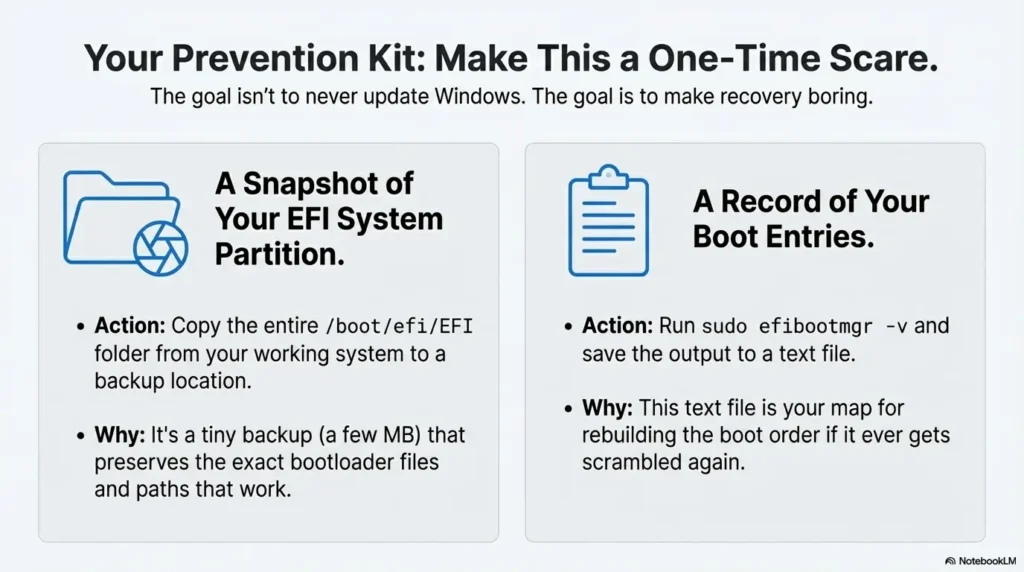
Snapshot your EFI System Partition (tiny, powerful)
Copying the ESP folder structure takes minutes and can save hours. You’re not backing up your entire disk—just preserving the bootloader paths and filenames that matter.
Write down your boot entries (one note saves an hour)
Save the output of efibootmgr -v. That single note is your map when firmware entries get rearranged.
Post-install annoyance: time drift quick fix
Clock drift can happen in dual boot. It’s not directly related to GRUB loss, but it’s part of a stable setup you don’t hate using.
efibootmgr (quiet win)chroot
FAQ
Why does Windows 11 Update remove GRUB in a dual boot?
Most of the time, it doesn’t delete GRUB—it changes what your firmware launches first. On UEFI systems, Windows can reset the default entry back to Windows Boot Manager and move it to the top of the boot order.
Can I restore GRUB without reinstalling Kali Linux?
Often, yes. If your Kali partitions still exist and the EFI System Partition is intact, you can restore GRUB by fixing boot order or reinstalling GRUB from a Live USB using mount + chroot.
What’s the fastest fix when my PC boots straight to Windows Boot Manager?
Start with boot order: confirm a Kali/GRUB entry exists in UEFI, then move it above Windows Boot Manager. If the entry is missing, reinstall GRUB from a Live USB to recreate it.
Do I need a Kali Live USB to repair GRUB safely?
Not always, but it’s the safest tool when Kali won’t boot. A Live USB gives you a known-good environment to mount partitions and repair GRUB without guessing.
What is the EFI System Partition and why does it matter?
The ESP is a small FAT32 partition where bootloader files live on UEFI systems. Windows Boot Manager and GRUB store EFI executables there. If the ESP is intact, recovery is typically straightforward.
Conclusion: make the next update boring
That first reboot after a Windows update can feel like a coin flip. But now you know the trick: the system is usually not broken. It’s just launching the wrong first entry. Restore the pointer, then make it repeat-proof with a simple rescue folder.
Your 15-minute next step: create the Boot Rescue folder, save your outputs in a way you can find under stress, and test your Live USB once (UEFI mode). Future-you won’t remember every command perfectly, but future-you will remember where you saved the map.
Last reviewed: 2025-12.