KRB_AP_ERR_SKEW diagnosis needs a measured clock comparison and a known synchronization owner. Keep the reference, trigger event and recheck evidence separate from the displayed timezone.

Sources, review date and section shortcuts
Key claims reviewed: October 19, 2026. Clock offset, time-service state and timezone display are separate evidence; a ticket error does not justify arbitrary clock changes.
Primary documentation · Related practical guide
Go straight to: Decision check · Main workflow · Further detail
Open the KRB_AP_ERR_SKEW: Clock-offset comparison for this guide’s task-specific fields and next action.
Recheck the offset after the relevant event
Record the trusted reference, measured offset and service state before a correction, then compare after the sleep, resume or VM event associated with the problem. A timezone display change does not synchronize the underlying time. Stepping time can affect other processes and logs, so use the existing managed service and preserve context rather than stacking competing time clients. Source and scope.
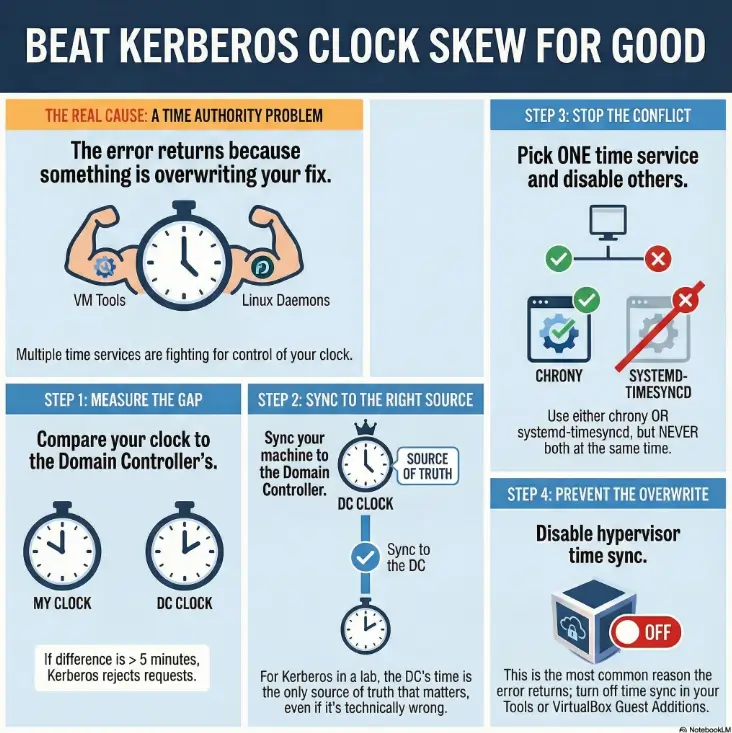
KRB_AP_ERR_SKEW means a Kerberos timestamp is outside the permitted clock difference. Compare the actual time on your Kali lab VM with the intended domain time source, correct the clock through one trusted synchronization service, then repeat the permitted authentication check. Changing the displayed timezone alone does not fix an incorrect clock.
Start with the read-only checks. If chrony is already your lab VM’s time service, use the chrony recovery branch; otherwise identify the existing service before changing anything. These steps target a disposable, authorized AD lab client. They are not instructions to reconfigure a production domain controller or loosen Kerberos policy.
Separate clock offset from timezone display
Two machines can display different local hours and still represent the same instant. For example, 09:00 in UTC+09:00 and 00:00 UTC are equal. Conversely, matching the hour on two screens with different zones can leave the machines hours apart. Compare UTC values or a measured offset, not the clock face alone.
Microsoft documents a recommended five-minute Kerberos tolerance for its policy, but the effective policy can differ. Do not assume every environment has the same threshold, and do not increase it to hide a synchronization problem. See the Microsoft clock-synchronization policy reference.
A timezone setting affects human-readable display and scheduling behavior. Leave it alone unless it is itself wrong for your workflow. The repair question here is whether the client’s actual time agrees with the authorized domain time source.
Collect read-only evidence on the Kali client
date -u
timedatectl status
systemctl is-active chrony systemd-timesyncd

# Use these if chrony is installed and running:
chronyc tracking
chronyc -n sources -v- date -u: records the guest’s current UTC time. Compare with the domain controller or approved time service using a trusted source; an arbitrary web clock is not proof of agreement with your lab.
- timedatectl: helps identify clock and synchronization state. An enabled NTP service is not, by itself, proof that a valid source is reachable or that the correction has finished.
- chrony sources: inspect which source is selected. An asterisk indicates the selected source; a question mark can have several causes, including insufficient measurements or no usable replies.
- chrony tracking: inspect the reference, remaining system-time correction and synchronization state. A plausible server name alone does not establish a healthy clock.
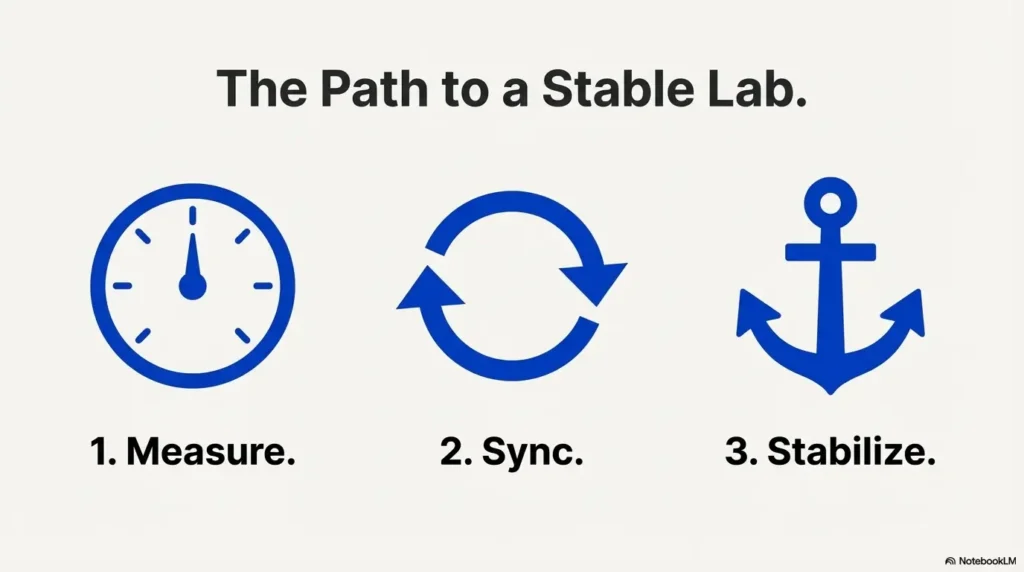
If neither named service is active, identify how this VM is currently managed. Other services or guest tools may control time. If both are active, investigate the competing configuration instead of installing a third service. Do not stop services on a shared or production machine merely to follow a tutorial.
Measure an offset without setting the clock
If the lab owner identifies a time server and it offers NTP, chronyd can perform a limited query. Replace LAB_TIME_SERVER with that approved host or IP. It might be a domain controller, but do not assume every controller accepts NTP requests from your network.
chronyd -Q -t 10 \
  'server LAB_TIME_SERVER iburst'
Uppercase -Q is deliberate: it reports the offset without changing the system clock. Lowercase -q sets the clock and is a different operation. The timeout bounds this diagnostic attempt. Supplying directives on the command line avoids reading the default chronyd configuration for this invocation. See the chronyd option reference.
A timeout or “no suitable source” result does not prove there is no skew. Check the hostname, lab routing, whether NTP is offered and whether UDP 123 is permitted by the lab design. Ask the owner to resolve a blocked service; do not disable a firewall or substitute an unrelated public server simply to obtain a success message.
Record the server and offset magnitude. If this measurement is small but Kerberos still reports skew, confirm that the failed request reaches the same intended domain environment and that the VM clock stays stable over the next short interval.
Recover with the existing time service
If chrony already owns time on this disposable client: review its effective sources with chronyd -p and the running service’s configuration. Back up the actual configuration file before editing it. Have the lab owner identify the correct source; do not blindly overwrite an entire configuration copied from another distribution.
When a configuration change is necessary, an owner-approved source entry can have this form. Replace the placeholder and avoid retaining a conflicting set of unsuitable sources:
server LAB_TIME_SERVER iburstApply the change using the service-management procedure for that VM, then repeat chronyc -n sources -v and chronyc tracking. Proceed only when the selected source is the intended, usable one. Choosing a source and completing a clock correction are separate checks.
If a valid source is selected but a large correction would take too long to slew, chrony supports an immediate step. The following command changes the guest clock. Use it only on your authorized disposable client, pause time-sensitive lab work, and save relevant evidence first. A clock jump can affect logs, sessions and applications.
sudo chronyc makestep
chronyc tracking
date -u
A step cannot make the wrong source trustworthy. Recheck the remaining correction and synchronization state afterward; do not treat the command’s successful return as proof that Kerberos is repaired. The chronyc reference explains tracking, sources and makestep.
If systemd-timesyncd owns time instead: inspect timedatectl timesync-status and that service’s configured source. Correct its configuration through the lab’s normal procedure, then verify again. Do not start chrony alongside it as a second clock authority. The systemd timedatectl documentation describes these status commands; availability can vary by installed version.
Find why the clock drifts again after a fix
- After suspend or resume: compare UTC and synchronization state before retrying authentication. A resumed VM may not yet have reconciled elapsed time.
- After reverting a snapshot: treat the restored guest time and cached authentication state as stale until checked. Record the new baseline.
- After host synchronization: inspect the hypervisor’s guest-time integration. Host tools and the guest’s time service can conflict. Choose one deliberate arrangement rather than toggling settings at random.
- After switching VPNs or lab networks: confirm that the intended time source is still reachable and belongs to the current lab. A previously correct source can become unavailable.
Keep the recovery reversible: record the original service state and source configuration, change one cause at a time, and compare before/after evidence. If a change does not help, restore the saved configuration through the normal procedure instead of accumulating unexplained adjustments.
Verify the repair without broadening the test
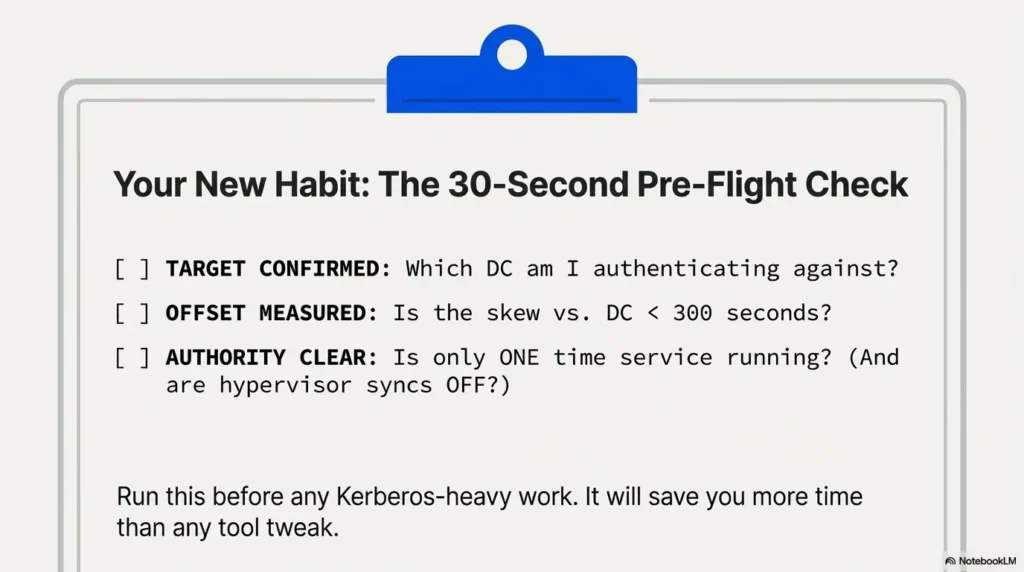
- Record the client UTC time, selected source and measured or remaining offset after synchronization.
- Repeat only the previously permitted authentication operation against the intended lab service. Do not add password guessing, ticket extraction or unrelated scans to test a clock repair.
- If the error persists, separate a recurring clock problem from another authentication failure. Preserve the exact error, target identity and timestamp. Check whether an application is reusing stale state through its documented procedure.
- Recheck after the event that originally triggered the problem, such as a lab VM resume. One successful request proves that request succeeded; it does not establish permanent synchronization.
Avoid erasing ticket caches or resetting credentials as a reflex: those changes can interrupt other sessions and obscure evidence. Use a fresh authorized test session if appropriate to your lab, or ask its owner how to clear stale state safely.
Keep a compact repair record
Lab / client / intended domain:
Original error and UTC timestamp:
Approved time source:
Offset or tracking state before:
Existing time service / guest integration:
One change made / backup location:
Offset or tracking state after:
Permitted authentication result:
Resume or snapshot recheck:
Unresolved issue:
The retesting checklist offers a useful way to label the result as fixed, mitigated or inconclusive. Keep that conclusion as narrow as your actual evidence.
The existing video is retained as optional background. Use the written procedure and primary sources for the scope, commands and limitations of this guide.
Sources and review scope
Reviewed October 9, 2026 (Asia/Seoul), against Microsoft’s linked policy reference, chrony’s versioned 4.6 manuals and systemd’s official documentation source. Verify options against your installed tools. No clock, service, VM configuration or authentication state was changed to write this guide.
KRB_AP_ERR_SKEW: Clock-offset comparison
Use these fields for your own task. Keep the actual conditions, evidence and unresolved questions beside the next decision.
Use the editable record below to retain the task context and unresolved questions.
Edit here, then select and copy the text to your own notes before leaving. This field has no submission or storage function; reloading resets it. Do not enter passwords, tokens or private client information. The 12,000-character limit applies to this working note.
Next action: Keep timezone display separate from a measured clock correction.
Related task: Use TryHackMe OpenVPN Disconnects: Logs, Routes and Recovery for that separate part of the workflow.
Worksheet change record — October 20, 2026
Added four task-specific fields, a next action and a related guide. This is a blank editorial working aid, not a completed test or validated assessment. Existing source-review dates retain their own scope; this addition is not a new verification of every statement.
Clock skew: record offset separately from displayed time
Illustrative example — not a performed lab test.
- Observation
- Two machines display different local times but show matching UTC time within the agreed observation accuracy.
- Supported interpretation
- A timezone display difference alone does not demonstrate clock skew.
- Still unresolved
- Whether the authentication failure actually reports a time error and which trusted time source each machine follows.
- Next authorized check
- Preserve the exact authentication error, measured offset and synchronization owner. Investigate clock correction only when supported by that evidence; avoid starting competing time services or treating timezone changes as clock synchronization.
Practice-aid update: October 20, 2026. Added the illustrative decision case and editable note. No new VM execution or full-article revalidation is claimed.