

VPN Stability: Keepalive & Auto-Reconnect
If Kali NetworkManager drops your connection mid-scan, the problem usually isn’t your pentesting tools. It’s the gap between “VPN says connected” and “traffic is actually taking the tunnel.”
Tiny Wi-Fi hiccups and NAT idle timers only show up once you’ve settled into the work. Keep guessing and you lose more than a session—you lose momentum, results, and clean baselines for what changed.
This guide is built around evidence: journalctl, interface checks, and repeatable tests—not UI vibes. You’ll see the failure before you “fix” it. Then you’ll fix the right thing. Then you’ll lock it in.
Table of Contents
1) Symptom fingerprint first: what “mid-scan drops” usually means
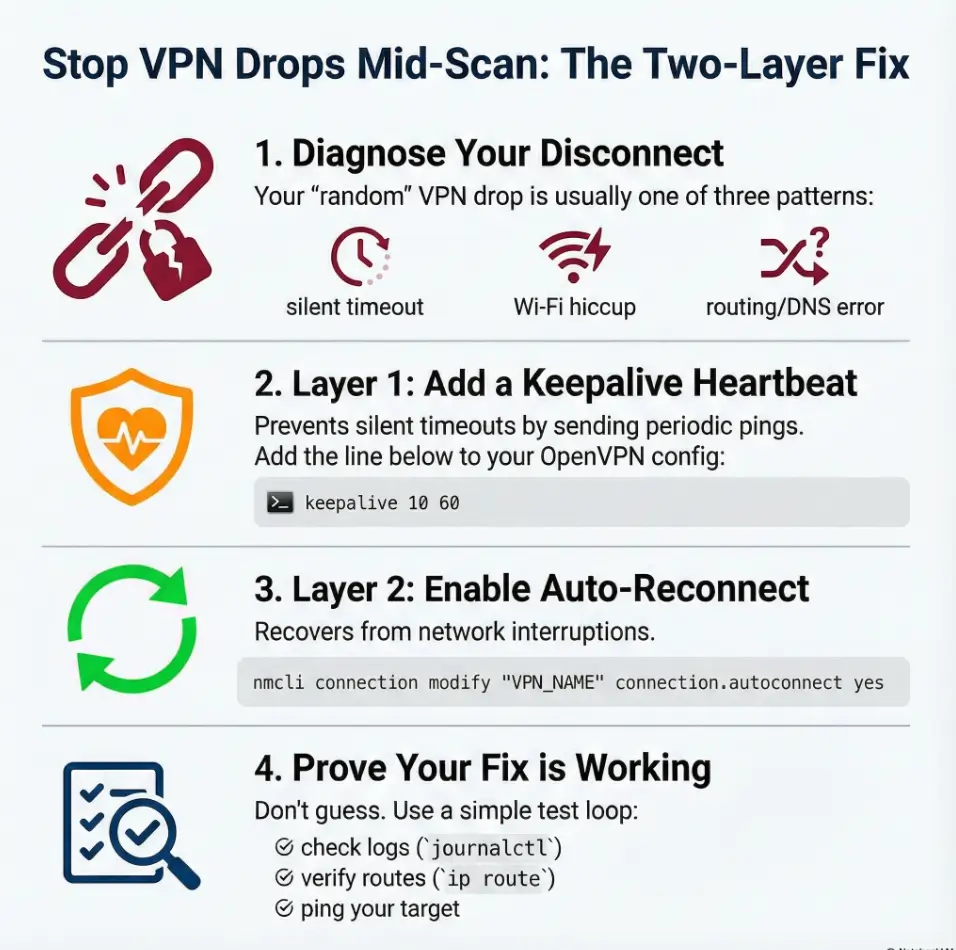
“VPN dropped” is the symptom. The cause is usually one of three patterns—and each pattern wants a different fix. The trick is to stop guessing and start classifying.
Quick tells in 30 seconds (GUI lies, logs don’t)
- NetworkManager still says “Connected” but targets stop responding → often route/DNS flip, not a dead tunnel.
- VPN shows “Disconnected” after a quiet period → often idle timeout / keepalive missing (especially with NAT + Wi-Fi).
- Drop coincides with Wi-Fi roaming, AP switch, or laptop lid moment → often link loss + no reliable reconnect chain.
The 3 common dropout patterns (idle timeout / Wi-Fi roam / route flip)
Pattern A: “Quiet tunnel death” (10–30 minutes of silence, then disconnect). This is classic “no keepalive + NAT state expires + server/client stops hearing each other.”
Pattern B: “Wi-Fi wobble” (a brief network hiccup). Your base network drops for 2–8 seconds, and the VPN never returns cleanly unless auto-reconnect is correctly set.
Pattern C: “Fake connected” (tunnel is technically up, traffic goes somewhere else). Routes or DNS changed, so your scan is now shouting into the wrong hallway.
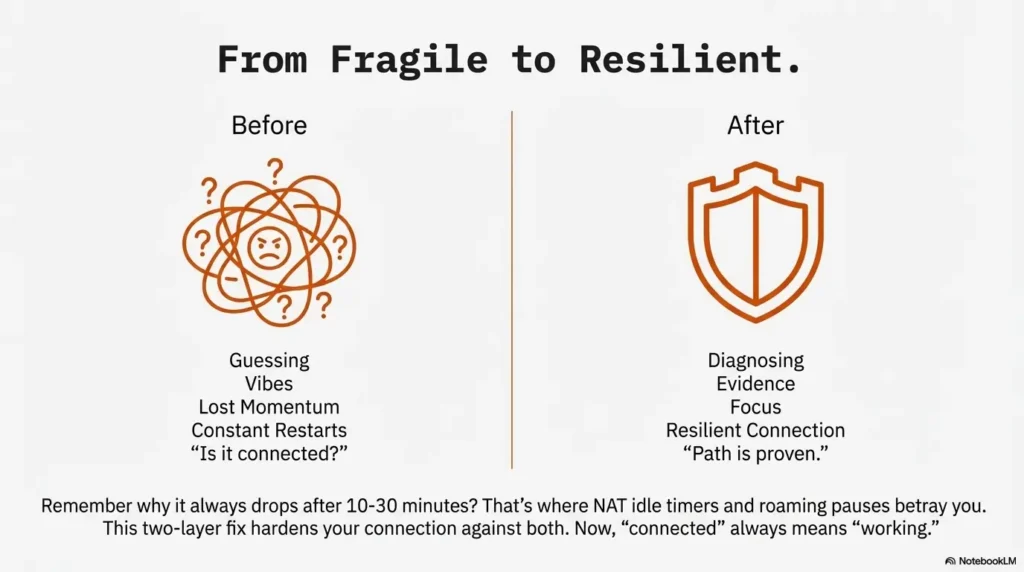
Open loop: why it only happens after 10–30 minutes? Because that’s where real networks betray you: NAT idle timers, AP roam windows, and “helpful” network scripts tend to converge there.
- Keepalive prevents silent tunnel death
- Auto-reconnect recovers from link hiccups
- Route/DNS checks prevent “connected but useless” states
Apply in 60 seconds: Decide which pattern you’re seeing before changing anything.
2) Who this is for / not for
For: long Nmap/enum sessions, lab VMs, hotel Wi-Fi, flaky routers
If you’re doing long enumeration (Nmap, gobuster, smbclient, enum4linux, masscan, web fuzzing) and your tunnel dies mid-session, this is for you. It’s also for the “I’m on café Wi-Fi and living dangerously” crowd.
Not for: corporate VPN policies, locked-down managed endpoints
If you’re on a managed machine with corporate policies, custom VPN concentrators, or locked profiles, your constraints are different. You can still learn the logic here, but you may not be allowed to apply it.
If you’re not on NetworkManager (or you’re on headless), read this anyway
Even if you run OpenVPN from CLI on a headless box, the two-layer idea still applies: keepalive to prevent silent death, and reconnection logic to recover from link loss. The difference is where you configure it.
- Yes: You connect via NetworkManager’s VPN UI or a saved NM connection
- Yes: Drops happen during long scans or after idle periods
- Yes: You want a fix that survives reboots and updates
Apply in 60 seconds: If you answered “yes” to two or more, continue—this is your playbook.
3) Evidence, not vibes: capture the exact failure (before you “fix” it)
Here’s the uncomfortable truth: the GUI is a storyteller. Logs are a historian. If you want a fix that sticks, you need the historian.
One command to watch the tunnel in real time (journalctl + NM)
On Kali (systemd-based), you can watch NetworkManager logs live while you reproduce the issue—one of those essential Kali tools that saves you from guessing:
sudo journalctl -u NetworkManager -fIf your OpenVPN plugin logs are noisy or split, you can also look for OpenVPN mentions:
sudo journalctl -u NetworkManager --since "30 min ago" | egrep -i "vpn|openvpn|tun|tap|disconnect|timeout|dhcp"Verify the interface + routes (what should stay stable)
Before and after the drop, snapshot the three things that decide whether you can reach a TryHackMe target:
- Is the tunnel interface present? (
ip a) - Is the route pointing into the tunnel? (
ip route) - Is DNS resolving sensibly? (
resolvectl statusor checking/etc/resolv.confdepending on setup)
ip a | egrep -A2 "tun|tap"
ip route
resolvectl status 2>/dev/null || cat /etc/resolv.conf
Open loop: the single line in logs that predicts the next drop
Often you’ll see a hint before the fall: keepalive timeouts, TLS renegotiation issues, route changes, or a base network disconnect event. The precise wording varies by OpenVPN version and NM plugin, but the “shape” is consistent: something stopped hearing something else.
Short Story: Midnight scan, the tunnel “smiles” and then vanishes …
It’s 12:47 AM. Your terminal is a steady drip of discoveries—an open port here, a suspicious service banner there. You’re not rushing; you’re finally in that calm, focused rhythm CTFs can give you. Then the output pauses. Not an error. Not a crash. Just… silence. You glance at the NetworkManager icon. It still looks friendly, still says “connected,” like a coworker insisting they definitely sent the email.
You rerun a quick ping to the target. Nothing. You try a new scan. Nothing. Now the clock is the loudest thing in the room, and you can feel the momentum slipping away. That’s when you learn the most expensive lesson in labs: a “connected” VPN is not the same as a working path. The fix isn’t heroic—it’s boring. Logs, keepalive, reconnect, route checks. Boring saves the night.
4) Keepalive that actually keeps alive (OpenVPN ping / ping-restart)
Keepalive is not magic. It’s a heartbeat. And heartbeats matter most when everything seems fine—because that’s when networks quietly age out state.
What keepalive does (and what it cannot do)
Keepalive does: send periodic traffic so NAT mappings and stateful firewalls don’t forget your tunnel exists. It also detects dead peers sooner.
Keepalive does not: fix Wi-Fi power saving, prevent route flips, or correct DNS chaos. It’s one layer, not the whole sandwich.
Add keepalive safely: client config vs NM “advanced” fields
In pure OpenVPN config terms, you’ll usually see either:
keepalive 10 60(shorthand for ping + ping-restart)- or the explicit pair:
ping 10andping-restart 60
NetworkManager’s OpenVPN plugin supports a defined set of options, not an arbitrary OpenVPN configuration field. Check the installed plugin’s supported keepalive/ping settings and verify the effective imported profile and logs. Server-pushed ping/ping-restart values can override local client settings. Keep the original TryHackMe profile backed up and avoid duplicate/conflicting directives.
Set sane values for labs (stable, not spammy)
For TryHackMe/CTF use, you want values that are polite and effective. “Effective” means frequent enough to prevent NAT idle expiry. “Polite” means you’re not hammering a server with unnecessary chatter.
- Common lab-friendly starting point:
keepalive 10 60 - If your network is very flaky: consider
keepalive 10 120(less restart-trigger-happy) - Avoid extremes:
ping 1is usually overkill;ping 120may be too quiet for some NATs
Micro truth: Let’s be honest… your tunnel isn’t “stable,” it’s just “quiet.” Keepalive is how you keep quiet from turning into dead.
Show me the nerdy details
Many mid-scan drops look “random” because the failure is time-based: NAT mappings can expire when there’s no traffic; Wi-Fi roam can pause packets; and UDP tunnels can fail silently until a heartbeat detects it. Keepalive creates regular packets that keep state warm and also gives you a predictable failure window instead of a surprise collapse.
- Shorter ping = quicker detection, more chatter
- Longer ping-restart = fewer false restarts on shaky Wi-Fi
- Labs usually prefer reliability over elegance
Apply in 60 seconds: Start with keepalive 10 60, then tune only if logs prove you need to.
Mini calculator: keepalive sanity check (no guesswork)
This doesn’t “discover” your NAT timer—it just helps you pick values that aren’t accidentally self-sabotaging.
Suggested starting point will appear here.
5) VPN activation and recovery: NetworkManager + nmcli settings
If keepalive prevents silent death, auto-reconnect is what saves you from the real world: brief Wi-Fi hiccups, AP roaming, and “my laptop decided to nap for 6 seconds.” The goal is simple: when the base link blinks, the VPN should come back without drama.
Start the VPN when the base network activates
First, list connections and identify your VPN profile name:
nmcli connection showVPN-profile connection.autoconnect is not implemented by NetworkManager. Instead, attach the VPN UUID to the base Wi-Fi/Ethernet profile’s connection.secondaries. Replace both placeholders; + preserves existing secondary UUIDs. This starts the VPN when the base profile activates, not a continuous VPN-drop watchdog. See NetworkManager’s connection settings.
nmcli -f NAME,UUID,TYPE connection show
nmcli connection modify "YOUR_BASE_CONNECTION" connection.autoconnect yes
nmcli connection modify "YOUR_BASE_CONNECTION" +connection.secondaries "YOUR_VPN_UUID"
nmcli connection up uuid "YOUR_VPN_UUID"
If only the VPN drops while the base link remains active, secondaries does not guarantee restart. Inspect OpenVPN’s restart behavior and logs; reconnect manually with nmcli connection up uuid "YOUR_VPN_UUID" if necessary. Unattended retries require a separately tested mechanism and available credentials.
Tie VPN to the right base network (Wi-Fi/Ethernet) without surprises
The “it reconnects, but not when I need it” problem often comes from a missing relationship: the VPN should start when your base network is up. In practice, the cleanest approach is to ensure your base Wi-Fi/Ethernet connection is stable and set to autoconnect, and then keep the VPN profile ready to be brought up reliably.
A practical workflow for labs:
- Base network (Wi-Fi/Ethernet): autoconnect enabled
- VPN: UUID linked through the base profile’s secondaries, plus a tested recovery procedure
- Never stack multiple managers fighting over the same tunnel
Stop “helpful” behaviors: avoid random re-prompts and state drift
Unattended recovery needs credentials available through the appropriate NetworkManager secret agent or protected profile. Do not remove authentication or expose private keys to eliminate prompts. Preserve the original TryHackMe profile and test reconnection after login and reboot.
Open loop: why the GUI checkbox fails while nmcli survives updates
Because UI settings and plugin fields sometimes change names, default behaviors, or storage locations. nmcli changes the underlying connection profile directly—so the setting remains even when the UI gets a new haircut.
Show me the nerdy details
NetworkManager stores connection profiles and applies them through its dispatcher and plugins. UI toggles can be version-specific, but the profile properties nmcli modifies are the durable “source of truth.” When you want repeatability, you want the source of truth—not the checkbox.
- Use NetworkManager if you want persistent profiles + simple reconnect behavior
- Use OpenVPN CLI if you want full control and you’re comfortable scripting retries
- Don’t mix NM + CLI + random scripts on the same profile (it creates ghost bugs)
Apply in 60 seconds: Decide: “NM owns the tunnel” or “CLI owns the tunnel.” Then commit.
6) Hardening the path: routes, DNS, and “split-brain” networking
Sometimes the tunnel is alive, but your traffic isn’t using it. That’s the split-brain feeling: one part of your system believes the VPN exists; another part routes around it like it’s late for a meeting.
Route priority: ensure the VPN stays the default when it should
For most TryHackMe lab VPNs, you want traffic to lab subnets to go through the tunnel. Depending on your profile, it might be full-tunnel (default route through VPN) or split-tunnel (only lab ranges through VPN). Either is fine—what’s not fine is unpredictability.
After connecting, check the route to your actual assigned lab target, not just the default route. Replace the placeholder below with an authorized target IP:
ip route get "YOUR_LAB_IP"
ip route | head -n 20
If you see your default route flip back and forth during a session, you’re not dealing with “VPN instability,” you’re dealing with a route ownership dispute.
DNS handling: avoid resolution breakage that looks like a VPN drop
A very common “drop” is actually DNS failure: the tunnel stays up, but name resolution breaks, and tools that rely on names (or API calls) fail. On systemd-resolved setups, resolvectl is your friend. On classic setups, /etc/resolv.conf tells the tale.
Check DNS state right after connect and right after the “drop” moment:
resolvectl status 2>/dev/null || cat /etc/resolv.confIPv6 and DoH gotchas (when the tunnel is up but traffic leaks/bypasses)
Two silent bypass routes in modern setups:
- IPv6: if your VPN is IPv4-only but your system prefers IPv6, some traffic may go outside the tunnel.
- DNS-over-HTTPS (DoH): browsers can resolve DNS in ways that don’t match your system resolver expectations, creating confusing “it works here but not there” behavior.
Show me the nerdy details
Route selection is deterministic, but humans experience it as “random” because multiple components may alter routes: DHCP renewals, Wi-Fi roaming events, VPN up/down scripts, and resolver updates. Your job is to reduce the number of writers touching the same state.
7) Common mistakes (the ones that waste an hour)
Everyone loses one CTF night to one of these. Consider this your refund.
Mistake #1: fixing Wi-Fi symptoms instead of VPN keepalive
If your tunnel dies after quiet periods, keepalive is the first lever. Tweaking Wi-Fi settings can help, but it’s not the correct first diagnosis for “quiet tunnel death.”
Mistake #2: setting keepalive values that cause constant renegotiation
Overly aggressive values can make your connection twitchy—especially on unstable Wi-Fi. If you see frequent reconnect loops, you may be forcing restarts too eagerly.
Mistake #3: “autoconnect” without binding to the right interface
If your base connection isn’t stable or autoconnected, the VPN doesn’t have a solid floor to stand on. Fix the floor first.
Mistake #4: ignoring sleep/power management on laptops
Laptop power saving can pause your NIC just long enough to sever a tunnel. If drops correlate with screen dimming, lid movement, or idle timers, power management deserves a hard look.
Micro anecdote (scene): the most common “mystery drop” happens right after you lean back, stop typing, and your laptop decides you’ve achieved enlightenment and no longer need networking.
8) Don’t do this mid-scan: two “fixes” that backfire
Don’t restart NetworkManager blindly (you’ll nuke routes + state)
Restarting NetworkManager is the digital equivalent of turning off the building’s power because one desk lamp flickered. It can obliterate route state, DNS state, and your tunnel—creating a new problem that looks like the old one.
Don’t stack multiple VPN tools (NM + openvpn CLI + scripts) at once
If NetworkManager thinks it owns the tunnel, and you also start a CLI OpenVPN process, you can end up with dueling routes, conflicting DNS, and intermittent “works for 3 minutes” nonsense.
Pattern interrupt: Here’s what no one tells you… stability is often “less automation,” not more. One owner. One profile. One truth.
9) Prove it works: a repeatable stability test (no guesswork)
Don’t trust a fix because it feels good. Trust it because it survives a test.
The 10-minute torture test (controlled packet loss + reconnect)
Pick a simple, repeatable target: a known TryHackMe resource or a stable ping endpoint inside the lab. Then:
- Start your VPN
- Start a continuous watch (logs + route + a simple reachability check)
- Introduce a controlled disruption: toggle Wi-Fi off/on once, or roam networks if you’re brave
- Confirm the VPN returns and the route/DNS state returns with it
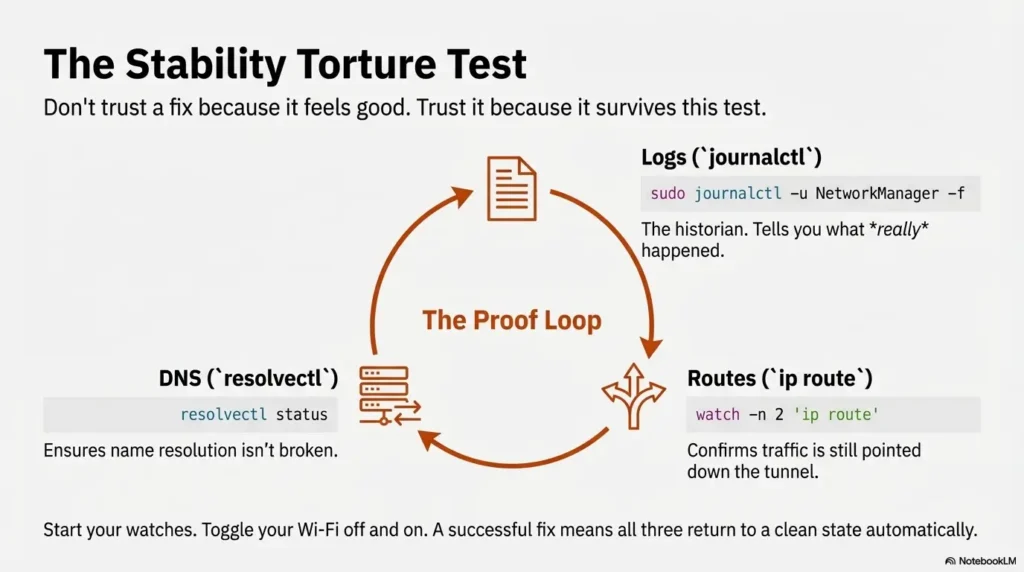
Recommended watch trio (three terminals):
# Terminal 1
sudo journalctl -u NetworkManager -f

# Terminal 2
watch -n 2 'ip route | sed -n "1,15p"'

# Terminal 3: replace with an authorized lab IP that responds to ICMP
ping -n -i 2 "YOUR_LAB_IP"
What “success” looks like (tunnel, route, DNS all consistent)
- Tunnel interface returns (tun/tap present)
- Routes are correct (lab subnets route through tunnel; default route behavior is consistent)
- DNS is consistent (resolver doesn’t flip into a broken state)
keepalive 10 60base profile: +connection.secondaries VPN_UUIDjournalctl + ip route + resolvectlIf it still drops: the three next most likely culprits
- Power saving: Wi-Fi NIC goes into a mode that breaks long-lived flows
- Credential prompts: reconnect requires interaction you don’t see
- Route ownership disputes: multiple tools rewriting routing/DNS state
FAQ
Why does TryHackMe VPN disconnect after a few minutes on Kali?
Possible causes include link loss, server/session limits, route changes, or peer timeouts. Use logs to identify the cause. An actively scanning tunnel is not necessarily idle, and a fixed elapsed time alone does not diagnose a missing keepalive.
Does ping-restart fix VPN drops during Nmap scans?
It can help with “silent tunnel death” by detecting dead peers and restarting the session, but it won’t fix route flips, DNS breakage, or Wi-Fi power saving. Think of it as a heartbeat and an early-warning system, not a full repair kit.
How do I auto-reconnect OpenVPN in NetworkManager on Kali?
Attach the VPN UUID to connection.secondaries on the base profile. This starts it with base-link activation, not every VPN-only drop. Validate both failure cases while watching NetworkManager logs.
Why does the VPN show “connected” but I can’t reach target IPs?
This is the classic fake-connected state: routes or DNS changed. Check ip route and your resolver state (resolvectl status or /etc/resolv.conf) immediately after the failure. If the tunnel interface exists but routes don’t point into it, your traffic is bypassing.
Should I use the OpenVPN CLI instead of NetworkManager?
If you want maximum control and you’re comfortable scripting retries and logging, CLI can be great. If you want durable “set it once” profiles and easy toggling, NetworkManager is usually the smoother path. What matters most is choosing one owner and avoiding tool conflicts.
Can sleep mode or power saving kill my VPN tunnel?
Yes. Even short power-saving transitions can pause or reset networking long enough to break a tunnel. If drops correlate with idle time, screen dimming, or lid movement, power management is a prime suspect.
How do I check logs for NetworkManager VPN failures?
Use sudo journalctl -u NetworkManager -f to watch live, or query the last 30 minutes and filter for VPN keywords. This gives you a reliable timeline instead of a vague “it dropped again.”
11) Next step: do one change, then lock it in
You don’t need a giant overhaul. You need one clean improvement, proven, then saved as your known-good baseline. Here’s a sane order of operations that respects your time and your sanity.
Run a single nmcli audit (confirm autoconnect + keepalive present)
Audit what NetworkManager thinks your VPN profile contains:
nmcli connection show "YOUR_THM_VPN_NAME"Look for:
- Base profile: autoconnect enabled and the correct VPN UUID listed in secondaries
- VPN settings: presence of keepalive directives (or equivalent fields)
- No interactive prompts: that would block reconnect
Export/save the working VPN profile (so you can restore fast)
When you get a stable configuration, save it like it matters—because Future You will eventually break it with one well-intentioned tweak.
- Keep a copy of the original TryHackMe config you downloaded
- Keep notes of your keepalive values
- Keep your “audit command output” in a text file for quick comparison
Put your “known-good” test on autopilot (so future you doesn’t suffer)
When something breaks, you want a short checklist you can run in under 15 minutes:
- Reconnect VPN
- Watch
journalctlfor disconnect reasons - Verify tunnel interface
- Verify route(s)
- Verify DNS
- Your VPN profile name as shown in
nmcli connection show - Last 30 minutes of NM logs (saved once when it fails)
- One “known-good” keepalive pair (e.g.,
10/60)
Apply in 60 seconds: Save one working profile snapshot and one failure log snippet today.
Conclusion (close the loop)
Logs must distinguish idle expiry, link loss, and route changes. Keepalive can detect an unresponsive peer; base-profile secondaries start the VPN when that network activates. Neither setting guarantees continuous recovery from every VPN-only failure. Verify tunnel, target route, and reachability after each test.
Your 15-minute next step: set one keepalive pair (start at 10/60), link the VPN through the base profile’s secondaries, then run the 10-minute torture test while watching logs. If it passes once, you’ve bought yourself many future CTF nights back.
Original review: 2025-12-24
Technical guidance updated: 2026-10-13. Corrected VPN activation settings, Linux ping syntax, target-route checks, and recovery limits.