Sources, review date and section shortcuts
Key claims reviewed: October 19, 2026. A dedicated browser profile reduces accidental mixing; it does not create a VM-grade isolation boundary.
Primary documentation · Related practical guide
Go straight to: Decision check · Main workflow · Further detail
Open the Browser-proxy trust record for this guide’s task-specific fields and next action.
Tie proxy evidence to the profile and Burp instance
Record the active profile, listener and port, proxy exclusions and the CA belonging to that Burp instance. Use a harmless approved request to confirm the path and trust. Profiles can still share the operating-system user and files; avoid ordinary personal browsing in the test profile. Remove temporary trust through the supported process when the engagement no longer requires it. Source and scope.
One reused browser profile can cost you an hour—quietly.
The login looks “haunted,” HTTPS suddenly “breaks,” and your notes stop lining up with what Burp actually captured. That pain is rarely Burp being picky. It’s session bleed: cookies, localStorage, HSTS, and proxy settings drifting just enough to make two clients (or two tenants) feel like one confused identity.
Keep guessing, and you don’t just lose time—you risk messy evidence and uncomfortable “wait, whose session is this?” moments. This Burp Suite external browser setup in Kali is the boring upgrade that fixes the chaos: a dedicated Firefox profile per client, with proxy wiring that doesn’t drift and Burp CA certificate trust scoped to that one capsule—so TLS interception works without polluting your whole system.
A “dedicated client profile” is a separate Firefox profile used only for one engagement, keeping cookies/storage/HSTS isolated and trusting the Burp CA only inside that profile. It makes HTTPS troubleshooting deterministic and cleanup as simple as closing—or deleting—the profile.
I’m not asking you to memorize tricks. You’ll run a repeatable two-request verification ritual that catches most failures fast. Clean sessions. Clean exports. Clean sleep. Start with scope. Then the profile blueprint. Then proxy → cert → test—every time.
1) Scope first: “External browser” done safely
Authorization-only boundary (what this guide assumes)
This guide assumes you’re doing authorized security testing: a signed scope, a known target list, and permission to intercept traffic. Burp Suite is a legitimate tool (PortSwigger builds it), but the line matters. If you don’t have permission, stop here.
Why “one profile per client” is the simplest isolation that actually sticks
Here’s the quiet truth: most “Burp setup” problems are not technical— they’re human problems. We forget which cookies belong to which engagement. We reuse a browser “just for a minute.” Then we spend 45 minutes proving to ourselves we didn’t mix anything.
A dedicated Firefox profile per client gives you isolation where it counts:
- Sessions don’t bleed: cookies, localStorage, and saved logins stay in their own box.
- TLS trust stays scoped: you can trust Burp’s CA only inside that profile.
- Evidence gets cleaner: screenshots and reproduction steps align with the profile name—especially if you pair it with a pentest report template that keeps artifacts tied to one engagement.
Illustrative scenario: A learner switches between two disposable lab environments in one browser profile. Shared session state makes it unclear which identity produced a request. Separate lab profiles and explicit identity labels make the evidence easier to attribute.
- Yes — You have written authorization and defined scope.
- Yes — You need to log into web apps and keep client sessions separate.
- Yes — You want TLS interception without trusting a proxy system-wide.
- No — You’re “just curious” on unknown systems.
Neutral next step: If you got three “Yes” answers, build the first profile before you open a single target URL.
2) Who this is for / not for
For: consultants juggling multiple client sessions, apps, and login states
When switching among staging systems, tenants or SSO realms, separate lab profiles can make identity and session state easier to attribute. Verify the active profile and request context; a profile name alone does not establish isolation or correct account selection.
For: lab learners who want fewer moving parts in Kali
If you’re learning in a safe lab (your own targets, a training platform, a sanctioned range), a clean profile lets you focus on the workflow instead of wrestling browser state. If you’re building that environment from scratch, it helps to have a stable baseline like a Kali lab infrastructure workflow you can repeat and snapshot.
Not for: anyone testing without written permission (don’t do that)
Intercepting traffic changes the game. Don’t do it casually. Don’t do it “to see.” If you can’t point to permission, you can’t point to a reason.
Not for: setups requiring full device-level trust stores (choose a different workflow)
Some corporate environments require device management, endpoint inspection, or system-wide trust behavior that’s outside this guide. This post is about profile-scoped trust and repeatability in Kali—simple, contained, and reversible.
3) Profile architecture: your “client capsule” blueprint
Naming scheme that saves your future self (Client-YYMM + app)
Use a naming scheme that makes sense when you’re tired. My go-to:
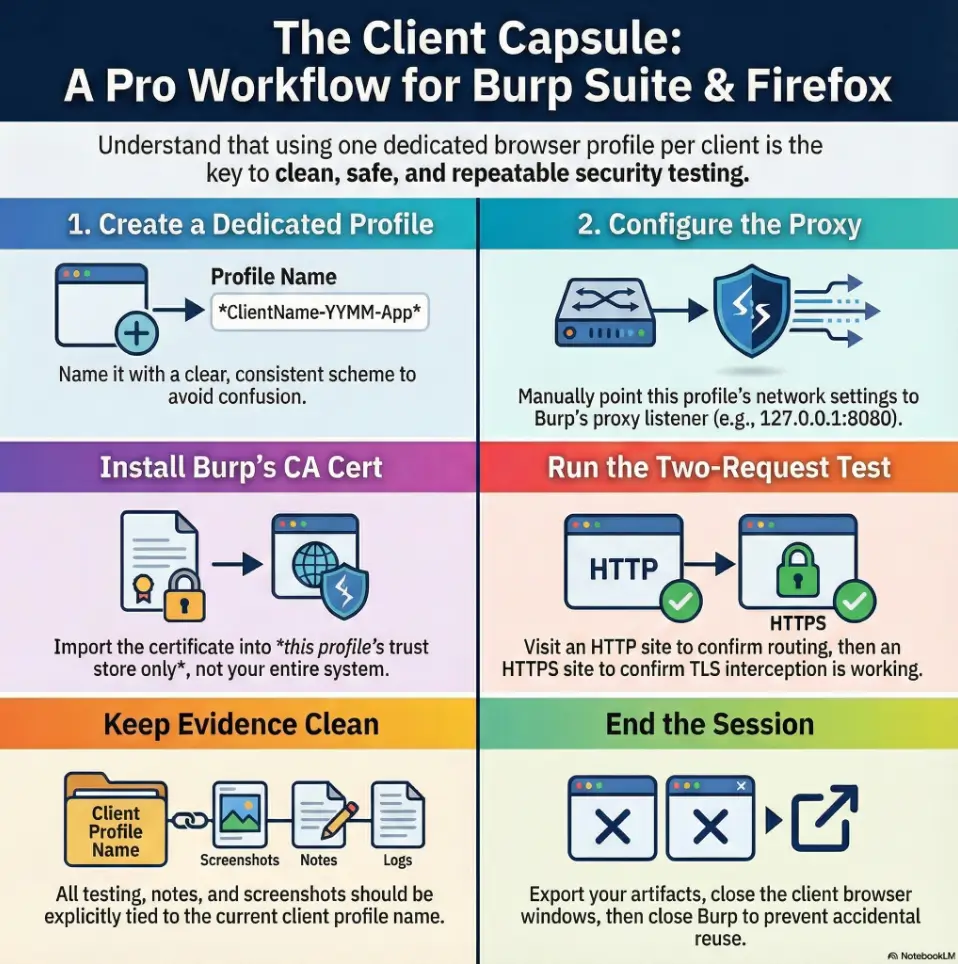
- ClientName-YYMM-App (example: Acme-2512-Portal)
- Add an environment tag if needed: -stg or -prod
It sounds fussy until you’re exporting screenshots and your folder isn’t full of “default-release (3).” Ask me how I know.
Storage boundaries: cookies, localStorage, HSTS, and why it matters
Profiles separate cookies and storage, including cached HSTS state. HSTS requires HTTPS and valid certificate trust; it does not inherently block Burp interception when the correct CA is trusted. A new profile can isolate stale state, but browser preload policies and managed settings may remain.
A fresh profile gives you a clean slate across all of those. It’s not just neatness. It’s risk reduction.
One proxy per profile vs one global proxy (choose your tradeoff)
You have two workable patterns:
- Per-profile proxy: each client profile points to Burp (recommended). Your daily browser stays untouched.
- Global proxy: system-wide proxy rules (faster once, riskier forever). One mistake and you proxy traffic you didn’t mean to.
- Name profiles like you’ll need them in court (even if you never do).
- Profile-scoped trust is safer than system-wide trust.
- HSTS is why “it worked yesterday” can still fail today.
Apply in 60 seconds: Create your naming template now (Client-YYMM-App) before you click anything else.
4) Build the Firefox profile (Kali) without touching your daily browser
The profile manager path: GUI and CLI options
In Kali, you can launch Firefox’s profile manager and create a dedicated profile. The exact menu names can shift across versions, but the idea stays stable: create a profile, name it, and launch it as its own capsule.
CLI-style launch (simple and reliable):
firefox -no-remote -PFrom there, create a new profile and name it with your scheme (e.g., Acme-2512-Portal).
Use firefox -no-remote -P for an independent profile-manager launch, then verify the active profile in about:profiles. Keep a settings checklist rather than copying a used client profile. If you clone a template, close Firefox first and ensure it contains no client cookies, credentials or tokens. See Mozilla’s profile-manager instructions.
Profile defaults worth changing before you proxy anything
Before you point this profile at Burp, make it predictable. The goal is not “max privacy theater.” The goal is repeatability.
Disable “helpful” auto-features that sabotage repeatability
- Turn off auto-fill that might mix identities across environments.
- Keep password saving scoped to the profile (or disable it entirely for client work).
- Set downloads to ask where to save (so evidence files don’t vanish into randomness).
Set a clean homepage that doubles as a checklist
I like a blank or a simple local page because it forces a short ritual: “Am I in the right profile? Is Burp running? Is the proxy correct?” It’s the smallest habit that prevents the biggest mistakes.
5) Proxy wiring that doesn’t drift (Burp ↔ Firefox)
Burp listener settings: bind address + port with intent
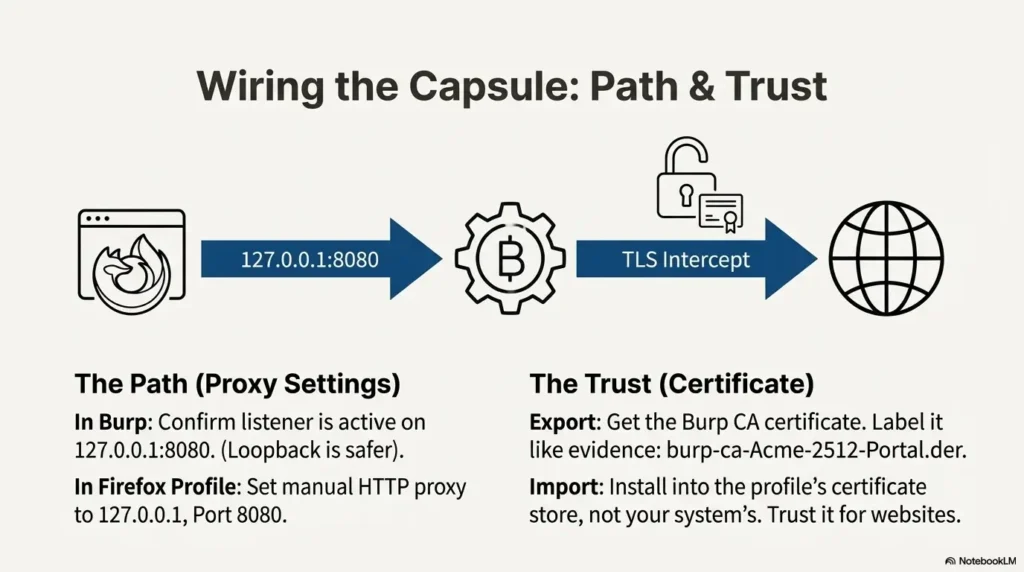
Start Burp, then confirm your proxy listener is active. Most people keep this on 127.0.0.1 (loopback) with a known port (often 8080). Loopback is safer because it limits exposure to your own machine.
If you’re ever tempted to bind Burp to 0.0.0.0 (all interfaces), pause. That can be legitimate for device testing, but it also expands your blast radius. Only do it when scope requires it and your network controls are in place. If you’re exposing services across interfaces, pair that intent with Kali SSH hardening basics and a firewall posture you can explain under pressure.
Firefox proxy settings: manual vs PAC (when PAC wins)
In your client profile, set the proxy. Manual proxy is fine for most engagements. A PAC file can be useful when you want conditional routing (for example, only proxy certain domains). For most time-poor workflows: manual wins.
Mozilla’s own documentation walks through Firefox connection settings in plain language, and it’s worth skimming once so you know where everything lives.
Quick proof test: the two-request check that catches 80% of errors
Before you log in anywhere, run a tiny verification ritual:
- Set Intercept off, open a harmless HTTP endpoint in your authorized lab, and confirm its host/path in Burp’s HTTP history (check display filters too).
- Open an authorized HTTPS lab endpoint, confirm the decrypted HTTP request and response in history, and verify there is no certificate warning. A CONNECT tunnel alone is not proof of interception.
If request #1 doesn’t show up, it’s a proxy setting problem. If request #1 shows and #2 breaks, it’s usually a certificate/HSTS/HTTP2/QUIC problem.
Let’s be honest… “It works once” isn’t a setup (make it reproducible)
If you can’t reproduce the setup in 3 minutes on a fresh VM snapshot, it’s not a setup—it’s a lucky mood. Write down the listener/port and keep your profile naming consistent. Your future self deserves it. If your VM suddenly feels sluggish right when you need to move fast, troubleshooting gets worse—not better—so it helps to know what to do when an encrypted Kali VM becomes painfully slow in VirtualBox.
Show me the nerdy details
Proxy drift happens when multiple layers “help.” Browser extensions, OS proxy helpers, VPN clients, and containerized apps can override what you think you set. The quickest sanity check is to confirm the browser is truly sending traffic to the expected IP:port and that Burp’s listener is bound exactly where you think it is. If you test on multiple interfaces, be intentional about binding and firewalling—especially in shared networks. If your lab VPN is unstable, that “it worked five minutes ago” feeling can be a network issue, too—see TryHackMe OpenVPN keeps disconnecting patterns before you blame Burp.
- HTTP confirms routing.
- HTTPS confirms trust and interception readiness.
- Fixing it now prevents messy evidence later.
Apply in 60 seconds: Do the two-request check on a brand-new client profile before you touch the target app.
6) TLS interception: install the Burp CA cert the right way (per client profile)
Export the Burp CA cert (PEM/DER) and label it like evidence
For HTTPS interception, the browser needs to trust Burp’s CA certificate inside the client profile. Burp provides ways to export or retrieve its CA certificate (PortSwigger’s documentation covers the official flow). When you save it, label it like you’ll need it later:
- burp-ca-Acme-2512-Portal.der
- or burp-ca-Acme-2512-Portal.pem
Import into the profile certificate store (not your whole system)
In Firefox, certificate trust is typically managed in the browser’s certificate settings. Import the Burp CA into the client profile’s certificate authorities, then enable trust for identifying websites. The key idea: you’re trusting this CA only where you intend to intercept.
Verify TLS is truly intercepted (and not silently bypassed)
Once imported, open an HTTPS site through the proxy and confirm the traffic appears in Burp as expected. If the site loads but nothing shows in Burp, you might be bypassing the proxy (or using an exception list without realizing it).
Here’s what no one tells you… HSTS can make you think your cert “didn’t work”
HSTS can make certificate failures non-bypassable. Check the exact certificate error, hostname, clock, active profile and current Burp CA. A properly trusted CA can work with HSTS; deleting HSTS state is not a replacement for fixing trust. Do not click through warnings or disable validation.
Show me the nerdy details
Browser trust stores and TLS behaviors vary by version, platform, and enterprise settings. Firefox has its own certificate manager and can also be configured to use the OS trust store. For engagement isolation, keeping Burp trust scoped to the profile reduces accidental interception outside the intended context and keeps rollback trivial (delete the profile, and the trust is gone with it).
- It’s safer.
- It’s easier to undo.
- It matches how real engagement hygiene works.
Apply in 60 seconds: Import the CA, then immediately run the two-request check again.
7) “Why is HTTPS broken?” — a diagnosis ladder you can run in 90 seconds
Symptom → cause mapping: CERT errors, blank pages, infinite redirects
This is the part where people spiral. Don’t. Run a ladder. One rung at a time:
- Nothing shows in Burp → proxy isn’t set, or proxy exceptions are active.
- Browser warns about issuer / trust → CA not imported (or imported into the wrong place).
- Loads but acts “off” → caching, HTTP/2 quirks, or app behaviors tied to strict transport rules.
- Hard fail on certain domains only → certificate pinning or app-layer protections (you may not be able to intercept, and that can be normal).
The HSTS trap: when you must use a fresh profile vs “clear site data”
A fresh profile can isolate configuration or stored-session problems, but it does not remove built-in HSTS preload policies or enterprise-managed settings. Repair the certificate or routing cause first; use a clean profile as a controlled comparison rather than an HSTS bypass.
If you do clear data, clear it intentionally: site storage, cookies, and any strict settings you can reset. Then re-run the two-request check.
HTTP/2, QUIC, and caching: when toggles are a legitimate fix (and when they’re not)
Sometimes modern transport features interact with interception in annoying ways. You’ll see weirdness like stalled loads or inconsistent behavior. The right move is not to blindly flip every switch. The right move is to:
- Confirm proxy routing (Burp sees traffic).
- Confirm CA trust (browser stops complaining).
- Only then, consider protocol toggles if the issue persists and you can reproduce it.
If the target uses protections like certificate pinning, the honest answer may be: “This won’t be interceptable in this configuration.” In client work, that’s not a failure. That’s a finding—and a conversation about test approach.
- Proxy visibility first.
- Certificate trust second.
- Protocol quirks last.
Apply in 60 seconds: If you’re stuck, stop tweaking and start a brand-new profile to isolate the variable.
8) Common mistakes (the costly ones you repeat under pressure)
Mistake #1: Reusing one profile “just for a minute” (session bleed)
This is the classic. You finish Client A, then Client B pings you. You think, “I’ll just check one thing.” One hour later you’re untangling which cookie belongs to which tenant. It’s not glamorous. It’s just avoidable.
Mistake #2: Installing Burp CA system-wide in Kali (unnecessary risk surface)
System-wide trust is a big hammer. It can make your entire environment more interceptable than you intended. Profile-scoped trust keeps the blast radius small and the rollback simple.
Mistake #3: Forgetting to revert proxy after engagement (future-you nightmare)
If your daily browser is still proxying through Burp tomorrow, you’ll forget. Then you’ll open something personal. Then you’ll feel the cold sweat of “wait, is this being logged?” Separate profiles prevent this. End-of-day closure prevents it even more.
Mistake #4: Mixing client bookmarks/passwords in the same profile (evidence hygiene)
Even if nothing “bad” happens, mixed artifacts look sloppy. If you ever need to demonstrate process integrity, clean separation is your friend.
In that hypothetical scenario, the right response is to stop, preserve the request context and establish which identity and destination were actually used. Do not claim that no boundary was crossed until the relevant evidence supports that conclusion.
- You want the fastest “it just works” path.
- You’re doing quick checks and don’t need long-lived sessions.
- You’re teaching or demoing basics.
- You need per-client isolation and clean evidence.
- You rely on specific browser tooling or extensions (approved in scope), including workflows like Burp Suite WebSocket interception and replay.
- You want a repeatable ritual that doesn’t touch your daily browser.
Neutral next step: If you’ll authenticate or store session state, use the dedicated external profile.
9) Don’t do this: two “looks smart, hurts later” choices
Don’t share a single Burp project across clients (log contamination risk)
Keeping everything in one Burp project feels efficient until you need to export evidence. Then you’re filtering logs and hoping you didn’t miss something. Separate projects per client keep your history clean and your exports defensible.
Don’t keep client cookies around “for convenience” (scope creep + leakage risk)
Keeping sessions around is tempting. It also increases the chance you’ll accidentally hit a client environment on the wrong day, from the wrong context. Close it down when you’re done. You’ll sleep better.
10) Repeatable workflow: your per-client checklist (the “open Burp → test → go” ritual)
Start-of-day: load the right profile + confirm proxy + confirm cert
This is the ritual that keeps your brain from improvising:
- Launch Burp and confirm the listener is active (loopback preferred).
- Launch the client Firefox profile (name visible in the profile manager).
- Run the two-request check (HTTP then HTTPS).
It takes about a minute. It saves you from the kind of confusion that eats an afternoon.
During testing: keep notes tied to profile name (screenshots align automatically)
Use a simple convention in your notes: always include the profile name in the header. I like a one-liner at the top of each note file. If you want this to stay painless over weeks, build it into a note-taking system designed for pentesting evidence so you’re not inventing structure mid-engagement:
Profile: Acme-2512-Portal
Burp project: Acme-2512-Portal.burp
That tiny habit keeps your evidence trail coherent. It also makes peer review easier—another human can tell what context they’re looking at instantly.
End-of-day: export artifacts + close the profile (reduce accidental reuse)
End-of-day closure is where professionals quietly win:
- Export what you need (Burp items, screenshots, notes).
- Close the client browser windows.
- Close Burp (or switch to a non-client workspace).
Micro-rule: “Close the client tab set” before you close Burp
This sounds silly. It isn’t. If Burp is closed first, some people “just keep browsing,” and suddenly the proxy is gone and their steps aren’t logged. Close the client context first, then the tool.
Show me the nerdy details
Repeatability is a security control. A consistent start/stop ritual reduces accidental scope drift, reduces cross-client contamination, and makes troubleshooting deterministic. In practice, teams that adopt a simple ritual spend less time fighting tooling and more time testing meaningfully—especially on time-boxed engagements. If you suspect name resolution is behaving “odd” through your proxy chain during validation, it’s worth knowing how to spot and fix proxychains DNS leaks before you misread the evidence.
- Open Burp → open client profile → two-request check.
- Keep notes tied to the profile name.
- Close the client context before closing Burp.
Apply in 60 seconds: Add a “Profile:” line to your notes template right now.
FAQ
1) How do I create a new Firefox profile in Kali for each client?
Launch Firefox’s profile manager (for example, using firefox -no-remote -P), create a new profile, and name it with a consistent client scheme like Client-YYMM-App. Then only use that profile for that engagement.
2) Where do I import the Burp CA certificate in Firefox so HTTPS works?
Import the Burp CA into Firefox’s certificate authorities for that specific client profile, then enable trust for identifying websites. PortSwigger’s Burp documentation describes the official external browser and CA certificate flow if you want to match the vendor’s recommended steps.
3) Why does Firefox say “SEC_ERROR_UNKNOWN_ISSUER” after I installed the Burp cert?
This usually means the CA wasn’t imported into the right certificate store for that profile, the trust checkbox wasn’t enabled, or the browser isn’t actually proxying through Burp. Re-run the two-request check: first confirm traffic hits Burp (proxy), then confirm HTTPS trust.
4) Do I need to install the Burp certificate in the Kali system trust store?
For this workflow, typically no. Profile-scoped trust is the point: it limits exposure and makes cleanup trivial. System-wide trust can be appropriate in some managed environments, but it’s a bigger change than most engagement workflows need.
5) What’s the safest proxy address to use in Kali—127.0.0.1 or 0.0.0.0?
127.0.0.1 (loopback) is usually safer because it limits proxy access to your local machine. Binding to 0.0.0.0 can be valid for device testing, but only when scope requires it and you’ve secured the network path appropriately.
6) How do I stop a Firefox profile from leaking cookies between client apps?
Don’t reuse profiles across clients. If you need separation within a client (multiple apps/environments), create multiple profiles or use clear naming and separate Burp projects. The cleanest solution is structural: distinct profiles, distinct state.
7) Why do some sites refuse to load through Burp even with the cert installed?
A domain-specific failure can involve certificate errors, mutual TLS, routing or application behavior. HSTS alone does not block an otherwise correctly trusted CA. Record the exact error and coordinate an authorized staging or client-supported test path instead of assuming pinning or forcing interception.
8) Should I use Burp’s built-in browser or an external Firefox profile?
If you want the fastest path for quick checks, Burp’s built-in browser can be convenient. If you need per-client isolation, durable sessions, and cleaner evidence, an external Firefox profile is usually the better long-term workflow. If you’re on an ARM64 Kali setup and Burp’s embedded browser behaves strangely, you may also run into the separate issue of Burp browser not available on Kali ARM64, which is another reason external Firefox profiles stay useful.
9) How do I make sure I’m not intercepting traffic outside the authorized scope?
Dedicated profiles separate browser state, but do not restrict which URLs you can visit. Configure and verify Burp’s scope and relevant interception/logging rules; a history display filter only hides items and is not a collection boundary. Use only approved endpoints and confirm the settings before authentication.
10) What’s the fastest way to reset a “broken” profile without losing everything?
If the profile is truly tangled (HSTS/caching/weird state), the fastest reset is often: create a new profile using your template defaults, re-import the CA, and re-run the two-request check. It’s usually faster than chasing invisible state for an hour.
12) Next step: create your first “client capsule” in 5 minutes
Action: Make a template profile, duplicate it per client, and rename it consistently
Create one “Template” profile that has your preferred defaults (download behavior, no surprise auto-fill, simple homepage). Then duplicate it per client and rename it with your scheme. This is the closest thing you’ll get to “automation” without introducing more tools than you need.
Action: Run the two-request verification test before every engagement
Write it on a sticky note if you must. Make it muscle memory. It keeps you honest and keeps your workflow calm.
Burp profile: a captured request does not verify every path
Illustrative example — not a performed lab test.
- Observation
- One plain HTTP lab request appears in proxy history, but HTTPS requests from another browser profile do not.
- Supported interpretation
- The first request traversed the recorded proxy path.
- Still unresolved
- Whether the other profile uses that proxy, trusts the intended test CA or bypasses it for the destination.
- Next authorized check
- Identify the active profile, listener and exclusion rules. Verify the HTTPS path separately inside the lab profile, with its matching CA and planned trust cleanup. Do not extend a one-request observation to all profiles or protocols.
Closing the loop: your 15-minute next run
Remember the open loop from the beginning—“why does HTTPS break even when I did everything right?” It’s rarely one dramatic bug. It’s usually a small mismatch between routing (proxy), trust (CA), and state (HSTS/cache). A dedicated profile turns that three-variable problem into a clean, resettable system.
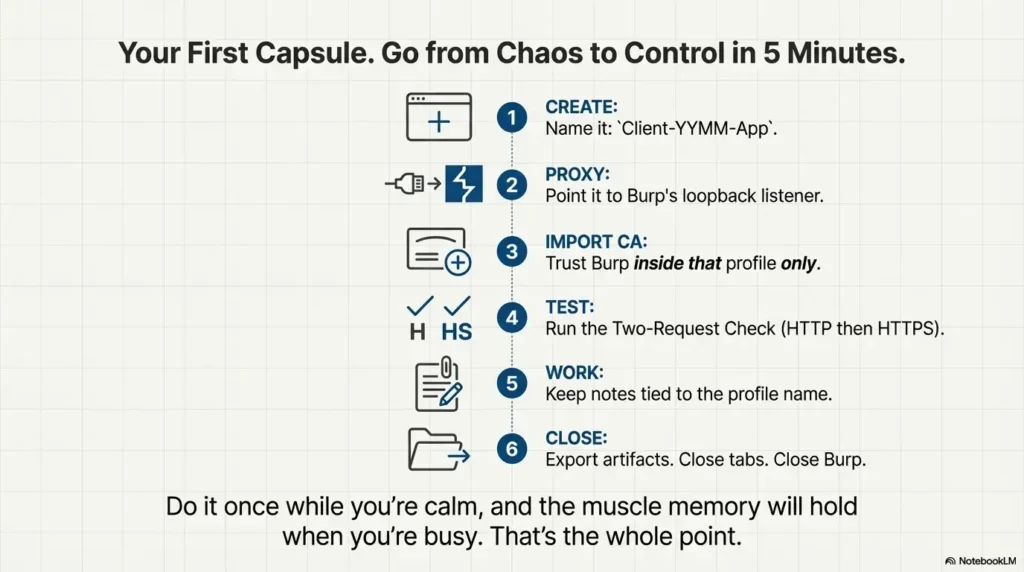
Name it: Client-YYMM-App. Make it obvious.
Manual proxy to Burp listener (loopback preferred).
Trust Burp CA inside that profile.
HTTP confirms routing. HTTPS confirms trust.
Notes + screenshots labeled with profile name.
Export artifacts. Close tabs. Close Burp.
If you want a concrete next move you can do in under 15 minutes: create one template profile, duplicate it, import the CA, and run the two-request check. Do it once while you’re calm, and it’ll hold when you’re busy. That’s the whole point.
Original review: 2025-12
Technical guidance updated: 2026-10-13. Corrected HSTS and TLS-interception claims, independent-profile launch, and the limits of scope and history filters.
Browser-proxy trust record
Use these fields for your own task. Keep the actual conditions, evidence and unresolved questions beside the next decision.
Use the editable record below to retain the task context and unresolved questions.
Edit here, then select and copy the text to your own notes before leaving. This field has no submission or storage function; reloading resets it. Do not enter passwords, tokens or private client information. The 12,000-character limit applies to this working note.
Next action: Verify the active profile and request path before interpreting intercepted traffic.
Related task: Use Burp Browser Not Available on Kali ARM64: 7 Checks for that separate part of the workflow.
Worksheet change record — October 20, 2026
Added four task-specific fields, a next action and a related guide. This is a blank editorial working aid, not a completed test or validated assessment. Existing source-review dates retain their own scope; this addition is not a new verification of every statement.
Practice-aid update: October 20, 2026. Added the illustrative decision case and editable note. No new VM execution or full-article revalidation is claimed.