Open the practical working record to connect this guide to your scope, evidence and next decision.
Test the required architecture before choosing a platform
Identify host and guest architecture, virtualization support, available memory and storage, and the exact network boundary. Compare a reproducible import, boot and recovery task on supported hardware. A desktop hypervisor or dedicated host is not universally best for a particular study schedule; no comparative benchmark was run here. Reference and scope.
Pentest lab platform guide
VirtualBox vs VMware vs Proxmox for Pentest Labs:
The Smart Choice Before You Break Something
Compare host support, networking, recovery and operating overhead for the lab you intend to run.
This guide compares VirtualBox, VMware Workstation Pro, and Proxmox from the angle that actually matters for learners: setup friction, safe isolation, repeatable snapshots, RAM pressure, disk speed, and whether your lab will still be usable after the first burst of motivation fades.
The right answer is not always the most powerful platform. For a beginner, the best hypervisor is often the one that lets you build one legal, isolated, boringly reliable lab and return to it tomorrow without performing a tiny ceremony of suffering.
Pick faster
Match the platform to your real lab size, not your imaginary future data center.
Stay safer
Understand NAT, host-only, bridged, and isolated networks before vulnerable targets wander outside the fence.
Waste less money
Know when free is enough, when polish helps, and when server hardware is worth it.
Build the smallest safe lab you can actually finish. That is where the skill starts. 🛡️
Snapshot
This guide is for cybersecurity learners, IT admins, certification students, and homelab builders choosing between VirtualBox, VMware Workstation Pro, and Proxmox for legal local practice. By the end, you should know which platform fits your hardware, budget, isolation needs, and next 15-minute setup step.
Table of Contents
Before You Build: Keep the Lab Legal and Contained
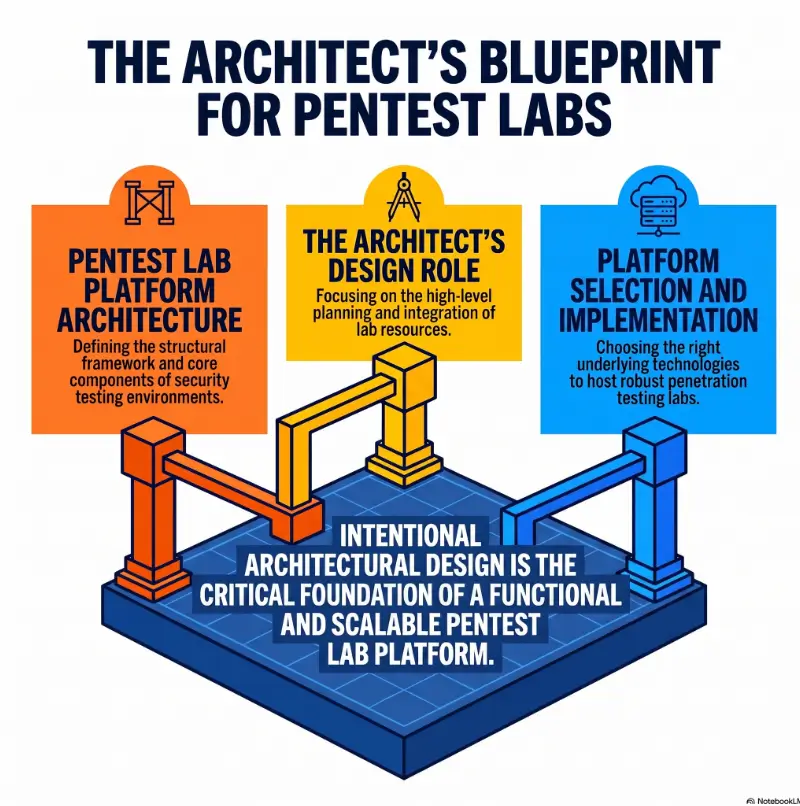
A pentest lab is a practice space, not a permission slip. The whole point is to create a small, legal range where you can learn enumeration, exploitation concepts, documentation, and defensive thinking without touching systems you do not own or have written permission to test.
That boundary matters. A vulnerable VM on your laptop is fine. A scan against your neighbor’s router, your employer’s network, or a random public IP is not “learning,” even if you are curious. Curiosity needs a fence.
Before you act
This article is general education for legal, defensive, lab-only cybersecurity practice. It does not authorize testing against any third-party system. Confirm your platform terms, school or employer rules, local law, and written permission before running security tools outside your own isolated lab.
Good fit: certification learners, IT admins, and homelab builders
This comparison is for people building local labs with tools such as Kali Linux, intentionally vulnerable machines, Windows trial environments, Active Directory practice networks, or defensive monitoring stacks.
That includes OSCP-style learners, help desk workers moving toward security, junior analysts learning how attacks look, and IT generalists who want to understand what poor configuration feels like from the other side of the door.
If you are planning your first practice environment, start with a legal home setup such as a safe hacking lab at home before worrying about advanced infrastructure.
Not a fit: testing networks you do not own
This guide is not about scanning public targets, bypassing employer controls, or “trying things” on real systems. A good lab teaches restraint as much as technique.
Keep practice targets intentionally vulnerable, locally hosted, and separated from your real accounts. Your banking session, family photos, work VPN, and exploit practice do not belong in the same little soup pot.
The boundary line: lab practice is not production permission
Once your lab works, the temptation is to “just check” something outside it. Resist that. The habit you want is simple: write down the scope before touching tools. If the target is not in scope, it is not part of the exercise.
That habit will serve you in exams, bug bounty work, internal testing, consulting, and blue-team investigations. The lab is where your technical hands and ethical spine learn to move together.
Key takeaway
Pick a platform only after you know your boundary: local, owned, documented, and isolated. A lab that leaks into real life is not advanced. It is just poorly fenced.
The 30-Second Verdict: Pick the Lab That Matches Your Pain
For most beginner pentest labs, VirtualBox is the easiest free starting point. VMware Workstation Pro is the smoother desktop option for people who want better polish and a more comfortable snapshot-heavy workflow. Proxmox is best when your lab is no longer just “Kali plus one target,” but a dedicated homelab server with networks, services, and long-running machines.
The mistake is choosing the platform that sounds most serious instead of the platform that fits your next practice session. A beginner with one laptop and two evenings a week does not need a server kingdom. They need one attacker VM, one target VM, and a network that behaves.
Choose VirtualBox if you are building your first Kali-and-target lab
VirtualBox is the “just let me start” option. It is free, widely documented, and familiar to many beginner tutorials. If your goal is to import Kali, import one vulnerable VM, learn NAT versus host-only networking, take a clean snapshot, and begin, VirtualBox is enough.
It can feel a little fussy. Guest additions, display resizing, network adapters, and occasional performance quirks may ask for attention. Still, for a first lab, that friction is not always bad. It teaches the boring infrastructure details that pentesters quietly need.
Choose VMware if you want desktop polish without babysitting every VM
VMware Workstation Pro often feels cleaner during daily desktop use. VM responsiveness, snapshot handling, drag-and-drop behavior, and multi-VM lab work can feel less scratchy on compatible hardware.
VMware Workstation Pro is now listed by Broadcom as free for commercial, educational, and personal users, but download portal friction can still annoy people who want one-click simplicity. Check the official Broadcom instructions before planning a class, team lab, or business workflow around it.
Choose Proxmox if your “little lab” is becoming infrastructure
Proxmox is not a desktop app. It is a server virtualization platform. That difference changes the whole mood of the room.
Choose Proxmox when you want a dedicated mini PC, spare desktop, or server running multiple VMs, containers, networks, storage pools, backups, and services through a browser-based interface. It is excellent for long-term homelabs, but it asks you to learn more before you get the candy.
Tiny trap: the best platform is the one you will maintain
Many learners overbuild their first lab, disappear into network diagrams, then never practice. The tool becomes a velvet maze. Nice walls, no progress.
Choose the platform that keeps you practicing. If VirtualBox gets you through 20 machines, it wins. If VMware makes your two-hour evening sessions calmer, it wins. If Proxmox lets you run a persistent Active Directory lab every weekend, it wins.
Laptop Lab or Dedicated Server? The Hidden Decision
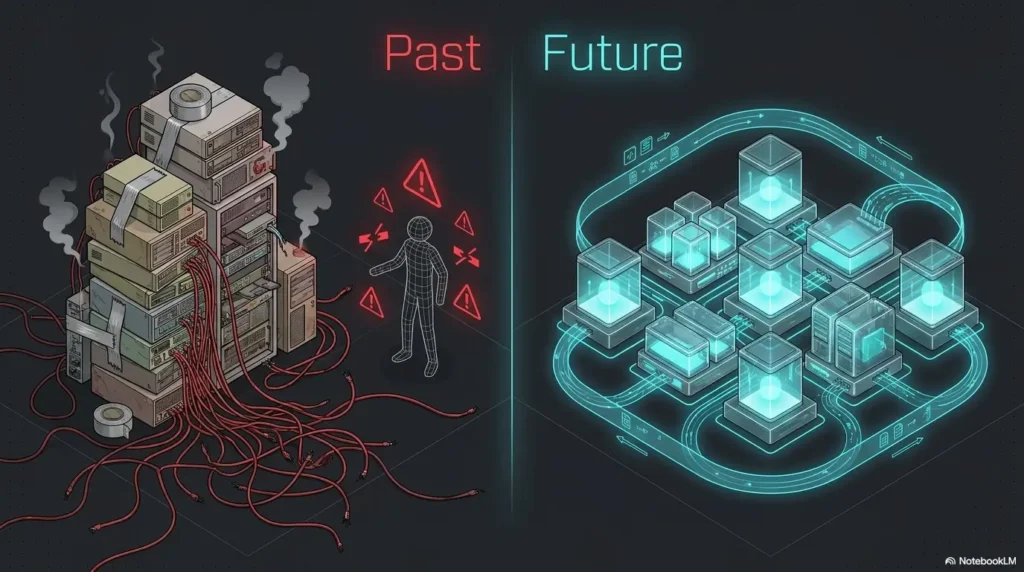
The real comparison is not just VirtualBox vs VMware vs Proxmox. It is desktop lab vs server lab.
A desktop lab runs on the machine you already use. It is fast to start, easy to pause, and portable. A server lab runs on separate hardware. It is better for isolation, long-running services, and bigger experiments, but it adds hardware, networking, storage, and maintenance decisions.
Desktop hypervisors: fast setup, fewer moving parts
VirtualBox and VMware Workstation Pro are hosted desktop hypervisors. Workstation Pro runs on supported Windows or Linux hosts; macOS users should compare VirtualBox with VMware Fusion. Check CPU architecture and guest-image compatibility before importing older x86 lab machines, especially on Apple Silicon.
This is ideal when you are still learning basic VM vocabulary: NAT, bridged, host-only, snapshots, shared folders, ISO files, virtual disks, and adapters. You can study at a desk, on a train, or in a coffee shop, provided your laptop battery does not file a complaint.
For new learners, this simplicity matters. The fastest route to skill is not always the most elegant architecture. Sometimes it is a humble two-VM lab with good notes and a stubborn cup of coffee.
Proxmox server: separate hardware and more administration
Proxmox runs directly on a dedicated machine. You manage it through a web interface from another device. That makes it feel more like managing a small private cloud than opening an app on your laptop.
This is powerful for labs that should remain available: domain controllers, vulnerable networks, SIEM tools, logging servers, malware-analysis sandboxes, test web apps, jump boxes, and segmented subnets.
It is also easier to keep risky practice away from your daily laptop. The separation alone can be worth it for learners who work on client laptops, employer-managed devices, or shared family computers.
The question nobody asks: will this lab still exist in 90 days?
A lab that takes six weekends to perfect but never gets used is not a lab. It is a museum of intentions.
Identify host and guest architecture, virtualization support, available memory and storage, and the exact network boundary. Compare a reproducible import, boot and recovery task on supported hardware. A desktop hypervisor or dedicated host is not universally best for a particular study schedule; no comparative benchmark was run here.
VirtualBox for Pentest Labs: Cheap, Simple, Slightly Fussy
VirtualBox is the sensible first bike of pentest labs. It may not have racing gloss, but it teaches balance, braking, and why falling sideways into networking mode confusion hurts.
For a beginner lab, VirtualBox can run Kali Linux, a vulnerable Linux target, and a Windows evaluation VM if your hardware can handle it. It is also common in tutorials, which means search results and community fixes are easy to find.
Where VirtualBox shines: quick Kali and target practice
VirtualBox is excellent when your goal is learning fundamentals: importing appliances, attaching ISO files, configuring adapters, creating host-only networks, and resetting machines after experiments.
It also makes sense for budget-conscious learners. If you are studying before paying for exam vouchers, courses, cloud labs, or hardware, starting with a free local hypervisor keeps your wallet from making dramatic violin noises.
Pair it with a simple workflow: one Kali VM, one target VM, one host-only network, one clean snapshot, one notes folder. That setup is not glamorous, but it works.
Networking modes matter more than the logo
VirtualBox supports common networking modes such as NAT, NAT Network, bridged, internal, and host-only. For beginners, the most important lesson is not memorizing every mode. It is knowing which mode exposes what.
NAT is usually useful when a VM needs outbound internet access. Host-only networking allows the host and attached VMs to communicate. VirtualBox Internal Network connects attached VMs without adding the host; arrange DHCP or static addressing as needed. Neither design should have forwarding to your LAN or internet. Bridged mode can put a VM onto the same network as your router and other devices, so it deserves caution.
For a deeper local setup walkthrough, keep a related guide such as VirtualBox NAT, host-only, and bridged networking nearby while you build.
Snapshots are your undo button, not your backup plan
Snapshots are one of the best reasons to use VMs for pentest practice. Take a clean snapshot before testing a vulnerable machine. If you break the target, corrupt a config, or fill the disk with noisy experiments, roll back.
But snapshots are not backups. If your host disk dies, your snapshot tree does not float away on a silver cloud. Keep exported appliances, important notes, and report templates backed up separately.
For lab discipline, build a basic snapshot strategy for vulnerable machines instead of clicking “snapshot” whenever anxiety taps the glass.
Don’t do this: running vulnerable targets on bridged mode by default
Bridged mode can be useful, but it is not the default answer for vulnerable machines. If the target is intentionally old, weak, or misconfigured, do not casually place it beside your smart TV, NAS, printer, and family laptops.
Use isolated networking first. Keep deliberately vulnerable targets offline. Update the attacker VM separately, with the target powered off and outward adapters removed again before lab work. A quiet lab is a kind lab.
VMware for Pentest Labs: The Smooth Desktop Choice
VMware Workstation Pro is often the desktop hypervisor people move to when they want fewer little papercuts. It is mature, polished, and comfortable for running multiple VMs on a capable machine.
For pentest labs, that polish matters most during repeated resets, multi-machine practice, and longer sessions where small annoyances become mosquitoes in the room.
Why VMware feels cleaner during multi-VM practice
VMware tends to feel strong when you run several machines at once, switch between windows, use snapshots often, and want guest operating systems to behave predictably. This can matter for Active Directory labs, Windows-heavy practice, or students moving through structured courses.
It is not magic. You still need enough RAM, disk space, CPU support, and network discipline. But when the host hardware is ready, VMware can make the desktop lab experience feel less like duct tape and more like a tidy workbench.
Snapshot-heavy labs: where VMware earns its keep
If you repeat the same practice flow often, snapshots become part of your study rhythm. Start clean, enumerate, test, document, break something, roll back, try again. That loop is where VMware’s smoother daily handling can feel worth the download friction.
This matters for certification learners who need repetition more than novelty. A reliable reset button keeps you honest. You can test one idea at a time instead of dragging yesterday’s accidental damage into today’s notes.
Licensing changed, but download friction may still annoy you
Broadcom states that VMware Workstation Pro and Fusion Pro are available free for commercial, educational, and personal users, with no license key required for the free version. That makes VMware more appealing than it was when many learners had to compare free personal editions against paid Pro features.
The practical catch is access. You may need to create or use a Broadcom account, find the right download area, and follow current instructions. For one learner, that is a small chore. For a classroom or team, it is something to test before promising a lab date.
If you want a separate buyer-style breakdown, compare VMware Player, Workstation, and Fusion before you standardize your setup.
Pattern interrupt: smoother does not mean safer
A polished UI can make risky choices feel harmless. Bridged networking is still bridged networking. Shared folders still deserve caution. A vulnerable target still needs isolation.
Do not let convenience blur the boundary. Smooth tools should make good habits easier, not make bad habits prettier.
Key takeaway
VMware is a strong choice when you already know you will spend many hours inside desktop VMs. It can reduce friction, but it does not replace safe lab design.
Proxmox for Pentest Labs: When Your Lab Needs Walls
Proxmox is the moment your lab stops being a few windows and starts becoming infrastructure. It is powerful, flexible, and excellent for homelab builders who want persistent machines, segmented networks, storage options, and web-based management.
It is also more than many beginners need. Installing Proxmox before you understand basic VM networking is like buying a commercial kitchen because you want to learn scrambled eggs. Fun, perhaps. Efficient, not always.
Why Proxmox changes the mental model
Proxmox VE is built around KVM virtual machines, LXC containers, storage, networking, and browser-based management. Instead of opening a VM app on your laptop, you administer a virtualization host.
That makes it excellent for repeatable lab infrastructure. You can run a vulnerable web app, Windows domain controller, logging stack, attacker box, and routing VM on a dedicated host while your daily laptop remains a client.
For a focused server build, a dedicated Proxmox pentest lab guide can help you avoid wandering into every possible feature before your first machine boots.
Better for purple-team playgrounds, AD labs, and SIEM labs
Proxmox shines when the lab has roles. One VM is the attacker. Another is the target. Another is a domain controller. Another is a logging server. Another is a workstation. The more your lab resembles a small network, the more Proxmox begins to make sense.
It is also useful for blue-team practice. You can build a tiny detection lab, generate test traffic, collect logs, and study what happens without involving your normal devices.
Storage and backups: the quiet advantage
Server-style labs live or die by storage planning. Proxmox gives you more serious options for disks, pools, backups, and snapshot workflows than a casual laptop setup.
That does not mean every learner needs ZFS, clusters, and elaborate backup schedules on day one. It means Proxmox gives you room to grow when your lab contains work you do not want to rebuild from ash and regret.
Don’t do this: installing Proxmox on your only daily-use laptop
Proxmox is usually best on dedicated hardware. Installing it on your only laptop can create avoidable pain, especially if you need that laptop for work, school, travel, or family use.
If you have only one machine, use VirtualBox or VMware first. Move to Proxmox when you have spare hardware, a clear lab plan, and a reason to keep machines running beyond one study session.
Good / Better / Best setup table
| Tier | Setup | Best for | Watch out for |
|---|---|---|---|
| Good | VirtualBox on your laptop | First Kali plus target lab | Display quirks, network confusion, outgrowing it |
| Better | VMware Workstation Pro on a capable desktop | Smoother repeated practice | Download portal friction, hardware demands |
| Best | Proxmox on dedicated mini PC or server | Persistent homelab, AD, SIEM, multi-network projects | Overbuilding before learning fundamentals |
Isolation First: How to Keep Your Lab From Leaking
Network isolation is the part beginners often skip because it feels less exciting than shells, scans, and tools with dramatic names. Yet isolation is the floor under the whole lab.
A vulnerable target should not casually see your home network. Your attacker VM should not become your daily browser. Your shared folders should not become a conveyor belt between exploit practice and personal files.
Use host-only or isolated networks for vulnerable targets
For basic local pentest practice, put the attacker and target on a private network. The attacker can reach the target. The target does not need open access to your real LAN.
In VirtualBox or VMware, this often means host-only or custom isolated networking. In Proxmox, use a lab-only bridge without a physical uplink for simple VM isolation, or verify VLAN and firewall separation explicitly. A dedicated server or bridge does not automatically isolate targets; keep the management interface out of the vulnerable segment.
If networking still feels foggy, spend time with networking basics for security learners before building a bigger lab. It will save hours of haunted troubleshooting.
Separate internet access from attack traffic
Kali may need internet access for updates, packages, documentation, VPNs, or downloads. Vulnerable targets usually do not.
A safer pattern is to give Kali one adapter for internet access and another adapter for the isolated lab network. Give the vulnerable target only the isolated adapter unless a specific exercise says otherwise.
Write the adapters down. A five-line lab map prevents the classic “why can’t anything ping anything” ritual.
Add a panic switch before you need it
A panic switch is a simple, preplanned way to disconnect risky lab traffic quickly. It can be as basic as disabling a VM adapter, shutting down an isolated virtual network, or powering off a Proxmox lab bridge used only for practice.
You do not need drama. You need a rehearsed move. If something behaves oddly, pause the lab, disconnect the risky segment, and inspect calmly.
Pentest Lab Safety Flow
1. Scope
List only machines you own or have written permission to test.
2. Platform
Use VirtualBox, VMware, or Proxmox based on lab size and hardware.
3. Network
Keep vulnerable targets on host-only, internal, or segmented networks.
4. Reset
Take clean snapshots and keep real backups of important lab work.
Show me the nerdy details
A safer beginner network pattern
- Kali adapter 1: NAT for updates and outbound internet access.
- Kali adapter 2: host-only or isolated lab network for attacking practice targets.
- Target adapter: host-only or isolated lab network only.
- Shared folders: off by default unless you need a specific file transfer workflow.
- Snapshot rule: take one clean snapshot before testing, then name later snapshots by purpose.
- Documentation rule: keep a tiny lab map with VM names, IP ranges, adapters, and purpose.
Performance Reality: RAM, Disk, and the Fan Noise Tax
Hypervisor debates often sound abstract until your laptop fan begins its small jet-engine monologue. Pentest labs are practical creatures. They care about RAM, disk speed, cooling, and whether your host can remain usable while VMs run.
The platform matters, but bad sizing can make any platform miserable.
RAM is the first ceiling beginners hit
A modest beginner lab can run with one Kali VM and one lightweight target. Add Windows, Active Directory, SIEM tools, or multiple targets, and memory disappears quickly.
As a practical rule, do not allocate every visible gigabyte to VMs. Your host OS needs breathing room. Starving the host makes the whole lab feel sticky and unreliable.
NVMe storage matters more than most charts admit
VMs are disk-hungry. Booting, snapshotting, updating, scanning, logging, and rolling back all touch storage. A slow external drive can turn practice into porridge.
If you are spending money, prioritize enough RAM and fast SSD storage before chasing exotic lab hardware. For many learners, a RAM upgrade or larger NVMe drive does more for daily practice than switching hypervisors.
Three small VMs beat one bloated fantasy lab
It is tempting to build the grand lab: multiple domains, monitoring stack, vulnerable apps, routing VM, Windows fleet, Linux targets, and a dashboard worthy of a space agency.
Resist at first. Three small VMs that boot reliably are better than one huge plan that makes your laptop wheeze. You can expand after the basics become boring.
Budget-conscious upgrade checklist
- Confirm your current RAM and storage before buying anything.
- Try one Kali VM plus one target VM first.
- If performance is poor, reduce VM RAM and disable unnecessary services before upgrading.
- Upgrade RAM if you constantly hit memory pressure.
- Upgrade SSD space and speed if snapshots, booting, or updates feel painfully slow.
- Buy a mini PC for Proxmox only when you have a clear long-term lab plan.
Illustrative example: the lab that got smaller and better
A learner starts with a plan for Proxmox, Active Directory, Splunk, three Windows machines, two Linux targets, and a Kali VM. After two weekends, nothing works cleanly. DNS is confused, snapshots are inconsistent, and every practice session begins with repair work.
They shrink the lab to VMware on a desktop: Kali, one Windows target, one Linux target. The lab boots in minutes. Notes improve. The learner finishes three boxes and writes two reports.
Later, they return to Proxmox with better networking knowledge. This time, the server lab makes sense because the learner has already earned the complexity.
Comparison Table: VirtualBox vs VMware vs Proxmox
Here is the practical comparison. Not the glossy brochure version. The version for people who have limited time, imperfect hardware, and a desire to practice without setting their evening on fire.
| Category | VirtualBox | VMware Workstation Pro | Proxmox VE |
|---|---|---|---|
| Best use case | Beginner desktop labs | Smooth desktop pentest labs | Dedicated homelab server |
| Learning curve | Low | Low to medium | Medium to high |
| Cost posture | Free | Free under current Broadcom desktop hypervisor terms | Free platform with optional support subscriptions |
| Hardware fit | Personal laptop or desktop | Personal laptop or desktop | Spare PC, mini PC, server, or homelab box |
| Networking depth | Good enough for most beginner labs | Strong desktop lab networking | Strong infrastructure-style networking |
| Snapshot workflow | Useful and accessible | Polished for repeated lab resets | Strong for server-style lab management |
| Main risk | Outgrowing it | Portal friction or assuming polish equals safety | Overbuilding too early |
| Best reader | New learner | Serious desktop lab user | Homelab builder |
Best platform by scenario
- Best for first pentest lab: VirtualBox.
- Best for smoother desktop workflow: VMware Workstation Pro.
- Best for home server labs: Proxmox VE.
- Best for Active Directory practice: VMware or Proxmox, depending on hardware and persistence needs.
- Best for long-term cybersecurity portfolio projects: Proxmox.
- Best for travel or coffee-shop study: VirtualBox or VMware.
Free vs paid: where money actually matters
The hypervisor itself may cost nothing, but labs are never truly free. Your real costs are RAM, SSD storage, spare hardware, electricity, backups, cloud storage for notes, training material, exam fees, and time.
Before spending money, ask what bottleneck you are solving. If you cannot explain the problem clearly, wait. Beginners often buy hardware to avoid learning networking. The hardware does not teach it for you.
| Budget tier | What it usually means | Smart choice | Avoid wasting money on |
|---|---|---|---|
| Low-cost | Existing laptop, free hypervisor, small lab | VirtualBox or VMware | Extra hardware before you know the basics |
| Mid-range | RAM or SSD upgrade, smoother daily practice | VMware or better VirtualBox sizing | Huge disks with no backup plan |
| Premium homelab | Dedicated mini PC or server, persistent networks | Proxmox | Complex clusters when one host is enough |
Common mistakes that turn labs into tiny house fires
- Choosing Proxmox before understanding basic VM networking.
- Giving every VM internet access because it feels easier.
- Treating snapshots like backups.
- Running vulnerable targets on bridged mode by default.
- Underestimating RAM, disk I/O, and laptop heat.
- Mixing personal files, work accounts, and exploit practice on one host.
- Building three platforms at once instead of practicing on one.
Key takeaway
The safest beginner lab is usually smaller than your ambition. Start with one platform, one attacker, one target, one isolated network, and one clean snapshot.
FAQ
Is VirtualBox enough for a beginner pentest lab?
Yes. VirtualBox is enough for a beginner lab with Kali Linux, one or two intentionally vulnerable targets, snapshots, and isolated networking. The first bottleneck is usually lab discipline, not the hypervisor.
Is VMware better than VirtualBox for Kali Linux?
Often, yes, especially if you care about smoother desktop behavior, snapshot workflow, and VM responsiveness. But VirtualBox is still perfectly usable for many entry-level labs.
Is Proxmox overkill for a pentest lab?
Proxmox is overkill for a one-laptop beginner lab. It becomes useful when you want persistent infrastructure, multiple networks, Active Directory practice, SIEM testing, containers, backups, and remote access.
Can I run a pentest lab on one laptop?
Yes, but keep it modest. Start with Kali plus one target VM. Add more machines only after your RAM, storage, cooling, and patience can handle the load.
Should vulnerable VMs have internet access?
Usually no. Keep vulnerable machines isolated unless a specific exercise requires internet access. Even then, use temporary rules and switch them back afterward.
Are snapshots the same as backups?
No. Snapshots help you roll back a VM quickly. Backups protect you when the host, disk, or entire lab breaks.
Which platform is best for OSCP-style practice?
VirtualBox or VMware is usually enough for early OSCP-style practice. Proxmox becomes more attractive when building larger internal networks or persistent lab environments. For a broader training route, compare your setup with an OSCP practical prep hub.
Can I mix platforms?
Yes, but avoid doing it too early. Mixing platforms can teach useful skills, yet it also creates troubleshooting fog. Start with one platform, then expand when you have a reason.
Your 15-Minute Next Step: Build the Smallest Safe Lab
The smart choice is not the platform with the loudest feature list. It is the platform that helps you practice legally, isolate clearly, reset quickly, and return tomorrow without rebuilding your confidence from crumbs.
Start with VirtualBox if you are new. Use VMware Workstation Pro if you want a smoother desktop lab and are willing to handle the current download process. Choose Proxmox when your practice needs a dedicated, isolated, repeatable homelab with room for services, networks, and long-term projects.
Do this in the next 15 minutes
- Choose one platform, not three.
- Create or import Kali Linux.
- Create or import one intentionally vulnerable target.
- Put the target on an isolated or host-only network.
- Take a clean snapshot before running tools.
- Write your lab map in five lines: platform, VMs, network mode, IP range, snapshot name.
That is enough. Not forever, but for today. A working small lab beats a majestic broken one every time.
Last reviewed: 2026-07
Technical guidance updated: 2026-10-13. Clarified supported host platforms, architecture compatibility, host-only versus internal networking, and Proxmox isolation; repaired table-of-contents links.
Check host architecture and the actual network bridge first
Record host OS, CPU architecture, hypervisor release, and target-image architecture before choosing a platform. An old x86 Kioptrix appliance is not automatically compatible with an Arm host because Kali itself has an Arm build. The VirtualBox 7.2 user guide distinguishes x86 guests on x86 hosts from supported Arm guests on Arm hosts.
Also name the exact VMware product: Workstation and Fusion have different host platforms. Confirm the supported host/guest combination before buying hardware or converting a disk.
A dedicated server does not create isolation by itself. On Proxmox, inspect the bridge’s physical ports, VLAN path, host IP, forwarding, firewall, and any router VM. Keep vulnerable targets off bridges that reach the household or business LAN, and keep management access separate. “Private” in a VM name is not a network control.
Editorial review: 16 October 2026. Examples are illustrative; this review does not represent an audit or live control test.
Practice-lab hypervisor fit trial
Use this when: you are a learner comparing platforms for the same host and lab architecture. Copy these fields into your notes and replace each prompt with a dated response. Keep assumptions and unresolved questions visible.
| Field | What to record | Your evidence / owner / next check |
|---|---|---|
| Host constraints | Record CPU architecture, memory, storage and operating-system compatibility. | To complete |
| Required topology | Map intended virtual peers, isolation and any controlled external access. | To complete |
| Recovery task | Specify a snapshot, restore or backup task the platform must support. | To complete |
| Observed trial | Record actual setup results and failures using the same bounded workload. | To complete |
Next action: Test the required architecture and recovery task before selecting on reputation alone. Mark the relevant row confirmed, provisional or unresolved. Keep the supporting record, responsible person and next check beside it so another reader can continue the work without treating an assumption as a result.
This is a blank practice record, not a report of a test performed by Kioptrix. Add the actual versions, approved conditions and observations from your own session.
Worksheet change record — October 20, 2026
Added this practice-lab hypervisor fit trial with four article-specific fields and an evidence-based next action. Existing source notes retain their own review dates. This addition is not a fresh verification of every statement or a newly executed test.