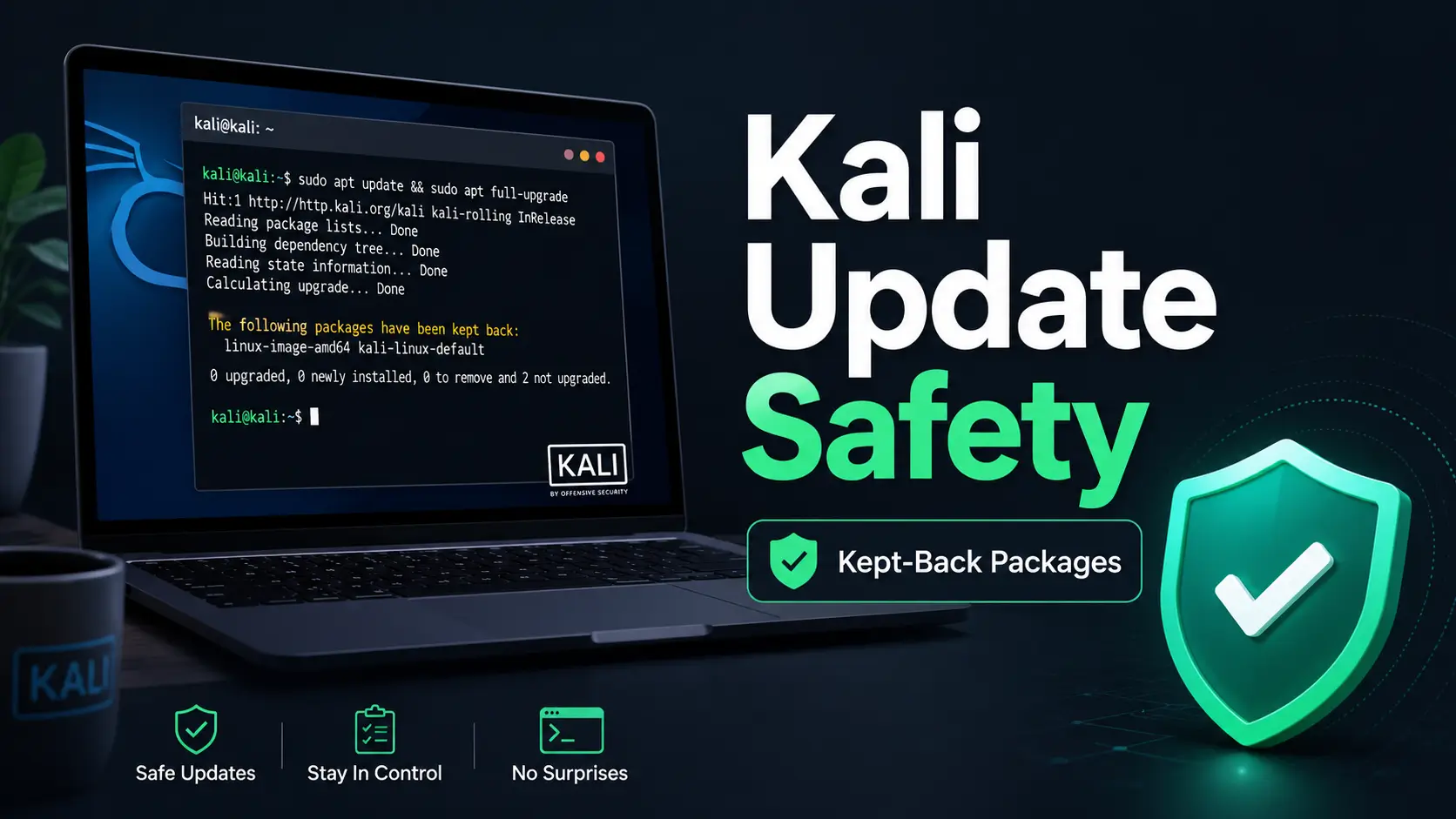
Kali Linux Update Safety Guide
Kali Packages Have Been Kept Back:
A Safe Update Guide That Does Not Torch Your Lab
That small APT message can feel oddly dramatic: “The following packages have been kept back.” It appears after an ordinary update command, usually when you were just trying to keep Kali tidy before class, a CTF, a lab night, or a certification grind. The terminal goes quiet. Your brain starts projecting smoke from the desktop environment.
The good news: kept-back packages are not automatically a broken system. In many Kali Linux setups, they are APT’s way of saying, “I can update this, but the dependency graph wants permission to move furniture.” The bad news: forcing fixes without reading the removal list can remove packages you expected to keep, especially on rolling-release systems.
This guide gives you a calm, staged way to update Kali, diagnose kept-back packages, spot dangerous removals, clean up repository problems, and know when waiting is smarter than heroic typing. Tiny terminal goblin, meet clipboard and patience. 🧰
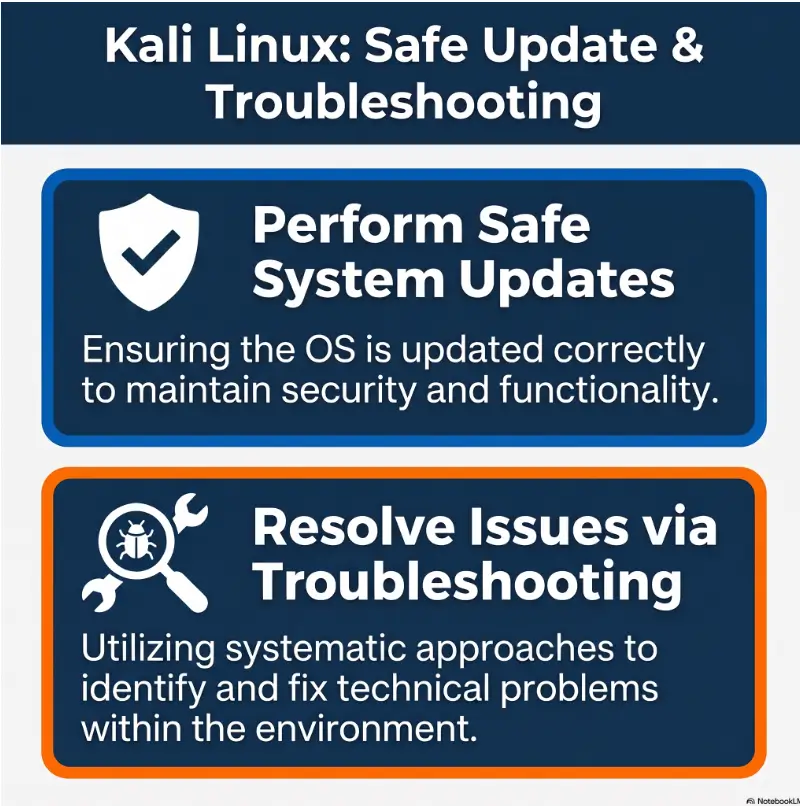
Update safely
Use the Kali-friendly update path without treating every warning like a crisis.
Read removals first
Catch suspicious package removals before you press Y and inherit a mess.
Fix the right thing
Separate normal rolling-release behavior from repo contamination and dependency conflicts.
Best first move: update the package list, run full-upgrade, then read before accepting. One careful pause can save a whole afternoon. ✅
Snapshot
This guide is for Kali desktop, VM, WSL, homelab, student, and junior pentest users who see “packages have been kept back” during updates. You will learn why it happens, when apt full-upgrade is the normal fix, how to review removals, how to check Kali repositories, and when to stop instead of forcing the system.
Table of Contents
Before You Act: Safe Kali Updating Has A Stop Rule
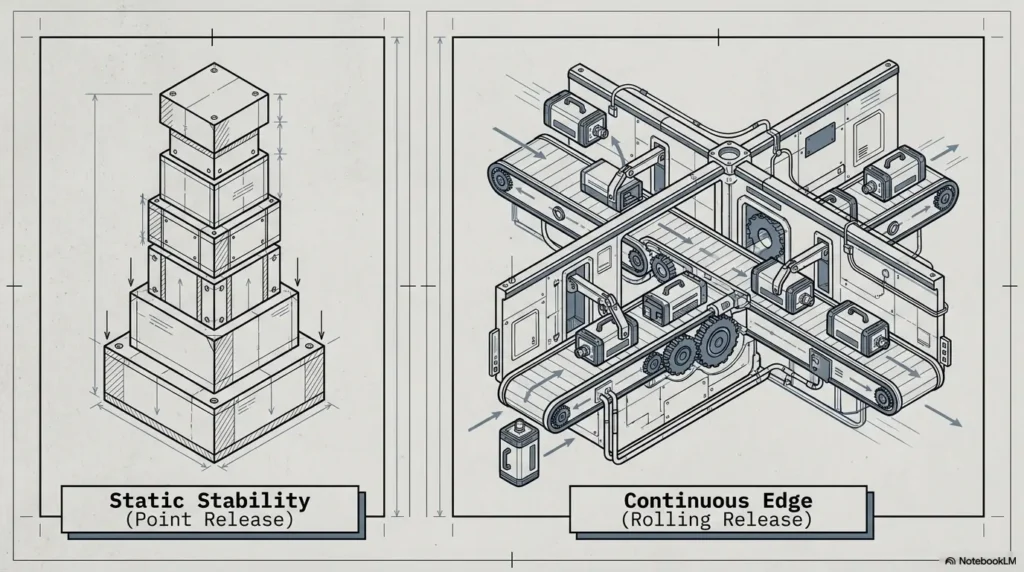
Kali Linux is not a set-it-and-forget-it office laptop operating system. It is a rolling security distribution packed with tools, dependencies, desktop packages, language runtimes, drivers, and lab conveniences that change often.
That makes the “packages have been kept back” message less like a red siren and more like a yellow sticky note from APT: something can be upgraded, but not through the cautious path you just used.
Before You Act
This article is practical troubleshooting guidance, not a guarantee that every Kali system can be updated safely in one command. If your Kali install supports paid work, client testing, coursework, exams, or a critical lab, make a snapshot or backup first. Review removals before accepting changes. When the output looks strange, stop and confirm with official Kali documentation, package trackers, or experienced help.
Medium Risk, Not Panic Risk
The risk is real but manageable. A bad APT decision can remove useful tools, break a desktop session, or turn a clean study VM into a fog machine of dependency errors.
Still, kept-back packages are common enough that you should not treat them as proof that Kali is broken. The safer question is: what exactly is APT refusing to do automatically?
Who Should Be Extra Careful
Be cautious if you are using Kali right before a lab, class, CTF, exam practice window, or client-authorized engagement. Updating at the wrong time can create a problem that has nothing to do with your skill and everything to do with package timing.
VM users should snapshot. Bare-metal users should back up important files. WSL users should be especially mindful of repo changes, package holds, and anything that might affect the Windows-side workflow.
The Stop Rule
Stop before accepting an upgrade if APT proposes removing a large number of packages, a desktop environment, a Kali metapackage you rely on, networking tools you need, or anything you do not recognize but cannot afford to lose.
A terminal prompt is not a loyalty test. You are allowed to press N. In fact, pressing N is sometimes the most senior move in the room.
Key Takeaway
The safe Kali update mindset is not “run the magic command.” It is “refresh, upgrade through the right path, inspect removals, and stop when the dependency proposal looks too expensive.”
Why Kali Packages Are Kept Back In The First Place
When Kali says packages have been kept back, it usually means APT can see an upgrade but will not apply it under the current command because the change requires dependency movement that the command is not willing to perform.
The most common trigger is using apt upgrade when the system actually needs the broader behavior of apt full-upgrade.
It Is Not Always An Error
The wording sounds ominous, but kept-back packages are often normal on a rolling-release distribution. Kali packages, dependencies, metapackages, kernels, desktop components, Python-related packages, and security tools can shift in ways that require adding or removing packages.
APT is not only installing files. It is solving a graph. When one package changes, another package may need a newer dependency, a replacement package, or the removal of an older conflict.
Why apt upgrade Plays Cautiously
The plain apt upgrade command is conservative. It updates packages when it can do so without removing existing packages. That caution is useful in some Linux situations, but Kali’s rolling model often needs dependency changes that plain upgrade will not make.
So APT keeps the package back rather than making a more disruptive change behind your back. Annoying? A little. Sensible? Often, yes.
The Hidden Dependency Move Behind The Warning
A kept-back package may need a newer library, a replacement package, or the removal of something that conflicts with the upgrade. Sometimes the conflict is harmless. Sometimes it is exactly where you should stop.
For example, a desktop-related package being kept back is worth reading carefully. A single library replacement may be routine. A proposal to remove half your desktop environment is not a small footnote. That is the terminal clearing its throat.
The One-Line Mental Model: APT Is Protecting The Graph
APT is trying to protect package consistency. It may not know your intentions, but it does know when your requested action does not fit neatly inside the current dependency graph.
Your job is not to bully APT. Your job is to ask it better questions.
Fast Answer Box
When Kali says packages have been kept back, first run sudo apt update, then use sudo apt full-upgrade rather than relying on plain apt upgrade. Read the package removal list before accepting. If APT still keeps a package back, a simulated or explicit install can reveal what is blocking it.
Before You Touch APT: Take The Snapshot Exit
Before you fix kept-back Kali packages, protect your working state. This is especially important if your Kali machine contains notes, custom wordlists, Burp settings, VPN configs, tool aliases, scripts, reports, exam prep material, or lab evidence.
A clean rollback beats a heroic recovery session. Heroics are expensive. Snapshots are boring little parachutes.
VM Snapshot First, Heroics Later
If you are using VirtualBox, VMware, Proxmox, Hyper-V, UTM, or another hypervisor, take a snapshot before a major update. Name it with the date and context, such as before-full-upgrade-2026-07.
If you are working in a class or lab, snapshot while the VM is shut down when possible. That gives you a cleaner rollback point and avoids saving a half-busy state.
Save Command Output Before Changing Packages
When APT shows kept-back packages, copy the output into a note. You want the package names, the command you ran, and any proposed removals.
This matters if you later ask for help. A screenshot of “it broke” is a foggy postcard. The exact APT output is a map.
Copy This Pre-Upgrade Note Template
Date: Kali type: VM / bare metal / WSL / USB Command run: Kept-back packages: Proposed removals: Repository branch: Snapshot or backup made: yes / no Why I am updating today:
Check Disk Space, Battery, And Network Stability
Low disk space and unstable downloads can turn a manageable update into a half-configured package stew. Before a full upgrade, check that the system has enough free space and a stable connection.
On a laptop, plug in power. On a VM, make sure the virtual disk is not nearly full. On WSL, confirm you are not about to update while Windows is doing its own reboot carnival.
Pre-Update Readiness Checklist
- VM snapshot or file backup is done.
- Important notes, scripts, VPN files, and reports are saved outside the VM if needed.
- Disk space is not critically low.
- Network connection is stable.
- You are not minutes away from a lab, CTF, exam practice block, or engagement.
- You are ready to read the removal list instead of using blind
-y.
Use The Kali-Preferred Update Path
The practical safe path is simple: refresh package metadata first, then run the full upgrade path that Kali expects for normal system updates.
The command sequence is short. The judgment happens when APT prints what it plans to do.
Step 1: Refresh Package Metadata With sudo apt update
Start with:
sudo apt update
This does not upgrade packages by itself. It refreshes APT’s local view of what versions are available from your configured repositories.
If apt update fails, do not continue to upgrade. Fix the update error first, because stale or broken package metadata can make the next step misleading.
Step 2: Run sudo apt full-upgrade
Next, run:
sudo apt full-upgrade
Kali’s own updating guidance points users toward apt full-upgrade for bringing a system up to date. The important part for real humans with real VMs is this: do not sleepwalk through the confirmation prompt.
Read the packages to be installed, upgraded, and removed. Especially removed.
Why Not Just apt upgrade?
On Kali, plain apt upgrade can be too cautious because it avoids removals. That means it may leave packages behind when the system needs a dependency replacement or cleanup to complete the upgrade.
full-upgrade gives APT permission to make the broader dependency changes required to upgrade the system as a whole. That power is useful, but it is also why you review the proposal before accepting.
During An Engagement? Freeze The Toolbox
If your Kali box is already working for an authorized test, exam lab, course exercise, or time-sensitive task, consider postponing non-urgent updates. A rolling-release update can fix problems, but it can also introduce a new tool issue at the worst possible hour.
For working pentesters, the smarter routine is often: update and test the toolbox before the work period starts, then avoid unnecessary changes while the work is active.
| Command | What It Does | When It Helps | Safety Note |
|---|---|---|---|
sudo apt update | Refreshes package metadata | Always before install or upgrade commands | If this fails, stop and fix it first |
sudo apt upgrade | Upgrades packages conservatively | Less useful for normal Kali rolling updates | May leave packages kept back |
sudo apt full-upgrade | Allows dependency changes, including removals when needed | Normal Kali system update path | Read removals before accepting |
sudo apt install package-name | Explicitly asks APT to install or upgrade one package | Useful for diagnosing a specific kept-back package | Say no first if removals are unclear |
- Kali Setup Checklist for Kioptrix Labs
- Kali Linux Lab Infrastructure Mastery
- Essential Kali Linux Tools for Kioptrix
- Kali Linux DNS Problems: Safe Troubleshooting Guide
- Kali Linux YubiKey SSH Setup
The Removal List Is Where Systems Break
The removal list is the tiny part of the update output where expensive mistakes hide. It may be only a few lines, but those lines can decide whether your Kali VM remains useful after the upgrade.
When APT proposes removals, do not judge by package count alone. Judge by package meaning.
Safe-Looking Removals Versus Suspicious Removals
A small removal list may be normal when packages are being replaced by newer equivalents. A large removal list that includes desktop packages, metapackages, networking components, or major tool groups is a reason to pause.
For beginners, the hardest part is knowing which names matter. When unsure, copy the proposed removal list and search package names before accepting. In a lab VM, reverting from a snapshot is easy. Rebuilding a customized setup from memory is less charming.
Desktop Metapackages Deserve Extra Attention
Kali metapackages can represent groups of tools or desktop choices. Removing a metapackage does not always remove every package it once pulled in, but it can affect future updates, tool groups, or system shape.
If APT proposes removing something that looks like kali-desktop-*, kali-linux-*, or a large chunk of your graphical environment, stop and investigate. Desktop repair is possible, but preventing the problem is cleaner.
When A Large Removal List Means Stop
A large removal list is especially suspicious if the number of removed packages is high compared with the number of upgraded packages, or if packages appear unrelated to the package you are trying to update.
Use this rule: if you cannot explain why APT wants to remove something, do not approve the change yet.
-y Is Not Confidence
Adding -y tells APT to assume yes. It does not make the decision safer. It only makes the decision faster.
For routine updates on a disposable lab VM, some users automate. For troubleshooting kept-back packages, skip the bravado. Let APT show the proposal and give yourself a moment to read.
| APT Proposal | Risk Level | What To Do |
|---|---|---|
| One obsolete helper package removed and many packages upgraded | Lower | Usually reasonable, but still read the package name |
| A known replacement package removes an older conflicting package | Lower to medium | Confirm the replacement relationship before accepting |
| Desktop-related packages removed | Medium to high | Stop and research before accepting |
| Large number of unrelated removals | High | Stop, save output, check repositories and bugs |
| APT wants to remove tools you need today | High | Postpone or snapshot first, then test in a copy |
Key Takeaway
The safest Kali update habit is not memorizing more commands. It is reading the removal list before accepting changes, especially when desktop packages, metapackages, or many unrelated packages appear.
When Manual Install Is The Right Diagnostic Move
If sudo apt full-upgrade still leaves a package kept back, the next move is not random forum alchemy. A useful diagnostic step is to ask APT directly about the specific package.
This can reveal the real conflict. You are not committing yet. You are asking APT to show its cards.
Why sudo apt install package-name Can Unblock A Package
When a package is already installed, running apt install package-name can ask APT to upgrade or reinstall it explicitly. That may reveal which dependency or conflicting package is blocking the upgrade.
Use the exact kept-back package name from the output. Do not guess.
sudo apt install package-name
Replace package-name with the actual package. Then read what APT proposes. If it asks for removals you do not understand, choose no.
Use Manual Install To Reveal The Real Conflict
The value of this step is visibility. APT may show that one older package blocks the new one. It may show a replacement. It may show something alarming enough to stop.
The diagnostic question is: “What would APT need to remove or change to upgrade this exact package?”
Say No First, Then Decide
When you are diagnosing, it is fine to press n. You can rerun the command later after checking the package names.
Beginners sometimes treat the confirmation prompt as a doorway that only opens once. It is not. APT is patient. Your lab should be, too.
Real-world example: A Kept-Back Desktop Package
Imagine a student running Kali in a VM before a Saturday practice session. apt full-upgrade finishes, but kali-desktop-xfce remains kept back. The student searches for a dramatic command, finds three different opinions, and almost runs the loudest one.
The safer move is quieter: explicitly ask APT about the package and read the proposed removals. If APT wants to remove one expected conflict, that may be fine after checking. If it wants to remove broad desktop pieces, the student should stop, save output, and investigate.
The lesson is not “never update desktop packages.” The lesson is “make APT explain the trade before you buy it.”
Repository Hygiene: The Boring Fix That Saves The Day
When kept-back packages keep returning, repository configuration deserves attention. APT can only solve a clean problem if the package sources are clean.
Mixed repositories are one of the classic ways to make Kali behave strangely. A single Ubuntu, Debian, vendor, or old install source can pull the dependency graph in directions Kali did not intend.
Check /etc/apt/sources.list.d/kali.sources
Modern Kali documentation points users to the kali.sources file. You can inspect it with:
cat /etc/apt/sources.list.d/kali.sources
A standard Kali rolling setup should point to Kali’s network repository and use kali-rolling unless you intentionally chose another supported branch such as a snapshot approach.
Confirm kali-rolling Or Intentional Snapshot
Most users should be on kali-rolling. Some users choose a snapshot-style workflow for stability, but that should be intentional, documented, and understood.
If you copied repository lines months ago from a random tutorial, do not assume they are still correct. Repository files are small, but their consequences are loud.
Remove Stale CD-ROM Or Offline Install Entries
Older or offline install entries can cause update problems. If APT tries to use a CD-ROM or unavailable local source, package metadata may fail before you even reach the real upgrade question.
Disable stale entries rather than hacking around the symptoms. One clean source configuration is worth more than five panicked repair commands.
The Quiet Villain: Ubuntu Repos Inside Kali
Do not mix Ubuntu repositories into Kali to install a missing package. Kali is based on Debian, but it is not Ubuntu, and its packages are curated for Kali’s use case.
Mixing operating system repositories can create dependency conflicts that look like mysterious APT behavior. In reality, APT is being asked to solve a puzzle from three different boxes.
| Repository Situation | What It Can Cause | Safer Alternative |
|---|---|---|
| Clean Kali rolling repository | Normal rolling update behavior | Use apt update and apt full-upgrade |
| Kali snapshot intentionally selected | Fewer surprise changes, slower updates | Document why you chose it and when to refresh |
| Ubuntu repo added to Kali | Dependency conflicts and broken upgrades | Remove it and use Kali-supported package paths |
| Old CD-ROM source still enabled | Update errors and stale metadata | Disable stale install media entries |
| Random third-party repo copied from a tutorial | Package version mismatch | Use separate files only when you understand the source |
Key Takeaway
If kept-back packages feel persistent or weird, inspect your repositories before forcing package repairs. A contaminated source list can make APT look unreasonable when it is only reacting to mixed instructions.
Common Mistakes That Make Kept-Back Packages Worse
The internet is full of confident APT advice. Some of it is useful. Some of it is a banana peel wearing a sysadmin hat.
Here are the mistakes that most often turn a simple kept-back package into a longer repair session.
Mistake 1: Forcing dpkg Too Early
dpkg repair commands have their place, but they should not be the first response to a normal kept-back package message. If the problem is dependency planning, forcing lower-level tools may create more work.
Start with metadata refresh, full-upgrade, removal review, and targeted diagnosis. Save heavier repair tools for specific errors.
Mistake 2: Copying Ubuntu Fixes Into Kali
An Ubuntu forum command may be correct for Ubuntu and wrong for Kali. The package names may overlap, but the repository assumptions may not.
When the system is Kali, prefer Kali documentation, Kali package pages, Kali bug reports, and cautious Debian-aware reasoning.
Mistake 3: Removing Metapackages Without Understanding Them
Metapackages are packages that depend on other packages. They can shape which tool groups or desktop groups are installed. Removing one is not always catastrophic, but it can change how future upgrades behave.
If APT proposes removing a metapackage, check what it represents before accepting. The package name may be short, but the meaning may be wide.
Mistake 4: Running Cleanup Commands After Conflict Chaos
autoremove can be useful after a clean upgrade when you understand what is being removed. It is not a magic broom for a confused system.
After a failed or strange upgrade attempt, avoid cleanup commands until you know which packages are truly unnecessary. Cleaning too early can remove packages you needed to recover gracefully.
Don’t Do This Checklist
- Do not blindly run
autoremoveafter package conflict chaos. - Do not paste random
apt-mark unholdcommands unless you confirmed packages are actually held. - Do not delete APT files because one forum reply sounded confident.
- Do not mix
kali-devor experimental branches casually. - Do not update a mission-critical VM minutes before using it.
If Packages Are Still Kept Back: A Calm Diagnostic Flow
Some kept-back packages require more than the normal update path. That does not mean you need a command cannon. Use a short diagnostic flow that keeps each step reversible.
The goal is to find whether the issue is stale metadata, a normal dependency transition, a package hold, repository contamination, or a temporary package timing issue.
Safe Kept-Back Package Flow
1. Refresh
Run sudo apt update. If it fails, fix that first.
2. Upgrade
Run sudo apt full-upgrade and read the proposal.
3. Review
Stop if removals are large, strange, or desktop-related.
4. Diagnose
Try explicit install or simulation to reveal conflicts.
5. Check Repos
Confirm clean Kali sources and no mixed OS repositories.
6. Wait Or Report
If it looks like a temporary transition, pause and retry later.
Read The Exact Package Names
Do not summarize the error as “Kali update broken.” Write down the exact kept-back package names. Package names are the trail of breadcrumbs.
Search the names in the Kali package tracker, Kali bug tracker, or official docs. If many users are seeing the same issue, waiting a few days may be safer than forcing a workaround.
Run A Simulated Install Before Committing
A simulation can help you see what APT would do without applying changes. Use this carefully with the exact package name:
apt -s install package-name
The -s option simulates the action. You should still read carefully, because a simulation is only useful if you pay attention to the proposed changes.
Inspect Held Packages Separately
Package holds are different from normal kept-back behavior. If a package is held, APT has been told not to upgrade it automatically.
Check holds with:
apt-mark showhold
If nothing appears, the package is probably not held. Do not run apt-mark unhold just because a tutorial mentions it. The command is only relevant when a hold exists and you understand why it was set.
Know When Waiting Is A Fix
Rolling repositories can pass through temporary transition states. A package may be waiting for a dependency to land, a conflict to resolve, or a package test to catch up.
If the system works and the kept-back package is not urgent, waiting a few days and trying again after sudo apt update can be a perfectly reasonable choice.
Show me the nerdy details
APT calculates a solution across installed packages, available package versions, dependencies, conflicts, replacements, pins, holds, and repository metadata. A kept-back package means the requested action did not fit inside the permitted operation. Plain upgrade avoids removing packages, while full-upgrade may remove packages when required for the overall upgrade.
That is why two machines can show different results. One may have a clean Kali source list and a standard desktop. Another may have old third-party repositories, pinned packages, held tools, custom Python packages, or a metapackage history that changes the solution APT can safely propose.
| Reader Type | Best Low-Risk Move | When To Spend More Time |
|---|---|---|
| Cybersecurity student | Snapshot VM, run safe update sequence, save output | Before an exam lab or graded exercise |
| Homelab admin | Test update on a clone before touching a tuned VM | When VPN, routing, or toolchains are customized |
| Junior pentester | Update before the work period, then freeze the toolbox | When a client-approved workflow depends on specific tools |
| WSL user | Check repositories and avoid Linux desktop assumptions | When package changes affect Windows-side tooling |
| Budget-conscious learner | Use free snapshots, notes, and official docs first | When repeated breakage costs more time than rebuilding cleanly |
FAQ
Why Does Kali Say Packages Have Been Kept Back?
Kali says packages have been kept back when APT sees available upgrades but does not apply them under the current command. This commonly happens when dependency changes, replacements, or removals are required and plain apt upgrade will not perform them.
Should I Use apt upgrade Or apt full-upgrade On Kali?
For normal Kali system updates, use sudo apt update followed by sudo apt full-upgrade. Plain apt upgrade is more conservative and may leave packages behind on Kali’s rolling-release model.
Is apt full-upgrade Dangerous?
It is not automatically dangerous, but it has more power than plain upgrade because it can remove packages when required. That is why you should read the removal list before accepting, especially on a system you rely on.
Can I Fix Kept-Back Packages With apt install package-name?
Sometimes, yes. Explicitly installing the kept-back package can show what dependency or conflict is blocking the upgrade. Treat it as a diagnostic step first. Read the proposal and press no if the removals look risky.
What If Kali Wants To Remove My Desktop Package?
Stop and investigate before accepting. Desktop-related removals can be routine in some transitions, but they can also leave you with a broken or changed graphical environment. Save the output and check official Kali sources or bug reports.
Why Did This Happen After Adding A Third-Party Repository?
Third-party repositories can introduce package versions that conflict with Kali’s expected dependencies. This is especially risky when users add Ubuntu or unrelated Debian repositories to Kali. Clean repository configuration is often the real fix.
Should I Run apt autoremove After Fixing Kept-Back Packages?
Only when you understand what will be removed. autoremove can be useful after clean upgrades, but after package conflicts or failed upgrades, it may remove packages that are still useful for recovery or tool stability.
Can I Ignore Kept-Back Packages For A While?
Often, yes, especially if the system works and the package is not urgent. Rolling repositories can settle after a few days. Still, do not ignore security-related updates forever, and do not let a broken repository configuration sit unnoticed.
Run One Safe Update Check In 15 Minutes
The calm next step is not to fix everything forever. It is to run one safe update check, capture the output, and decide from evidence.
Start by saving your work. Take a VM snapshot if you can. Then run the safe sequence without automatic yes:
Safe Update Sequence
sudo apt update sudo apt full-upgrade
Now read. If the removal list is small and understandable, you may decide to proceed. If it is large, strange, desktop-related, or full of packages you cannot explain, press n, save the output, and diagnose before changing the system.
That one pause is the whole craft. Kali will always have sharp tools and moving parts. You do not need to fear the update system. You just need to make it show the bill before you pay.
Final 15-Minute Action Plan
- Take a snapshot or backup anything important.
- Run
sudo apt update. - Run
sudo apt full-upgrade. - Read the removal list before accepting.
- Stop if removals look large, strange, desktop-related, or unrelated.
- Copy the output into a note before asking for help.
Last reviewed: 2026-08