Sources, review date and section shortcuts
Editorial review: October 20, 2026. Treat thirty days as a proposed schedule and verify enforcement, recovery and remaining exceptions.
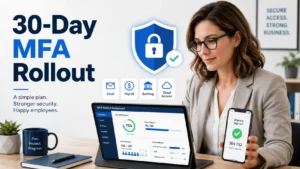
Reference documentation · Related practical guide
Go straight to: Decision check · Main workflow · Further detail
Open the practical working record to connect this guide to your scope, evidence and next decision.
Distinguish enrollment from effective protection
Inventory human and service accounts, access paths and recovery mechanisms. Prefer phishing-resistant methods where supported; number matching is not equivalent to phishing resistance. Test enforcement and recovery on representative accounts and assign owners to exceptions. Completing a schedule or enrollment target is not proof that every access path is protected. Reference and scope.
Small-business security, without the Friday-afternoon fire drill
MFA Rollout Guide for Small Businesses:
A 30-Day Plan Employees Will Actually Use
Treat thirty days as a proposed schedule and verify enforcement, recovery and remaining exceptions.
This guide is built for lean teams that use email, banking, payroll, accounting software, cloud storage, remote access, client portals, and a modest constellation of SaaS tools. You may not have a full IT department. You may have one office manager, one MSP, one “techy” employee, and a Slack channel named something optimistic. That is enough to start if the rollout is staged, documented, and humane.
The goal is not to shame employees into perfect behavior. The goal is to protect the accounts that can move money, expose customer records, reset passwords, or invite an attacker into the business wearing a fake name badge.
Protect the money doors
Prioritize email, banking, payroll, accounting, and admin access first.
Avoid lockout drama
Plan recovery codes, phone changes, and support ownership before launch.
Create proof
Save screenshots and policy notes for cyber insurance, audits, and client reviews.
By the end, you will have a 30-day MFA rollout plan that feels less like a security thunderstorm and more like a tidy front-door upgrade. 🔐
Snapshot
This article is for small-business owners, office managers, MSP buyers, and lean IT leads who need to turn on MFA without locking people out or creating support chaos. You will learn which accounts to protect first, which MFA methods to compare, how to train employees, what to document, and how to run a practical 15-minute access audit today.
Before You Turn On MFA, Know What This Guide Can and Cannot Do
MFA can reduce the damage caused by stolen passwords, reused passwords, phishing, and employee account compromise. It is one of the most practical security upgrades a small business can make, especially when email, payroll, banking, and cloud tools sit at the center of daily work.
Still, MFA is not a magic lockbox. A careless rollout can create lockouts, lost recovery codes, confused employees, unmanaged exceptions, and a false sense of safety. A tidy MFA plan protects people from attackers and protects the business from its own scrambled admin habits.
Before you act
This guide is educational and practical, not legal, compliance, insurance, or technical consulting advice for your specific business. Confirm regulated requirements with a qualified professional if you handle health data, financial records, defense work, legal files, payment card data, or formal client security obligations. MFA helps reduce risk, but no setup can guarantee that an account will never be compromised.
Use this as an implementation map, not a certificate of compliance
For a small design studio, restaurant group, local contractor, online store, or professional services firm, this plan may be enough to get organized and move safely. For a regulated medical practice, financial advisory firm, defense contractor, law office, or business with formal audits, it should be treated as a starting checklist before working with a qualified IT, legal, compliance, or cyber insurance advisor.
The language here is intentionally plain. Your employees do not need a sermon about “identity assurance.” They need to know which app to open, which prompt to reject, who to call when their phone breaks, and why “approve” is not a button to tap while making coffee.
Key takeaway
Treat MFA as an account-access project, not a software toggle. The safest rollout has four parts: priority accounts, allowed MFA methods, recovery steps, and proof that the work was done.
MFA Starts With the Accounts That Can Sink You
A small business rarely has time to protect everything at once. That is fine. The mistake is protecting low-risk accounts first because they are easy, while leaving email, payroll, banking, and admin tools exposed.
Start with the accounts that create the biggest blast radius. In plain English, protect the logins that can reset other passwords, move money, export customer records, change payroll, approve invoices, or invite new users.
Email first, because password resets live there
Email is the master key in many small businesses. If an attacker gets into an owner’s inbox or a shared finance inbox, they may be able to reset passwords for banking portals, accounting software, cloud storage, CRM tools, domain registrars, and vendor accounts.
For most teams, Microsoft 365 or Google Workspace should be the first MFA target. Turn on MFA for owners, admins, managers, finance users, and anyone who can approve payments or access sensitive customer data. Then expand to the rest of the company.
Payroll, banking, and accounting are the money-door accounts
Payroll and accounting systems deserve early attention because they mix identity, money, employee data, vendor records, and tax information. Banking portals are even more direct. They are not just data systems. They are decision machines with a checkbook attached.
If the bank, payroll provider, or accounting platform offers stronger MFA options, compare them carefully. At minimum, avoid relying on one shared phone number for codes, one employee’s personal email for recovery, or one unprotected admin account that everyone quietly treats as “the office login.”
Admin accounts need MFA before everyone else
Admin accounts should go first because they can change rules for everyone else. This includes workspace administrators, cloud storage owners, domain registrar logins, website admin accounts, password manager admins, remote access admins, point-of-sale admins, and any MSP or IT provider account with privileged access.
Owners sometimes delay their own MFA because they are busy. That is backwards. Owners and administrators should be the pilot group, not the exception group. The captain does not skip the life jacket because the clipboard is heavy.
| Priority | Account Type | Why It Matters | First Action |
|---|---|---|---|
| 1 | Email and workspace admin | Controls password resets and user access | Enable MFA for owners and admins first |
| 2 | Banking, payroll, accounting | Can move money or expose sensitive records | Review allowed MFA methods and recovery contacts |
| 3 | Cloud storage and CRM | May contain customer files, contracts, and sales records | Require MFA for users with export or admin access |
| 4 | Remote access and VPN | Can open a path into internal systems | Require MFA before broad remote access |
| 5 | Vendor and contractor portals | External access is easy to forget | Document owner, purpose, and removal date |
The MFA Method Ladder: Stronger Security Without Breaking Work
Not all MFA methods are equal. Some are easier to deploy but weaker against phishing. Some are stronger but need more training, hardware, or admin care. A small business does not have to pick one perfect method for every person on day one.
A practical MFA rollout uses a ladder: good enough for most employees, stronger for sensitive roles, and strongest for administrators and people who can move money.
Good: authenticator apps for most employees
Authenticator apps are often a sensible baseline for small businesses. They are usually stronger than SMS codes, familiar enough for many employees, and supported by common business tools. Time-based one-time codes can be generated offline; push approvals require connectivity. Offline codes can help when mobile reception is poor, which matters in warehouses, basements, job sites, and office corners where signal goes to sulk.
The tradeoff is support. Employees need to know how to enroll, how to transfer MFA when they change phones, and what to do if they delete the app. Do not assume the setup screen explains enough. It usually explains just enough to create a future support ticket.
Better: number matching and app-based prompts
App-based prompts can be convenient, but basic “approve or deny” prompts may train users to tap without thinking. Number matching is better because the login screen displays a number that the user must match in the authentication app.
That tiny pause matters. It helps employees connect the prompt to a login they actually started. Number matching reduces push fatigue but is not phishing-resistant: codes or prompts can still be relayed through a fake login flow. Prefer FIDO/WebAuthn passkeys or security keys for phishing resistance where supported. The training rule should be simple: never approve a prompt you did not request.
Best: passkeys or hardware security keys for admins
Passkeys and hardware security keys can offer stronger protection, especially against phishing. They may be worth considering for owners, IT admins, finance users, executives, and anyone with access to high-value systems.
Do not start by forcing every employee into the strongest method if your team is not ready. A security key in a drawer, an admin with no backup key, and a confused staff are not a mature setup. They are a future Monday morning opera.
Keep SMS only as a guarded fallback, not the crown jewel
SMS codes are still common, but they should not be treated as the best long-term option for sensitive accounts. Phone numbers can be vulnerable to SIM swap attacks, number recycling, and social engineering. In some small businesses, SMS is useful as a temporary fallback. It should not become the permanent throne.
Key takeaway
Use authenticator apps or app-based number matching for most users where supported. Consider passkeys or hardware security keys for admins and money-moving roles. Keep SMS as a limited backup, not your main security plan.
| MFA Option | Best Fit | Strength | Common Friction | Small-Business Note |
|---|---|---|---|---|
| SMS code | Temporary fallback | Low to moderate | Phone changes, SIM risk, weak signal | Use sparingly for low-risk accounts or recovery only |
| Authenticator app code | Most employees | Moderate | Phone transfer and setup support | Good baseline when paired with written recovery steps |
| App prompt with number matching | Regular staff and managers | Moderate to strong | Training needed for prompt safety | Useful where supported by your email or identity provider |
| Passkey | Admins and sensitive roles | Strong | Device compatibility and enrollment | Compare support in your business apps before committing |
| Hardware security key | Owners, admins, finance users | Strong | Cost, loss, backup key process | Buy at least two per critical user if you adopt this route |
Official reference worth bookmarking
For a deeper standards-based view of authentication strength, review the current NIST digital identity guidance and use it as a careful reference when discussing phishing-resistant options with an MSP, security consultant, or software vendor.
Review NIST Authentication GuidanceThe 30-Day MFA Rollout Map for Small Businesses
A 30-day rollout is short enough to finish and long enough to avoid the one-big-switch disaster. The cadence matters. You want small wins, visible proof, and support routines before the whole company is required to use MFA.
Think of it as renovating a busy shop while customers are still walking through the door. You protect the cash register first, tape down the cords, and never start the loudest job at 4:45 p.m. on Friday.
Days 1 to 3: inventory every login that touches money, data, or customers
Start with a simple spreadsheet. List business apps, account owners, admins, employee access, contractor access, whether MFA is available, whether MFA is already turned on, and the recovery method.
Do not chase perfection. The first inventory can be messy. The goal is to find the major doors before arguing about the color of the doormat.
Days 4 to 7: pilot MFA with owners, managers, and admin users
The pilot group should include the people with the highest access and the people employees will ask for help. That usually means owners, managers, finance users, office admins, and the MSP or IT lead.
During the pilot, write down every confusing screen, every recovery question, and every “wait, what is this app asking me to do?” moment. Those small frictions are gold. They become the employee guide.
Days 8 to 14: turn on MFA for email and financial systems
Once the pilot group is stable, enforce MFA for email and core financial systems. This is where you reduce the risk of password-reset abuse, invoice fraud, payroll tampering, and exposed employee records.
Save screenshots of enforcement settings and relevant account coverage, with unnecessary personal details redacted. Never include recovery codes, enrollment QR codes, authenticator secrets, or tokens in an evidence folder. Keep evidence restricted to authorized reviewers. If your cyber insurance renewal, client security review, or internal audit asks for proof, screenshots can prevent the usual scavenger hunt.
Days 15 to 30: expand, clean up, and document exceptions
Expand MFA to cloud storage, CRM, remote access, client portals, vendor accounts, e-commerce tools, marketing platforms, and any app that stores customer or business data. For exceptions, set an expiration date and an owner.
By day 30, your business should have a login inventory, written recovery steps, employee training notes, screenshots, and a short MFA policy. That is the difference between “we turned on MFA somewhere” and “we can prove we manage access.”
30-Day MFA Rollout Flow
1. Inventory
List accounts that touch money, data, customers, or password resets.
2. Pilot
Start with owners, managers, admins, and finance users.
3. Protect
Enforce MFA for email, payroll, banking, and accounting.
4. Expand
Add SaaS tools, remote access, cloud storage, and vendors.
5. Prove
Document recovery, exceptions, screenshots, and review dates.
The Hidden Failure Point: Account Recovery
Most MFA rollouts do not fail because the technology is mysterious. They fail because recovery was treated as a footnote. Then someone loses a phone, leaves the company, changes numbers, or returns from vacation to a login screen that has become a tiny locked castle.
Recovery is not the boring afterthought. Recovery is where MFA becomes sustainable.
Recovery codes need an owner, a vault, and a check schedule
Recovery codes should not live in screenshots scattered across personal photo rolls. Store them in an approved business password manager, secure vault, or documented secure location with limited access. Assign an owner and schedule a review.
For the most sensitive accounts, consider a two-person process for recovery. One person should not be able to silently reset every critical account without oversight.
Lost-phone procedures should be written before someone loses a phone
Write a one-page lost-phone process. Include who the employee contacts, how identity is confirmed, how old devices are removed, how new devices are enrolled, and how recovery access is recorded.
This matters because panic makes people improvise. Improvised recovery is where attackers often find soft corners.
Former employees must not become permanent backdoors
Offboarding should remove the employee’s access, revoke old MFA devices, transfer ownership of shared resources, and update recovery contacts. If a former office manager’s phone is still the recovery number for payroll, MFA is not protecting you as much as you think.
Key takeaway
Before enforcing MFA company-wide, write the recovery process. Include lost phones, changed numbers, backup codes, departing employees, vendor removal, and who can approve an emergency reset.
Recovery checklist
- Every critical account has at least two trusted admin users where appropriate.
- Recovery codes are stored in an approved secure location, not personal notes.
- Old phones and devices are removed after replacement.
- Emergency reset requests require identity verification.
- Former employee and contractor access is reviewed after every exit.
- Exceptions have an owner, reason, and expiration date.
Related Small-Business Security Guides
- Startup Secrets Management: Protecting API Keys, Passwords, and Tokens
- Vendor Security Questionnaire: What Small Businesses Should Ask Before Sharing Access
- MVP Threat Modeling for Startups: Find the Risks That Matter First
- Cloud Misconfigurations: Common Small-Business Mistakes That Expose Data
- 1 Hour a Month Security Training: A Practical Routine for Busy Teams
Common MFA Rollout Mistakes That Make Security Feel Worse
MFA has a reputation problem in some small businesses because it is introduced as surprise friction. Employees arrive, coffee in hand, and suddenly the tools they use every day are asking for codes, apps, backups, and existential patience.
The good news: most MFA pain is avoidable. The bad news: it is usually avoidable only if someone plans before turning the knob.
Mistake 1: enabling MFA everywhere on Friday afternoon
Friday afternoon is for finishing tasks, not testing your company’s tolerance for login chaos. Roll out MFA earlier in the week and earlier in the day, when support is available and business-critical work is not cornered against a weekend.
Mistake 2: forgetting shared inboxes, contractors, and bookkeepers
Shared inboxes and external users create awkward MFA questions. Who owns the recovery phone? Who receives the prompt? Who is responsible when a contractor finishes the job?
Whenever possible, replace shared logins with named users. If a shared account cannot be avoided immediately, document who owns it, who uses it, how MFA works, and when it will be replaced or reviewed.
Mistake 3: allowing endless push prompts without training
Employees should know that repeated MFA prompts can be a warning sign, especially when they did not start a login. The rule is short enough to fit on a sticky note: if you did not start it, do not approve it.
Mistake 4: skipping screenshots and proof
Cyber insurance questionnaires, client security reviews, and vendor due diligence forms often ask whether MFA is enabled. A confident “yes” is helpful. A folder with screenshots, dates, affected systems, and policy notes is better.
| Common Mistake | Why It Hurts | Safer Alternative |
|---|---|---|
| Big-bang rollout | Creates lockouts and resentment | Pilot with admins, then expand in waves |
| Owner skips MFA | Leaves the highest-value account exposed | Owners and admins go first |
| No recovery owner | Turns lost phones into business interruptions | Assign recovery responsibility and document steps |
| SMS used forever | Creates avoidable weakness for sensitive accounts | Move toward authenticator apps, number matching, passkeys, or keys |
| No vendor review | External access stays open after work ends | Review vendor access monthly or after each project |
Real-world example
A 14-person consulting firm turned on MFA for every app at once after a client security questionnaire arrived. By noon, the owner was locked out of the email admin console, the bookkeeper could not access payroll, and a contractor still had access to a client file folder because no one had mapped outside users.
The fix was not glamorous: inventory the accounts, restore admin access, protect email and payroll first, remove old contractor permissions, then relaunch MFA in waves. The lesson is simple. Security work that ignores daily operations becomes a tax on trust.
Employee Training That Does Not Sound Like a Lecture
Small-business MFA training should be short, visual, and practical. A 90-minute security lecture can turn even good employees into houseplants. A clear 10-minute walkthrough, one fake login example, and a one-page checklist often works better.
Training should answer three employee questions: What do I do? What should I never do? Who helps me when it breaks?
Teach the “never approve what you did not start” rule
This is the most important employee habit. If a prompt appears and the employee is not actively logging in, they should deny it and report it. Do not bury this rule under technical language.
Use plain words: “An MFA prompt is like someone knocking at the back door. If you did not invite them, do not open it.”
Show one fake login page, then stop before eyes glaze over
Employees do not need a museum tour of every phishing trick. Show one realistic fake login page. Point out the strange URL, urgent language, unexpected attachment, or suspicious sender. Then connect it to MFA: even when a password is stolen, MFA may stop or slow the attacker.
Give employees a one-page phone-change checklist
Phone changes are one of the most common MFA support moments. Employees should know to transfer their authenticator app, confirm access before wiping the old device, update backup methods, and tell the office manager or IT contact if something fails.
Employee micro-script
“MFA is an extra login check that helps protect company email, payroll, customer records, and payment tools. If you get a prompt you did not request, deny it and tell us. If you change phones, tell us before wiping the old one so we can keep your access working.”
Vendor, Contractor, and Shared-Login MFA: The Door You Forgot Was Open
Small businesses often protect employee accounts while forgetting outside access. Accountants, marketing agencies, web developers, IT vendors, bookkeepers, freelancers, consultants, and temporary workers may have access to systems that matter.
That does not mean you should treat every vendor like a villain in a raincoat. It means access should match the job, be protected with MFA, and end when the job ends.
Require MFA for accountants, agencies, freelancers, and IT vendors
Any vendor with access to customer data, employee data, payment tools, admin panels, cloud storage, or production systems should use MFA. If a vendor says MFA is impossible, ask why, ask what alternative controls they use, and document the answer.
Remove access when the job ends, not when someone remembers
Vendor access should have a business owner and a review date. A finished project should trigger access removal or permission reduction. Calendar reminders help. So does a simple monthly access review for high-risk apps.
Put MFA and data access rules in vendor agreements
For higher-risk vendors, ask that MFA, least-privilege access, account removal, and incident notification expectations be written into the agreement. Keep the language practical. A one-page access appendix can be more useful than a grand legal mural no one reads.
Official small-business security resource
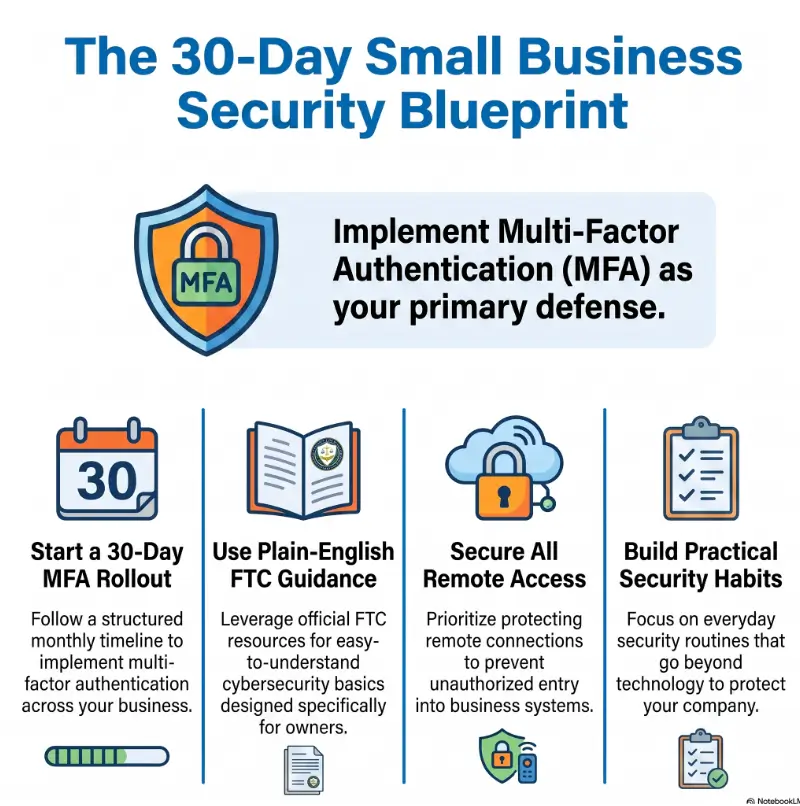
The FTC small-business cybersecurity guidance is a useful plain-English reference for owners who want broader security basics beyond MFA, including secure remote access and practical security habits.
Read FTC Small-Business Cybersecurity GuidanceMFA Policy Lite: The Small-Business Version People Actually Read
A small business does not always need a 40-page security policy to start. It does need a short MFA policy that tells people what is required, who owns exceptions, and what happens when devices or employees change.
The policy should be plain enough for a manager to use during onboarding and specific enough for an insurer, client, or MSP to understand your process.
State which accounts require MFA
List the categories, not just tool names. For example: company email, admin accounts, payroll, accounting, banking, remote access, customer data systems, cloud storage, and vendor portals with sensitive access.
State which MFA methods are allowed
Write down whether employees may use authenticator apps, app prompts, passkeys, hardware keys, SMS fallbacks, or backup codes. If SMS is allowed only as a fallback, say so.
State who can approve exceptions
Exceptions should have an owner, reason, and expiration date. “Bob does not like it” is not an exception policy. It is a scented candle placed beside a server rack.
State how lost devices and employee exits are handled
Include device replacement, emergency recovery, offboarding, contractor removal, and admin reviews. Keep it short enough to be used under pressure.
MFA policy lite template
- Company email, admin accounts, payroll, accounting, banking, remote access, customer-data systems, and cloud storage require MFA.
- Preferred MFA methods are authenticator apps, app-based number matching, passkeys, or hardware security keys where supported.
- SMS may be used only as a temporary fallback or for lower-risk accounts when stronger options are unavailable.
- Exceptions require approval from the owner, IT lead, or designated manager and must include an expiration date.
- Lost phones, phone changes, and offboarding must follow the written recovery process.
- Access and recovery settings are reviewed at least quarterly, and after employee or vendor departures.
MFA Tools, Services, and Cost Decisions: Free Is Not Always Cheap
Many small businesses can turn on MFA using features already included in their email, password manager, payroll platform, accounting software, or SaaS tools. That is the best starting point: use what you already pay for before buying another shiny dashboard.
But “free” can become expensive if no one documents recovery, handles admin changes, reviews vendors, or supports employees. The real cost of MFA is not only licenses or hardware keys. It is the time needed to manage access well.
When DIY MFA is enough
A DIY rollout may be enough for a small team with simple tools, low regulatory exposure, a clear owner, and no complex remote access setup. If you use common cloud apps and can follow admin documentation carefully, you can often make meaningful progress without a large project.
DIY works best when one person owns the spreadsheet, screenshots, employee guide, and recovery process. Without ownership, the rollout becomes fog with a password prompt inside it.
When paid help may be worth comparing
Consider paid help from an MSP, IT consultant, cybersecurity provider, or platform specialist if you have regulated data, many locations, remote workers, frequent contractors, shared devices, cyber insurance pressure, client security questionnaires, or one login outage that could stop revenue.
Before paying, ask what they will actually deliver. You want more than “MFA enabled.” Ask for an account inventory, admin review, policy draft, recovery process, screenshots, employee instructions, and a handoff document.
Good, better, best setup choices
The best MFA setup for a small business is the one strong enough for risk and simple enough to maintain. Compare options by role, not by trendiness.
| Setup Tier | Best For | Typical Components | Budget Watchpoint |
|---|---|---|---|
| Good | Small teams starting from passwords only | Authenticator apps, email admin MFA, payroll and banking MFA, written recovery notes | Low software cost, but requires staff time and owner discipline |
| Better | Growing teams with vendors and remote work | Number matching, password manager admin review, vendor access review, policy lite, screenshots | May require upgraded plan features or MSP setup time |
| Best | Admins, finance teams, regulated or client-reviewed businesses | Passkeys or hardware keys for privileged roles, conditional access where appropriate, formal offboarding, quarterly reviews | Hardware, consulting, identity platform features, and ongoing management costs |
Show me the nerdy details
Phishing-resistant MFA matters because many attacks do not try to “break” MFA. They try to trick people into approving access, entering codes into fake pages, or surrendering session access after login. Stronger methods, such as properly implemented passkeys or hardware-backed authentication, can reduce those risks for high-value accounts.
For small businesses, the practical design pattern is role-based strength. Give everyday users a workable baseline, give admins and finance users stronger protection, and give every recovery path the same respect you give the front door.
Provider questions before you pay
- Which accounts will you include in the MFA inventory?
- Will you review admin users, former employees, contractors, and vendors?
- Will you document recovery steps and emergency reset approval?
- Will you provide screenshots or evidence for insurance and client reviews?
- Which MFA methods do you recommend for owners, admins, finance, and regular employees?
- How will you avoid lockouts during rollout?
- What will ongoing reviews cost after the initial setup?
Another official checklist to compare
CISA’s small and medium business resources can help owners compare MFA with other practical security steps, especially when preparing for cyber insurance, client reviews, or a broader security cleanup.
Visit CISA Small-Business Security Resources
FAQ: Small-Business MFA Rollout Questions
What is the easiest MFA method for a small business?
For many small businesses, an authenticator app or app-based prompt is the easiest practical starting point. It is usually stronger than SMS and widely supported by common business tools. For admins and finance users, compare stronger options such as passkeys or hardware security keys where supported.
Should small businesses use SMS codes for MFA?
SMS can be better than no MFA, but it should not be the preferred long-term method for sensitive accounts. Use it as a limited fallback when stronger options are unavailable, and prioritize better methods for email, banking, payroll, accounting, and admin access.
Which accounts should get MFA first?
Start with email, workspace admins, payroll, banking, accounting, password managers, remote access, cloud storage, CRM, and any account that can reset passwords, move money, export customer data, or invite new users.
How long does an MFA rollout usually take?
A small team can often complete a basic rollout in 30 days if the work is staged. The timeline depends on the number of tools, users, vendors, shared accounts, remote workers, and recovery issues. Avoid surprise company-wide enforcement without a pilot.
What happens if an employee loses their phone?
The employee should contact the designated owner or IT contact. The business should verify identity, remove the old device, enroll the new device, check recovery methods, and document the reset. This process should be written before the loss happens.
Do contractors and vendors need MFA too?
Yes, if they access business systems, customer data, payment tools, admin panels, cloud storage, or internal files. Vendor access should have an owner, purpose, review date, and removal process when the work ends.
Can MFA help with cyber insurance requirements?
MFA may help support cyber insurance applications or renewals, but requirements vary by insurer and policy. Do not guess. Ask the insurer or broker what systems require MFA, what methods are acceptable, and what evidence they expect.
Is a passkey the same thing as MFA?
A passkey is an authentication method that can provide strong protection and may satisfy certain MFA or phishing-resistant authentication goals depending on implementation. Treat passkeys as part of your method comparison and confirm support with your identity provider, business apps, or security advisor.
Run a 15-Minute MFA Access Audit Before the Day Gets Loud
You do not need to finish the whole MFA rollout today. You need to find the first five doors that matter most. That is a small enough task to do before a meeting, after lunch, or during the quiet sliver between invoices and inbox weather.
Open a blank spreadsheet and make five columns: account, owner, admin users, MFA status, recovery method. Then list every account that can move money, expose customer data, reset passwords, approve payroll, or invite new users.
Your 15-minute action list
- Write down your company email or workspace admin account.
- Add payroll, banking, and accounting tools.
- Add cloud storage, CRM, remote access, and password manager accounts.
- Mark who has admin access for each tool.
- Mark whether MFA is on, off, unknown, or needs stronger protection.
- Pick the first five accounts to secure this week.
That first list is the hinge. Once you can see the accounts, the rollout stops feeling like fog and starts looking like a route. Protect the accounts that can sink you, write recovery before panic arrives, train employees in plain language, and save proof as you go.
The best MFA rollout is not the loudest one. It is the one employees can use on a sleepy Tuesday, the one an owner can explain without a slide deck, and the one that still works when someone changes phones, a vendor leaves, or an insurance form asks for evidence.
Last reviewed: 2026-08
Technical guidance updated: 2026-10-13. Clarified offline codes versus connected prompts, explained number-matching phishing limits, protected authentication secrets in audit evidence, and repaired table-of-contents links.
Verify enforcement, not just enrollment
Enrollment shows that a person registered a method. It does not show that every relevant sign-in path requires it. With an authorized test account, verify a fresh browser sign-in, an administrator action, and the supported recovery flow. Review sign-in logs to confirm which policy and authentication strength applied; remembered sessions may legitimately avoid a new prompt.
Inventory legacy clients and app passwords separately. Plan supported replacements before retiring bypass paths; do not create a blanket exemption to make a failed pilot look complete. Non-human workloads need appropriate workload identities and credential controls rather than a shared employee MFA device.
A passkey is not automatically proof of two factors in every implementation. Device possession plus required local PIN or biometric activation can provide distinct factors; the relying service’s user-verification requirements matter. Consult NIST SP 800-63B-4 and the identity provider’s documentation when a specific assurance level is required. The 30-day schedule is a planning example, not a standard or guarantee.
Editorial review: 16 October 2026. Examples are illustrative; this review does not represent an audit or live control test.
MFA enforcement coverage record
Use this when: you are a small business validating an MFA rollout across its actual access paths. Copy these fields into your notes and replace each prompt with a dated response. Keep assumptions and unresolved questions visible.
| Field | What to record | Your evidence / owner / next check |
|---|---|---|
| Account population | List administrators, staff, service access and external identities. | To complete |
| Enforcement path | Record where MFA is required and any alternative authentication paths. | To complete |
| Recovery and exception | Assign owners, approvals and review conditions for exceptional access. | To complete |
| Verification evidence | Preserve authorized checks of enforcement and recovery behavior. | To complete |
Next action: Check one high-impact access path for effective enforcement rather than enrollment alone. Mark the relevant row confirmed, provisional or unresolved. Keep the supporting record, responsible person and next check beside it so another reader can continue the work without treating an assumption as a result.
This is an editorial working aid. Complete it with your own scope, source records and accountable reviewers. Filling the table does not by itself establish coverage, compliance or acceptance.
Worksheet change record — October 20, 2026
Added this mfa enforcement coverage record with four article-specific fields and an evidence-based next action. Existing source notes retain their own review dates. This addition is not a fresh verification of every statement or a newly executed test.