Sources, review date and section shortcuts
Key claims reviewed: October 19, 2026. A clean boot and a 3D toggle are separate experimental changes; neither setting is a universal browser-performance fix.

Primary documentation · Related practical guide
Go straight to: Decision check · Main workflow · Further detail
Open the Graphics-setting comparison for this guide’s task-specific fields and next action.
Keep the reboot baseline separate from graphics testing
First measure the same page after a clean boot without changing graphics. Then, after a normal shutdown, change one supported graphics setting and repeat the task with the same host load. Record rendering capability as well as responsiveness: software rendering can increase CPU use or change WebGL/video behavior. Keep a known recovery copy and use the supported controller for the guest. Source and scope.
VirtualBox Kali 3D Acceleration Troubleshooting
It took me one checkbox and one cold boot to undo a weekend of “maybe it’s RAM” guesses.
If VirtualBox Kali 3D Acceleration (VMSVGA) suddenly makes your browser feel sticky—scroll stutter, input lag, tabs that repaint like they’re thinking—you’re not imagining it. Browsers lean hard on compositing, WebGL/canvas, and hardware acceleration paths that VirtualBox’s 3D translation layer can mishandle on certain host GPU/driver + HiDPI setups.
Keep guessing and you pay in the worst currency: broken focus—while Burp runs fine and the VM quietly steals your momentum.
This post helps you prove causality fast, lock a boring-stable baseline, and move on: disable 3D the right way (no saved state), set sane VRAM, and decide whether 3D is earning its keep. I’m not coming at this as a “tweak everything” guide—I’m coming at it as someone who added vCPUs, felt productive, and fixed nothing… until the 3D OFF cold-boot test made the lag vanish.
If your Kali VM browser is laggy with VMSVGA + 3D Acceleration, treat 3D as a suspect, not a feature: turn it off, reboot clean (no saved state), and retest scroll + typing + tab switching. Browsers hammer compositing/WebGL paths that VirtualBox’s 3D layer can mishandle, while most pentest workflows don’t truly need guest 3D. Keep VMSVGA, set sane VRAM, disable 3D unless you can prove a benefit.
3D Acceleration lag: prove it in 60 seconds
The goal here isn’t to “optimize.” The goal is to prove causality. If you can flip one setting and the browser instantly stops feeling sticky, you’ve saved yourself a weekend of swapping graphics controllers like trading cards.
3D toggle test: OFF → full shutdown → retest (no saved state)
- Shut Kali down normally, wait until VirtualBox shows Powered Off, and avoid saved-state resume for this comparison.
- VirtualBox → Settings → Display → uncheck Enable 3D Acceleration.
- Boot fresh, open the same “heavy” page you used before (docs, news, long GitHub thread).
- Retest: scroll, type, switch tabs, open devtools.
Lag signature: scroll stutter vs input delay vs tab catch-up
These are the tells that point to a graphics/compositing path:
- Scroll stutter: micro-jitters on long pages, especially while images load.
- Input delay: you type, the cursor hesitates, then “catches up.”
- Tab catch-up: switching tabs feels like changing scenes in slow motion.
- CPU isn’t pegged: the host isn’t on fire, yet the browser still drags.
Here’s the weird part… browsers can lag more because acceleration is on
Browsers don’t just “draw pixels.” They juggle layers, animations, video surfaces, WebGL contexts, and an endless parade of repaints. If a virtualization 3D layer is flaky on your host GPU/driver combo, a browser becomes the first thing to expose it—because it’s basically a polite GPU torture test wearing a friendly UI.
- Saved states can preserve weirdness.
- Browsers hit the “janky path” first.
- One checkbox can save hours.
Apply in 60 seconds: Disable 3D, cold boot, retest the same page.
Money Block: “Is 3D the culprit?” eligibility checklist
- Yes/No: Terminal apps feel fine but the browser is laggy.
- Yes/No: Lag gets worse on heavy pages (docs, dashboards, web apps).
- Yes/No: You use devtools, multiple tabs, or a dedicated Burp external browser setup in parallel.
- Yes/No: The VM is HiDPI/scaled or multi-monitor.
Next step: If you checked 2+ “Yes,” run the 3D OFF cold-boot test before changing anything else.

VMSVGA vs VBoxSVGA vs VBoxVGA: what you’re actually choosing
Competitor pages love listing adapters like they’re Pokémon evolutions. Here’s the calmer truth: you’re choosing what kind of virtual graphics device the guest thinks it has. VirtualBox’s own manual describes VMSVGA as the default for Linux guests and frames it as emulating a VMware SVGA-style device. That’s why it so often behaves like the “least surprising” option for Kali.
Controller cheat sheet: who it’s for + what breaks when misused
| Controller | Best for | Common failure mode | My operator take |
|---|---|---|---|
| VMSVGA | Linux guests (Kali, Ubuntu, Debian) | 3D path can be inconsistent on some hosts | Great baseline—then decide on 3D separately |
| VBoxSVGA | Newer Windows guests; sometimes fine for Linux | Odd scaling/behavior depending on guest additions | Try only after you’ve proven 3D isn’t the cause |
| VBoxVGA | Legacy compatibility | Lower performance, weird modern desktop behavior | Avoid for modern Kali unless you’re debugging a legacy edge case |
| None | Headless / remote-only workflows | No local display device (by design) | Underrated for “Kali as a tool server” setups |
Why “None” exists (headless + SSH workflows)
Headless startup hides the host VM window while a virtual graphics adapter can remain configured. Selecting Graphics Controller: None instead removes that device and can prevent the guest desktop from starting. Keep VMSVGA for normal Kali desktop and Burp GUI use; consider None only for a separately tested SSH-only appliance with recovery access. See Oracle’s headless VM documentation.
Open loop: when switching controllers fixes nothing (because 3D is the real culprit)
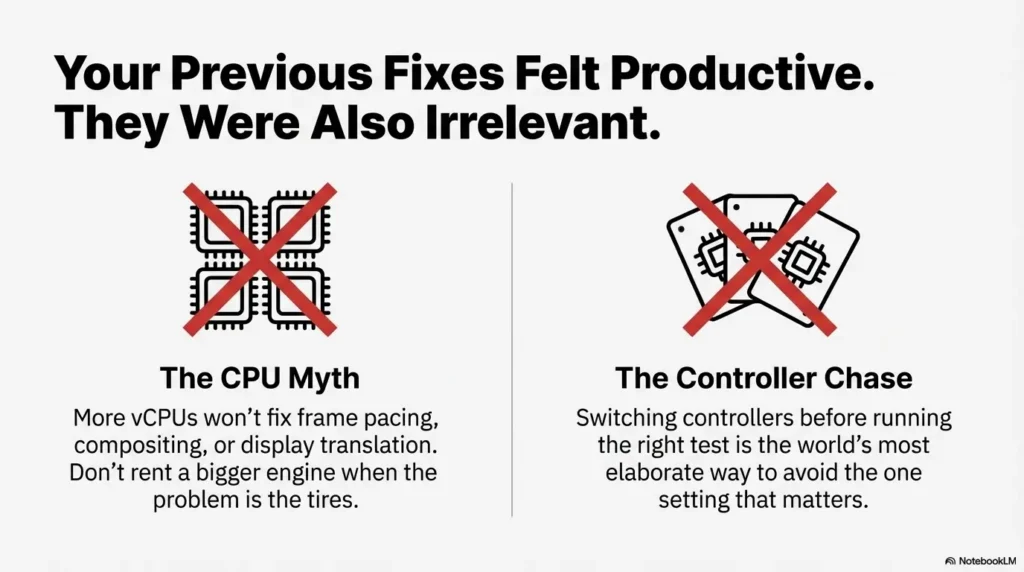
If you haven’t run the cold-boot 3D toggle test yet, switching controllers can become the world’s most elaborate way to avoid the one setting that matters. We’ll keep the workflow disciplined: test first, then change one variable at a time.
3D acceleration path: why browsers are the first to complain
This is where the “acceleration that slows you down” paradox gets resolved. Your browser isn’t one app; it’s a stack of pipelines. And VirtualBox’s 3D acceleration has to translate what the guest thinks it’s doing into something your host GPU and drivers will accept. If any link in that chain is fragile, you feel it as stutter and lag.
Compositing + devtools = constant repaint pressure
In pentesting mode, you’re doing things normal browsing doesn’t:
- Devtools open (which triggers frequent layout and paint work).
- Multiple tabs with dashboards, docs, Burp Suite WebSocket workflow sessions, and target app logins.
- Copy/paste loops, intercept flows, and quick tab switches.
That workload magnifies tiny display hiccups into “this VM is unusable.”
WebGL/Canvas and video: the GPU feature stress test
Even if you never touch WebGL intentionally, modern sites do. Charts, animations, editor surfaces, and embedded media can quietly enlist GPU paths. Mozilla’s own support documentation notes that hardware acceleration can be helpful, and also that turning it off can reduce issues when graphics drivers misbehave. That’s not a VirtualBox statement—it’s a general “graphics path reality” that shows up especially hard in VMs.
Let’s be honest… Kali pentesting rarely needs guest 3D
Most Kali workflows are about responsiveness, not eye candy. The browser needs to scroll cleanly; Burp needs to stay snappy; terminals need to be instant. If disabling guest 3D makes that happen, you’ve “won” even if the VM window animations look slightly less silky.
Show me the nerdy details
Think of the path as layers: (1) the browser creates surfaces/layers, (2) the Linux desktop compositor combines them, (3) VirtualBox’s virtual GPU presents them, and (4) the host OpenGL/graphics stack does the final rendering. When 3D acceleration is enabled, you’re asking VirtualBox to translate more of that work through a 3D pipeline. If the host driver stack is touchy—especially with HiDPI scaling, multi-monitor changes, or remote sessions—you can get stutter even when CPU and RAM look fine.
Infographic: The “Browser Lag Loop” in a VirtualBox Kali VM
Interpretation: If step 3 is unstable on your host, turning 3D off cuts that entire failure path.
Disable 3D decision tree: keep it only if you can defend it
A default graphics setting is a starting configuration, not evidence that it is best for every host. Use the decision tree below to choose a supported comparison and retain the original setting. Record the actual workload and results rather than inferring readiness for an exam or an engagement.
Disable 3D if you see: stutter + HiDPI scaling + frequent resizes
- You’re on a laptop dock and the monitor setup changes.
- You use HiDPI scaling and the UI feels rubbery.
- You remote into the host occasionally (RDP/VNC/streaming).
- The lag started after a host GPU driver or OS update.
Keep 3D only if: a specific GUI app measurably improves
“Measurably” means you can point to something you actually do:
- A particular GUI tool renders smoother and you can reproduce it.
- You do graphics-heavy work inside the guest (uncommon for Kali).
- Your browser is already smooth and you’re not seeing stability issues.
Curiosity-gap: why “it felt fine yesterday” (driver updates + scaling changes)
Yesterday’s “fine” can become today’s “why is everything sticky?” without you touching VirtualBox at all. Host GPU drivers, OS-level graphics frameworks, and even display scaling behavior can change quietly. The good news is that your test is still valid: toggle 3D, cold boot, retest. You’re building a workflow that survives surprises.
Money Block: Decision card — 3D ON vs 3D OFF (Kali + browser + Burp)
- You prioritize stability and low-lag browsing.
- Devtools + tabs + proxying is your daily reality.
- You’ve seen stutter, tearing, or input delay.
Time cost: ~2 minutes to test and keep.
- You have a specific 3D-leaning GUI use case.
- Your host GPU stack is known-stable for your workflow.
- You can reproduce an improvement and no new glitches appear.
Time cost: ~10–30 minutes of careful A/B testing.
Neutral action: Pick one, test with a cold boot, and keep the setting that stays stable all week.
- Stability beats theoretical acceleration.
- Measure improvements in your real workflow (devtools + Burp).
- One change at a time keeps you sane.
Apply in 60 seconds: Default to 3D OFF for Kali pentesting VMs.
Kali baseline settings: stable VMSVGA without the drama
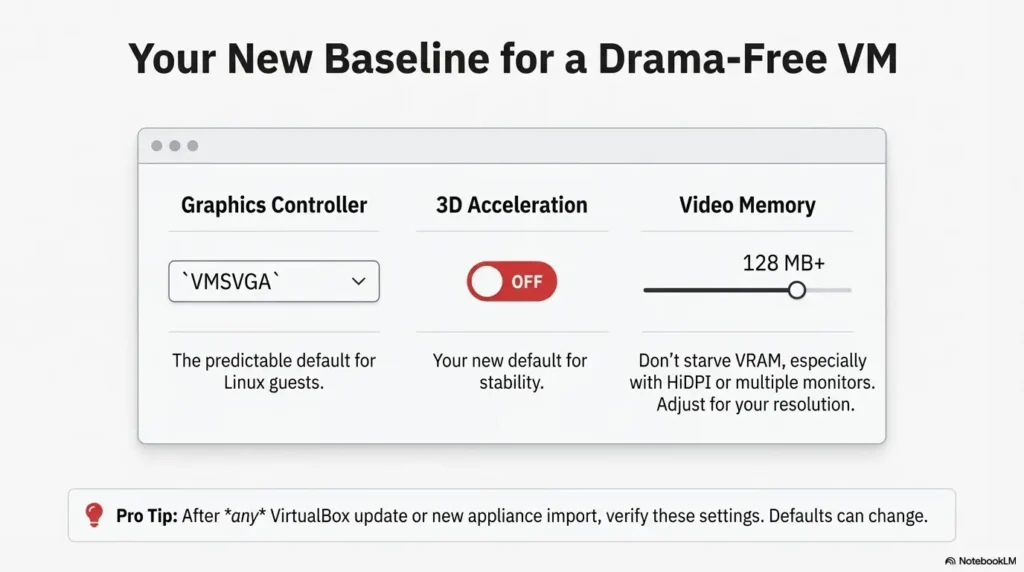
A baseline is a promise you make to your future self: “You won’t have to debug this again at 1:12 a.m.” VirtualBox’s documentation points out that video memory needs depend on resolution, color depth, monitor count, and whether acceleration is used. Translation: if you starve VRAM, you can create lag even with 3D off.
Display baseline: VMSVGA + sane VRAM + clean reboots
- Graphics Controller: VMSVGA
- 3D Acceleration: OFF (unless proven beneficial)
- Video Memory: Enough for your resolution + monitors (don’t set it to the minimum and hope)
- Reboots: Prefer cold boots while tuning
“None” baseline: the nuclear option for headless pentest boxes
Running a VM headless does not itself remove the guest display pipeline or guarantee less lag. A GUI application such as Burp still needs a display environment. For the browser-lag test, keep the controller and desktop stable and change only 3D. A separate SSH-only appliance is an architecture choice, not a shortcut in this recovery procedure.
Open loop: why “stability first” matters for imports/updates
Imported appliances and upgraded VirtualBox versions can nudge defaults in ways you don’t notice until you do. A stable baseline means you can revert to something known-good quickly, then experiment safely.
If you keep 3D: reduce browser GPU stress (without placebo tweaks)
If you decide to keep 3D on (because you tested and it actually helps), don’t “optimize” by superstition. Optimize by isolating triggers. The trick is to identify whether the lag is tied to WebGL-heavy content, video surfaces, or devtools repaint pressure.
A/B test: WebGL-heavy page vs text-heavy page (find your trigger)
- Pick one WebGL-ish site you can reproduce (charts, maps, heavy dashboards).
- Pick one boring text-only page (docs, manpages, plain articles).
- Compare: does only the heavy page stutter? Or does everything lag?
Devtools + many tabs: the hidden multiplier
With Burp running, you’re already adding work: history tables, intercept UI, and memory churn. Then devtools adds layout/paint pressure. Then your tab count adds surface management. None of this is “bad,” but it’s a strong argument for turning 3D off unless you truly benefit.
Micro-win: choose stability over “smooth animations”
Stability is a feature. In a lab or engagement, the best VM is the one you stop noticing. The moment you’re “noticing” it, your cognitive budget leaks into the floor.
Operator note: If you change 3D settings, retest after a cold boot. It’s boring. It also prevents phantom results.
If you disable 3D: what changes (and what doesn’t)
This is the section that stops people from treating the 3D checkbox like it’s a delicate hospital ventilator. For most Kali pentesting workflows, disabling 3D is not a sacrifice. It’s a trade: you give up some graphical flourish in exchange for predictable responsiveness.
What usually stays fine: Burp, terminals, proxy flows, most UI
- Burp Suite runs the same (and often feels less “sticky”).
- Terminal-heavy workflows become more pleasant.
- Firefox/Chromium browsing becomes smoother for day-to-day testing.
What might feel different: desktop effects, some video smoothness
- Window animations may be less buttery.
- High-motion video sites may behave differently.
- Some WebGL-heavy demos might fall back to software paths.
Curiosity-gap: why some users chase controllers when 3D is the actual switch
Because controllers feel like “big levers.” But in this specific problem, the leakiest pipe is often the 3D translation path itself. If disabling 3D makes your browser instantly feel normal again, you don’t need a new controller—you need the simplest stable path.
- Most tools don’t need guest 3D.
- The browser does need stable compositing.
- Your goal is predictability, not bragging rights.
Apply in 60 seconds: Disable 3D and commit to it for a week before revisiting.
Update gotchas: the two things that fake “GPU bugs”
When performance gets weird after an update—especially after you notice Kali packages have been kept back—people assume “VirtualBox broke.” Sometimes it did change behavior—but often the issue is a workflow trap. VirtualBox documentation notes that Guest Additions behavior can change across major versions (including display-related behavior for Linux guests), and that reality alone is enough to cause “it worked last month” confusion.
Saved state trap: why you must test with a clean boot
A saved state can preserve odd graphics conditions. If your goal is troubleshooting, you want the most boring path: power off, boot clean, reproduce, then change one variable.
Import trap: non-optimal defaults after updates/imports
Imported appliances can arrive with display settings that are “fine” for a different host stack. You might inherit a controller + 3D combo that behaves poorly on your machine. That’s not a moral failure; it’s just virtualization being virtualization.
The forum reality: compatibility questions never fully go away
If you’ve ever read a VirtualBox forum thread about VMSVGA, you’ve seen the pattern: host GPU differences, driver differences, and version differences make universal answers hard. That’s why this article leans on what does generalize: proving causality and locking a stable baseline.
Money Block: “Quote-prep” list — what to note before asking for help
- Host OS version (Windows/macOS/Linux) and whether you’re on battery or dock.
- VirtualBox major version (and whether you upgraded recently).
- Guest: Kali version + desktop environment (XFCE/GNOME/KDE).
- Graphics controller (VMSVGA/VBoxSVGA/etc.) + 3D ON/OFF.
- Monitor count, resolution, scaling percentage (HiDPI matters).
- Whether the VM was running from a saved state when you saw the issue.
Neutral action: Write these down once; future-you will thank you.
- Cold boot before you judge performance.
- Imports can inherit odd display defaults.
- One variable at a time prevents chaos.
Apply in 60 seconds: Shut down fully and reproduce once before changing anything.
Then I noticed I had resumed from a saved state after a host update. I powered off, disabled 3D acceleration, booted clean, and reran the exact same page. The lag evaporated. Not reduced—gone. The lesson wasn’t that 3D is “bad.” The lesson was that stability is a decision you make on purpose. The VM didn’t need to be clever. It needed to be boring.
Common mistakes: two hours lost to one checkbox
There’s a special kind of pain that comes from spending two hours to solve a two-minute problem. I know because I’ve done it, repeatedly, with the confidence of someone who thought “surely it’s the CPU.” Here are the highest-frequency mistakes that keep this issue alive longer than it deserves.
Mistake #1: switching VMSVGA/VBoxSVGA before testing 3D OFF
Switching controllers can introduce new variables—scaling quirks, resize oddities, different acceleration paths. Run the simple test first. If 3D OFF fixes it, you just saved yourself a controller rabbit hole.
Mistake #2: benchmarking while in a saved state snapshot
If you want an honest A/B test, you need consistent conditions. Saved states are convenient, not clean. Treat them like leftovers: sometimes fine, sometimes suspicious, never a scientific baseline.
Mistake #3: “more vCPUs” instead of fixing the display path
More CPU helps CPU-bound work. Browser lag in a VM often isn’t CPU-bound—it’s frame pacing, compositing, and display translation. Don’t rent a bigger engine when the problem is the tires.
Money Block: 2025 time-cost table — what fixes usually cost (in minutes)
| Action | Typical time | Notes |
|---|---|---|
| Disable 3D + cold boot | 2–5 | Fastest “prove it” step |
| VRAM adjustment + retest | 5–10 | Helpful for HiDPI / multi-monitor |
| Controller swap experiment | 10–30 | Only after 3D test |
| Deep “post-update” cleanup | 30–60+ | Do this last, not first |
Neutral action: Start with the cheapest test and work upward only if needed.
Next step: one concrete action you can do now
If you do nothing else, do this. It’s the fastest path to either (a) a real fix or (b) a clean signal that you need to investigate something else.
Power off → Disable 3D Acceleration → Cold boot → Retest the same page
- Power off the VM (avoid saved state).
- Settings → Display → Disable 3D acceleration.
- Boot fresh, open the same heavy page, and retest scroll + typing + tabs.
If it improves: keep 3D off for a week and stop touching things. Seriously—bank the win.
If it doesn’t: focus next on VRAM, scaling, monitor count, and post-update “clean boot” discipline.
Small win that compounds: Once your browser is smooth again, you’ll spend less time fighting the VM and more time actually testing. That’s the real performance upgrade.
FAQ
Does disabling 3D acceleration make Kali faster in VirtualBox?
For many users, yes—especially for browser responsiveness. “Faster” here usually means smoother scrolling, less input lag, and fewer UI hiccups. It won’t magically accelerate CPU-bound tasks, but it often removes a fragile graphics path.
Why does VirtualBox 3D acceleration cause scroll stutter in Firefox/Chromium?
Browsers create lots of layered rendering work (compositing, WebGL, video surfaces). If the 3D translation path between guest and host hits driver quirks or timing issues, you experience it as stutter—even when CPU looks fine.
Should I use VMSVGA or VBoxSVGA for Kali Linux?
VMSVGA is commonly the most predictable baseline for Linux guests. If you’re stable, keep it. If you’re troubleshooting, don’t swap controllers until you’ve tested 3D OFF with a cold boot.
What does “Graphics Controller: None” actually do?
None removes the emulated graphics adapter; headless startup merely omits the host display window. They are separate settings. Test remote access and recovery before using None; it is unsuitable for an ordinary Kali desktop or Burp GUI workflow.
Why is my Kali VM UI fine but the browser is laggy?
Because the browser is more demanding and more sensitive to frame pacing. A desktop might feel “okay,” while the browser’s layered rendering makes stutter obvious.
Is this worse on HiDPI / Retina / multi-monitor setups?
It can be. Scaling and multiple monitors increase the amount of surface work and can stress the display pipeline. That’s why VRAM and clean boot testing matter more in those setups.
Will disabling 3D break Burp Suite or OWASP ZAP?
Typically no. Those tools don’t rely on 3D rendering. They benefit more from overall UI responsiveness and reduced stutter during multi-window workflows.
What’s the safest “known-good” display baseline for pentesting labs?
A practical baseline is VMSVGA, sufficient VRAM for your resolution/monitors, and 3D acceleration disabled unless you can reproduce a clear benefit. Keep changes minimal and test one variable at a time.
Close the loop: keep it smooth (and boring)
Let’s close the curiosity loop from the top: yes—acceleration can make browsing slower inside a Kali VM, because the “accelerated” path can be the most fragile one. Browsers push layered rendering constantly. If VirtualBox’s 3D translation doesn’t play nicely with your host GPU stack, your scroll and typing become collateral damage.
The win isn’t finding the fanciest configuration. The win is finding the one you can stop thinking about. For most pentesters and devs, that means: VMSVGA as the steady baseline, enough VRAM for your display reality, and 3D acceleration disabled unless you can defend keeping it on.
- Prove the cause with a cold-boot toggle test.
- Lock a baseline and stop chasing ghosts.
- Use host browsing if the VM is a tool appliance.
Apply in 60 seconds: Commit to the stable setting for a week, then reassess with real data.
Your 15-minute CTA: Do one disciplined loop right now: cold boot, 3D OFF, retest the same heavy page. If the lag disappears, write down your baseline settings somewhere you’ll actually find later (notes app, README, whatever)—or borrow a workflow from note-taking systems for pentesting. Future-you deserves a boring week.
Original review: 2025-12
Separate reboot from the 3D toggle: First record a clean-boot baseline with the current 3D setting. Shut the guest down normally, change only 3D, and repeat the same page with the same host load and browser state. Otherwise improvement could come from clearing saved state rather than the toggle. Keep the setting that improves your measured workload; software rendering may increase CPU use or reduce WebGL/video capability. Disabling 3D is a diagnostic comparison, not a universal speed guarantee.
Technical guidance updated: 2026-10-13. Separated headless startup from removing the graphics adapter and clarified clean shutdown and controlled 3D comparisons.
Graphics-setting comparison
Use these fields for your own task. Keep the actual conditions, evidence and unresolved questions beside the next decision.
Use the editable record below to retain the task context and unresolved questions.
Edit here, then select and copy the text to your own notes before leaving. This field has no submission or storage function; reloading resets it. Do not enter passwords, tokens or private client information. The 12,000-character limit applies to this working note.
Next action: Separate a reboot effect from the effect of the graphics setting.
Related task: Use Slow Encrypted Kali VM: Separate Unlock Time and Disk I/O for that separate part of the workflow.
Worksheet change record — October 20, 2026
Added four task-specific fields, a next action and a related guide. This is a blank editorial working aid, not a completed test or validated assessment. Existing source-review dates retain their own scope; this addition is not a new verification of every statement.
Graphics comparison: reboot effect or acceleration effect?
Illustrative example — not a performed lab test.
- Observation
- Browser scrolling improves after a powered-off graphics change and a clean boot.
- Supported interpretation
- The after-change observation includes both a graphics change and a reset of guest state.
- Still unresolved
- Whether an unchanged clean boot produces the same improvement.
- Next authorized check
- Establish that unchanged reboot baseline first. Repeat the same page and interaction with comparable host load, then compare one supported setting. Keep the original display configuration so an unusable guest can be restored.
Practice-aid update: October 20, 2026. Added the illustrative decision case and editable note. No new VM execution or full-article revalidation is claimed.