Sources, review date and section shortcuts
Key claims reviewed: October 19, 2026. Unlock-time key derivation, guest I/O and host storage pressure are different performance questions.

Primary documentation · Related practical guide
Go straight to: Decision check · Main workflow · Further detail
Open the Encrypted-VM workload comparison for this guide’s task-specific fields and next action.
Compare one repeatable workload without weakening encryption
Keep the same dataset, host load and cold/warm state for each run. An already completed package upgrade is not the same workload on a second run. Preserve a powered-off independent backup before a supported controller change; record the original attachment and boot dependencies. A virtual NVMe controller does not turn the underlying storage into physical NVMe or guarantee a speedup. Source and scope.
Boot takes forever, apt looks frozen, and Burp projects open like they’re being unpacked over dial-up—yet everyone’s first “fix” is the wrong one: disable LUKS.
When an encrypted Kali VM is slow, first separate unlock delay, running I/O and desktop responsiveness. Capture comparable guest and host observations before choosing a reversible change. This guide provides diagnostic options, not a measured guarantee that one controller or disk format will improve every host.
Quick definition: %iowait estimates idle CPU time while disk I/O is outstanding. It is a clue, not a direct measure of CPU execution spent waiting or proof of which storage layer is slow. Compare workload latency, guest device statistics and host resource pressure.
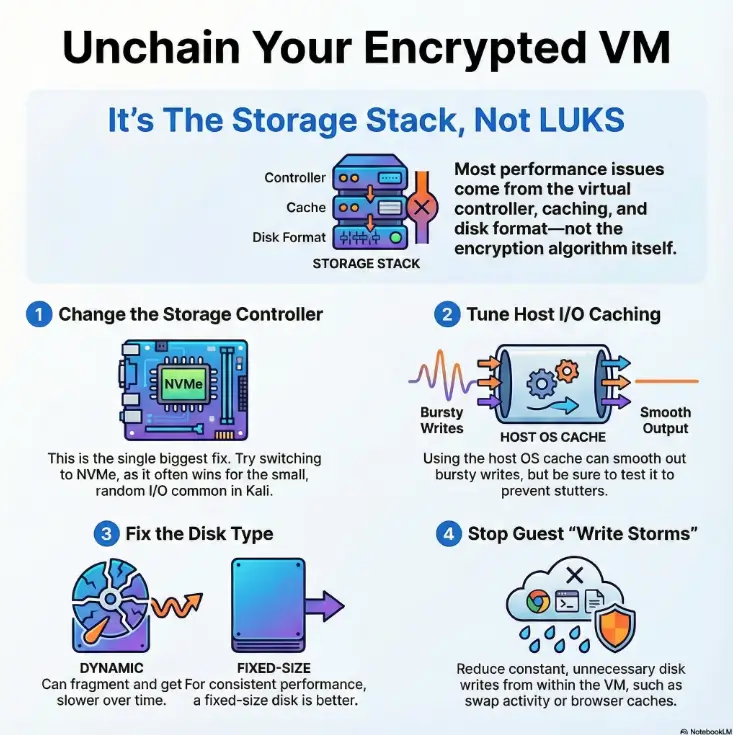
A slow Kali encrypted VM on VirtualBox is usually a storage stack problem—not “LUKS is too slow.” Fix it by validating VirtualBox’s storage controller choice (NVMe is a supported comparison candidate), correcting host I/O cache behavior, avoiding dynamic-disk fragmentation, and reducing write storms (swap/journaling/browser caches). Benchmark before/after with quick I/O checks so you keep LUKS and regain responsive installs, updates, and daily tool workflows.
Slow I/O proof: isolate disk from “Kali feels heavy”
Before changing VirtualBox settings, determine whether the symptom is running disk I/O, passphrase unlock, desktop rendering or host pressure. A crowded host volume is one condition to investigate with measurements. It is not proof of the cause, and no benchmark result is claimed here.
Quick triage: boot time vs apt vs “typing lag”
- Boot slow + unlock prompt slow → could be PBKDF/unlock cost, could be disk. We’ll separate those in the next section.
apt update/apt upgradeslow → often storage controller + caching + small random writes. If you’re also hitting classic update friction like Kali “packages have been kept back” after an upgrade, solve that separately so you’re not timing a broken upgrade path.- UI stutters while disk is busy → classic high iowait (disk queue backpressure).
- Everything slow including mouse → sometimes host resource pressure (host paging, thermal throttling).
- Pick one real workload (e.g.,
apt upgradeor opening a Burp project). - Measure it once before changes, once after.
- Only change one lever at a time.
Apply in 60 seconds: Run uptime and look for high load with sluggish UI—then confirm with iostat.
Minimal benchmarks that map to real pain (iostat, iotop, one fio job)
Inside the Kali VM, run these while you reproduce the slowness (like apt upgrade or unpacking a big wordlist). You’re watching for disk saturation and queueing.
sudo apt-get update
sudo apt-get install -y sysstat iotop fio

# 1) Is the VM waiting on disk?
iostat -xz 1

# 2) Who is writing?
sudo iotop -oPa

# 3) One simple test (small random reads/writes are what kill VMs)
fio --name=randrw --filename="YOUR_DISK_BACKED_TEST_DIR/fio-test.bin" --size=1G --ioengine=libaio --direct=1 --rw=randrw --bs=4k --iodepth=32 --numjobs=1 --runtime=30 --time_based --group_reporting
What you’re looking for:
- High await with a growing queue suggests storage delay; %util near 100% alone does not prove saturation on devices that handle requests in parallel.
- High iowait and “everything stutters” → storage path needs love.
- One process constantly writing (browser caches, logging, swap) → fix the write storm later.
Let’s be blunt— if the host disk is the limiter, no VM tweak saves you
If your host drive is nearly full, on a slow external HDD, or the host is swapping hard, VirtualBox can only do so much. The VM’s encryption becomes the scapegoat because it’s visible. The host’s disk pressure is the invisible bouncer.
Show me the nerdy details
High latency in a VM often comes from queueing: small random writes pile up, the host filesystem flushes, and the hypervisor serializes more than you expect. That’s why “more CPU cores” doesn’t fix it when %util/await says the disk path is the choke point.
The hidden fork: unlock-time vs runtime performance (stop blaming LUKS)
Encryption has two “costs,” and mixing them up is how people end up turning off security for zero speed gain. So let’s separate them like grown-ups.
Unlock cost (PBKDF) vs throughput cost (dm-crypt at runtime)
- Unlock cost is the “how long does it take to accept my passphrase?” moment.
- Runtime cost is “how fast can the VM read/write blocks all day?”
In practice, many “slow encrypted VM” complaints are actually runtime I/O latency caused by the VM storage stack—not the encryption algorithm doing dramatic villain laughs.
Why PBKDF tweaks change boot prompt time, not apt upgrade time
Curiosity gap: the one metric that reveals “LUKS isn’t your problem”
Watch iowait during a slow moment. If CPU isn’t pegged but the system is waiting on disk, your best speed wins come from the hypervisor storage path (controller/caching/disk format), not encryption parameters.
Controller choice first: NVMe vs SATA vs SCSI in VirtualBox (the biggest lever)
If you only change one thing, change this first. The storage controller is where “meh” becomes “why is this suddenly fast?”—especially for the small random I/O that Kali workflows generate (package installs, browser cache churn, Burp project writes, sqlite DBs).
What VirtualBox controllers really change (queueing, latency, interrupts)
A virtual controller change can affect the guest’s device names and boot path. It does not turn the host disk into physical NVMe or guarantee a speedup. Compare your current controller against one supported alternative only after a powered-off backup and recovery plan.
When NVMe wins—and when it’s just noise
- NVMe is a supported comparison candidate when your pain is lots of small random I/O (common in
aptand tooling). - SATA can be fine for simpler workloads or when the host/storage is the real limiter.
- SCSI (varies) can be useful but isn’t a guaranteed performance jackpot.
- Small random I/O pain → inspect the guest and host workload before choosing a controller comparison.
- Pure throughput pain → host disk and caching may dominate.
- Always benchmark before/after—don’t trust feelings.
Apply in 60 seconds: Note your current controller in VirtualBox settings, then plan one controlled switch and retest.
Curiosity gap: why the “fastest” controller can feel worse on your host
Here’s the twist: sometimes a controller switch exposes a host-side issue—like a slow external drive, host power-saving, or heavy host background indexing. The VM didn’t “get worse.” It just stopped masking the problem.
The caching paradox: the checkbox that helps—and the checkbox that hurts
Caching is where VirtualBox performance tuning becomes… emotional. Enable the wrong cache behavior and you can get stutters, flush storms, or the sensation that the VM “hangs” whenever it writes a lot. Enable the right behavior and suddenly your encrypted disk feels normal again.
“Use Host I/O Cache”: what it does in plain English
This setting influences whether the host OS page cache is used to buffer the VM’s disk operations. The host cache can smooth out bursty writes and reduce latency spikes—especially when the guest is doing many small writes.
Cache-flush storms: why “safer writes” can become “stutter city”
Some configurations force frequent flushes that translate into visible UI pauses. The VM isn’t “crashing.” It’s waiting. And waiting. And waiting. If you’ve ever watched your terminal stop responding mid-command while disk activity spikes, that’s the vibe.
Here’s what no one tells you… caching tweaks only matter after controller + disk format are sane
If you’re on a painful controller/disk combo, caching adjustments can feel like rearranging furniture in a burning building. Fix the big levers first, then use caching to stabilize the last 20%.
Show me the nerdy details
Cache behavior affects write ordering and flush frequency. High flush frequency can amplify the worst part of encryption-in-a-VM: small writes turning into expensive sync points. That’s why stutter can show up even when average throughput looks “okay.”

Disk type trap: dynamic growth + fragmentation that makes next month slower
This is the classic story arc: your encrypted Kali VM is fine in week one, tolerable in week three, and by week six you’re negotiating with your laptop like it’s a moody coworker. Dynamic disks are convenient—until they aren’t.
Dynamic vs fixed-size: where the performance tax hides
Dynamically allocated virtual disks grow as you write data. That growth can fragment over time depending on host filesystem behavior and where the VM file lives. The result: higher latency during real-world mixed workloads. You feel it as “random slowdowns,” especially when the VM writes lots of small files (package installs are basically a small-file festival).
VDI vs VMDK: portability vs performance reality
Use what fits your ecosystem, but understand the trade: formats optimized for portability aren’t always optimized for consistent low-latency I/O on your specific host. If your VM is a daily driver, “stable performance” usually beats “easy to move later.”
Curiosity gap: why your VM disk grows fine but performance shrinks monthly
Because growth is not free. Every “expand a little” moment can add overhead, especially if your host disk is under pressure. If you’re seeing worsening performance over time without changing encryption, disk growth/fragmentation is a prime suspect.
Illustrative example: A guest becomes sluggish while the host volume is crowded. Moving the guest and changing its disk allocation together might improve responsiveness, but that combined observation cannot isolate which change mattered. Compare one justified variable while preserving the same workload and recovery path.
Guest write storms: swap, browser caches, and “death by a thousand syncs”
Encrypted storage plus virtual disks can handle a lot—until the guest starts writing constantly for no good reason. This is where “it feels laggy while doing nothing” often lives.
Swap strategy in VMs (including when zram helps)
If your VM is swapping, disk latency becomes your new personality trait. In many Kali VM setups, a small amount of memory pressure creates disproportionate pain because swap writes are frequent and disruptive. Depending on your workload, using a compressed RAM swap approach (like zram) can reduce disk writes. The rule is simple: reduce disk writes when the disk is your bottleneck.
Filesystem write-reduction basics (noatime, log settings—only what’s safe)
Some mounts and background services generate extra writes. Be conservative: you’re tuning for stability. Small, safe steps like reducing metadata writes (where appropriate) can help, but don’t turn your system into a science fair project.
Burp/ZAP + wordlists: where real pentest workflows create I/O spikes
Burp and ZAP projects, browser profiles, and large wordlists can create bursts of small writes. If you’re running these on an encrypted VM disk that’s already queueing, you’ll feel it as stutter. If your workflow is browser-heavy, it also helps to keep your tooling predictable—things like a clean Burp Suite WebSocket workflow and a stable interception setup (especially on ARM) like fixing “Burp browser not available” on Kali ARM64 reduce the “mystery writes” you accidentally blame on encryption.
Choose a repeatable workload representative of the reported symptom. Record its starting state and host load, then repeat unchanged runs before comparing a supported adjustment.
- If swap is active, performance becomes unpredictable.
- Browser/tool caches can quietly dominate writes.
- Reduce churn first; then the “big levers” shine.
Apply in 60 seconds: Run iotop -oPa during a stutter and identify the top writer.
CPU crypto acceleration check: confirm you’re not running “encryption in slow motion”
Sometimes the VM is slow because encryption is running without hardware acceleration, or because virtualization settings prevent the guest from using what your CPU already has. It’s like owning a fast car but driving with the parking brake politely engaged.
Verify AES instructions + dm-crypt performance signal
# Check if AES instructions are visible inside the guest
grep -m1 -o 'aes' /proc/cpuinfo || echo "AES flag not found"

# Quick cryptographic benchmark signal (shows relative capabilities, not your disk path)

sudo cryptsetup benchmark
If AES flags are missing (or performance is unexpectedly low), it doesn’t automatically mean “bad CPU.” It can mean “guest isn’t seeing the right features.”
VirtualBox settings that indirectly throttle encryption throughput
The stealth bottleneck: when “encryption is slow” is really “CPU features aren’t exposed”
If your CPU is pegged during disk activity and iowait isn’t the star of the show, crypto acceleration and virtualization settings move up the priority list. This is also where switching controllers won’t magically help—because your disk isn’t the bottleneck anymore.
Show me the nerdy details
dm-crypt performance is influenced by CPU instruction availability and scheduling. In a VM, overhead and missing CPU flags can turn “fine on bare metal” into “why is this so loud and slow?” The solution is often enabling the right virtualization features and confirming the guest sees modern CPU instructions.
“Don’t do this” fixes: the mistakes that waste weekends (or risk data)
Changing several settings at once can restore usability without explaining the cause. Preserve the original configuration, test one justified adjustment and retain inconclusive results as well as improvements.
Mistake: Throwing RAM/cores at an I/O bottleneck
If disk queueing is the pain, more cores don’t fix the queue. They just create more work to wait on. Add resources only after the storage path is sane.
Mistake: Changing LUKS settings hoping for faster apt
Unlock parameters affect unlock time. Your daily disk responsiveness usually depends more on controller choice, caching behavior, disk format, and write churn.
Mistake: Editing five knobs at once (benchmark theater)
Change one major variable, retest the same task, log the result. It’s not slower; it’s calmer. And calm wins.
Who this is for / not for (save the right people time)
For you if: VirtualBox + Kali + LUKS + daily tool workloads
- You run Kali as a daily VM, not a once-a-month lab.
- Your VM is encrypted (LUKS/LUKS2, often with encrypted LVM).
- Your pain shows up in
apt, browsers, tool databases, or projects—especially if your setup looks like a real toolkit (see essential Kali tools you actually use and how they behave under disk pressure).
Not for you if: the host disk is near-full, failing, or thermally throttled
If host storage pressure is observed, investigate that measured condition before changing guest encryption. A nearly full volume is a hypothesis to examine, not proof of a particular cause.
Not for you if: you can change hypervisors and want the fastest path
If you’re willing to switch hypervisors, you may get different performance characteristics—sometimes dramatically. If you’re weighing options, compare VirtualBox vs VMware vs Proxmox for a pentest lab and, if you’re on Mac, the real-world differences in VMware Player vs Workstation vs Fusion. But if you’re committed to VirtualBox (or need it), this guide stays inside that reality.
FAQ
Why is my Kali encrypted VM slow on VirtualBox but fine on bare metal?
Because the VM adds a storage translation layer: guest filesystem → dm-crypt → virtual disk → controller emulation → host filesystem → host disk. If any link is misconfigured (controller/caching/dynamic disk churn), latency spikes show up far more than on bare metal.
Does LUKS encryption slow down a VM, or just the unlock step?
Both can have costs, but they’re different. Unlock-time (PBKDF) affects how long it takes to unlock at boot. Runtime performance depends on dm-crypt plus the VM storage path. Many “slow VM” cases are storage stack issues, not encryption settings.
Is NVMe always faster than SATA for a Linux guest in VirtualBox?
A virtual NVMe controller is one supported test candidate when it fits the guest. It does not guarantee lower latency or a speedup on the actual host. Preserve a powered-off independent recovery copy and compare an identical workload before keeping the change.
Should I enable “Use Host I/O Cache” for an encrypted VM?
It depends on your host storage and workload. Host caching can reduce latency spikes for bursty writes, but misconfiguration can also create stutters. Use the benchmark-first approach: baseline, change, retest.
Why does apt upgrade freeze my UI or make the VM stutter?
apt creates many small writes (package downloads, unpacking, metadata updates). If the disk queue is saturated, UI responsiveness suffers. It’s often a controller/caching/disk-format issue, sometimes combined with swap activity.
Do dynamic disks get slower over time in VirtualBox?
They can. As dynamically allocated disks grow, fragmentation and host filesystem behavior can increase latency—especially on busy or nearly full host volumes. If performance worsened gradually, this is a prime suspect.
Can TRIM/discard work with LUKS on a virtual disk?
TRIM/discard behavior is nuanced with encryption. In general, it’s possible for the guest to signal freed blocks, but whether it helps (and how it’s handled) depends on the whole stack. If you care about data-leak characteristics, be cautious and prioritize performance wins that don’t change discard behavior.
What’s the fastest benchmark to confirm disk I/O is the bottleneck?
Run iostat -xz 1 while reproducing the slowdown and look for high latency/queueing, then confirm with a short fio run targeting small random I/O. Repeat the same test after each change.
Is it safe to change encryption settings on an existing Kali install?
Some changes are safe; some are not. Treat encryption parameter changes as higher-risk than VirtualBox storage tweaks. If you’re not fully confident, keep LUKS settings stable and focus on the VM storage path first.
What’s a realistic “good enough” disk speed for pentest workflows?
“Good enough” means the VM feels responsive under your real workload: package operations don’t lock your UI, tools open without long stalls, and disk latency doesn’t spike into stutter territory. Your best target is consistency, not bragging rights. (And if your day-to-day stack includes proxy tooling, a clean network path matters too—e.g., a Proxychains DNS leak fix prevents “performance debugging” from turning into “why is everything routing weird?”)
Next step: the 15-minute “keep LUKS, fix I/O” action plan
This is the “do it now” section. Not someday. Not after your fifth cup of coffee. In the next 15 minutes, you can go from confused and annoyed to measured and in control.
Measure: one benchmark + one real task (before)
- Pick one real task (e.g., timed
apt upgradeor opening a Burp project). - Run
iostat -xz 1during the task and note latency/queueing. - Run one short
fiotest (30 seconds). Save the output.
Change in order: controller → caching → disk type → guest write storm
- Controller: Evaluate NVMe vs your current controller (one change at a time).
- Caching: Adjust host I/O cache behavior only after controller is settled.
- Disk strategy: If performance decayed over time, consider a more stable disk approach.
- Write storms: Reduce swap and background churn if iowait/stutter persists.
Re-test: same benchmark + same task (after), record the delta
Same test. Same duration. Same workload. The only difference should be your one change. This is how you build confidence without gambling with your VM.
Conclusion: keep LUKS, get your VM back
Let’s close the loop from the top: you don’t need to “pay” for encryption with a miserable VM. Most of the time, the real villain is boring—controller choice, caching behavior, disk strategy, and write churn. The win is also boring, which is the best kind of win: measure → change one lever → retest.
If you do only one thing in the next 15 minutes, do this: pick one real workload (like apt upgrade or opening a Burp project), baseline it, then make one storage-stack change and retest. When you can say, “This change saved me 30%,” you stop guessing—and your VM stops feeling like it’s dragging a piano. And if this VM is part of a larger practice routine, anchoring the rest of your workflow—like a Zsh setup for pentesters and a consistent lab environment (see Kali Linux lab infrastructure mastery)—keeps “performance debugging” from becoming your new full-time hobby.
Original review: 2025-12.
Benchmark prerequisites: Replace YOUR_DISK_BACKED_TEST_DIR with a new disposable directory on the encrypted guest filesystem; check its backing mount with findmnt -T PATH and free space with df -h PATH. /tmp may be tmpfs and benchmark RAM instead of disk. This mixed test overwrites its named file: never point it at a block device or valuable file. The explicit libaio engine enables asynchronous depth; check achieved depth in the output. With a synchronous engine, depth 32 would still behave as depth 1. See the fio manual. Run it separately from package operations so it does not create the slowdown being measured.
Keep comparisons repeatable: Re-running apt upgrade after a completed upgrade is a different workload. Use the same saved project or identical disposable VM clones. Shut the guest down normally before changing a controller; retain the original disk attachment and verify UUID-based mounts and driver support. A snapshot is useful but not a separate backup. Headroom, swap pressure and host caching can dominate results; NVMe is a test candidate rather than a universal first fix. Keep encryption and flush guarantees intact.
Technical guidance updated: 2026-10-13. Corrected iowait interpretation, fio engine and test-file placement, and controller-change safeguards.
Encrypted-VM workload comparison
Use these fields for your own task. Keep the actual conditions, evidence and unresolved questions beside the next decision.
Use the editable record below to retain the task context and unresolved questions.
Edit here, then select and copy the text to your own notes before leaving. This field has no submission or storage function; reloading resets it. Do not enter passwords, tokens or private client information. The 12,000-character limit applies to this working note.
Next action: Keep encryption enabled while isolating the workload that is actually slow.
Related task: Use Kali VirtualBox Browser Lag: Compare 3D Settings Carefully for that separate part of the workflow.
Worksheet change record — October 20, 2026
Added four task-specific fields, a next action and a related guide. This is a blank editorial working aid, not a completed test or validated assessment. Existing source-review dates retain their own scope; this addition is not a new verification of every statement.
Encryption diagnosis: unlock delay versus running I/O
Illustrative example — not a performed lab test.
- Observation
- Passphrase acceptance is slow, while an already unlocked guest performs the same file task normally.
- Supported interpretation
- Unlock-time work and running-system I/O show different symptoms.
- Still unresolved
- Which part of unlock processing or device discovery accounts for the delay.
- Next authorized check
- Record the stages and elapsed observations separately. Keep encryption enabled, compare the same boot context, and investigate the delayed stage rather than changing storage settings based on a benchmark that measured a different workload.
Practice-aid update: October 20, 2026. Added the illustrative decision case and editable note. No new VM execution or full-article revalidation is claimed.