
Read the proposed transaction before authorizing it
The apt manual distinguishes upgrade from full-upgrade, which may remove installed packages. Check the actual apt versus apt-get command, package metadata, held packages, pins and repositories. Review installs and removals in a simulation, preserve a usable recovery method and keep cleanup separate. A simulation describes a plan from current metadata, not a guarantee of successful installation. Source and scope.
“Kali Rolling kept back packages after apt upgrade” is the kind of message that wastes time precisely because nothing looks broken—yet your system quietly stays half-updated. On a rolling release, that’s not cosmetic. It’s the moment your toolchain starts drifting: kernels, firmware, desktop meta-packages, or drivers stuck behind a dependency transition you didn’t approve. If you want a steadier lab foundation long-term, build around a repeatable Kali lab infrastructure instead of letting upgrades happen “whenever.”
What “kept back” means: APT left some upgrades unapplied under the current resolver constraints. apt upgrade can add needed dependencies, but cannot remove installed packages. The default apt-get upgrade also avoids adding packages. Check removals, holds, pins and repository consistency before choosing a reviewed full-upgrade plan.
If you keep guessing, you lose the worst currency in ops: predictability. This post gets you back to boring upgrades—fast—using a simple simulate-first workflow (apt -s full-upgrade) so you can read the removal/install plan before anything changes, spot holds, and avoid the classic “oops, my desktop disappeared” outcome. (If you like systems that stay boring, you’ll also like a Kali pentest report template mindset: simulate, document, execute—on purpose.)
Good. Now let’s make the solver show its hand.
Then we decide—on purpose.
No roulette. No purges you’ll regret.
Table of Contents
Why this message appears on Kali Rolling (not a “random apt bug”)
The hidden rule: apt upgrade can add dependencies but will not remove packages
apt upgrade installs required new dependencies but will not remove installed packages. Do not confuse it with the default apt-get upgrade, which avoids both additions and removals. The APT manual describes the distinction.
On a stable distro, that feels like a safety belt. On Kali Rolling—where packages move and dependency relationships shift—it often feels like a handbrake.
What “kept back” really means in dependency terms
“Kept back” usually translates to: “I can’t apply the upgrade you asked for unless I’m allowed to change the dependency graph.” That change might mean installing a new library, replacing one package with another, or removing something that now conflicts.
Kali’s own documentation leans into apt full-upgrade as the normal path for staying current on a rolling release, and their troubleshooting guidance repeatedly emphasizes running apt update first because it resets the solver’s view of what’s available.
The one line in APT output everyone skims—then regrets
The moment you see “kept back,” your eyes usually jump straight to the command you want to paste from a forum. The line you should actually read is the one that hints what kind of change APT needs: install something new, remove something old, or resolve a conflict.
- New dependency only:
apt upgradecan install it; defaultapt-get upgrademay keep the upgrade back. - If APT wants to remove a conflicting package:
upgradewill stall. - If a transition is mid-flight in rolling repos: stalling can be correct—for now.
apt upgradecan add dependencies;full-upgradeadditionally permits required removals.- Rolling releases hit dependency transitions more often.
- Your job is to preview the plan before you approve it.
Apply in 60 seconds: Run a simulation with apt -s full-upgrade and read the removals list.
The real difference: upgrade vs full-upgrade (the sentence that saves hours)
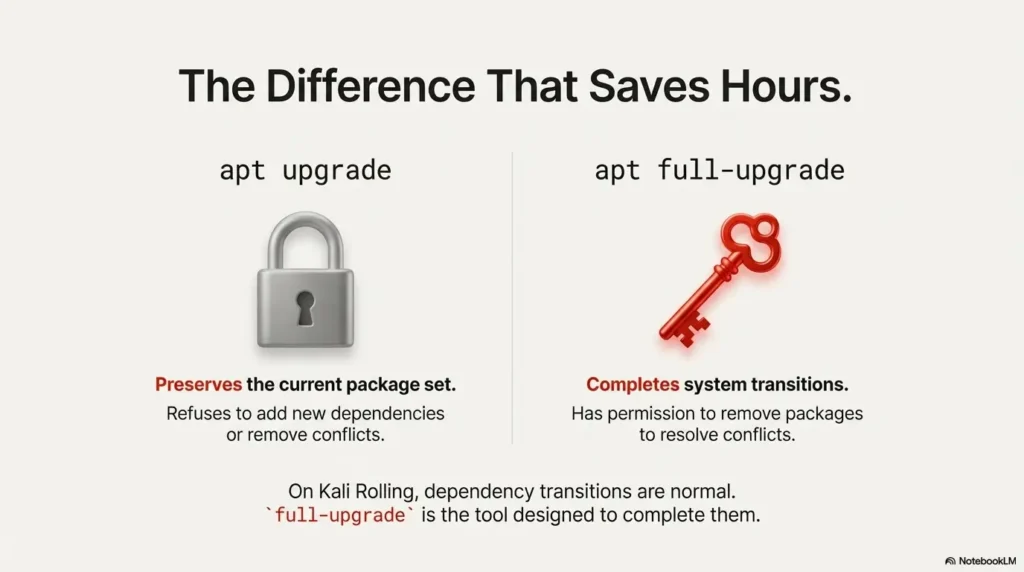
apt upgrade: safe-by-default, conservative resolver
apt upgrade can install Package B when it is a needed dependency of Package A. If the upgrade also requires removing Package C, it keeps that upgrade back. Review the resolver’s actual plan; a new dependency alone does not explain every kept-back package.
That’s not Kali being weird. That’s APT being cautious by design.
apt full-upgrade: completes transitions by allowing removals/installations
apt full-upgrade does what upgrade does—but it’s allowed to remove currently installed packages if needed to upgrade the system as a whole.
That behavior is described directly in Debian’s APT man page.
On rolling systems, that “permission to remove” is often the exact key that unlocks a stalled upgrade.
Let’s be honest… you want “safe” and “done”
I get it. You don’t want to break your machine. You also don’t want to be stuck in “kept back” purgatory for three days. The compromise is not “never use full-upgrade.” The compromise is: simulate first, then run it intentionally.
upgrade vs full-upgrade
- Use
apt upgradewhen: you’re mid-engagement, stability matters, and you can tolerate a few packages staying behind. - Use
apt full-upgradewhen: you want a complete upgrade and you’re willing to allow dependency changes (including removals). - Time trade-off:
upgradeis faster to “click yes,” but slower to finish transitions.full-upgradeis slower to review, but faster to resolve.
Neutral action: Choose the command that matches your risk window, then simulate before executing.
Show me the nerdy details
Under the hood, APT’s solver tries to satisfy a consistent set of package relationships: Depends, Conflicts, Breaks, Replaces.
“Kept back” happens when solving requires a change that upgrade is not allowed to make. full-upgrade expands the solution space by permitting removals.
Quick diagnosis in 60 seconds (before you touch anything)
Step 1: Identify what’s held back (clean listing commands)
First: confirm what exactly is being kept back. If apt already printed the list, great—copy it somewhere.
Otherwise, you can re-run a dry run to surface it.
sudo apt update
sudo apt -s upgrade
# Look for: "kept back" and the package list
Micro-habit: I keep a tiny “upgrade notes” file for rolling boxes. It’s saved me at least 30 minutes on the days I’m tired and sloppy. If you want that habit to stick, borrow patterns from a note-taking system built for pentesting (same brain, same stakes, better memory).
Step 2: See why it’s held back (dependency explanation workflow)
When a package is kept back, your goal is to answer one question: Is this blocked by a new dependency, a conflict, or a partial upgrade?
- Check policy/version candidates:
apt-cache policy <package> - See dependencies:
apt-cache depends <package> - Show reverse dependencies (what depends on it):
apt-cache rdepends <package>
apt-cache policy linux-image-amd64
apt-cache depends <package-name>
apt-cache rdepends <package-name>
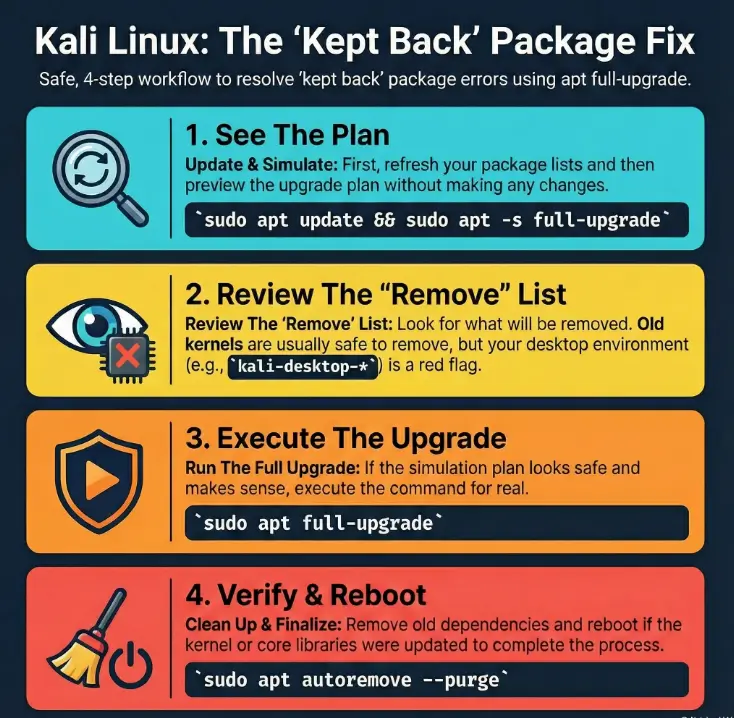
Step 3: Simulate the fix: apt -s full-upgrade (read the plan, not the vibes)
This is the operator move. Simulation tells you what APT would do without doing it. If you take only one thing from this post, take this:
sudo apt update
sudo apt -s full-upgrade
The single word in the simulation output that decides “go / no-go”
In the simulation output, watch for removals and ask: “Are these removals expected (like old kernels) or harmful (like your desktop meta-package)?” The word you care about is basically: Remove.
Removals aren’t automatically bad. Unreviewed removals are.
apt full-upgrade right now?
- Yes/No: You’re not mid-client engagement or exam window.
- Yes/No: You can reboot within the next 15 minutes if a kernel/lib update lands.
- Yes/No: You have a snapshot/backup (VM snapshot counts).
- Yes/No: Simulation doesn’t remove your desktop meta-package or critical drivers unexpectedly.
- Yes/No: Your Kali repo line is sane (no mixed distro repos).
Neutral action: If you answered “No” to any, pause and fix that first.
Why apt full-upgrade usually fixes it (the dependency-transition story)
Rolling repos move fast: library bumps, renamed packages, replaced dependencies
Kali Rolling inherits the pace of a rolling ecosystem: packages update frequently, libraries bump versions, and sometimes package names change. In these transitions, the “old” dependency graph and the “new” one don’t line up perfectly for a brief window.
That’s when apt upgrade throws up its hands and keeps packages back: it can’t complete the transition without changing what’s installed.
Meta-packages and transitions: why Kali is extra sensitive
Kali leans on meta-packages (collections that pull in tools) more than a typical desktop distro. That’s convenient… until a dependency changes. When a meta-package adjusts what it pulls, upgrades can require package set changes.
Kernel, drivers, and firmware: where “kept back” becomes a time bomb
If the held-back list includes kernel images, firmware, or GPU drivers (hello, NVIDIA), it’s worth treating as time-sensitive. Not because the machine will explode—but because you’re increasing your odds of mismatched modules, weird boot behavior, or tools failing at the worst time.
Review a full-upgrade plan before applying it
Pre-flight checks: disk space, broken packages, and repo sanity
Before you run anything that can remove packages, do three fast checks:
- Disk space: upgrades fail in the dumbest ways when
/is full. - Broken package state: partial installs can poison the next run.
- Repo sanity: mixing repos is how you create chaos with confidence.
df -h
sudo apt update
sudo apt -s -o Debug::pkgProblemResolver=yes full-upgrade
Kali’s troubleshooting docs basically repeat the same theme: run apt update and fix the simple APT issues first,
because a stale package list makes everything look weirder than it is.
Run it like a pro: update → simulate → execute → verify
This is the workflow I recommend when you want a low-stress outcome:
- Update: refresh package lists.
- Simulate: preview the full-upgrade plan.
- Execute: run full-upgrade if the plan makes sense.
- Verify: check what changed, reboot if needed.
sudo apt update
sudo apt -s full-upgrade
sudo apt full-upgrade
sudo apt -s autoremove --purge
# Optional: execute autoremove only after verifying every proposed removal
Notice what’s missing: “panic,” “random purge command,” and “copy-paste from a 2014 forum thread.”
Post-flight verification: confirm versions, services, and reboot needs
After a full-upgrade, verify the basics before you declare victory:
- Pending upgrades:
sudo apt -s upgradeshould be mostly quiet. - Broken state:
sudo apt -s -f installshould not propose chaos. - Reboot hint: if kernel/libc/systemd changed, plan a reboot.
Here’s what no one tells you… the reboot you keep skipping is part of the upgrade
You can technically upgrade without rebooting. You can also technically drive with the check engine light on. If your kernel or core libraries changed, reboot soon—especially on laptops and Wi-Fi heavy setups.
Common mistakes that create “kept back” loops
Mistake #1: Running upgrade repeatedly and hoping it “eventually catches up”
I’ve done this. It’s a classic “I am very busy” move.
Running upgrade again rarely changes the underlying requirement: APT still needs permission to adjust dependencies.
Mistake #2: Mixing repos or adding random third-party sources
If you’ve ever copy-pasted a repo line at 2 a.m. to install one tool—this is where the bill comes due. Mixed repos create dependency conflicts that look exactly like “kept back” issues… except harder.
Mistake #3: Pinning/holding packages without a written reason
Package holds can be valid (especially for drivers). But if you can’t explain the hold in one sentence, you’re basically leaving a trap for Future You.
Mistake #4: Ignoring removals that quietly nuke your Kali experience
If simulation wants to remove a desktop environment, a core meta-package, or your network stack, stop and investigate. That’s not “APT being dramatic.” That’s APT asking for a major change.
Don’t do this: risky “fixes” that backfire on Rolling
Don’t force-install with dpkg -i roulette (and then blame APT)
Yes, you can download a random .deb and install it manually. That doesn’t mean you should.
Manual installs can bypass the solver’s safety rails and leave you with a fragile half-upgraded state.
Don’t mass-remove desktop/meta packages unless you mean to
If you see removals like kali-desktop-* or a desktop meta-package you rely on, pause.
Sometimes it’s legitimate during transitions; often it’s a sign something upstream is temporarily inconsistent.
Don’t “fix” dependency conflicts with copy-pasted purge commands
Purging blindly is how you turn a solvable dependency issue into a weekend project. Use simulation, then choose a targeted action.
Show me the nerdy details
Blind purges often remove packages that are anchors in the dependency graph (desktop meta-packages, kernels, drivers). Once removed, APT may propose a different “best” solution that isn’t aligned to your actual use case.
Who this is for / not for
For: Kali Rolling users who accept repo churn and want consistent upgrades
If you treat Kali as a living toolbox and you update with intention (not impulse), this workflow fits you. You’ll get faster fixes and fewer surprises. If your environment includes remote boxes, pair this with Kali SSH hardening so an “easy upgrade day” doesn’t accidentally become an “easy intrusion day.”
Not for: stability-first systems (consider Kali “last” or a stable base OS)
If this machine is your only work computer and downtime is unacceptable, rolling release behavior will feel hostile. In that case, a stable base OS plus Kali tools in containers/VMs can be calmer.
For: VM lab machines vs for: daily driver laptops (different risk tolerance)
On a VM, snapshots are cheap and courage is easy. On a daily driver with proprietary drivers and weird Wi-Fi firmware, you want more caution—and more simulation.
apt upgrade, got “kept back,” and did what tired humans do: I reran the same command like it was a slot machine. Nothing changed—because nothing could.
Finally I simulated apt -s full-upgrade and saw the truth: the upgrade needed to remove a conflicting package that I’d installed for a single experiment weeks ago. The fix took 90 seconds once I actually read the plan. The bigger lesson wasn’t about APT; it was about attention. Rolling releases don’t punish you for upgrading—they punish you for upgrading on autopilot.
Edge cases: when full-upgrade still won’t move (and what it’s telling you)
Held packages (apt-mark hold) vs “kept back” (similar words, different causes)
“Kept back” is APT choosing not to upgrade due to constraints. “Held” means you explicitly pinned a package to stay put.
If something is held, full-upgrade won’t magically override your decision.
apt-mark showholdBroken dependencies and partial upgrades (how to spot and unwind)
If installs were interrupted, or the package database is in a weird state, APT may refuse to proceed cleanly. In that case, solve the broken state first—then rerun simulation.
sudo dpkg --configure -a(finish configuring unpacked packages)sudo apt -f install(attempt to fix broken dependencies)
Drivers/NVIDIA/VirtualBox/VMware: the usual conflict zones
Proprietary drivers and VM integration packages are common sources of “kept back” because they depend on specific kernel headers and module builds. If you see NVIDIA-related packages in removals, don’t panic—just slow down and verify what you’ll reinstall after.
Real-world note: I’ve watched VirtualBox guest additions and VMware tools drift out of sync after upgrades. It’s not fatal, but it is annoying—especially when your clipboard stops working at exactly the wrong time. If you’re in VirtualBox pain already, bookmark Kali VirtualBox “no sound after update” fixes as a reminder that “small drift” becomes “weird symptoms” fast.
If you’re choosing VMware flavors for a lab machine, the practical differences in VMware Player vs Workstation vs Fusion also show up in how pleasant recovery feels after a bumpy upgrade.
When waiting 24–48 hours is the correct fix on Rolling
Sometimes the right move is: do nothing for a day. Rolling repos can briefly land in a state where not all dependent packages are available at the same time. If simulation proposes removing half your desktop, that can be a signal to wait, update your package lists later, and re-simulate.
- Check for holds and broken states first.
- Re-simulate after
apt update. - If removals look extreme, waiting can be the most professional choice.
Apply in 60 seconds: Run apt -s full-upgrade now, then again tomorrow, and compare the removal list.
Recovery plan if something went sideways (no panic, just sequence)
If a desktop disappears: reinstall the right meta-package path
If a desktop environment vanishes, don’t treat it like a mystery. Identify what you actually want (XFCE, GNOME, KDE), then reinstall the appropriate Kali desktop meta-package. Keep it deliberate; don’t shotgun-install every desktop because you’re stressed.
If networking breaks: firmware + kernel module checks
Networking issues after upgrades are often a firmware or module mismatch problem. Confirm your kernel version, check that firmware packages are present, and review logs. (If you’re debugging “it connects but it leaks,” keep a dedicated fix note like ProxyChains DNS leak remediation—same genre of problem, same disciplined approach.)
uname -r
sudo dmesg | tail -n 80
journalctl -b -p err --no-pager | tail -n 80
If you can’t boot: snapshot strategy and rollback muscle memory
On VMs, snapshots are your best friend. On bare metal, having a rescue USB and a calm sequence beats improvisation. This is why “simulate first” is not just etiquette—it’s insurance. If you’re dual-booting, the most common “I can’t boot” fix path looks like Kali dual boot GRUB recovery. And if you live on a portable setup, Kali persistent USB with Secure Boot is the difference between “lab on demand” and “lab on fire.”
- Kept back list: copy/paste the package names from APT output.
- Simulation output: copy the “to be removed/installed” lines.
- System context:
uname -a,lsb_release -a(if available), VM vs bare metal. - Repo line: relevant lines from
/etc/apt/sources.list.
Neutral action: Save this info in a note before you try a second fix.
Next step
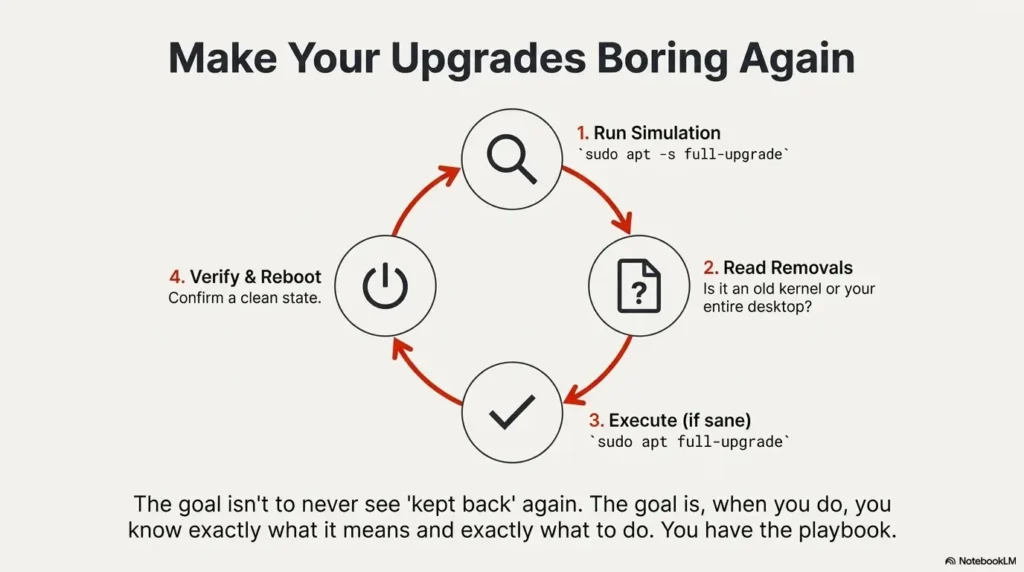
Run a simulation now: apt -s full-upgrade, scan for removals, then execute apt full-upgrade if the plan looks sane
Here’s the 15-minute “do it now” sequence:
sudo apt updatesudo apt -s full-upgrade(read removals)sudo apt full-upgradesudo apt -s autoremove --purge # Optional: execute autoremove only after verifying every proposed removal- Reboot if kernel/core libraries updated
If you want official wording and troubleshooting patterns, Kali’s APT troubleshooting page is genuinely useful (rare compliment, I know). And if your “kept back” list includes Ruby tooling, don’t underestimate version drift—this is the same flavor of headache as msfconsole bundler/Ruby version mismatch: solvable, but only if you stop guessing.
FAQ
Why does Kali say “packages have been kept back” after apt upgrade?
A required removal is one possible cause: apt upgrade can add dependencies but cannot remove installed packages. Holds, pins or unavailable dependencies can also prevent upgrades. Default apt-get upgrade has a stricter no-new-packages rule. Inspect the plan instead of treating full-upgrade as a universal fix.
Is apt full-upgrade safe on Kali Rolling?
Kali documents full-upgrade for rolling updates, but the proposed transaction can remove installed packages and may still fail. Review metadata, repository consistency, holds, pins, removals and a usable recovery path before authorizing a real transaction.
What’s the difference between “kept back” and “held” packages?
“Kept back” is APT choosing not to upgrade due to constraints. “Held” means you explicitly locked a package version (often via apt-mark hold). Full-upgrade can’t override holds without you changing them.
Will apt full-upgrade remove important packages?
It can remove packages if needed to resolve conflicts. That’s why simulation matters. Some removals are normal (old kernels). Others are red flags (desktop meta-packages, critical drivers) and should trigger investigation or a delay.
How do I preview what full-upgrade will change before I run it?
Use simulation: sudo apt -s full-upgrade. Read the “to be removed” list carefully, and compare it to what you actually use on that machine.
Why does this happen more on Rolling than on stable distros?
Rolling releases receive frequent updates and dependency transitions. That means package relationships can change more often, and conservative upgrades stall more often. Full-upgrade exists to complete those transitions.
Do I need to reboot after resolving kept-back packages?
If the upgrade includes a new kernel or core components, reboot soon. You can delay for a short time, but rebooting is how the system fully “becomes” the upgraded state—especially for drivers and services.
Closing the loop: make full-upgrade boring again
Remember the line everyone skims? The one that quietly tells you whether APT needs to install something new or remove a conflict? That’s the whole game. Once you treat “kept back” as a permission question—not a mystery—the fix becomes boring in the best way.
sudo apt update + sudo apt -s full-upgradeGoal: see the plan without executing it.
If scary: investigate holds/repos or wait 24–48 hours.
sudo apt full-upgradeOnly after the plan looks sane for your machine.
Goal: stable, consistent toolchain for your next session.
If you want official guidance and common APT error patterns from Kali, use their troubleshooting page. If you want the formal definition of what full-upgrade is allowed to do, Debian’s APT man page says it plainly.
Your best next move—right now, within 15 minutes—is simple: run the simulation, read the removals, and either proceed or wait with confidence. The goal isn’t “never see kept back again.” The goal is: when you see it, you know exactly what to do.
Original review: 2025-12.
Technical guidance updated: 2026-10-13. Corrected apt versus apt-get upgrade behavior and made package cleanup a separately reviewed step.