
The Kioptrix TTY Upgrade Checklist
“Ctrl+C prints ^C like a little protest sign—and the process just keeps running. That’s the moment Kioptrix stops feeling like a win and starts feeling like you’re operating with oven mitts on.”
If your arrows spit ^[[A, editors redraw like a haunted CRT, and copy/paste turns into static, you’re not “bad at Linux.” You’re sitting in a shell that never got a real terminal relationship. Keep guessing and you lose time the dumb way: broken job control, corrupted settings, and the occasional session implosion.
The Objective:
Attach your shell to a pseudo-terminal (PTY) so interactive programs, signals, and screen handling behave like a normal login session—not a raw pipe. One variable at a time.
The Interactive Workflow
- • Spawn a PTY: Break free from the limitations of a raw pipe.
- • Set TERM & Sync: Align your terminal language and screen dimensions (rows/cols).
-
• Fix Line Discipline: Use
sttyto restore proper input/output handling. -
• Restore Control: Enable
Ctrl+Cand backgrounding capabilities.
Repeatable when you’re tired. Includes five validation tests to ensure your session survives real lab friction. Start with a 30-second triage and take control of your environment.
Table of Contents
1) The “dumb shell” diagnosis: 30-second triage before you touch anything
Before you “upgrade,” take 30 seconds to learn what you actually have. This is the difference between a stable interactive session and a night of “why did my terminal implode.” I learned that the hard way—once I spammed random fixes, then spent 12 minutes undoing them while my shell slowly died.
Symptom-to-cause map (Ctrl+C, arrows, vim/nano, less, clear)
- Ctrl+C doesn’t stop programs → you likely don’t have real job control (no proper controlling TTY / PTY).
- Arrow keys show ^[[A → terminal type mismatch or line discipline issues.
- vim/nano/top redraw is broken → TERM/size is wrong, or you’re not in a real PTY.
- Backspace prints weird characters → erase key / stty settings not aligned.
- Double-echo / ghost typing → echo and cooked/raw mode mismatch.
- Identify whether you have a real PTY.
- Separate TERM problems from job-control problems.
- Only change one variable at a time.
Apply in 60 seconds: Run a quick triage and write down the symptoms before you touch settings.

Confirm what you actually have (sh vs bash, PTY vs no PTY)
In many Kioptrix-style lab VMs, your first foothold is a minimal shell: maybe /bin/sh, maybe bash, and often not attached to a true interactive TTY. That “dumb shell” can run commands, but it can’t properly manage foreground/background processes. In plain terms: you can talk, but you can’t conduct the orchestra.
Quick “interactive readiness” checks (signals, line editing, full-screen)
Your goal is to learn: “Am I in a real terminal session or just a pipe?” You don’t need fancy tools—just a few behaviors:
- Does Ctrl+C interrupt a long-running command?
- Do arrow keys navigate history, or print control sequences?
- Can you open less without screen corruption?
- Does backspace delete correctly, or does it draw boxes?
- Is this a lab VM you own or have permission to test? (Yes/No)
- Can you run basic commands reliably without the shell dropping? (Yes/No)
- Do you have at least one available “spawner” tool (Python/perl/script/socat)? (Yes/No)
Next step: If any answer is “No,” stabilize access first (or stop if authorization is unclear).
2) Why Ctrl+C breaks: signals, job control, and the missing pieces
Here’s the truth that makes the whole topic click: Ctrl+C is not magic.
In most UNIX-like systems, Ctrl+C is a keybinding that results in a signal (typically SIGINT) being delivered to the foreground process group tied to a controlling terminal.
If you don’t have that controlling terminal relationship, Ctrl+C might do nothing—or it might just print ^C like a tiny protest sign.
What job control needs (foreground process groups in a real TTY)
Job control is the shell’s ability to run processes in the foreground/background and direct signals appropriately. bash has job control features, but it relies on being connected to a terminal device that can manage process groups. This is why a basic reverse shell over netcat often feels “half alive”: it’s not automatically giving you a proper PTY. When you move from initial access to post-exploitation workflow, the difference becomes painfully obvious—especially in the “I have a shell, now what?” phase that shows up in RCE-to-shell privilege escalation chains.
Show me the nerdy details
The POSIX model describes terminals, sessions, process groups, and signal delivery rules. The key idea: signals like SIGINT are delivered to the foreground process group of the controlling terminal. If your shell isn’t actually controlling a terminal (or is just reading from a socket/pipe), job control won’t behave like a normal interactive login.
When Ctrl+C gets eaten, echoed, or ignored
- Eaten: Your input is buffered or handled by a layer that never forwards it as a signal.
- Echoed: The terminal prints
^C, but no foreground process receives SIGINT. - Ignored: Your current process doesn’t treat SIGINT normally, or the signal never arrives.
Curiosity gap: The tiny mismatch that makes everything feel cursed
The mismatch is usually one of these: you’re missing a PTY, your TERM doesn’t match reality, or your local terminal settings got changed and never restored. The “cursed” feeling happens when you try to solve all three at once. So we won’t.
Personal confession: I used to blame Kioptrix for being “old and weird.” It wasn’t the VM. It was me trying to speedrun terminal physics.
3) PTY spawn options: pick the least-fragile path for Kioptrix
The checklist mindset here is simple: prefer the cleanest PTY spawn method available. In practice, that usually means Python if it exists. If not, use the next best tool that’s actually installed. Your goal is not elegance. It’s survival.
Python present? Great—use the clean PTY route
If Python is available, it’s often the most reliable way to spawn a proper pseudo-terminal. On many pentest distributions (Kali Linux included), you’re used to having Python on your attacker box—target availability varies by lab image. In Kioptrix-era targets, Python may be missing, so don’t emotionally depend on it. If you’re building repeatable workflows (instead of one-off heroics), it also helps to keep small, reusable helpers nearby—like the ones in a mini exploitation toolkit in Python.
No Python? Fallback spawners (script, perl, busybox, socat—choose what exists)
When Python isn’t there, you’re looking for any tool that can help you attach a PTY-like experience. Common candidates in the wild include:
- perl (sometimes present on older systems)
- script (often from util-linux)
- busybox (common in minimal environments)
- socat (less common on targets, but gold when present)
Pattern interrupt (micro H3): Let’s be honest… your “one-liner” fails half the time
The internet loves one-liners because they look heroic in a screenshot. Real labs don’t care about aesthetics—they care about whether your shell stays interactive after you resize your window and run less. That’s why this is a checklist, not a flex.
Short Story: The night Ctrl+C stopped existing (and I learned to stop panicking)
I once popped a shell on a training VM and immediately tried to “clean it up” while adrenaline was still driving. I ran a PTY spawner, changed TERM, resized my terminal, and opened a full-screen tool—basically a speedrun of every mistake. Suddenly, nothing behaved like a normal session. Ctrl+C printed ^C but didn’t interrupt. Backspace drew little squares.
My prompt duplicated itself like it was haunted. I spent the next 15 minutes toggling random settings, getting angrier with each command. The fix ended up being embarrassingly simple: I backed up, restored my local terminal state, then upgraded one layer at a time—PTY first, TERM second, size third, job control last. The “curse” vanished. That night taught me a rule I still follow: never fix more than one variable at once.
4) Terminal sanity pass: TERM, size, and line discipline that stops the chaos
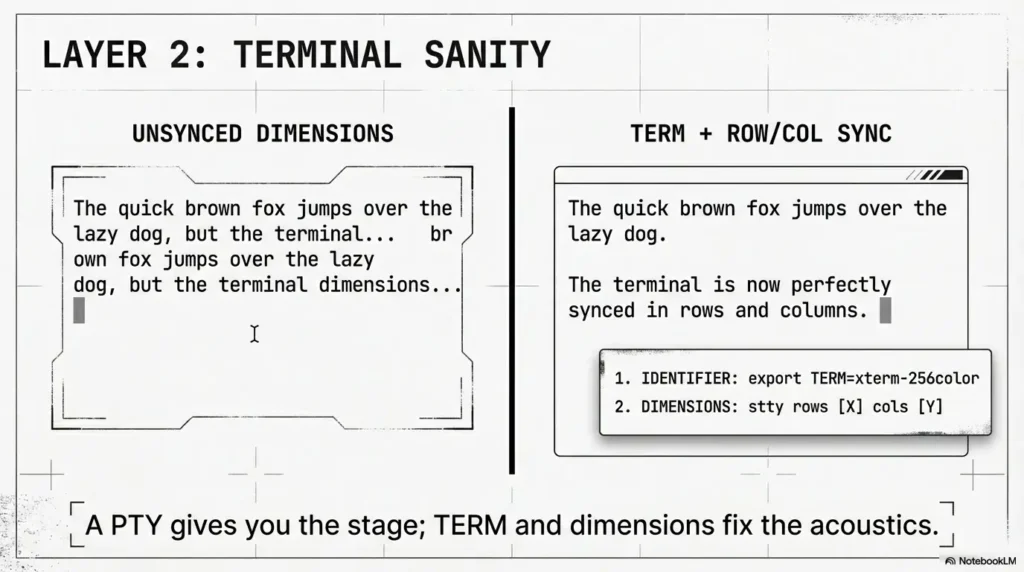
Once you have a better shell, you’re not done. A PTY without sane terminal settings is like a concert hall with a broken soundboard—technically a venue, practically a mess. This section is where most people either become fully interactive… or get stuck in redraw purgatory.
Set TERM so full-screen tools stop glitching (xterm-256color vs xterm)
TERM tells programs what your terminal supports.
If it’s wrong, tools like vim, less, and top can misbehave.
A safe default in many modern setups is xterm-256color, but in some minimal environments xterm is safer.
The point isn’t the “best” value—the point is that your TERM should match the actual terminal you’re using.
Fix rows/cols so editors don’t redraw like a haunted CRT
If you’ve ever watched nano redraw the same lines on top of themselves, you’ve met the rows/cols mismatch. When your local terminal resizes but the remote session doesn’t know, full-screen apps guess wrong and redraw badly. This is why resizing mid-upgrade can be a silent sabotage.
stty essentials (echo, sane, intr/erase behavior)
stty controls terminal line settings: echoing, erase key behavior, interrupt characters, and more. It’s powerful—and it can also make your terminal feel “broken” if you apply the wrong settings and forget how to undo them. The most practical mindset: use stty to correct specific pain (like backspace), not as a random incantation. And yes—this is also where people accidentally create “operator fingerprints” (like leaving history or shell state messy), which is why it’s worth knowing the quiet risks in Bash and Zsh history leaks.
- Wrong TERM breaks full-screen apps.
- Wrong size breaks redraw behavior.
- Wrong stty breaks typing itself.
Apply in 60 seconds: If arrows/backspace are wrong, fix TERM first, then stty—don’t reverse it.
Show me the nerdy details
TERM is consumed by terminfo-aware programs to decide which escape sequences to use. stty configures the terminal line discipline (cooked vs raw behavior, erase and interrupt control characters). When these two disagree with the reality of your session, you get broken input, broken output, or both.
- Ctrl+C interrupts a foreground command? (0 or 1)
- Arrow keys navigate history normally? (0 or 1)
- Full-screen app (less/vim/top) renders cleanly? (0 or 1)
Your score: 0–1 = still dumb/fragile, 2 = usable but shaky, 3 = fully interactive.
Neutral action: If you’re below 3, upgrade one layer (PTY → TERM/size → job control), then retest.
5) Job control recovery: the foregrounding ritual that actually sticks
If you’ve ever heard someone say “just background it and foreground it,” this is what they meant. It sounds like superstition until you understand the goal: re-establish proper control flow between your local terminal and the remote shell. The sequence matters because it forces the shell to reconcile process group and terminal state.
Suspend → background → bring foreground (why that sequence matters)
In a normal interactive terminal, you can suspend a process, background it, then bring it back. When you successfully restore job control, your shell stops behaving like a pipe and starts behaving like a session. This is where Ctrl+C usually becomes “real” again.
Restore your local terminal settings after the dance
Some PTY relay workflows temporarily put the local terminal in raw/no-echo mode so control bytes reach the remote PTY. Keep that mode while the foreground relay is active; restore the saved local settings when the relay exits or is suspended. Restoring cooked local mode too early can make Ctrl+C terminate the local listener instead.
Curiosity gap: The step most guides skip—yet it’s why yours keeps breaking
The often-missed step is distinguishing local relay settings from the remote PTY. Keep the local relay mode appropriate while connected, then restore local settings when you leave the relay; validate remote signals and job control separately.
- Upgrade now if you need full-screen tools, stable Ctrl+C, or clean copy/paste.
- Delay upgrade if the shell is dropping, lagging, or you’re mid-exploit and can’t risk instability.
- Switch transport first if the channel itself is unreliable (flapping reverse shell).
Neutral action: Choose the least risky next step: stabilize transport, then upgrade interactivity.
6) Validation loop: 5 tests that prove you’re truly interactive
A real checklist ends with proof. Not vibes. Not “seems fine.” Proof. When you’re documenting a Kioptrix walkthrough—or building muscle memory for OSCP-style labs—this validation loop is what makes your process repeatable.
Test 1: Ctrl+C interrupts the right process (not your soul)
Run a long command and interrupt it.
If Ctrl+C stops the foreground process cleanly, you’re on the right track.
If it prints ^C but nothing stops, you still don’t have the signal path you need.
Test 2: Arrow keys + history behave normally
Arrow keys should traverse history, not print sequences.
If you’re seeing ^[[A, think TERM/line discipline mismatch first.
(And if you’re writing notes you’ll reuse later, it’s worth hardening your shell habits early—starting with a Zsh setup built for pentesters so your workflow stays consistent across sessions.)
Test 3: Full-screen apps (less/vim/top) render cleanly
Open one full-screen tool and exit it. A clean exit matters as much as a clean render. If you exit and your prompt is visually wrecked, you still have TERM/size problems.
Test 4: Copy/paste and line wrapping aren’t mangled
This is where you notice the subtle stuff: long lines wrap correctly, pasted text doesn’t explode, and you can edit commands without artifacts. It sounds “nice to have” until you’re pasting a payload and your terminal inserts invisible chaos.
Test 5: Stable prompt + no “double-echo” weirdness
Double-echo is a confidence killer. If every character appears twice, stop and fix local/remote echo mismatch. It’s not glamorous, but it’s the difference between “operator mode” and “why am I fighting my keyboard.”
- Signals work (Ctrl+C).
- Line editing works (arrows/history).
- Full-screen tools work (render + exit).
Apply in 60 seconds: Run the five tests in order and stop at the first failure.
7) Common mistakes: the two-minute “how I broke my own shell” museum
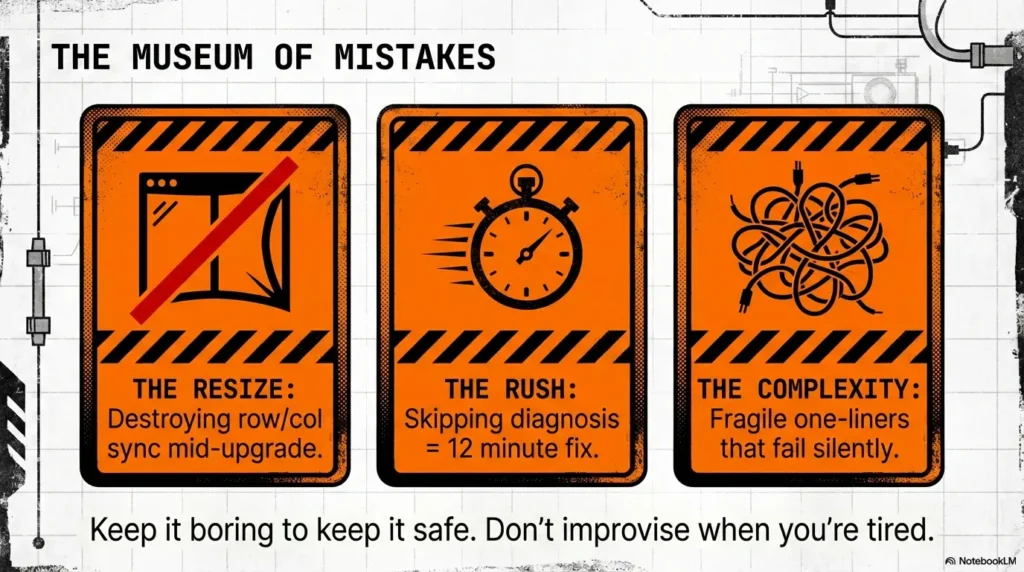
This section exists because we all do the same thing under pressure: we rush. And rushing makes terminal work weirdly expensive—one bad setting can steal 8 minutes of your life. I’m not judging. I’m describing my own habits with receipts.
Mistake #1: TERM mismatch (garbled output, broken arrows)
TERM issues look like “the system is broken,” but it’s often just “the system is speaking the wrong dialect.” Fixing TERM early prevents a whole cascade of redraw artifacts.
Mistake #2: Forgetting to fix local terminal state (you think remote is broken)
This is the classic: you do an upgrade step that changes your local terminal mode, then forget to restore it. Now everything you type feels cursed. The remote side may be perfectly fine.
Mistake #3: Resizing your window mid-upgrade (rows/cols desync)
Resizing mid-upgrade is like moving furniture while the movers are still carrying the piano. If you must resize, do it after you’ve stabilized and you know how to resync terminal size cleanly.
Mistake #4: Upgrading inside an unstable reverse shell without a fallback plan
If your shell drops every 30 seconds, your first goal is stability, not interactivity. Upgrade steps can create more traffic and more complexity—exactly what a shaky shell can’t handle.
8) Don’t-do-this list: shortcuts that look clever and cost you the session
Some shortcuts work once, then betray you when you need them most. This list is here to protect your time—and your mental state—when you’re deep in a lab and the clock is loud.
Don’t run noisy full-screen tools before stabilizing
Opening a full-screen tool early is a great way to discover your terminal is not ready… by breaking it. Stabilize first, then use the toys.
Don’t assume every Kioptrix box has the same binaries
Kioptrix images differ by version, environment, and how they were built. Your method should be decision-based: “If Python exists, do X; else if perl exists, do Y; else…” That mindset beats memorizing one blessed incantation. It also pairs cleanly with knowing where you are in the ecosystem (which box, which version, which expectations), so having a quick map of the Kioptrix levels nearby prevents “wrong assumptions” frustration.
Don’t “optimize” into fragility (overly fancy chains)
The more steps you chain without checkpoints, the harder it is to recover when something goes wrong. In walkthroughs, readers copy/paste—so if your chain fails, it fails loudly. Design for resilience, not fireworks.
Pattern interrupt (micro H3): Here’s what no one tells you… “working once” isn’t a checklist
If it works once, congratulations—you got lucky. If it works reliably across sessions and environments, you’ve built a checklist. That’s what you want for Kioptrix practice: repeatability you can trust when you’re tired.
9) Who this is for / not for
For: CTF learners, OSCP-style practice, Kioptrix walkthrough builders
If you’re practicing privilege escalation, enumeration, or post-exploitation workflow in a lab, interactivity matters. It’s the difference between “I can run commands” and “I can operate tools calmly.” If your next move after a shell is systematic escalation, pairing this with a step-by-step reference like the Kioptrix Level 1 privilege escalation checklist keeps your workflow steady (and your brain quieter).
For: anyone documenting repeatable shell handling steps
If you write walkthroughs (or you’re building your own internal notes), a consistent TTY upgrade section is a huge quality signal. It also reduces reader frustration—meaning higher trust, lower bounce, better engagement. If you’re capturing your process for others (or for your future self), it helps to keep your evidence and structure aligned with a reusable framework like a Kali pentest report template.
Not for: real systems without explicit permission (stop here)
If you don’t have explicit authorization, stop. The same skills that make you effective in labs can cause real harm in real environments, even if you “didn’t mean to.”
Not for: environments where policy forbids shell interaction (corp/production)
Some environments have strict rules about interactive shells and tooling—even for authorized testing. If you’re in a professional context, follow scope and policy, not internet habits.
10) When to seek help: stop conditions that save you time (and trouble)
There’s a point where stubbornness stops being brave and starts being expensive. These stop conditions are meant to protect you from sinking 25 minutes into a broken session when a clean reconnect would take 90 seconds.
If you don’t have explicit authorization → stop and verify scope
Authorization is the first checkbox, not the last. If you’re unsure, verify before you proceed.
If the shell is flapping/dropping → switch to a more stable transport first
An unstable shell can’t handle complex upgrade flows. Stabilize the channel first, then upgrade interactivity. (Ask me how I know: I once tried to “perfect” a shell that dropped every minute and ended up with… no shell at all.)
If you’re stuck in terminal corruption → reset local terminal state and reconnect
Sometimes the fastest fix is to stop wrestling and start fresh. Terminal corruption can be local, remote, or both. If you can’t confidently undo what changed, reconnect cleanly and redo the checklist one layer at a time.
If you’re building a write-up → note the exact toolchain + environment for reproducibility
Readers don’t just need steps—they need context: attacker OS (Kali Linux?), target version, shell type, and which spawner worked. Even a single sentence of environment detail can save someone 10 minutes. This is also where “habits that scale” matter—clean notes, clean logs, and clean evidence—so workflows like Kali Linux lab logging and note-taking systems for pentesting quietly pay for themselves.
Show me the nerdy details
Different netcat variants behave differently (traditional vs OpenBSD). Some shells are invoked as sh symlinks with limited job control behavior. Even the presence/absence of a controlling terminal can change based on how the reverse shell was launched. Recording environment details turns a “cool trick” into a reproducible method.
- Target shell type (sh/bash) and available binaries (python/perl/script/busybox/socat).
- Whether Ctrl+C and arrow keys currently work (baseline symptoms).
- Your local terminal type and whether you resized recently.
- Whether the connection is stable (drops, lag, timeouts).
Neutral action: Write these four bullets in your notes before attempting any upgrade.
FAQ
Why doesn’t Ctrl+C work in a reverse shell on Kioptrix?
Because Ctrl+C usually relies on a controlling terminal delivering a signal (often SIGINT) to the foreground process group. Many reverse shells are just a data pipe, not a true interactive terminal session—so the signal pathway isn’t properly established.
How do I upgrade a dumb shell to a fully interactive TTY in a CTF lab?
Use a layered checklist: spawn a PTY if possible, set a sane TERM value, fix terminal size/line settings, restore job control, then validate with a repeatable test loop (Ctrl+C, arrows, full-screen apps, echo behavior).
What does “spawn a PTY” mean, and why does it fix arrow keys?
A PTY (pseudo-terminal) gives the process a terminal-like interface so interactive programs can read keystrokes and manage screen drawing properly. Without a PTY, arrow keys and control sequences often get treated as raw characters instead of interactive input.
Why does vim/nano look broken after I get a shell?
Full-screen editors depend on correct terminal capability information (TERM) and correct sizing. If TERM is wrong or the remote session doesn’t know your rows/cols, redraw behavior can look “broken” even though the program is fine.
What should I set TERM to for a stable interactive shell?
A common default is xterm-256color, but xterm can be safer in minimal environments.
The best answer is: set TERM to match the actual terminal you’re using, then validate with a full-screen tool.
How do I fix terminal resizing issues (rows/columns) after upgrading TTY?
Make sure the remote session has correct rows/cols after you resize. If full-screen tools redraw poorly after a resize, resync terminal size, then re-test. If you’re not sure what changed, reconnect and redo the checklist carefully.
Why do my keystrokes double-echo or backspace deletes weirdly?
That’s typically an echo or line-discipline mismatch (stty settings) or a local terminal mode that was changed and not restored. Fix one variable at a time: local terminal sanity first, then remote stty/TERM alignment.
What’s the fastest way to confirm job control is actually working?
Run a long process, interrupt it with Ctrl+C, and confirm the foreground process stops. Then test arrow-key history and a full-screen tool (like less) to confirm interactive behavior is consistent.
11) Next step: one concrete action
Build a personal “TTY Upgrade Card” for your notes: Triage → PTY → TERM/size → Job control → Validate. Then promise yourself one thing: you will not improvise when you’re tired. You’ll follow the card. It’s the smallest discipline that creates the biggest calm.
If a step fails, don’t spiral. Go back one step, fix one variable, retest.
Conclusion
Let’s close the loop from the beginning: the reason your Ctrl+C was “broken” wasn’t bad luck—it was missing structure. Interactivity is a relationship between your shell, a controlling terminal, and the processes you’re running. When you upgrade randomly, you create mismatches that feel like curses. When you upgrade in layers, the “curse” disappears and your hands get steady again.
If you want a trustworthy foundation, it helps to understand how job control works in bash and how terminals are modeled in POSIX terms. You don’t need to become a kernel scholar—just enough to stop guessing.
Your 15-minute next step is simple: open your notes, paste the five-step card, and run it once in a Kioptrix session—slowly. Don’t chase perfection. Chase repeatability. When you can do it half-asleep, you’re ready for harder labs—like stepping from “I can get in” to “I can explain it clearly,” which is exactly what a solid walkthrough such as a Kioptrix Level 2 walkthrough trains you to do.
Original review: 2026-01-09
Keep the local transport and remote PTY distinct. A remote PTY alone does not make a raw socket transport forward Ctrl+C correctly. In a PTY relay workflow, keep the local terminal in raw/no-echo mode while the foreground relay runs; restore the saved local settings after the relay ends or is suspended. Restoring cooked local mode before validation can send Ctrl+C to the local listener and close the connection. bg/fg alone cannot create a remote controlling terminal or process group.
Arrow-key history needs an interactive shell with line editing; a plain sh may lack it even with a valid PTY and TERM. Merely finding Perl or BusyBox is not proof of a PTY spawner. To validate full job control, test suspension and foreground resumption as well as Ctrl+C; do not use a destructive command. These distinctions follow the Bash job-control model.
Technical guidance updated: 2026-10-13. Corrected local raw-mode restoration timing, separated relay handling from remote job control, and clarified arrow-key and fallback-tool requirements.