Practical case: Distinguish assigned memory from observed pressure · Editable working note
Sources, review date and section shortcuts
Reviewed: October 19, 2026. Budget the host, Kali environment, target VM, snapshots and normal applications as separate workloads.
Primary documentation · Related practical guide
Go straight to: Decision check · Main workflow · Further detail
Open the Working note: Distinguish assigned memory from observed pressure for this guide’s task-specific fields and next action.
Measure a repeatable bottleneck before adding resources
Record actual free memory, swapping, CPU pressure, storage growth and responsiveness during the intended workflow. Booting a small legacy target does not establish comfortable operation with another guest and a browser. More assigned vCPUs or RAM can starve the host. Example allocations are starting points, and platform-specific snapshot guidance is not a universal desktop deadline. Reference and scope.
Stop the Lab Lag: Sizing Your Kioptrix Environment for Performance
Budget the host, Kali environment, target VM, snapshots and normal applications as separate workloads.
There is a particular kind of lab frustration that wastes more time than it should: the VM technically boots, but the session feels sticky, delayed, and vaguely suspicious from the first click. That is exactly where Kioptrix Level resource requirements get misunderstood.
For most beginners, the pain is not raw power. It is bad sizing. Too much RAM assigned to the VM, not enough left for the host, and SSD space that vanishes as snapshots multiply. Keep guessing, and you do not just get lag. You get false troubleshooting drama and a practice session that teaches the wrong lesson.
This guide helps you size RAM, CPU, and disk space for smoother Kioptrix practice without turning your lab into a laptop soap opera.
- ✔ Host-side contention focus
- ✔ Virtualization overhead
- ✔ Storage breathing room
- ✔ “Comfortable” over “Minimum”
The setup that actually feels better when you sit down to practice.
RAM First: Why Kioptrix Feels “Slow” Before It Is Actually Heavy
Kioptrix is old. Your host is not. That mismatch creates one of the strangest beginner traps in lab work: people assume an old guest must be frictionless, then blame the image when the real problem is host memory pressure. The age of the VM does not magically exempt the host from doing work. Your hypervisor still has to reserve memory, your browser still behaves like it was hired by a power plant, and your note-taking app still wants its tidy little pile of RAM.
The VM is old, but your host still pays the bill
Oracle’s VirtualBox manual is blunt about the big picture: the practical limits on how many VMs you can run are memory and disk space. That is not glamorous advice, but it is the drumbeat underneath smooth practice.
Why under-allocating RAM creates fake troubleshooting drama
When a VM is starved, ordinary tasks start looking suspicious. Boot delays feel like image corruption. Slow terminal response feels like misconfiguration. A browser inside the guest takes too long to render, and suddenly someone is half-convinced the guest network is cursed. A little under-allocation can create a whole theater production of fake bugs.
When “just give it more memory” backfires on the host
Too much memory can be just as silly as too little. The host needs enough headroom to remain calm while the hypervisor runs. If your host starts swapping or compressing memory aggressively, the whole session gets mushy. What beginners call “VM lag” is often host distress wearing a fake moustache.
- Budget RAM for the host first, then the VM
- Close heavyweight apps before increasing guest memory
- Judge performance after a clean reboot, not after a chaotic workday
Apply in 60 seconds: Check your host’s free RAM with your usual apps open before deciding the VM allocation.
CPU Reality Check: You Do Not Need a Beast, but You Do Need Headroom
The CPU part of this discussion is where people either overspend or over-tweak. For a single old practice VM, you do not need a dragon-powered workstation with fans that sound like a small airport. But you do need enough headroom that the host, hypervisor, and your side tools can coexist without stepping on each other’s shoelaces.
Dual-core vs quad-core for basic lab smoothness
A modern dual-core host can work for basic booting and light exploration. A modern quad-core host is simply more forgiving. That forgiveness matters. It gives you room for the browser, notes, scanner, and occasional background update that arrives like an uninvited drummer at a chamber recital.
Why virtualization overhead matters more than the guest OS age
The guest being old does not eliminate virtualization overhead. The host still mediates disk, memory, scheduling, and display work. Even if Kioptrix itself is modest, the whole practice stack is not just “old Linux in a box.” It is “old Linux in a box while your modern machine keeps twelve other promises.”
The hidden issue: browser tabs stealing the lab’s oxygen
Honestly, many first-time resource complaints are not about the VM at all. They are about the modern browser. A YouTube tab, a documentation tab, three search tabs, a note app, and a password manager can quietly become your real workload. The VM is standing in the corner getting blamed for a party it did not throw.
Decision Card: When a dual-core host is enough vs when a quad-core host feels saner
- Dual-core host: One VM, light browsing, simple notes, minimal snapshots.
- Quad-core host: One VM plus scanning tools, notes, multiple tabs, and repeatable practice with fewer hiccups.
- Trade-off: CPU is less often the first bottleneck than RAM or storage, but extra cores reduce friction when the session gets busy.
Neutral next step: Look at your actual multitasking pattern before assuming the CPU needs an upgrade.
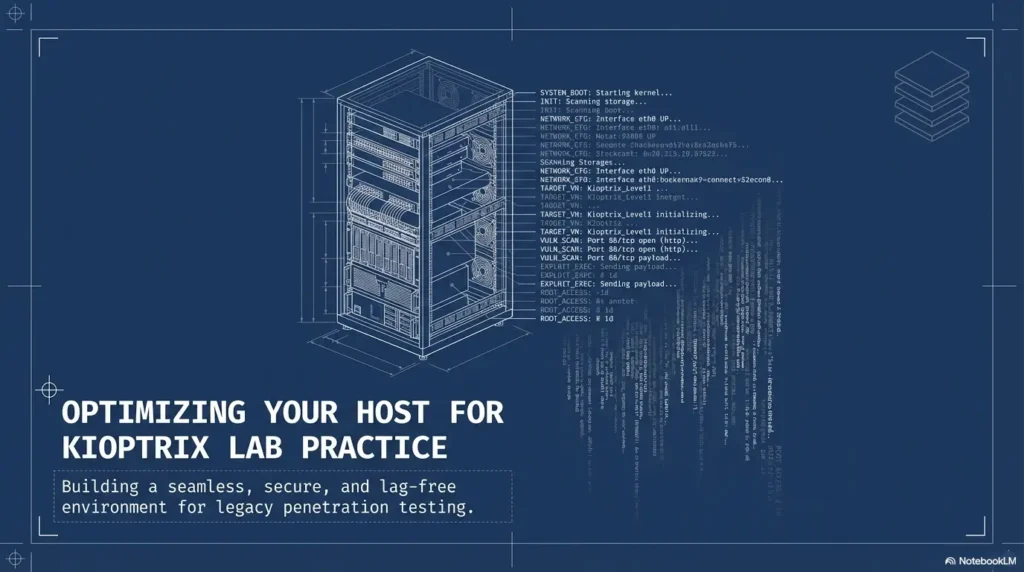
Disk Space Is Not Just Storage, It Is Breathing Room
Disk planning is where beginners get ambushed late. The VM file fits, so they think storage is handled. Then they import, test, snapshot, export, duplicate, forget, and one afternoon discover that “fits” and “works comfortably” are very different species.
Base image size vs working size vs snapshot sprawl
The base image is only the opening sentence. Working files, differencing disks, logs, and snapshots can enlarge the footprint sideways. That is why a VM that seemed tiny at import can become a storage barnacle over time. If you are still at the beginning of the process, a clean Kioptrix VM import workflow saves more trouble than people expect.
Why SSD placement changes the feel of the lab more than people expect
If you put the VM on a reasonably fast SSD with healthy free space, the whole lab usually feels more cooperative. Boots are snappier. Rollbacks are less theatrical. Enumeration pauses shrink. This is one of those upgrades that feels less like fireworks and more like a room finally getting proper light.
Don’t ignore free space on the host, even if the VM “fits”
VirtualBox notes that disk space and memory are the practical limits for VMs, and Broadcom’s VMware guidance on disk expansion is a sharp reminder that free working space matters during virtual disk operations, not just the nominal size of the VM file.
Show me the nerdy details
Virtual machines often rely on differencing files and temporary working space during operations such as snapshots, consolidation, and disk growth. That means you should think in three layers: current VM size, probable growth during practice, and temporary overhead during maintenance or rollback tasks.
Minimum vs Comfortable: The Two Numbers That Actually Matter
Most readers do not need one number. They need two. The first is minimum, meaning the VM boots and basic exploration is possible. The second is comfortable, meaning the session does not keep interrupting your thinking with avoidable lag and storage anxiety.
Bare minimum setup for booting and basic exploration
A modest modern host can usually boot one Kioptrix VM and support simple navigation. But “can boot” is not the same as “pleasant to practice on.” Minimum gets you through the door. It does not guarantee you will enjoy being in the room.
Comfortable setup for scanning, note-taking, and snapshots
Comfort means keeping enough free RAM for the host, using SSD storage, and leaving space for one or two snapshots without inducing existential dread. In real life, this tends to matter more than chasing every configurable knob in the hypervisor panel. Once the machine feels stable, a repeatable Kioptrix recon routine becomes much easier to follow without second-guessing every delay.
Best-case setup if you want fewer interruptions and cleaner repeats
If you want calm repeatability, aim for a host with enough RAM for the VM plus your normal toolkit, an SSD that is not nearly full, and a CPU with a little spare air. That is the version of “smooth” worth paying for.
| Tier | What it feels like | Best for |
|---|---|---|
| Minimum | Boots, explores, but little tolerance for multitasking | Short sessions, first imports, basic orientation |
| Comfortable | Stable for scanning, notes, and a couple of snapshots | Most beginners |
| Best-case | Low interruption, easier rollback, cleaner repeat practice | Frequent lab work and writing repeatable reports |
- Size for the session, not just the boot
- Account for notes, browser tabs, and snapshots
- Leave host SSD free space on purpose
Apply in 60 seconds: Write down your minimum and comfortable targets separately before changing any VM settings.
Snapshot Creep: The Disk Problem Beginners Meet Late
Snapshots are lovely until they are not. At first they feel like insurance. Then they become a tiny attic of alternate timelines. One snapshot before a risky change is practical. Ten snapshots with fuzzy names is not a safety system. It is a compost pile with timestamps.
One snapshot is a safety net, ten snapshots are a swamp
Broadcom’s recommendation to use short snapshot chains and avoid keeping a snapshot beyond 72 hours is specifically guidance for VMware vSphere/ESXi. It is not a universal time limit for VirtualBox or Workstation home labs. For desktop practice, monitor actual disk growth, preserve a separate clean backup, and keep only purposeful checkpoints. A dedicated Kioptrix snapshot strategy helps keep rollback manageable.
Why rollback convenience quietly eats storage
The emotional trap here is simple: rollback feels cheap in the moment. Disk growth does not announce itself with trumpets. It happens slowly, politely, while you are busy learning. Then one day a delete or consolidate operation takes longer than expected, and suddenly your “lightweight practice lab” is behaving like a storage negotiation.
Here’s what no one tells you: old practice labs grow sideways, not just upward
That phrase matters. Growth is not only about a bigger guest disk. It is also about differencing files, duplicates, exports, and “I’ll clean this later” artifacts. Old labs are like cables in a drawer. They multiply when you are not looking.
Eligibility checklist:
- Do you know what each snapshot is for? Yes / No
- Is the snapshot chain short, purposeful, and within your platform guidance? Yes / No
- Do you have meaningful free disk space left after accounting for rollback? Yes / No
Neutral next step: If two or more answers are “No,” pause new lab changes and tidy the snapshot chain first.
Host Machine Math: What Else Is Running While You Practice?
Host planning sounds almost insultingly basic until you watch it rescue a session. The hypervisor is not running in a vacuum. It is sharing space with your browser, your notes, your terminal, your messenger, your PDF viewer, and whatever stealthy update service has chosen this exact moment to reinvent itself.
The hypervisor is not alone on your laptop
VirtualBox can run many VMs in theory, but again, the practical boundaries are memory and disk. For home lab work, the lesson is smaller and more useful: count the whole session, not just the guest.
RAM budgeting when notes, browser, and terminal stay open
A comfortable session budget often looks like this: host operating system, hypervisor overhead, one guest, notes, browser tabs, and maybe a scanner or terminal toolset. The mistake is not keeping these things open. The mistake is pretending they are free. A simple Kali setup checklist for Kioptrix practice can also prevent the host from carrying extra clutter you forgot to count.
Let’s be honest… most “VM lag” starts outside the VM
This is the part that saves people money. Sometimes the fix is not more RAM, more cores, or a different hypervisor. Sometimes the fix is closing twelve tabs, rebooting the host, and not storing the VM on the most crowded drive in the house. It lacks romance. It works anyway.
Distinguish assigned memory from observed pressure
Practice guidance / illustrative examples. No new VM execution or measured outcome is claimed for this section.
Subtracting VM allocations from host RAM is a planning sketch, not a performance measurement. The host OS, hypervisor overhead, browser, storage cache and other applications also consume resources. A paused or saved guest has different resource implications from a running guest.
Use a repeatable workload: start the scanner and target, open the same notes and browser pages, and observe host memory pressure, swapping and responsiveness using the host's normal monitoring tools. Record the VM allocations and free disk space alongside the observation. Do not publish an example allocation as the minimum for every Kioptrix release.
If the host becomes unstable, preserve evidence and shut down the lab normally before changing allocations. Adjust one supported setting on a working copy and repeat the same workload. Reserve storage for disk growth and recovery operations; a snapshot is not an independent backup or a fixed-size file.
Common Mistakes That Make a Light VM Feel Needlessly Painful
Most performance misery in beginner lab work is domesticated. It is not exotic. It is not a rare edge case from the ancient scrolls. It is usually one of a small number of repeat offenders.
Assigning too much RAM and starving the host
This feels generous and often backfires. An overfed guest sitting on a starving host is not a happy arrangement.
Storing the VM on a slow external or crowded disk
External drives are not automatically bad, but slow or crowded ones can turn routine tasks into sticky, hard-to-diagnose delays. If the drive is nearly full, that adds another wrinkle. Storage stress rarely arrives wearing a name tag.
Treating old vulnerable labs as if they need zero planning
This is the psychological trap of the whole topic. Because the target is old, the learner assumes the setup is trivial. Then the host reality intrudes. Respect the lab even when it looks tiny.
They were already halfway into a narrative about image corruption and import bugs. Then we closed apps, rebooted, and relaunched with saner memory allocation. The machine behaved like an entirely different object. Nothing heroic happened. No deep bug was slain. We just stopped asking one laptop to host a small opera while pretending it was a flute recital. That is why resource planning matters. It saves not only time, but interpretation.
Don’t Do This: Resource Choices That Create Confusing Failures
Some settings do not merely slow you down. They make the whole session harder to interpret. That is the more dangerous failure mode, especially for beginners who are still learning what “normal” looks like.
Don’t max out CPU cores just because the option exists
More is not automatically smoother. Extreme allocations can make the host less responsive and leave you solving the wrong problem.
Don’t practice with almost no free disk space left
If the host SSD is gasping, snapshot activity and virtual disk operations become risky and irritating. Broadcom’s guidance on disk operations underlines that working space matters during changes, not only the final target size.
Don’t blame the Kioptrix image before checking host contention
This one is pure sanity protection. Before suspecting the image, check the host. Look at free RAM, disk space, and what else is running. The simplest explanation often wins, even in a room full of command lines. The same discipline matters later during Kioptrix enumeration mistakes beginners make, when environmental noise starts getting misread as target behavior.
Hypervisor Differences: Why the Same VM Can Feel Different on Two Setups
One of the more maddening things in home lab practice is hearing “it runs fine on my machine” from someone using a different hypervisor, different host specs, and a radically different level of storage cleanliness. That sentence is technically useful and emotionally unhelpful.
VirtualBox vs VMware resource behavior in real practice
Both can run small labs well enough, but they differ in import flow, snapshot handling, and how their overhead feels on a given host. The bigger lesson is not which is universally superior. It is that the same guest can feel different because the virtualization layer itself has habits, constraints, and maintenance behavior. For readers comparing platforms more directly, a broader look at VirtualBox vs VMware vs Proxmox for lab work adds useful context.
Import overhead, idle overhead, and snapshot behavior
VMware’s current snapshot guidance is unusually useful here because it reminds you that snapshot chains are not free performance-wise and should stay short. VirtualBox’s manual, meanwhile, keeps repeating the humble truth that disk and memory are the practical ceilings. Those two ideas together explain a lot of “why does this feel different?” without any mysticism.
Why “works on my machine” is often a hypervisor story
Sometimes it really is the machine. Sometimes it is the hypervisor. Sometimes it is the machine plus the hypervisor plus the user who has not deleted a snapshot since the Paleolithic. This is why repeatable practice begins with stable, boring setup choices.
Show me the nerdy details
Two hosts with similar headline specs can still behave differently because of storage speed, free-space levels, snapshot chains, background services, and hypervisor implementation details. When comparing performance, match the whole environment, not just the VM memory setting.
Who This Is For / Not For
This is for: first-time Kioptrix learners, lab report writers, and low-drama home lab builders
If you are trying to import one old practice VM, take notes, maybe snapshot once or twice, and avoid turning setup into folklore, this article is for you. It also pairs naturally with a beginner Kioptrix lab roadmap if you are mapping your early sessions.
This is not for: production pentesting, enterprise sizing, or multi-VM attack range design
This is not a guide to building a broad, concurrent training range or sizing enterprise infrastructure. It is about one intentionally vulnerable practice box in an authorized learning context, kept stable enough that the lesson is about the lab, not the laptop.
If you want repeatable practice, prioritize stability over squeezing every last megabyte
That is the real ethic underneath the entire topic. Stable beats clever. Calm beats aggressive tuning. Clean repeatability beats speculative heroics.
Coverage Tier Map
- Tier 1: Boot and basic exploration
- Tier 2: Comfortable note-taking and browser use
- Tier 3: Snapshots and cleaner rollback
- Tier 4: Frequent repeat sessions with less maintenance friction
- Tier 5: Broader lab ambitions beyond a single beginner VM
Neutral next step: Decide which tier you actually need before buying anything.
A Smarter Buying-or-Upgrading Question: What Actually Deserves Your Money?
If your current setup feels rough, the urge is to ask, “What should I buy?” A better question is, “What is actually limiting me?” For this topic, the honest pecking order is often: enough RAM to prevent host distress, SSD space with breathing room, then CPU headroom if your multitasking pattern is busy.
More RAM vs faster SSD vs newer CPU
For many home lab beginners, extra usable RAM or a less-crowded SSD produces more visible relief than chasing a newer CPU. CPU upgrades help, certainly, but a storage bottleneck or memory squeeze can make a powerful processor feel oddly underwhelming.
When an upgrade helps, and when better allocation is enough
If the host is fundamentally undersized for your habits, an upgrade helps. If the host is merely cluttered, better allocation may be enough. That distinction can save real money and a lot of wishful shopping.
The quiet truth: sometimes the fix is closing apps, not opening your wallet
That sentence is not glamorous, which is precisely why it deserves trust. A smoother lab sometimes starts with fewer tabs, fewer snapshots, and more free space.
- RAM solves host contention
- SSD space solves breathing-room problems
- CPU helps most when your whole session is busy, not merely the guest
Apply in 60 seconds: List your top two annoyances during practice and map each to RAM, storage, or CPU before pricing upgrades.
Common Mistakes
Confusing guest resource needs with host system needs
The guest may need little. The session may need more. Those are different questions, and mixing them causes bad decisions.
Forgetting to budget for snapshots, exports, and duplicate lab copies
The VM file is not the whole bill. Practice often creates duplicates and recovery points, and they have a habit of reproducing quietly.
Assuming an old target automatically means a friction-free modern setup
Old guest, modern host, busy toolchain: that is still a real workload.
Using performance pain as a proxy for “something is broken”
Sometimes pain is diagnostic. Sometimes it is merely congestion. Learn to separate those two and your troubleshooting becomes far calmer. That same habit improves the quality of a Kioptrix recon log template and helps you avoid writing drama where there was only delay.
Next Step
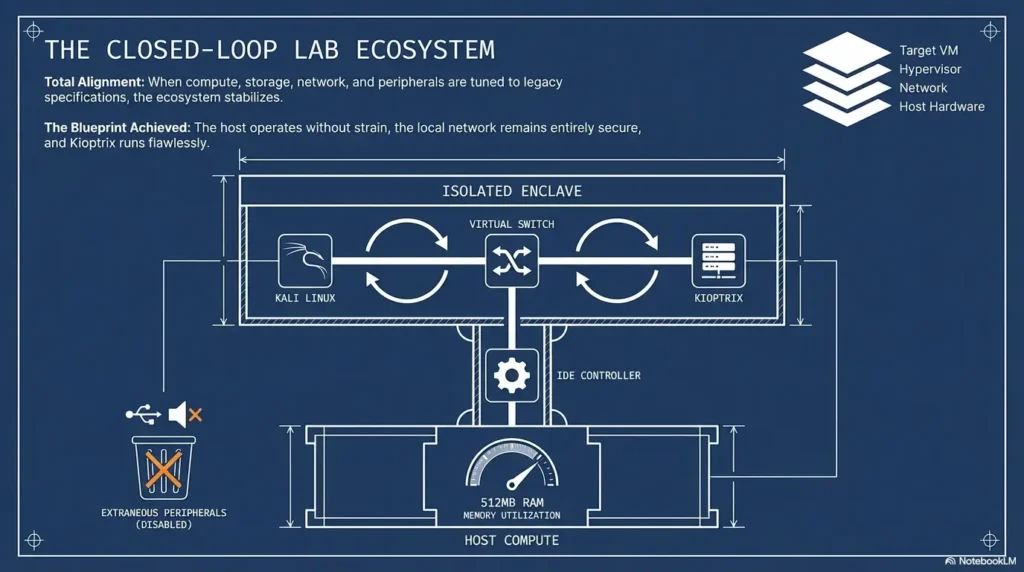
The hook at the top of this article was simple: a VM can technically run and still feel miserable. By now the curtain has lifted. The problem is usually not that Kioptrix is secretly demanding. It is that host memory, SSD space, snapshots, and background clutter form a little four-piece band of friction.
So here is the honest next move you can take in under 15 minutes. Check three numbers on your host right now: free RAM during normal use, free SSD space on the drive that will hold the VM, and how many heavyweight apps stay open while you practice. Then decide whether you are aiming for minimum or comfortable. That one distinction closes a surprising number of future headaches before they hatch. Once the lab stops fighting you, it becomes much easier to produce a cleaner Kioptrix lab report or even a more polished enumeration report from the same session.
Original review: 2026-03.
FAQ
How much RAM do I need for Kioptrix Level practice?
You need enough for the VM and enough left over for the host to stay responsive. For many beginners, the more useful question is not “How much does the guest need?” but “How much free RAM do I still have once my normal tools are open?”
Is 4 GB of total system RAM enough for Kioptrix?
It can be very tight for a modern host once the hypervisor, browser, and notes are included. A tiny guest may boot, but the overall session can still feel cramped. That is why “boots” and “comfortable” should be treated as different targets.
Does Kioptrix run well on a dual-core CPU?
It can, especially for basic single-VM practice. A quad-core host simply gives you more forgiveness when you keep side tools open or want the session to feel less brittle.
How much disk space should I reserve for the VM and snapshots?
More than the base VM appears to need. Reserve enough for the imported VM, one or two snapshots, and extra breathing room on the host drive. Crowded storage is a classic source of slow, confusing behavior.
Is an SSD necessary for smooth Kioptrix practice?
Not strictly necessary, but strongly helpful. SSD placement usually improves the “feel” of the lab more than beginners expect, especially during boot, snapshot use, and general responsiveness.
Why does the VM lag even though Kioptrix is an old image?
Because the host is doing modern work around it. Background apps, browser tabs, storage pressure, and excessive snapshots often explain more than the age of the guest does.
Should I allocate more CPU cores to make the lab faster?
Not automatically. More cores can help, but over-allocation is not a magic spell. Start with sane, conservative settings and judge the whole session, not just the VM settings panel.
Can I run Kioptrix on a low-end laptop for practice?
Often yes, for basic single-VM learning. The key is disciplined expectations: fewer background apps, careful storage management, and modest snapshot use.
Does VirtualBox need different resources than VMware for Kioptrix?
The guest itself may be similar, but the experience can differ because snapshot handling, import flow, and host-side behavior differ between hypervisors. That is why two people can report very different “smoothness” with the same target VM.
What is the safest “comfortable” resource baseline for beginners?
A host with enough free RAM for both the VM and your normal tools, SSD storage with real breathing room, and a CPU that is not already overloaded by everything else you run. Comfortable is about stability more than spectacle.
Technical guidance updated: 2026-10-13. Scoped the 72-hour snapshot recommendation to vSphere/ESXi rather than all desktop hypervisors.
Working note: Distinguish assigned memory from observed pressure
Replace the prompts with your own authorized lab evidence. Download the current entry to keep a local note before leaving. This field is not submitted or saved; reload clears edits. Do not enter passwords, tokens or personal data.
Download a copy of the current entry before leaving or reloading. Entries are temporary in this tab and are not automatically saved or uploaded.
Template ready. Replace the prompts with your record, then download a copy.
Worksheet usability update — October 23, 2026: added an editable record and a download of its current contents. This does not verify the article’s sources or perform the lab exercise.
Related task: Continue with the related practical guide.