Practical case: Prepare the offline workflow before disconnecting · Editable working note

Sources, review date and section shortcuts
Reviewed: October 19, 2026. Plan the tool environment, vulnerable target and offline reference material before disconnecting the lab.
Primary documentation · Related practical guide
Go straight to: Decision check · Main workflow · Further detail
Open the Working note: Prepare the offline workflow before disconnecting for this guide’s task-specific fields and next action.
Verify the complete offline workflow
Record whether tools run on the host or in a separate Kali VM, and include both workloads in the resource budget. Prepare maintained tools and references through trusted channels before the session. Review every adapter, route and forwarding path; a network label alone does not prove isolation. Keep a separate recovery copy and check that notes can be retrieved without exposing shared host folders. Reference and scope.
Engineering the “Boring” Lab: Stable Kioptrix Setup
Plan the tool environment, vulnerable target and offline reference material before disconnecting the lab.
Many students lose entire evenings not because Kioptrix is demanding, but because an older laptop turns one small virtualization mistake into a full performance sulk. Chasing “VM problems” often masks the reality of RAM shortages, low disk space, or poor network choices.
This guide helps you build a lean, offline Kioptrix lab that remains stable and repeatable, even on machines with limited memory or modest cooling. By prioritizing host-only networking and conservative settings over “lab theatrics,” you ensure your study session stays intact without your fans roaring like a wind tunnel.
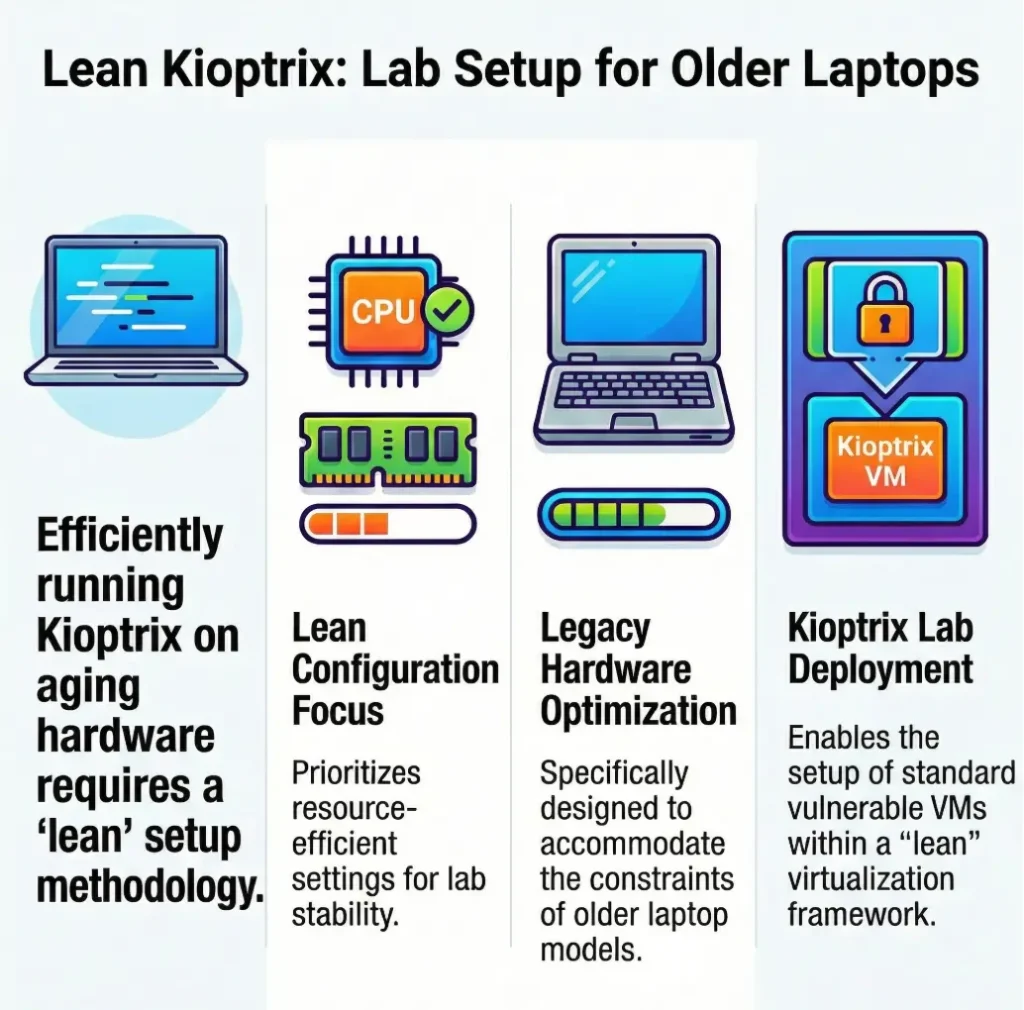
Why Older Laptops Struggle Less With Kioptrix Than You Think
The real bottleneck is rarely the lab itself
Most students picture the VM as the villain. In practice, the real culprit is often the host machine doing twelve other things at once: sync clients muttering in the background, a browser holding 27 tabs hostage, an update service deciding this is the perfect time for ambition. Kioptrix itself is not a sprawling enterprise range. It is a compact training target. That matters.
Why “old vulnerable VM” does not automatically mean “easy on your machine”
There is one trap here. Legacy guest systems may be small, but virtualization still asks your laptop to carve out CPU time, reserve memory, read and write disk files, and emulate hardware cleanly. That overhead is real. So yes, Kioptrix is lighter than a modern Windows lab. No, that does not mean your 2016 ultrabook will glide through the setup while streaming music, syncing photos, and acting morally superior.
Let’s be honest…
What students usually want is not benchmark glory. They want a VM that boots, stays reachable, and does not freeze halfway through note-taking. That is a very reasonable standard. A quiet, boring lab is a success. Boring is beautiful here.
What you are optimizing for: stability, not speed records
The winning mindset is simple: stable enough to practice, light enough to repeat, isolated enough to stay safe. If your VM boots in 35 seconds instead of 18, that is not a crisis. If it boots reliably every time, keeps network behavior predictable, and lets you reset to a clean state, you are already ahead of many flashier setups. If you are still orienting yourself to the broader ecosystem, it also helps to understand what Kioptrix is and why it remains such a common beginner training target.
- Prioritize host stability over guest ambition
- Measure slowdown before changing five settings
- Treat “works every time” as the real performance goal
Apply in 60 seconds: Close every nonessential app before your first VM boot and notice whether the “VM problem” gets smaller immediately.
Before You Install Anything, Check These 5 Laptop Limits
RAM first: the quiet dictator of the whole setup
If your laptop has 4GB of RAM, you are in very lean territory. If it has 8GB, you have breathing room, though not luxury. The host still needs enough memory to remain functional while the guest is running. Starving the host is the fastest way to create lag, fan noise, and the false impression that the VM is unstable. A quick look at Kioptrix Level resource requirements can help you set expectations before you start guessing with sliders.
CPU matters, but not in the way students assume
For a single old training VM, CPU is usually not the first wall you hit. A dual-core system can still be workable if you are realistic. The mistake is assigning too many virtual CPUs and starving the host scheduler. On modest hardware, giving a VM more cores can make the whole system less graceful, not more. More forks do not improve soup.
Disk space is where “it booted yesterday” turns into trouble
Free disk space matters twice: once for the base VM files, and again for snapshots and temporary churn. Oracle’s VirtualBox documentation notes that snapshots take disk space, and its manual also warns to ensure the VM folder has enough free space if you plan to use snapshots. That sounds obvious until a student happily makes three snapshots and then wonders why the host begins panting uphill.
Virtualization settings that can quietly break the day
On a compatible x86 host, confirm that hardware virtualization is available and enabled in firmware if your hypervisor requires it. Windows Virtual Machine Platform is not a blanket prerequisite for VirtualBox or VMware; follow the chosen hypervisor’s instructions for your Windows version and existing virtualization features. Do not change unrelated security settings simply to match a generic tutorial.
Battery health, heat, and fan noise still matter in study sessions
Students ignore this until the laptop starts sounding like a leaf blower narrating its own suffering. Older batteries can throttle performance. Dusty cooling paths can drag clocks down. If your machine becomes hot quickly, that heat is part of the lab experience whether you invited it or not. A hot host can mimic random VM lag, network oddities, or general grumpiness.
Eligibility checklist: Is your laptop ready for a lean Kioptrix setup?
- Yes/No: Do you have at least 4GB RAM, with 8GB making life noticeably easier?
- Yes/No: Do you have enough free disk space for the VM plus snapshots?
- Yes/No: Is hardware virtualization enabled in BIOS/UEFI?
- Yes/No: Can the laptop stay reasonably cool for 30 to 60 minutes?
- Yes/No: Can you dedicate the machine to one VM at a time?
Neutral next action: If you answered “no” to two or more, plan for a very lean setup and skip any multi-VM ideas.
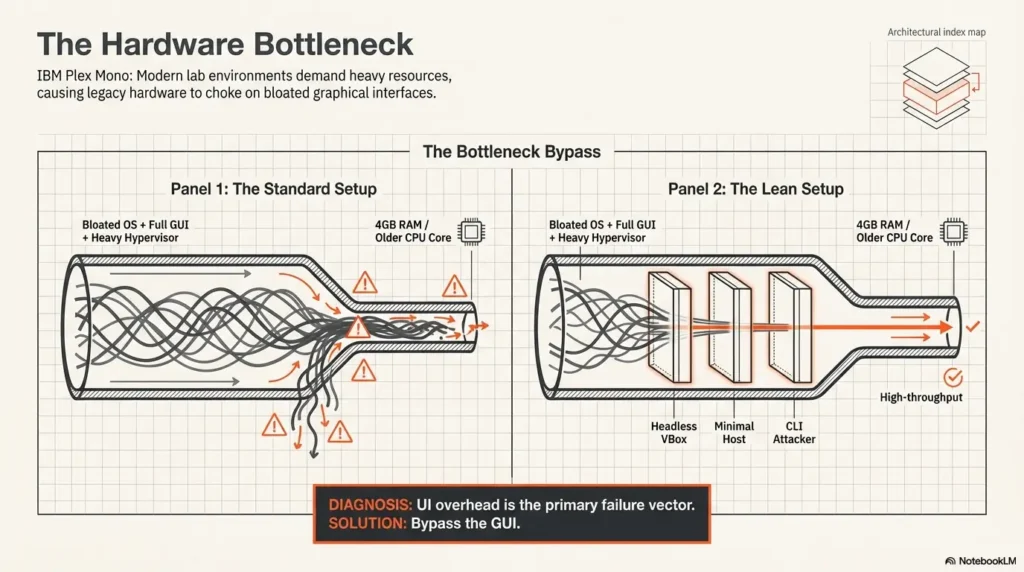
Pick the Right Virtual Machine Route for a Modest Machine
VirtualBox vs VMware for students with aging hardware
For most students on a modest budget, VirtualBox is the practical first stop. It is widely used, well-documented, and perfectly adequate for a one-VM offline training lab. VMware Workstation Pro remains excellent, and many operators like its polish, but “more polished” is not the same thing as “necessary for this exact job.” If you already know VMware well, use it. If not, do not turn tool choice into a personality test. If you are weighing platforms, a broader comparison of VirtualBox vs VMware vs Proxmox can help you decide without turning the choice into philosophy class.
When the “lighter” option is not actually lighter
The internet loves declaring one hypervisor universally lighter. Real life refuses that simplicity. On one machine, VirtualBox may feel smoother. On another, VMware may behave better with the host. Driver interactions, OS version, background security features, and host configuration all get a vote. That is why the right comparison is not forum mythology. It is your laptop, your workload, your actual result.
Host-only networking vs NAT: choose less chaos
For an offline practice lab, host-only networking is the cleanest starting point. Oracle’s VirtualBox manual describes host-only networking as a way to create a network containing the host and one or more VMs without needing the host’s physical network adapter. That is almost exactly what a cautious student wants: communication with the host, but not accidental sprawl onto the wider network. If you need the tradeoffs laid out plainly, this guide to VirtualBox NAT, host-only, and bridged networking is a useful companion.
If your laptop is truly struggling, simplify the topology
One host. One guest. One predictable network. That is the whole poem. You do not need a pretend enterprise with routers, jump boxes, and decorative complexity. The lab is there to teach repeatable fundamentals, not audition for a movie trailer.
Show me the nerdy details
On older hosts, performance can shift because of hypervisor drivers, Windows security features, storage controller behavior, and how aggressively the host caches virtual disk operations. That is why a clean A/B test matters more than generic recommendations. Install one hypervisor, boot one VM, observe idle memory use, launch time, and responsiveness, then decide. Do not benchmark with ten other variables moving at once.
Decision card: When VirtualBox vs VMware makes more sense
Choose VirtualBox when:
- You want a simple, common student path
- You need one offline VM and clear docs
- You care more about adequacy than polish
Choose VMware when:
- You already know its interface well
- Your host behaves better with it in testing
- You want its workflow and already have it ready
Neutral next action: Test one VM on one hypervisor first. Pick the one that feels less dramatic on your actual laptop.
Keep the Lab Offline Without Making It Useless
What “offline” should mean in a student practice lab
Offline should not mean confused. It should mean intentionally isolated from the public network while still allowing the host and guest to communicate in a controlled way. That gives you enough room to practice basic connectivity, observe services, and keep your setup understandable. Think less “air-gapped cathedral,” more “quiet side room with one unlocked door.”
Safe isolation basics without enterprise-level complexity
For beginner labs, complexity is often disguised as seriousness. It is not serious. It is just noisy. A host-only network is usually enough. Bridged networking can place the VM directly onto the physical network, which is not what most students need for an offline exercise. NAT is useful in many contexts, but if your main objective is contained practice with minimum surprises, host-only is easier to reason about. And if your host-only adapter refuses to hand over an address, this troubleshooting guide for VirtualBox host-only with no IP can save a surprising amount of muttering.
A simple network layout that still lets you practice clearly
For a one-guest setup, run the testing tools on a compatible host and place Kioptrix on its host-only network. If your tools run in a Kali VM, both guests must join the same named isolated network, and your resource budget must include both guests. That gives you a clear line of sight. You know where traffic should exist. You know what “reachable” means. When something fails, the troubleshooting tree stays short enough to fit inside a human brain before midnight.
Infographic: Lean Offline Kioptrix Lab
VirtualBox or VMware
Notes open, everything else closed
Predictable, private, low-chaos
One guest, modest resources
Snapshot before changes
Reading tip: If the design needs arrows to seven other machines, it is already too fancy for the goal.
Here’s what no one tells you…
Many students burn time trying to make the lab look impressive before making it usable. It is the digital version of buying calligraphy pens before learning to write a grocery list. There is nothing wrong with ambition. It just needs a calendar. Today is for clarity.
Too much network cleverness can ruin a beginner lab
- Host-only is usually the safest beginner default
- More topology often means more confusion, not more learning
- Predictable reachability beats clever networking
Apply in 60 seconds: Write down your intended network mode before creating the VM so you do not “experiment” yourself into a swamp.
Resource Sizing That Won’t Turn Your Laptop Into a Space Heater
A realistic RAM target for one Kioptrix VM
On an older laptop, the safe question is not “What is the maximum I can assign?” It is “What can I assign while leaving the host calm enough to function?” For a single lightweight training VM, conservative RAM is usually the right move. If your host has 4GB total, you are balancing on a narrow ledge. If it has 8GB, the setup becomes much more forgiving. Reserve enough for the host to keep breathing normally.
How many CPU cores to assign before performance gets worse
One virtual CPU is often enough to start. Two may be fine on some systems. But older laptops do not love grand gestures. Over-allocation can make the host sluggish and the guest oddly uneven. If the VM feels slow, do not immediately add cores like you are feeding a parking meter. Check host load, thermals, and background processes first.
Disk allocation: small, tidy, and enough for snapshots
Your disk plan should include the base virtual disk, log churn, and snapshot growth. Keep the VM on the faster internal drive if possible. A nearly full drive is bad manners in any operating system, and virtual disks make that bad mood visible quickly. Oracle’s docs also note that you can change the snapshot folder location for each VM, which can help if you are managing space carefully. If you want a fuller discussion of when snapshots help and when they start becoming clutter, this Kioptrix snapshot strategy guide fits nicely with a lean-lab mindset.
Why leaving breathing room for the host is the smarter move
Older hardware rewards restraint. Give the host some air. Leave storage headroom. Let the fans avoid opera. The point is not wringing every theoretical drop from the machine. The point is finishing a study session with usable notes and no accidental laptop sermon on the dangers of thermodynamics.
Prepare the offline workflow before disconnecting
Practice guidance / illustrative examples. No new VM execution or measured outcome is claimed for this section.
Offline readiness includes files, documentation and recovery, not just a disconnected Wi-Fi icon. Prepare the compatible scanner image, target archive, extraction utility and the references needed for your chosen task. Keep these preparation activities separate from running the vulnerable target.
Suggested rehearsal: while the target remains off, confirm that the archive extracts, the chosen hypervisor supports the guest and the scanner can open its notes and required tools. Then check that both lab guests use the intended isolated segment and that no extra adapter adds outward connectivity.
Record a small offline task, such as identifying the target from its configured MAC and saving one observation. If a missing dependency blocks it, stop and prepare that dependency deliberately; do not reconnect the vulnerable guest to the Internet just to make the exercise continue. Keep a clean recovery copy and sufficient storage for the full workload.
Setup Sequence: The Order That Prevents Most Beginner Failures
Install the hypervisor first and test it before importing anything
This sounds plain because it is plain, and plain things save afternoons. Install the hypervisor. Confirm it launches. Confirm the host remains stable. Confirm virtualization is enabled. Only then bring the guest into the room. Students often import first and troubleshoot later, which is like buying fish before checking whether the fridge works.
Create the VM with conservative defaults, then adjust slowly
Start small. Boot once. Observe. Resist the urge to tune everything before you have one clean success. A basic first boot tells you far more than ten speculative tweaks made in a row. When beginners change memory, networking, storage settings, and display options all at once, they create a mystery novel nobody needed. A simple Kioptrix VM import walkthrough also helps keep the early steps tidy instead of improvisational.
Boot once, verify networking, then stop changing five things at once
Your first milestone is humble: the VM boots, the network mode is what you intended, and host-to-guest behavior makes sense. That is enough for one session. One of my favorite student moments is when they realize “less troubleshooting” is not luck. It is sequence. Sequence is half the craft.
Take a clean snapshot before the lab gets messy
VirtualBox explicitly supports taking, restoring, and deleting snapshots, and it notes that each snapshot stores VM state and uses disk space. That is why the best time for your first snapshot is when the machine is clean and boring, before experiments begin. A clean snapshot is not paranoia. It is kindness to your future self.
Tiny checkpoint, huge payoff
A snapshot taken at the right moment can save hours of reinstalling, reconfiguring, and muttering. It turns recovery from a melodrama into a button. On older laptops especially, that matters, because repeating the entire setup process is often more exhausting than the actual exercise.
We rolled back to a clean snapshot, booted the machine, and built the setup again one deliberate step at a time. The second pass took maybe fifteen minutes. The lesson was not “never experiment.” It was this: experiments need chapter markers. Without them, every mistake becomes a fog bank. With them, even failure becomes tidy enough to learn from.
- Test the hypervisor before importing the guest
- Change one variable at a time
- Create a clean snapshot before experiments begin
Apply in 60 seconds: Name your first snapshot something obvious like “clean-boot-host-only” so you can recognize it instantly later.
Don’t Do This: 7 Setup Choices That Make Old Laptops Miserable
Don’t over-allocate RAM just because the menu allows it
Hypervisors are very polite in one dangerous way: they often let you make terrible decisions with a calm interface. Just because the slider moves does not mean the host can afford the generosity.
Don’t run browser tabs, updates, and a VM like they are not competing
They are competing. Fiercely. A VM is not running in an empty meadow. It is running in a crowded kitchen where every process wants the last burner.
Don’t choose bridged networking unless you truly need it
Bridged mode has legitimate uses, but it adds external variables most beginners do not need on day one. Routers, DHCP behavior, Wi-Fi quirks, and local network weirdness all suddenly get to join the conversation.
Don’t pile multiple practice boxes onto one tired machine
This is where students drift from “learning lab” into “performance art.” One VM well is worth far more than three VMs badly.
Don’t ignore thermal throttling and call it “random lag”
Older laptops often tell the truth through heat before they tell it through error messages. If the chassis is hot and the fans are performing a small wind concerto, you do not have a mysterious VM curse. You probably have a cooling problem with a side order of denial.
Don’t skip snapshots and trust memory
Your memory is busy. Your notes may be incomplete. Your future self deserves something sturdier than “I think the network used to work.”
Don’t confuse “boots successfully” with “ready for practice”
A VM that boots once is not yet a reliable study tool. It becomes reliable when it boots predictably, preserves known-good states, and behaves the same way tomorrow.
Quote-prep list for troubleshooting or asking for help
- Host OS and version
- Hypervisor name and version
- Total RAM and free disk space
- Chosen network mode
- What changed since the last known-good boot
Neutral next action: Keep these five facts in your notes so every future troubleshooting session starts from the ground, not from fog.
Who This Is For / Not For
This setup is for students learning offline VM basics on limited hardware
If you have an older laptop and want a cautious, repeatable way to practice with one legacy training guest, this guide is for you. It respects time, heat, memory limits, and the fact that many students are building confidence at the same time they are building a lab.
This setup is for cautious practice, note-taking, and repeatable study sessions
It is especially good for students who want a lab they can restore quickly, document clearly, and run without turning every session into a troubleshooting carnival.
This is not for multi-VM attack ranges or flashy home-lab builds
If your goal is to simulate a full corporate environment with several guests, routing layers, and ornate realism, this article is not that map. That kind of build can be rewarding, but it asks more from the host and more from the operator.
This is not for students expecting modern-enterprise realism from a legacy box
Kioptrix is valuable as a learning target, not as a mirror of current enterprise infrastructure. It teaches certain habits well: method, repeatability, isolation, observation. It does not need to impersonate everything.
I like honest scope statements because they keep disappointment small and learning large. The lab becomes better the moment you stop asking it to become six other labs in a trench coat. For readers who need a calmer runway before the technical bits start, this piece on first-lab anxiety with Kioptrix meets that moment with more honesty than swagger.
Common Mistakes Students Make When the Laptop Is the Real Problem
Misreading host slowdown as a Kioptrix issue
This happens constantly. The mouse lags, the VM stutters, and the guest gets blamed. Meanwhile the host is indexing files, syncing cloud storage, and updating something obscure with the confidence of a tax form.
Chasing settings instead of measuring one bottleneck at a time
Students often open settings panels because settings panels feel productive. But clicking around is not the same as diagnosing. Better questions are these: Is the host short on memory? Is the drive almost full? Did heat rise sharply after ten minutes? Did the network mode change? These are boring questions. Boring questions often solve things.
Thinking more resources always means better performance
On strong hardware, sloppy generosity may still work. On older laptops, sloppy generosity becomes self-sabotage. Give the guest too much and the host starts moving like it is carrying groceries up three flights of stairs.
Forgetting that storage clutter can be as punishing as low RAM
Students notice RAM because RAM has a number they remember from buying the machine. Storage gets neglected until snapshots accumulate and the host becomes sullen. This is one reason tidy labs age better than impulsive ones.
Let’s call it what it is…
Most “VM problems” begin as host hygiene problems. Not all of them. But many. Close what you do not need. Free what you are not using. Make one clean test. The glamour is low. The success rate is high.
Most “VM problems” begin as host hygiene problems
- Check free memory and disk space first
- Look for background apps and updates
- Observe heat and fan behavior during the session
Apply in 60 seconds: Open your system monitor before booting the VM so you can compare the host before and after the lab starts.
A Study-Friendly Workflow Beats a Fancy Setup
Start with one VM, one notebook, one repeatable boot routine
The lab is not just a machine. It is a rhythm. Boot the host. Close distractions. Start the hypervisor. Launch the VM. Verify connectivity. Open your notes. Begin. The more repeatable the ritual, the less energy you waste on re-orienting yourself every session.
Use snapshots like chapter markers, not emergency exits
A good snapshot habit is proactive, not panicked. Create one after the first stable boot. Create another before major configuration changes. Create another before anything you suspect could get messy. These are chapter markers. They help you learn where the story changed.
Build the habit of restoring to known-good states
This is where the hook closes. The reason older laptops can handle this lab better than many students fear is not magic. It is restraint plus routine. The machine does not need to be mighty. It needs to be understood. And once the box is stable, you can move into a repeatable Kioptrix recon routine instead of wasting your best attention on setup drama.
Coverage tier map: what changes from Tier 1 to Tier 5
- Tier 1: 4GB RAM host, one VM, ultra-conservative settings, minimal multitasking
- Tier 2: 8GB RAM host, one VM, notes open, careful snapshot use
- Tier 3: 8GB+ with better cooling, one VM plus light browser use
- Tier 4: Comfortable host resources, room for testing hypervisors
- Tier 5: Not this article, because now you are drifting toward bigger labs
Neutral next action: Pick your honest tier now. It is easier to learn from reality than from aspiration.
FAQ
Can Kioptrix run on a laptop with 4GB or 8GB RAM?
Yes, but the experience differs. With 4GB, you need a very lean setup: one VM, very few other apps open, and realistic patience. With 8GB, you usually get a noticeably more comfortable study session, especially if the host is tidy and the drive is not nearly full.
Is VirtualBox good enough for Kioptrix practice on an old laptop?
Yes. For a single offline training VM, VirtualBox is more than good enough for most students. It is practical, common, and documented well enough that you are not wandering alone with a flashlight and bad guesses.
Do I need internet access for an offline Kioptrix lab?
No. In many cases, a private lab is the better choice for beginner clarity. You mainly need a controlled way for the host and guest to communicate if that is part of your study flow. Host-only networking is often the clean default for that reason.
Should I use NAT, host-only, or bridged networking for student practice?
For a cautious offline student lab, host-only is usually the easiest place to start. NAT has its uses, especially when a guest needs external access. Bridged mode is more exposed and often introduces extra variables beginners do not need during first setup.
How much disk space should I reserve for the VM and snapshots?
More than the base VM alone would suggest. Leave room not just for the guest disk, but for snapshots, logs, and some host breathing space. A disk that is too full can make the entire setup feel fragile, even when the VM itself is small.
Why does my VM feel slow even when Kioptrix is an older target?
Because the host still pays the overhead bill. Common reasons include low free RAM, low disk space, background apps, thermal throttling, and over-allocation of guest resources. The age of the guest does not erase host-side workload.
Is it better to run one VM well or several VMs badly?
One VM well. Always. Especially on older hardware. A clean, repeatable one-VM setup teaches more than a crowded lab that collapses under its own theatrical ambitions.
Can I practice safely without building a full home lab?
Yes. A modest, isolated, one-guest setup is enough for many foundational lessons. The idea that learning only counts when it looks elaborate is one of the sillier myths in technical study.
What should I do if virtualization is disabled in BIOS?
Enable it in BIOS or UEFI first, then verify the host recognizes it properly. Microsoft’s support guidance provides the current Windows path for entering UEFI and enabling virtualization-related settings. If the option is missing, check your device documentation and firmware support.
Are snapshots necessary for beginner practice?
Necessary is a strong word. Wise is the better one. Snapshots save time, preserve known-good states, and reduce the emotional tax of experimentation. On older laptops, saving time is not a luxury. It is half the strategy.
Next Step
Spend 10 minutes checking your laptop’s RAM, free disk space, and virtualization setting before installing the VM
This is the honest move. Not glamorous. Very effective. You do not need to begin with import screens and complex menus. Begin with the three constraints most likely to determine whether the lab feels calm or cursed.
Use that quick audit to decide one thing only: lean setup or very lean setup
That is your fifteen-minute win. Decide the lane. If your laptop is tighter on memory, storage, or cooling, choose very lean and feel zero shame about it. If it has a bit more room, choose lean and still keep the topology simple. Either way, you are building a lab that can teach, not just a lab that can boot. From there, a practical next stop is a Kioptrix Kali setup checklist so your attacker box is as boring and dependable as the target VM.
Original review: 2026-03.
Technical guidance updated: 2026-10-13. Clarified the host-tool versus two-VM layout and avoided treating Windows Virtual Machine Platform as a universal prerequisite.
Working note: Prepare the offline workflow before disconnecting
Replace the prompts with your own authorized lab evidence. Download the current entry to keep a local note before leaving. This field is not submitted or saved; reload clears edits. Do not enter passwords, tokens or personal data.
Download a copy of the current entry before leaving or reloading. Entries are temporary in this tab and are not automatically saved or uploaded.
Template ready. Replace the prompts with your record, then download a copy.
Worksheet usability update — October 23, 2026: added an editable record and a download of its current contents. This does not verify the article’s sources or perform the lab exercise.
Related task: Continue with the related practical guide.