
Authorized Lab Enumeration Guide
Easy-to-Miss Nmap Flags
for Smarter Lab Enumeration
A basic Nmap scan can feel reassuringly complete. The terminal fills with ports, service names, and tidy status labels. Yet the most useful clue may still be sitting outside the default port range, behind blocked discovery probes, or buried in evidence you never saved.
The overlooked flags in this guide are not secret incantations. They are small controls that help you ask cleaner questions: Is the host actually down? Did I scan the right ports? Why did Nmap assign that state? How confident is the service match? What should I test next without spraying unnecessary traffic across the lab?
You will build a four-pass enumeration method for systems you own or are explicitly authorized to assess. The goal is not the loudest command. It is a repeatable trail from scope to evidence, with fewer blind spots and fewer mysterious walls of output.
The smartest Nmap flag is the one that answers your next unanswered question. 🧭
Snapshot
Who it is for: cybersecurity students, junior penetration testers, CTF learners, and defenders working inside owned or explicitly approved environments. What it solves: incomplete Nmap results, uncertain service matches, noisy scans, and weak notes. What you can do next: run a documented four-pass enumeration sequence instead of reaching immediately for one giant command.
Table of Contents
Before You Scan: Authorization Is Part of the Command
Nmap is a dual-use network tool. The same option that helps a student map an isolated virtual machine can produce unwanted traffic when pointed at a public system. Keep every example in this guide inside a home lab, training platform, CTF range, or employer-approved assessment scope.
Before You Act
This article explains defensive and educational enumeration techniques. It does not grant permission to scan a system, interpret a contract, or override an organization’s testing rules. Confirm the approved target range, test window, rate limits, permitted protocols, and excluded systems before sending active probes. When the scope is unclear, stop and ask the system owner or assessment lead.
Five questions to answer before the first packet
- Which IP addresses, hostnames, and subnets are explicitly included?
- Are gateways, printers, shared services, or production systems excluded?
- Are UDP scans, NSE scripts, version probes, and OS detection permitted?
- Is there a maximum packet rate or approved testing window?
- Where should commands, results, and unexpected behavior be documented?
A scope note should be boringly precise. “Test the lab” is not precise. “Test 192.0.2.20 through 192.0.2.29 between 19:00 and 21:00, excluding 192.0.2.21” is something you can safely translate into a command.
Preview before probing
Use a target-list preview when a CIDR range, hostname list, or imported target file could expand farther than expected. A simple list scan lets you inspect what Nmap believes the target set contains without beginning a normal port scan.
nmap -sL -n 192.0.2.16/28
The -sL option lists targets. Adding -n prevents reverse-DNS lookups, which keeps the preview focused on addresses. This is a useful place to catch a mistyped subnet mask before it becomes a much larger conversation.
Put exclusions in the command, not in your memory
If an approved subnet contains systems that must not be scanned, use --exclude or --excludefile. Written exclusions reduce the chance that a tired operator, copied command, or later rerun quietly crosses the boundary.
nmap -sL -n 192.0.2.0/24 --exclude 192.0.2.1,192.0.2.50
Key takeaway
Scope verification is not paperwork that happens before enumeration. It is the first enumeration step because it determines which evidence you are allowed to collect.
Scope and Discovery Flags That Prevent False Starts
-sn separates “Which hosts respond?” from “Which ports are open?”
A host-discovery pass creates a clean inventory before service enumeration begins. With -sn, Nmap performs host discovery without continuing into a normal port scan.
nmap -sn -n 192.0.2.0/28
This is especially useful in a lab with several virtual machines. You can first identify active addresses, compare them with your hypervisor or DHCP records, and then scan only the approved hosts that deserve a closer look.
-Pn changes an assumption, not reality
When discovery probes are blocked, Nmap may report a known lab system as down. The -Pn option tells Nmap to skip host discovery and treat each supplied target as online for the requested scan.
nmap -Pn -p 22,80,443 192.0.2.25
This does not reveal an invisible machine. It simply stops requiring a successful discovery response before port scanning. Used against one known target, it can resolve a false “host down” result. Used reflexively against a large subnet, it can make Nmap process every address and turn a quick check into a long trudge through empty rooms.
-n removes the DNS delay you may be blaming on the network
Reverse-DNS lookups can add delay or produce distracting names, particularly when lab DNS is incomplete. Use -n for an IP-focused pass when hostnames are not needed.
Do not make it permanent by habit. A meaningful hostname can reveal a server role, naming convention, environment, or asset mismatch. The better practice is to decide whether names help answer the current question.
A discovery troubleshooting map
| What you observe | Likely question | Smallest useful next step |
|---|---|---|
| Known VM reported as down | Are discovery probes filtered? | Scan the single known address with -Pn |
| Scan pauses before useful output | Are DNS lookups slowing the pass? | Repeat the IP-focused pass with -n |
| Unexpected addresses appear | Did the target expression expand incorrectly? | Inspect it first with -sL -n |
| Too many devices respond | Is the virtual network attached to the wrong segment? | Compare results with the lab network configuration |
If name resolution itself is behaving strangely in Kali, work through a dedicated Kali Linux DNS troubleshooting checklist before assuming every delay is caused by the target.
Port Coverage: The Services You Never Asked About
The default scan is useful, but it is not “all ports”
A normal Nmap TCP scan typically checks a set of commonly used ports rather than every possible TCP port. That is an efficient first look, but it can miss a management interface, alternate web service, development listener, or intentionally unusual lab service.
The important distinction is simple: “not shown in the default result” does not mean “not listening.” It may mean the port was never tested.
-p- checks the complete TCP port range
For a confirmed, authorized host, -p- requests all TCP ports from 1 through 65535.
nmap -Pn -n -p- --open 192.0.2.25
A complete sweep is valuable when the first pass finds little, when the lab design suggests a nonstandard service, or when you need defensible coverage. It also creates more traffic and takes longer, so it belongs after scope confirmation rather than inside every first command.
--top-ports lets you resize the first sweep intentionally
The --top-ports option asks Nmap to scan a chosen number of commonly encountered ports. It is useful when you want a fast probability-weighted first pass rather than the default set or a complete sweep.
nmap -n --top-ports 100 192.0.2.25
A smaller top-port scan answers, “Are any common services immediately visible?” A full -p- scan answers, “Is any TCP service listening anywhere?” Those are different questions, and both can belong in a sensible workflow.
Protocol-qualified ports prevent TCP and UDP confusion
When a command includes both TCP and UDP scanning, qualify port selections with T: and U:. This prevents a list intended for one transport protocol from quietly becoming an assumption about the other.
nmap -sS -sU -p T:22,80,443,U:53,123,161 192.0.2.25
Choose the UDP subset from evidence such as the lab architecture, packet captures, configuration notes, DNS behavior, or earlier findings. Copying a giant mixed port list is easy. Explaining why each port was tested is better.
Key takeaway
Use a fast common-port pass for orientation, then use complete coverage when the target and scope justify it. Speed and completeness are separate settings, not competing religions.
Service Detection Has a Hidden Depth Dial
-sV asks what is listening, not what usually uses the port
A port number is a clue, not a product identity. Port 80 often carries HTTP, but a lab service can listen almost anywhere. With -sV, Nmap sends service-detection probes and compares the responses with its fingerprint database.
nmap -n -sV -p 22,80,8080 192.0.2.25
Version detection is most efficient after you know which ports are open. Running it against a short confirmed list reduces time and unnecessary probing while giving you better context for manual validation.
--version-light keeps a broad pass relatively lean
Light version detection uses a lower probe intensity. It can be useful when several open ports need a quick first identification and you do not yet need maximum confidence.
nmap -n -sV --version-light -p 22,80,3306 192.0.2.25
The tradeoff is straightforward. Fewer probes can mean faster results, but uncommon or disguised services may remain unidentified. Treat the output as an orientation map, not a final inventory.
--version-all belongs on the stubborn unknown service
When one interesting port remains uncertain, --version-all tells Nmap to try every version-detection probe. Use it selectively rather than blanketing an entire subnet.
nmap -n -sV --version-all -p 8080 192.0.2.25
More probing does not guarantee a correct label. Custom services, proxies, altered banners, old software, and partial responses can still create ambiguous or incorrect matches. A result can be technically detailed and still wrong with impressive confidence.
“Unknown” is still evidence
An unmatched response tells you that the port behaved like a service but did not fit Nmap’s available signatures. Preserve the raw banner, protocol behavior, response timing, and any TLS or HTTP characteristics. Then compare those clues with manual checks that are permitted by the lab.
Before accepting a neat product label, review the common causes of Nmap -sV false positives. Good enumeration notes separate “Nmap reported” from “manually confirmed.”
Show me the nerdy details
Nmap service detection does not simply map a port number to a service name. It sends probes, evaluates responses, and compares them with patterns in its service-probe database. Probe intensity affects which probes are eligible to run.
This is why --version-light can leave an uncommon service unresolved, while --version-all may identify it after additional traffic. It is also why a custom banner, proxy response, compatibility layer, or stale signature can produce a plausible but inaccurate result.
For defensible notes, record the port state, detected tunnel, service label, version string, confidence language, and the manual observation that confirmed or challenged the result.
Use NSE Without Falling Into the “Run Everything” Trap
--script-help lets you inspect before you probe
The Nmap Scripting Engine can collect useful service information, but scripts vary widely in purpose and behavior. Before running an unfamiliar script or category expression, inspect its documentation.
nmap --script-help http-title
Review the script description, categories, arguments, dependencies, and expected behavior. This small pause helps prevent the classic mistake of treating every script as passive simply because it is packaged with a familiar tool.
-sC means default scripts, not universal safety
The -sC option runs the default NSE script set. That can be convenient for an authorized lab pass, but “default” describes selection, not a promise that every environment will tolerate the traffic.
nmap -n -sV -sC -p 22,80 192.0.2.25
Use confirmed open ports, review scope restrictions, and understand the scripts your installed Nmap version selects. A copied command from an old tutorial may outlive the context that made it reasonable.
Category expressions make script selection more deliberate
You can narrow NSE selection with an expression such as "default and safe". This is more transparent than reaching for every available script, but categories still require judgment.
nmap -n -sV --script "default and safe" -p 80,443 192.0.2.25
Avoid --script all as a casual shortcut. The NSE library includes scripts for exploitation, authentication testing, brute-force activity, and denial-of-service checks. Some may be inappropriate even inside an authorized engagement unless the rules explicitly permit them.
Follow the service, not the size of your cheat sheet
If the first scan identifies SMB, HTTP, DNS, or another service, choose follow-up checks that answer a specific question about that service. For SMB findings, a structured SMB enumeration checklist is more useful than firing unrelated scripts at every open port.
Key takeaway
Script selection should follow three gates: authorization, service relevance, and understood behavior. “Available” is not the same as “appropriate.”
OS and UDP Enumeration Need Different Expectations
-O produces a fingerprint-based estimate
Nmap remote OS detection compares observable TCP/IP behavior with known fingerprints. It does not log in to the target or read the operating system name from a trusted local source.
nmap -n -O 192.0.2.25
The result may identify a device family, a range of operating systems, or several near-matches. Record the confidence and supporting network conditions rather than polishing the output into certainty it never claimed.
--osscan-limit skips weak candidates
OS detection works best when Nmap can observe at least one open and one closed TCP port. The --osscan-limit option avoids spending time on hosts that do not provide suitable conditions.
nmap -n -O --osscan-limit 192.0.2.0/28
This is useful during a multi-host assessment because it converts “try OS detection everywhere” into “try where the evidence can support a useful answer.”
--osscan-guess shows near-matches, not confirmed facts
When Nmap cannot find an exact OS match, --osscan-guess may display close possibilities with confidence information. This can guide your next question, but it should not become a definitive asset label.
Use language such as “possible Linux family,” “probable legacy Windows host,” or “Nmap near-match, unverified.” Careful labels keep a tentative clue from fossilizing into a false conclusion in later reports.
-sU reminds you that silence is not the same as closed
UDP services can matter in labs involving DNS, SNMP, TFTP, NTP, and other infrastructure protocols. UDP scanning is often slower because many services do not respond to empty or unexpected probes, while filters and rate limits can suppress useful replies.
nmap -n -sU -p 53,69,123,161 192.0.2.25
An open|filtered state preserves uncertainty. It means Nmap could not determine whether the port was open or whether filtering prevented a conclusive response. Do not rewrite that into “open” or “closed” merely because a binary note looks tidier.
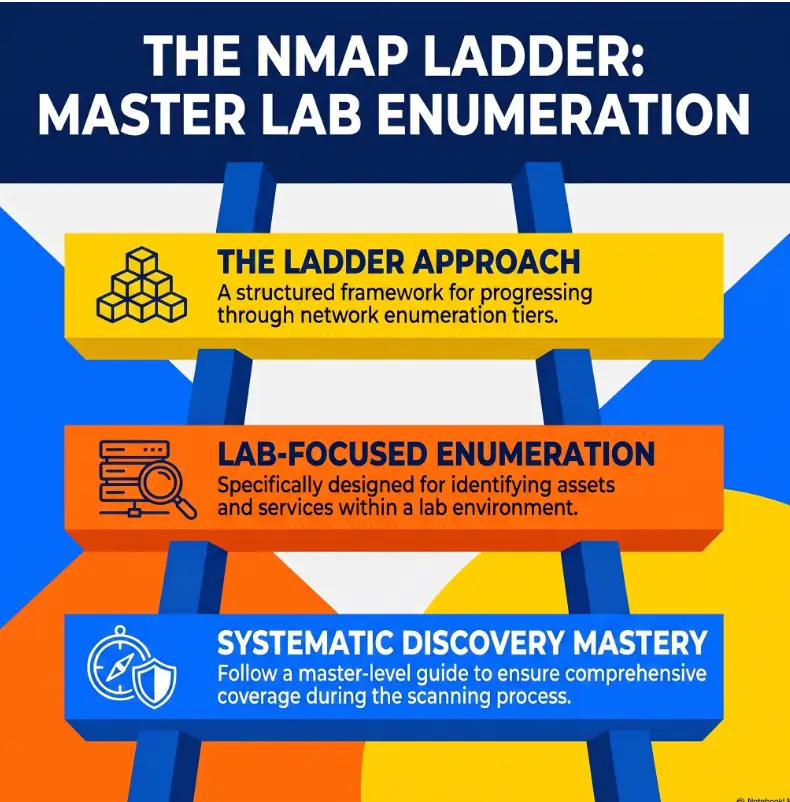
1. Confirm
Preview targets, add exclusions, record permission and limits.
2. Discover
Use -sn, then apply -Pn only when discovery filtering is plausible.
3. Cover
Start with likely TCP ports, expand with -p-, and justify UDP targets.
4. Explain
Add service, script, OS, and output flags only where they resolve uncertainty.
Tiny Output Flags That Preserve the Investigation
--reason explains why Nmap assigned a state
A label such as open, closed, or filtered is more useful when you can see the evidence behind it. The --reason option displays the response or absence of response that supported the state.
nmap -n --reason -p 22,80,443 192.0.2.25
You may see reasons associated with a SYN-ACK, reset, ICMP message, or no response. This helps distinguish target behavior from an incorrect local assumption. It also gives you stronger language for notes: “Port 443 reported filtered after no response” is more useful than “443 did not work.”
--open reduces display noise without changing your responsibility
The --open option limits displayed results to hosts or ports in potentially useful states. It is excellent for a busy terminal, particularly during a complete port sweep.
nmap -n -p- --open 192.0.2.25
Concise output should not become missing evidence. Save complete results in a reusable format, especially when you may need to compare stages, troubleshoot a mismatch, or prepare a report later.
-oA saves three useful output formats with one basename
The -oA option writes normal, XML, and grepable output. One basename supports human reading, structured processing, later comparison, and reporting.
nmap -n -sV --reason -p 22,80,443 -oA scans/target25-services 192.0.2.25
Your terminal scrollback is not a notebook. It disappears, wraps badly, omits context, and becomes a treasure hunt after three similar scans. Use filenames that record the target and stage, then place the exact command beside the output.
A compact evidence log template
| Field | What to record | Example |
|---|---|---|
| Stage | Purpose of this pass | Complete TCP coverage |
| Target | Approved IP or hostname | 192.0.2.25 |
| Command | Exact command as executed | nmap -n -p- --open... |
| Time | Start and finish time | 19:12 to 19:19 |
| Established | What the result supports | TCP 22, 80, and 8080 responded |
| Uncertain | What remains unresolved | Service on 8080 not identified |
| Next test | Smallest justified follow-up | -sV --version-all -p 8080 |
When the exercise becomes a portfolio piece or client-style deliverable, convert raw output into clear findings with a vulnerability report writing workflow. Evidence earns its keep when another person can retrace your reasoning.
Key takeaway
Save the result, the command, the reason for the scan, and the question it answered. A file without decision context is merely a fossilized terminal.
Replace the Giant Command With a Four-Pass Scan Ladder
Why -A is a bundle, not a methodology
The -A option enables several features, including OS detection, version detection, default scripts, and traceroute. That can be useful in the right authorized context, but it bundles several questions into one command.
When the scan becomes slow, noisy, or surprising, the bundle makes it harder to identify which feature caused the behavior. It also encourages beginners to collect output before deciding what they actually need to know.
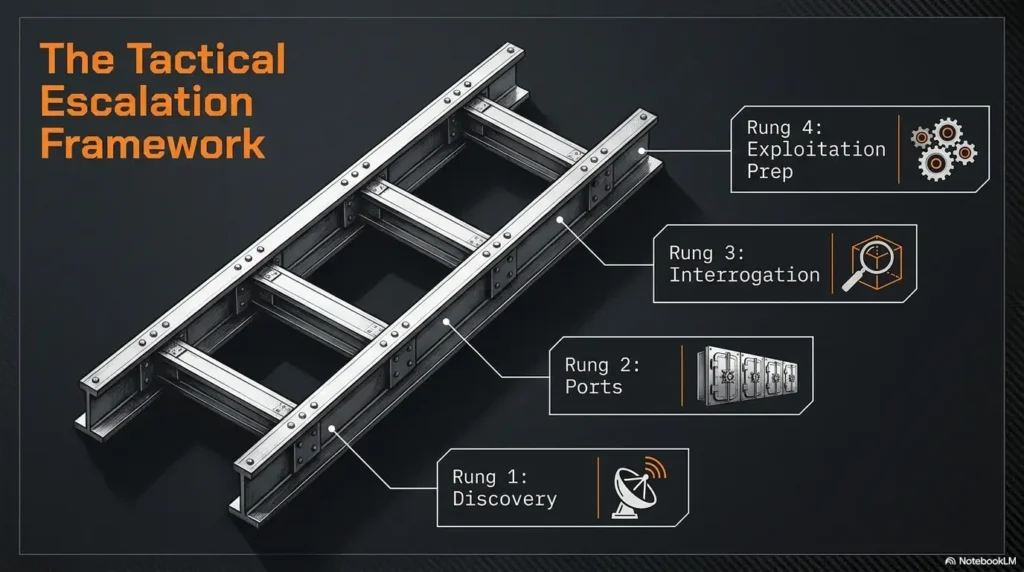
The four-pass sequence
- Confirm scope and discovery. Preview targets, verify exclusions, then identify responding hosts.
- Find likely TCP services. Run a focused common-port pass that gives you quick orientation.
- Complete justified coverage. Use
-p-on confirmed targets and targeted-sUchecks where evidence supports them. - Explain interesting findings. Add
-sV, selected scripts, OS detection,--reason, and saved output to specific ports or hosts.
An example command ladder for one owned lab host
| Pass | Question | Example command |
|---|---|---|
| 1 | Is the target correct and responsive? | nmap -sL -n 192.0.2.25, then nmap -sn -n 192.0.2.25 |
| 2 | Which common TCP services are visible? | nmap -n --top-ports 100 --reason -oA scans/target25-top100 192.0.2.25 |
| 3 | Is anything listening outside that set? | nmap -n -p- --open -oA scans/target25-alltcp 192.0.2.25 |
| 4 | What are the confirmed services? | nmap -n -sV --reason -p 22,80,8080 -oA scans/target25-services 192.0.2.25 |
The commands are examples, not a universal recipe. Your actual ports, discovery choice, timing, and scripts should follow the approved lab and the evidence collected in earlier passes.
Real-world example: the missing service was outside the first question
A student scanned an owned practice VM and found SSH plus a normal web service. The output looked complete enough, so the student spent nearly an hour repeating web checks against port 80.
The problem was not a missing web tool. The first scan had never tested the full TCP range.
A second pass with -p- found another HTTP service on a high port. Focused version detection then showed that the alternate listener behaved differently from the public-facing page. The student documented the difference and continued with service-specific checks permitted by the lab.
The lesson was not “always scan every port first.” It was quieter and more useful: know what your previous command did not ask. Enumeration improves when each pass closes one gap rather than repeating the same assumption with louder syntax.
For a broader practice sequence, pair this method with a structured Kioptrix enumeration workflow.
Speed, Accuracy, and Tool Cost: Choose the Right Setup
--min-rate is not free speed
A minimum packet rate can accelerate scans in controlled environments, but an arbitrary value may exceed what the scanner, virtual network, or target can handle. Packet loss and rate limiting can then reduce accuracy, creating the awkward result of a faster scan that tells you less.
Begin with normal timing, observe the environment, and change one variable at a time. If you tune the rate, document the value and compare the result with a slower pass on a small target set.
Timing templates are packaged assumptions
A template such as -T4 changes several timing behaviors together. It can work well on a stable local lab, but it does not mean “better,” “deeper,” or “more accurate.” It means Nmap is operating with a more aggressive timing profile.
On an overloaded laptop, bridged wireless connection, rate-limited service, or remote training range, aggressive timing can produce inconsistent results. When two scans disagree, reduce complexity before inventing a theory about the target.
Free versus paid enumeration setups
Nmap itself can support a strong learning workflow without paid software. Money becomes useful when it reduces collaboration friction, preserves larger evidence sets, provides approved training infrastructure, or helps a professional team manage repeatable reporting.
| Setup | What it includes | Best fit | What to verify before paying |
|---|---|---|---|
| Good: free local workflow | Nmap, text notes, folders, snapshots, and a small isolated VM network | Beginners learning commands and decision-making | Your hardware can run the lab safely and the network is isolated |
| Better: structured learning setup | Organized templates, repeatable lab images, automated output parsing, and approved online labs | Students building consistency or a portfolio | Lab authorization, renewal terms, content depth, and export access |
| Best: team assessment workflow | Shared evidence storage, reporting tools, access controls, scan governance, and review procedures | Professional teams with audit and collaboration needs | Data retention, encryption, role permissions, integrations, and total user cost |
Do not buy a large security platform to solve a note-taking problem. Start by identifying the friction: lab access, command consistency, evidence storage, collaboration, or reporting. Pay only when the tool reduces a named cost or risk.
Questions to ask before choosing a paid lab or scan-management tool
- Can I export raw Nmap XML and human-readable output?
- Does the service provide explicit authorization for its training targets?
- Can I separate projects, targets, commands, and evidence cleanly?
- How long are results retained, and can I delete them?
- Does pricing rise by user, target, scan volume, or storage?
- Will the tool teach methodology, or merely generate more output?
Common Nmap Mistakes and Their Safer Alternatives
The mistake-to-method table
| Common mistake | Why it causes trouble | Safer alternative |
|---|---|---|
Using -Pn across every subnet | Every supplied address is treated as online, increasing work and scan time | Use discovery first, then apply -Pn to known hosts when probes appear filtered |
| Assuming default output covers every port | Unscanned ports disappear from your mental model | Record the tested port set and use -p- where full TCP coverage is justified |
Running -sV everywhere immediately | Version probes add traffic and time before open ports are known | Identify open ports first, then target version detection |
| Running every NSE script | Some scripts are irrelevant, intrusive, or disruptive | Use --script-help and select scripts by service and authorization |
Calling open|filtered “closed” | It removes uncertainty that the evidence did not resolve | Preserve Nmap’s exact state and plan a justified follow-up |
| Treating OS or service guesses as facts | Fingerprint matches and banners can mislead | Label results as reported, probable, unverified, or manually confirmed |
| Increasing rate until output looks fast | Loss or throttling may hide services | Test rate changes on a small set and compare results |
| Copying terminal output by hand | Commands, timestamps, and machine-readable data are lost | Use -oA and a consistent evidence folder |
When two scans disagree, simplify before escalating
- Confirm that the target IP and virtual network have not changed.
- Repeat a small port set with normal timing and
--reason. - Disable DNS lookups with
-nif resolution is introducing delay. - Compare whether one command used
-Pn, a different interface, or a different scan type. - Check local firewall, VPN, routing, and hypervisor settings.
- Save both results rather than keeping only the one you prefer.
Inconsistent results are not always a failure. They can reveal timing sensitivity, changing routes, filtering, service restarts, or a mistaken network attachment. The discipline is to preserve the disagreement and test one explanation at a time.
Use confidence language that survives review
- Observed: directly visible in the saved output or response.
- Reported: identified by Nmap but not independently checked.
- Probable: several clues support the interpretation.
- Unverified: plausible but not confirmed.
- Confirmed manually: validated with a separate permitted check.
Key takeaway
Clean enumeration does not remove uncertainty. It labels uncertainty accurately enough that the next person knows what is established, what is inferred, and what still needs testing.

Frequently Asked Questions
What is the difference between -sn and -Pn?
-sn performs host discovery without a normal port scan. -Pn skips discovery and treats each supplied target as online for the requested scan. Use -sn to build an inventory and -Pn when a known authorized host may be blocking discovery probes.
Does -p- scan every TCP and UDP port?
Not automatically. The scan type determines the protocol. In a normal TCP scan, -p- requests all TCP ports. UDP requires -sU. When combining protocols, use qualified selections such as T: and U: so the intended port sets remain clear.
When should I use --top-ports instead of the default scan?
Use it when you want to choose the size of a probability-weighted first pass. A small top-port scan can quickly identify common services. It should not replace complete coverage when the lab objective requires you to check every TCP port.
Is -sC safe in every authorized lab?
No universal guarantee applies. -sC selects default NSE scripts, but target sensitivity, lab rules, Nmap version, and script behavior still matter. Review the permitted techniques and inspect unfamiliar scripts before running them.
What is the practical difference between --version-light and --version-all?
--version-light uses a lower probe intensity and may be faster, while --version-all tries the complete version-probe set. Use light detection for broad orientation and reserve all probes for a small number of unresolved, relevant ports.
Why does Nmap report a UDP port as open|filtered?
UDP silence can have more than one explanation. The service may be open but not responding to the probe, or a firewall may be dropping traffic. The combined state preserves that uncertainty until further permitted evidence distinguishes the possibilities.
How reliable is --osscan-guess?
It is useful for generating possible near-matches when no exact fingerprint is found. Reliability depends on the available ports, network path, target behavior, and fingerprint quality. Keep the confidence level and verify important conclusions through other authorized evidence.
Can --min-rate make a scan less accurate?
Yes. A rate that exceeds the capacity of the scanner, network, or target can contribute to loss, throttling, and inconsistent results. Increase speed carefully, test on a small target set, and compare with a slower pass.
Why save -oA output instead of copying terminal text?
-oA preserves normal, XML, and grepable formats using one basename. This retains more structure, supports later tooling, and makes it easier to compare scans or prepare reports. Copied terminal text often loses the exact command, formatting, and machine-readable detail.
Build Your Enumeration Card in 15 Minutes
Choose one powered-on virtual machine that you own and place it on an isolated lab network. Your goal is not to find everything in 15 minutes. It is to create a reusable decision card that makes the next session calmer and more precise.
- Write the authorized target, excluded addresses, and test window.
- Preview the target with
-sL -n. - Run discovery with
-sn, using-Pnonly if the known host is hidden by discovery filtering. - Run one focused TCP pass and save it with
-oA. - Record what that pass did not test.
- Choose one justified follow-up: complete TCP coverage, focused version detection, a reviewed script, targeted UDP, or OS detection.
- Write three lines: what was established, what remains uncertain, and what the smallest next test should be.
That final three-line decision note is the real upgrade. Flags become useful when they stop being trivia and start becoming controls in a repeatable method.
Your four-pass card
Confirm. Discover. Cover. Explain. Save evidence after every pass, and let each new flag earn its place by answering one specific question.
Last reviewed: 2026-09