

WSL2 + Kali + VMware Hybrid Setup for Performance: 9 Hard-Won Speed Lessons I Learned (The Brutal Mistakes That Tanked My Lab)
Hybrid Lab Performance
The fastest way to ruin a WSL2 Kali VMware hybrid setup is to assume the three layers will “just share nicely.” Mine didn’t. One innocent evening of scanning turned into a sludge-fest of CPU contention, RAM tug-of-war, and disk I/O that made my lab feel like it was running underwater.
If you’re juggling certification prep or client-safe practice on a single Windows machine, that kind of friction isn’t a minor annoyance—it’s the moment your momentum dies. Keep guessing, and you’ll lose hours to false fixes, unstable VMs, and rebuild fatigue.
This post shows how to get real performance back without redesigning your whole life: where WSL2 should shine, when a Kali VM is the right isolation move, and how VMware settings, memory caps, and storage choices change everything. The guidance comes from hard-earned trial, not theory—what finally made my hybrid workflow smooth, repeatable, and fast enough to trust on busy weeks.
Short wins first.
Boundaries over bravado.
Speed you can feel today.
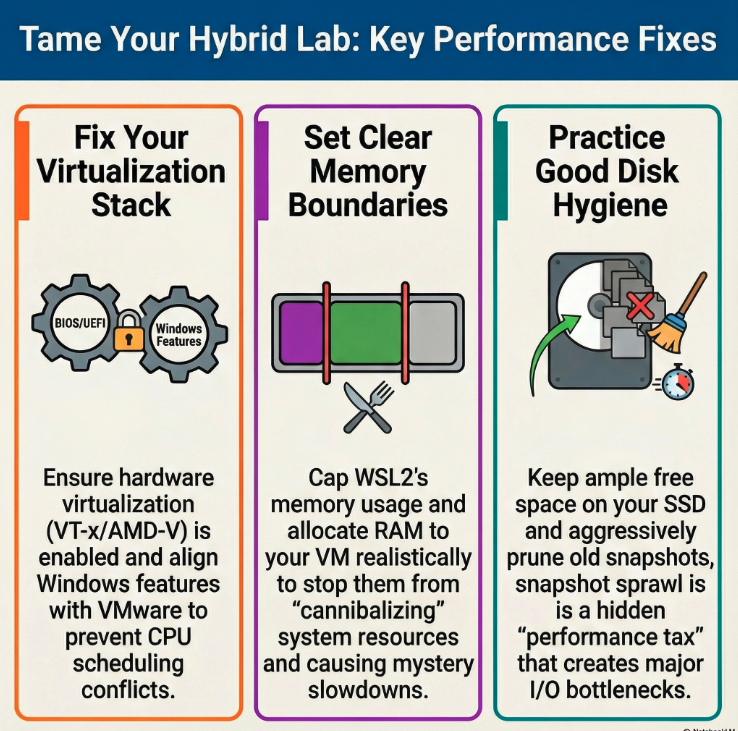
Table of Contents
Why this hybrid setup breaks so easily
I used to treat WSL2, Kali, and VMware as three different doors to the same room. Same laptop, same CPU, same “it’ll probably be fine” optimism. That optimism lasted about 48 hours. Then came laggy terminals, a VM that felt like it was running through syrup, and WSL2 disk performance that turned simple package updates into a small emotional event.
The hybrid model is powerful because each layer is good at a different job. WSL2 is fast for Linux tooling close to Windows workflows. Kali in a VM is excellent for full-stack isolation and classic lab patterns. VMware brings snapshots, virtual networks, and the “clean room” feel you want for repeatable practice. The cost is that you’re now juggling three schedulers, two memory managers, and a storage stack that can punish sloppy defaults.
Here’s the guiding idea for everything below: you’re not building one lab. You’re building a small ecosystem. And ecosystems need rules. If you’re still deciding which hypervisor direction fits your long-term lab strategy, this deeper comparison of VirtualBox vs VMware vs Proxmox can help clarify the trade-offs before you invest more time in tuning.
- Decide what runs where before you optimize
- Cap memory and prioritize disk placement
- Keep networks simple and testable
Apply in 60 seconds: Write one sentence: “WSL2 is for X, Kali VM is for Y.” Tape it to your setup.

Lesson 1: Fix the virtualization stack first (BIOS → Windows → VMware)
This is the least glamorous lesson and the most expensive to skip. I once spent a full Saturday tuning VM settings, only to discover my real bottleneck was a messy virtualization layer conflict. The result looked like “random” stutter—CPU spikes, delayed keystrokes, and a VM that never quite felt awake.
In a hybrid setup, your baseline depends on three checkpoints:
- BIOS/UEFI: hardware virtualization enabled (Intel VT-x/AMD-V) and IOMMU options aligned with your platform.
- Windows features: WSL, Virtual Machine Platform, and optional Hyper-V components you actually need.
- VMware configuration: compatibility with Windows’ virtualization-based features.
My personal “brutal mistake” was assuming enabling everything would make everything faster. It doesn’t. It can create an awkward handoff where one layer is politely pretending not to fight the other while your CPU quietly pays the bill.
Operator habit: after any major Windows update, I run a 3-minute sanity check: start WSL2, start a VMware VM, and confirm both feel normal before I touch anything else.
Show me the nerdy details
Hybrid performance is often limited by how Windows routes virtualization calls between the host, the WSL2 lightweight VM, and your third-party hypervisor. The best “tweak” is frequently clean role separation: keep only the Windows features you need, then verify VMware’s recommended settings for running alongside Windows’ virtualization security stack.
Lesson 2: Stop RAM cannibalism (WSL2 + VMware memory rules)
My first hybrid build had a simple philosophy: give everything “enough.” The outcome was cruelly ironic. When WSL2 expanded under load and VMware tried to be generous too, Windows became the tired parent trying to feed everyone with half a sandwich.
Two numbers changed my life:
- 16 GB total system RAM is workable but fragile for hybrid work.
- 32 GB makes the whole arrangement feel like it was meant to exist.
That doesn’t mean you need new hardware today—but it does mean you must set boundaries. The best performance leap I got wasn’t “more RAM.” It was predictable RAM.
Practical memory rules that actually stick
- Cap WSL2 memory so it cannot silently swallow your VM’s oxygen.
- Avoid over-allocating the VMware VM “just in case.”
- Leave Windows breathing room for the host, security tools, and browsers.
- Cap WSL2 for stability
- Allocate your Kali VM for the job, not the fantasy
- Leave headroom for Windows
Apply in 60 seconds: If you have 16 GB total, start with a 4–6 GB Kali VM and a modest WSL2 cap.
Mini calculator: quick RAM split estimator
Use this tiny estimator to set a sane starting point. This is not a benchmark; it’s a guardrail.
Result: Enter values and click estimate.
Save this estimate and confirm real-world stability during your next 10-minute lab run.
Lesson 3: Move the I/O hotspots (VHDX, VM disks, and snapshots)
This was my biggest “why is everything slow?” moment. CPU looked fine. RAM looked fine. But anything that touched disk—apt updates, wordlist operations, VM boot times—felt like pushing a sofa through a hallway.
The issue was simple: I had parked too many hot files on the slowest practical path. WSL2 stores its Linux filesystem inside a virtual disk. VMware stores VM disks in their own format. If both live on a crowded drive with limited free space, you get I/O traffic jams disguised as “random lag.”
Three moves that cleaned up the chaos
- Keep plenty of free space on the drive hosting your WSL2 distro VHDX and your VM disks.
- Separate high-churn lab VMs from long-term archive VMs.
- Flatten or prune snapshots you no longer need.
Personal note: the day I cleaned up my snapshot tree, my Kali VM stopped feeling like it aged five years overnight. If you’re building a repeatable practice pipeline, pairing this disk hygiene with a curated pool of targets from a vulnerable machine encyclopedia makes your sessions feel less chaotic and more trackable.
- Give your storage breathing room
- Limit snapshot sprawl
- Place hot workloads intentionally
Apply in 60 seconds: Check free space and delete one obsolete snapshot chain today.
Lesson 4: Networking modes that don’t sabotage your tools
Hybrid networking can be glorious or cursed. I learned the cursed version first. I had WSL2 using one address pattern, VMware using another, and Windows acting as the diplomatic middleman who was secretly overwhelmed.
The symptoms were subtle but expensive: packet captures with missing context, lab machines that could be pinged but not reached reliably, and “why is this service visible from here but not there?” confusion that ate 30–40 minutes per session. If you want a quick refresher that keeps this section practical instead of theoretical, this rundown of networking fundamentals for hackers pairs well with the mode choices below.
Pick a boring network on purpose
- Use a simple NAT setup when you’re focused on tools practice.
- Use host-only networks for malware-safe or isolation-heavy labs.
- Keep bridge mode for scenarios that truly require it, not out of habit.
Humbling confession: I once debugged a “broken” exploit for an hour before noticing my VM was on the wrong virtual switch. The exploit was fine. My pride wasn’t.
Show me the nerdy details
When WSL2 and VMware each create their own virtual adapters, you can end up with layered NAT and multiple routes that complicate lateral movement practice and traffic analysis. A stable lab often uses a dedicated host-only segment for target VMs and a predictable NAT path for updates and safe outbound access.
Lesson 5: Graphical Kali vs headless Kali—choose one per job
I love a pretty desktop. My CPU did not share this hobby. Running a full graphical Kali VM while also using WSL2 for tooling is a fine plan if your hardware is built for it. On mid-range laptops, it can turn every session into a mild fight.
The trick is not to “never use GUI.” The trick is to avoid using GUI for the wrong job.
My new split that saved my sanity
- WSL2: fast CLI workloads, scripting, Git, light recon tasks.
- Kali VM GUI: when you need Burp workflows, complex multi-window analysis, or full isolation.
- Kali headless VM: long scans, background services, repeatable test harnesses.
In practice, this meant I stopped launching a full desktop VM for tasks that required exactly one terminal and a cup of coffee. If you want a clean, confidence-building baseline for what to install and prioritize first, this guide to essential Kali Linux tools helps keep your toolkit lean instead of bloated.
Lesson 6: Snapshots are a performance tax—use them like an operator
Snapshots feel like free insurance. They are not free. They’re a performance tax you pay in small weekly installments until one day your VM boots like it’s reconsidering its life choices.
The worst mistake I made was treating snapshots as a diary. Every experiment got a snapshot. Every minor config change got another. Soon I had a timeline so detailed it could qualify as a historical record.
A simple snapshot discipline
- Create a clean “golden baseline.”
- Snapshot only before high-risk changes.
- Prune aggressively after the experiment succeeds or fails.
- Keep one baseline
- Limit experimental branches
- Prune monthly
Apply in 60 seconds: Name your next snapshot “Baseline-YYYY-MM” and delete one outdated branch.
Lesson 7: The quiet killers—background services and security overlap
This lesson is how I learned humility has a CPU meter. I had security tools stacked like a defensive buffet: endpoint protection, additional scanning utilities, and a few “just in case” services. Meanwhile, WSL2 and VMware were already doing their own background work. The result was a lab that felt fine until it didn’t.
If your machine mysteriously slows during scans or when launching multiple terminals, check the quiet offenders:
- Real-time scanning collisions on VM disk folders.
- Browser tabs that quietly chew RAM while you pretend they don’t.
- Auto-update services running during lab time.
My tiny rule: I keep a “lab mode” habit—close heavy apps, pause nonessential sync, and run one primary security workflow at a time.
Lesson 8: When hybrid is the wrong answer
This is the kindness section. Sometimes the best optimization move is to stop optimizing the wrong architecture.
Hybrid shines when you’re toggling between Windows productivity and Linux tooling, or when you need one robust VM plus a fast local Linux layer. It struggles when you’re trying to run a complex multi-VM domain lab on a laptop that’s already doing double duty for work.
Decision card: When WSL2 vs Kali VM wins
Choose WSL2 when: you need speed for scripts, recon tooling, and fast iteration inside a Windows-first day.
- Time-to-start matters more than perfect isolation
- You’re working with one main target environment
- You want tight Git + editor integration
Choose a Kali VM when: you need full-stack isolation, snapshots, or complex virtual networks.
- You’re building repeatable lab states
- You need host-only target segments
- You’re practicing multi-step attack chains safely
Save this card and match your next session to the architecture that fits the job.
I had to learn this the hard way: I was forcing a hybrid setup to behave like a small datacenter. It politely refused.
Lesson 9: My stable 2025 baseline build you can copy
After the chaos phase, I built a boring, reliable baseline. And boring is beautiful when you’re trying to learn under time pressure.
Hardware baseline that feels smooth
- CPU: 6–8 modern cores minimum for comfort.
- RAM: 32 GB ideal; 16 GB workable with strict caps.
- Storage: fast SSD with generous free space.
Workflow baseline
- WSL2 handles day-to-day Linux tooling and quick scripts.
- One primary Kali VM handles snapshot-driven experiments.
- Targets live in a separate, clean virtual network when needed.
The “brutal mistake” I stopped making: I no longer launch everything at once to prove I can. I launch what the session needs. That decision alone saved me 10–15 minutes of friction per lab day. If your performance goal is tied to structured training milestones, aligning this baseline with a focused OSCP prep workflow can make your weekly practice feel more intentional.
Show me the nerdy details
Stability comes from reducing concurrency and complexity. A single well-configured Kali VM with disciplined snapshots and a capped WSL2 instance often outperforms a chaotic multi-VM sprawl on the same hardware.
Infographic: The hybrid performance triangle
- Enable the right hardware flags
- Avoid feature conflicts
- Verify after major updates
Signal: input lag disappears and VM boot feels crisp.
- Cap WSL2
- Allocate VM realistically
- Preserve host headroom
Signal: fewer “mystery slowdowns” mid-session.
- Keep free space healthy
- Reduce snapshot sprawl
- Separate hot vs cold workloads
Signal: updates and scans stop feeling punitive.
One Korea-aware note that’s surprisingly relevant
If you’re building this setup in South Korea on a laptop that doubles as a work machine, the biggest hidden constraint is often not hardware—it’s time windows. Many people I’ve met here run labs late evening after long commutes. The best way to protect that limited energy is to keep a “two-click start” baseline: one WSL2 terminal and one pre-tuned Kali VM. The less you have to rebuild after a Windows update, the more consistent your progress becomes.
Trusted references you may want open while tuning
These official docs are the three pages I keep bookmarked for sanity checks and “I forgot the exact knob” moments.
Practical mistake patterns I won’t repeat
This is the short “me talking to past me” list. Each one cost me at least one evening.
- Launching a GUI Kali VM for a 10-minute CLI task.
- Letting snapshots grow into a family tree.
- Assuming disk issues are “just CPU.”
- Changing five settings at once.
- Ignoring the host’s workload.
Each of these mistakes feels small. Together, they can turn a motivated week into a slow-motion retreat.
Short Story: The night I realized speed is a learning tool (120–180 words)
I remember the exact night I stopped treating performance as a vanity project. It was around 11 p.m., the hour when a lab is either a gentle win or a personal insult. I had one goal: practice a clean recon-to-exploit flow on a familiar target. Nothing fancy. But my hybrid setup was in its bad era. The VM took long enough to boot that I checked email out of spite. My wordlist search stuttered. A simple tool chain felt like walking through knee-deep water.
Halfway through, I caught myself doing the worst thing a learner can do: blaming my focus instead of my environment. So I paused. I capped WSL2 memory, pruned two old snapshots, and moved one high-churn VM to a cleaner disk location. Ten minutes later, everything felt crisp. I didn’t magically become smarter. My lab finally stopped fighting me. That’s when I understood: speed isn’t bragging rights. It’s the difference between quitting and compounding.
Eligibility check: Is hybrid worth it for you?
- Yes if you regularly switch between Windows productivity and Linux tooling.
- Yes if you want one primary Kali VM plus fast local Linux scripts.
- No if you need to run 3–5 heavy target VMs on a 16 GB laptop.
- No if your main goal is a large AD-style environment—consider a dedicated hypervisor box instead.
Save this checklist and match your architecture to your available RAM and weekly lab hours.
Time/cost trade-offs for common upgrades, 2025
This isn’t a shopping list. It’s a decision lens for people who don’t want to waste money solving the wrong bottleneck.
| Upgrade | Best for | Typical impact | When to skip |
|---|---|---|---|
| 16 → 32 GB RAM | Hybrid stability | Fewer stalls, smoother multitask | If you rarely run VMs |
| Faster SSD / more free space | WSL2 + VM I/O | Quicker boot, updates, scans | If disk is already healthy |
| CPU class jump | Multi-VM labs | Better concurrency | If your bottleneck is RAM/I/O |
Save this table and confirm current compatibility and upgrade options on your device’s official support pages.
My 3-step fast tune routine
If you’re short on time, this is the smallest reliable sequence I’ve found.
- Stabilize the stack: verify BIOS virtualization, confirm Windows features, then test VMware + WSL2 side-by-side.
- Set memory boundaries: cap WSL2 and size the Kali VM for the specific session.
- Clean storage friction: prune snapshots and keep hot files on healthy disk paths.
Done well, this takes 10–15 minutes and saves you an evening of guessing later.
Lab safety and sane isolation
Performance is meaningless if your lab gets sloppy with boundaries. The hybrid approach can be safe and clean if you keep roles distinct:
- WSL2 for tooling and learning workflows.
- Kali VM for isolation-heavy tasks and snapshot-driven experiments.
- Host-only networks for risky targets or malware-adjacent training content.
Quick discipline reminder: don’t run questionable binaries in WSL2 just because it’s convenient. Convenience is the most persuasive liar in the lab. If you want a broader, step-by-step foundation that keeps safety and scope clean from day one, this guide to a safe hacking lab at home fits perfectly with the hybrid mindset.
FAQ
Is WSL2 faster than a Kali VM?
For many CLI-heavy tasks, WSL2 can feel faster because it integrates tightly with Windows and starts quickly. A Kali VM usually wins when you need full isolation, snapshots, or custom virtual networks. Apply in 60 seconds: choose one task you do weekly and run it in both environments to see which feels smoother on your hardware.
What’s the minimum RAM for a comfortable hybrid setup?
16 GB can work if you cap WSL2 and keep your Kali VM modest. 32 GB makes the experience much more forgiving. Apply in 60 seconds: set a temporary WSL2 memory cap and reduce your VM allocation for your next session.
Why does my VM get slower after weeks of use?
Snapshot sprawl, disk fragmentation inside the VM, and crowded host storage are common culprits. The slowdown often looks like a CPU issue but isn’t. Apply in 60 seconds: delete one outdated snapshot branch and check host free space.
Should I use NAT, bridged, or host-only networking?
NAT is usually simplest for routine tool practice. Host-only is best for safe isolation. Bridged is useful when your lab needs to behave like a real network node. Apply in 60 seconds: map your current lab goal to one mode and simplify your switches.
Can I run multiple target VMs with WSL2 and Kali together?
You can, but you may hit diminishing returns on a laptop. If your goal is a larger multi-VM environment, a dedicated machine or a separate hypervisor host may be more efficient. Apply in 60 seconds: count your concurrent VMs and reduce by one to test if your workflow becomes noticeably smoother.
What’s the fastest way to recover after a Windows update breaks the feel of my lab?
Re-verify your virtualization stack and retest WSL2 + VMware with a simple baseline VM before changing anything else. Apply in 60 seconds: run a three-step smoke test: WSL launch, Kali VM boot, basic network ping.
Closing the loop: what I wish I knew on day one
The curiosity loop from the start is simple: why did this hybrid setup tank my lab? Because I treated a resource-sharing ecosystem like a single app. That mindset made every slowdown feel mysterious and every fix feel random.
Once I shifted to boundaries—memory caps, disciplined snapshots, intentional networks—the system stopped fighting me. And the best part wasn’t the speed. It was the consistency. When a lab feels predictable, you show up more often. When you show up more often, skills compound quietly.
- Reduce concurrency
- Cap memory intentionally
- Keep networks boring
Apply in 60 seconds: Create one “golden baseline” Kali snapshot and commit to pruning monthly.
A next step you can do in 15 minutes
- Decide your role split: WSL2 for fast tooling, Kali VM for isolation-heavy work.
- Set a conservative WSL2 memory cap.
- Right-size your Kali VM for your most common session.
- Delete one obsolete snapshot tree.
- Test one NAT and one host-only scenario to keep networking predictable.
If you do just these five moves, you’ll feel the difference before your coffee cools. Not because the hybrid setup is magical—but because you finally told each layer what its job is. When you’re ready to convert that smoother environment into exam-grade reps, a structured OSCP 90-day plan can help you turn “fast lab days” into consistent pass-level momentum.
Last reviewed: 2025-12; sources: official Microsoft WSL documentation, official Kali documentation, official VMware product guidance.