Practical case: Use a request-level hostname comparison · Editable working note
Sources, review date and section shortcuts
Key claims reviewed: October 19, 2026. The release asks for kioptrix3.com mapped to its discovered lab address; DNS resolution and HTTP virtual hosting remain separate checks.
Primary documentation · Related practical guide
Go straight to: Decision check · Main workflow · Further detail
Open the Working note: Use a request-level hostname comparison for this guide’s task-specific fields and next action.
Use the release instruction without assuming every failure is DNS
The original Level 1.2 (#3) page instructs a hosts mapping after discovering the actual DHCP address. A copied example address is not your target. Confirm name resolution, destination and the requested HTTP hostname separately. A browser can have its own resolver or cached state, so preserve the symptom and request evidence before changing several settings at once. Source and scope.
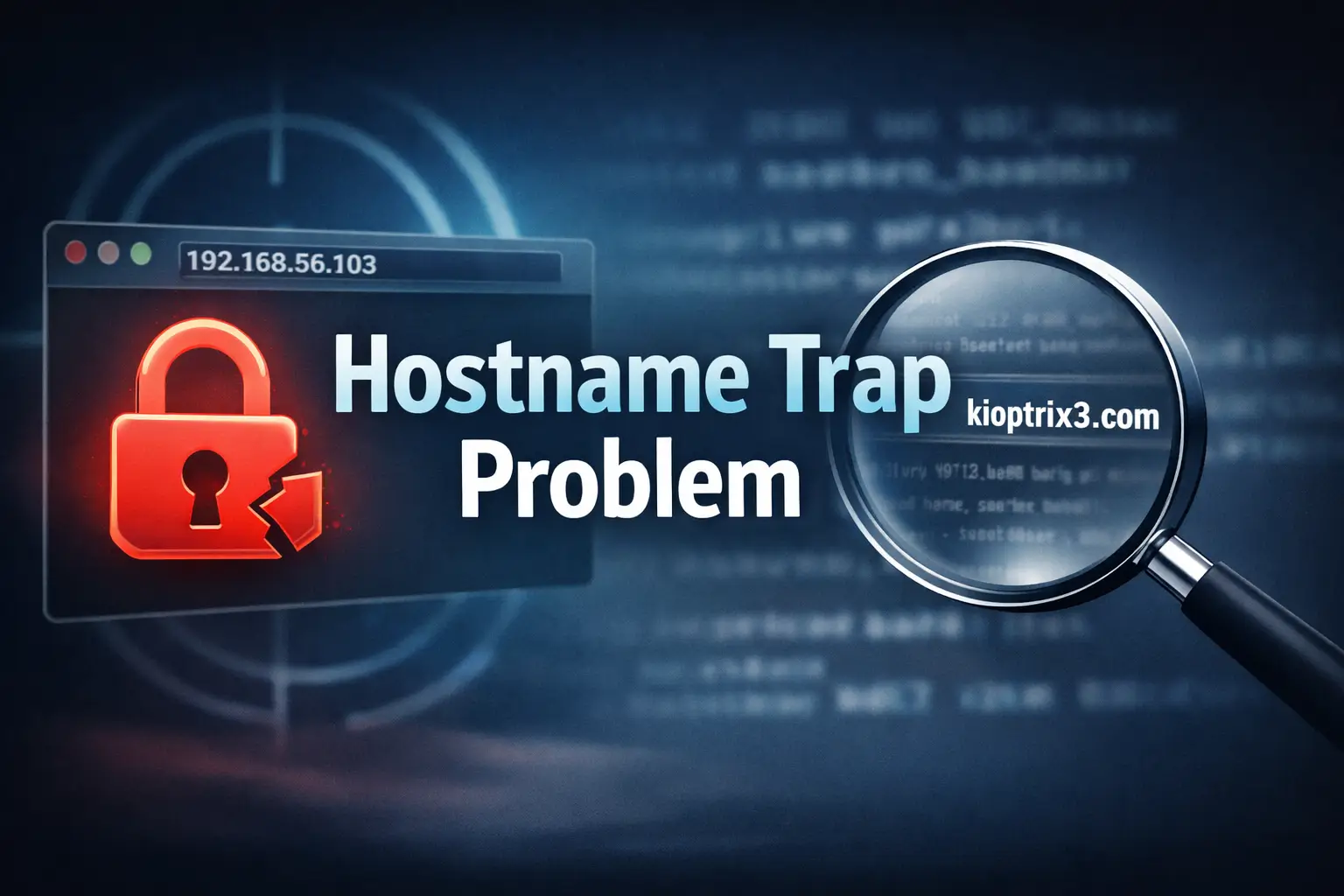
The most infuriating Kioptrix Level 3 problem isn’t “no service found.”
It’s the one where the site loads by IP… then every useful link starts acting like you’ve arrived at the wrong building.
The original release specifically calls for a hosts mapping to its discovered lab address. A name or virtual-host mismatch is one possible failure layer; route, service, browser cache and configuration problems can produce similar symptoms. Record the actual destination and response before attributing the cause.
This walkthrough gives you a clean, repeatable fix: the exact hosts file entry (Kali/Windows/macOS), the hypervisor networking choices that stop you from scanning the wrong interface (VirtualBox/VMware), and the caching steps that make a correct fix look broken.
My bias is boring and proof-driven: verify resolution, prove vhost behavior with curl, then proceed.
- Tight checklist
- Fast “prove it” commands
- No ghost-chasing
- No vibes—just packets
Table of Contents
Kioptrix3.com not loading? Recognize the “hostname trap” first
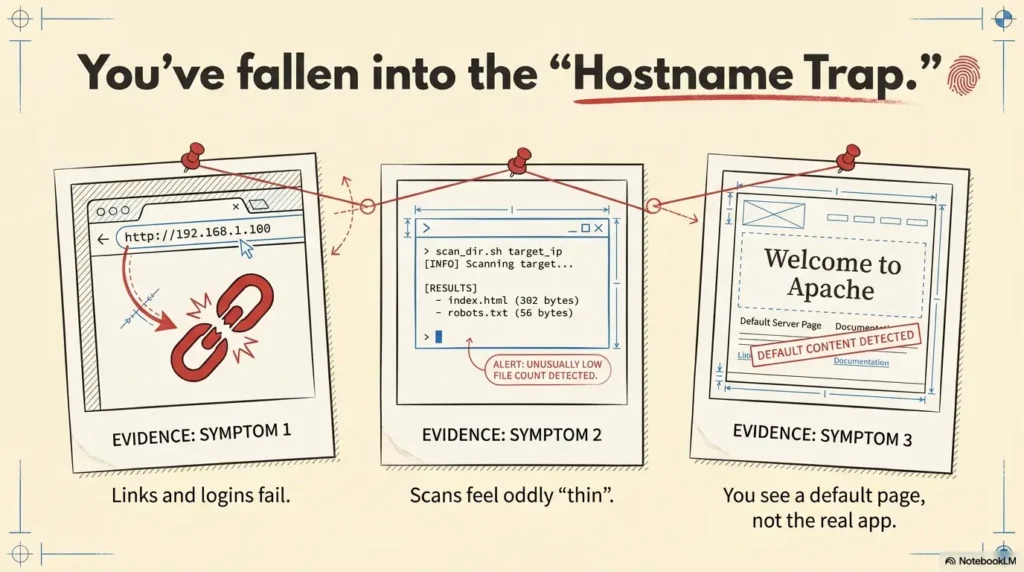
If you’re here, you’ve probably got one of these symptoms:
- You can reach http://<TARGET_IP>, but logins, admin paths, or linked pages break.
- Your scanner shows port 80 open, yet directory brute-forcing feels oddly “thin.”
- You see content that looks like a default page, or you get redirected in a way that makes no sense.
Pattern-interrupt moment: “Why does the homepage show up… but everything useful breaks?” Because the server isn’t just serving “a website.” It’s often serving a specific virtual host based on the hostname you send.
Here’s the 60-second gut-check I use when I want to know whether I’m dealing with hostname/virtual-host behavior:
- Try by IP:
curl -I http://<TARGET_IP>/ - Try by hostname (after you set it):
curl -I http://kioptrix3.com/ - If the responses differ meaningfully (headers, redirects, content length), you’ve found the trap.
I’ve burned a whole coffee’s worth of time before by “enumerating harder” when the real fix was “send the right name.” The good news: once you fix it properly, everything else in your workflow becomes cleaner—especially if you’re following a repeatable fast enumeration routine for any VM instead of improvising under stress.
Kioptrix3.com fix: the exact hosts-file entry (Kali, Windows, macOS)
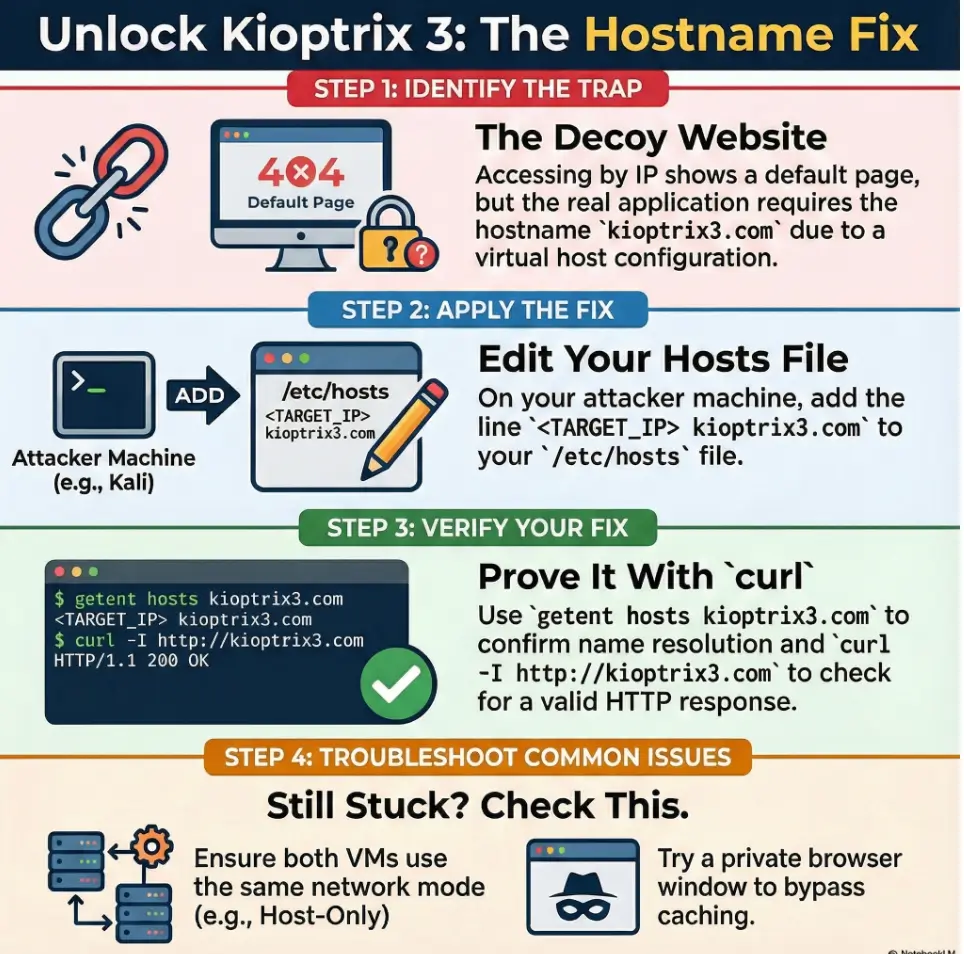
Kioptrix Level 3 expects your request to arrive with the hostname kioptrix3.com. In a lab, you usually handle that with a hosts-file mapping: IP → hostname.
Rule of thumb: edit the hosts file on the machine doing the browsing/scanning. If you browse from Kali, edit Kali. If you browse from your host OS (Windows/macOS), edit the host OS.
Kali / Linux
Edit:
sudo nano /etc/hostsAdd a line (example):
192.168.56.103 kioptrix3.comThen verify the resolver sees it (this is more honest than ping):
getent hosts kioptrix3.comWindows
Edit (as Administrator):
C:\Windows\System32\drivers\etc\hostsAdd:
192.168.56.103 kioptrix3.commacOS
Edit:
sudo nano /etc/hostsAdd:
192.168.56.103 kioptrix3.comThen nudge the cache (macOS can be dramatic about changes):
sudo dscacheutil -flushcache sudo killall -HUP mDNSResponderDo you also add target.local?
Sometimes walkthroughs mention extra names. My approach is boring-but-effective: start with kioptrix3.com only. If the lab instructions or the app itself references another hostname in redirects or HTML, then add it as an alias on the same line:
192.168.56.103 kioptrix3.com target.local- Edit the right hosts file (Kali vs your host OS)
- Verify with
getent hosts, not vibes - Add extra aliases only if you see evidence you need them
Apply in 60 seconds: Add the hosts entry, then run getent hosts kioptrix3.com immediately.
Small personal confession: the first time I hit this lab, I edited my host Mac… and then kept scanning from Kali. It was like leaving a note on the wrong refrigerator and wondering why nobody ate it.
Why Kioptrix needs kioptrix3.com: virtual hosts, Host headers, and “wrong site” attacks
Most people learn this as a superstition: “Kioptrix only works if you use kioptrix3.com.” The reality is more mechanical and (honestly) more useful—especially once you start chaining labs across different Kioptrix levels and notice the same patterns repeating.
When your browser or tool requests a site, it sends a Host header (the hostname it thinks it’s visiting). Web servers like Apache HTTP Server can host multiple sites on one IP using VirtualHost rules. If your Host header doesn’t match the expected name, the server may give you a default site, a different site, or a “close enough” page that breaks once you click deeper.
Curiosity-gap question: “If DNS is fake in a lab, what exactly is the server checking?” It’s checking the name you send in the request.
Show me the nerdy details
In HTTP/1.1, the Host header is mandatory. A typical Apache setup can route requests by name using name-based virtual hosts. Even if two hostnames map to the same IP, Apache can serve different content based on the Host value. This is why “it loads by IP” can be misleading: you might be hitting the default vhost, not the intended one.
Practical implication: you can prove this behavior even before your browser cooperates. Try requesting the target IP while manually setting the Host header:
curl -s -H 'Host: kioptrix3.com' http://<TARGET_IP>/ | headIf that output differs from a plain curl http://<TARGET_IP>, your lab is doing name-based routing. And now you’re not guessing—you’re diagnosing.
I like this section because it saves future-you. Today it’s Kioptrix. Tomorrow it’s some other box with “it only works with a hostname” and you’ll smile like you’ve seen this movie before—especially if you’ve already built the habit of logging your Kali lab work so you can replay what actually happened.
Verify it like a pro: 4 checks that prove the hostname is resolved
Before you do “serious” enumeration, verify the fundamentals. I treat this like a checklist because it prevents the worst kind of waste: running clean tools against the wrong target shape.
- Resolver check:
getent hosts kioptrix3.com(should return your target IP) - Basic HTTP headers:
curl -I http://kioptrix3.com/ - Compare IP vs hostname:
curl -I http://<TARGET_IP>/and note differences - Host header proof:
curl -I -H 'Host: kioptrix3.com' http://<TARGET_IP>/
Pattern-interrupt moment: “Okay, why does ping work… but the browser still lies?” Ping uses ICMP and doesn’t prove HTTP name-based routing. It can make you feel better while you’re still wrong.
getent hostsproves local name resolutioncurl -H 'Host:'proves vhost routing- Differences in redirects/headers reveal the “right” site
Apply in 60 seconds: Run the four checks above before you start directory brute-forcing.
- Can Kali ping the target IP on the same subnet? Yes/No
- Does
getent hosts kioptrix3.comreturn the correct IP? Yes/No - Does
curl -I http://kioptrix3.com/return an HTTP response (not timeout)? Yes/No - Do IP and hostname responses differ (headers/content)? Yes/No
Next step: A failed HTTP connection or incorrect resolution needs fixing; identical IP/hostname responses and blocked ICMP do not by themselves mean the setup is broken.
Neutral action: Capture the outputs in your notes so you can compare after changes.
VirtualBox networking: stop scanning the wrong interface
VirtualBox can make you feel like you’re “connected” while your two VMs are quietly living in different universes. The big three modes you’ll see are NAT, Host-Only, and Bridged. For local VulnHub-style labs, Host-Only is common because it keeps everything contained and predictable.
The #1 time-waster: Kali on Host-Only, target on NAT (or vice versa). You’ll see an IP somewhere, maybe even ping something, and then spend your evening arguing with reality. If you want a crisp mental model (and the exact “what talks to what” map), keep a tab open for VirtualBox NAT vs Host-Only vs Bridged.
- Host-Only: Kali ↔ target ↔ host (often on a private subnet like 192.168.56.0/24).
- NAT: VM can reach out; inbound from other VMs can be awkward unless you configure it carefully.
- Bridged: VM behaves like a device on your real LAN; convenient, but can add noise and risk.
My practical recommendation for most people: Host-Only for both Kali and Kioptrix so you have one simple subnet, then confirm both machines are on it.
Show me the nerdy details
Host-Only networking creates a virtual interface on the host and a virtual switch that only your host and VMs can use. NAT is great for outbound connectivity but can complicate VM-to-VM access without port forwarding. Bridged mode relies on your physical network (DHCP, Wi-Fi bridging quirks, corporate policies), which can introduce intermittent behavior.
- Choose Host-Only if you want predictable IPs and a contained lab.
- Choose Bridged if you need other devices to reach the VM (and your network allows it).
- Distinguish NAT modes: VirtualBox’s per-VM NAT differs from a shared NAT Network; VMware guests on the same VMnet8 NAT network can communicate. Prefer host-only when no outbound access is needed.
Time/cost trade-off: Host-Only is usually the fastest path to stable recon.
Neutral action: Pick one mode for both VMs, then re-check IPs and routes.
Personal anecdote: I’ve had “Bridged worked yesterday” days. It’s usually Wi-Fi, DHCP, or a network policy change. Host-Only is the calm roommate that doesn’t rearrange your furniture while you sleep.
If your VirtualBox experience is also “why does my Kali feel sluggish while I’m trying to think,” you might appreciate a quick detour on VirtualBox 3D acceleration lag in Kali—because performance hiccups can masquerade as “network weirdness” when you’re tired.
VMware networking: bridged vs NAT when Kioptrix “disappears”
VMware Workstation Pro typically sets up VMnet1 (Host-Only) and VMnet8 (NAT) for you. The names vary by host OS, but the behavior is consistent: Host-Only is private; NAT is outbound-friendly; Bridged puts you on the physical LAN.
When people say “Kioptrix disappeared,” they usually mean one of these:
- The VM got a different IP after reboot and you’re still targeting the old one.
- Kali and Kioptrix are attached to different network types.
- You’re bridged on a network that doesn’t like unknown MACs or blocks local peer discovery.
My “prove it” ladder in VMware (fast, boring, effective):
- Layer 2: can you see ARP entries after pinging the IP?
- Layer 3: can you ping consistently?
- Layer 4: does
nc -vz <TARGET_IP> 80succeed? - Layer 7: does
curl -I http://kioptrix3.com/behave as expected?
I know it’s tempting to trust the UI that says “Connected.” I’ve learned the hard way: trust packets, not checkboxes. Two minutes of proof can save 45 minutes of chaos. (If you’re still deciding which VMware flavor is worth your time, this comparison of VMware Player vs Workstation vs Fusion can save you a few expensive detours.)
Browser & DNS caching: when your fix is right but it still fails
This is the part that makes you feel haunted: you made the correct hosts entry, getent hosts shows the right IP, and yet the browser still behaves like nothing changed. That’s usually caching—browser-level DNS caches, OS resolver caches, or a previous redirect that got “sticky.”
Try these in order (quick ladder):
- Incognito/private window: eliminates some browser caching.
- Hard refresh: (Ctrl+F5 / Cmd+Shift+R) to bypass cached assets.
- Flush local resolver cache (Linux/systemd):
resolvectl flush-caches(or older:systemd-resolve --flush-caches). - Close/reopen browser: yes, it’s cliché, but it works surprisingly often.
Curiosity-gap question: “Why does it work in curl, but not in Chrome?” Because curl is a fresh request with minimal browser baggage. Browsers are performance-obsessed and can keep DNS results around longer than you expect.
Show me the nerdy details
Modern systems can resolve names through NSS (nsswitch), systemd-resolved, browser-internal DNS caches, and sometimes proxy layers. A hosts file change is “authoritative” locally, but you may still need to flush caches to force re-resolution. Also, prior redirects can keep you pinned to an unexpected URL path even when the hostname now resolves correctly.
- Test in
curlfirst (clean signal) - Use a private window for a fast sanity check
- Flush resolver cache only if you have evidence it’s needed
Apply in 60 seconds: Compare curl -I vs a private browser window before changing anything else.
My slightly messy truth: I’ve “fixed” this by walking away for three minutes, coming back, and trying again. That wasn’t spiritual growth—it was cache TTL expiring while I sulked.
Tools that need the hostname too: gobuster, Nikto, SQLmap, and friends
Once the hostname matters, your tools must consistently send it. Otherwise, you can get silent false negatives: you’re scanning the default vhost instead of the intended site.
Here’s a practical table of “hostname-aware” behavior:
| Tool | What to ensure | Why it matters |
|---|---|---|
| curl | Use http://kioptrix3.com/ or set -H 'Host: kioptrix3.com' | Proves vhost routing fast |
| gobuster/dirb/ffuf | Target the hostname URL (or set Host header when supported) | Directory discovery can “miss” the real site |
| Nikto | Scan the hostname, not just the IP | Vhost-specific findings can vanish otherwise |
| sqlmap | Use the correct base URL and parameters from the right vhost | Wrong vhost = wrong app = wasted runs |
Use a request-level hostname comparison
Practice guidance / illustrative examples. No new VM execution or measured outcome is claimed for this section.
The release asks you to map kioptrix3.com to the discovered lab address. First confirm that mapping on the machine running the browser. Then distinguish name resolution from the HTTP request's hostname and the returned application.
Illustrative result: a local lookup returns the target address, yet the browser shows another page. Record the URL, proxy configuration and redirect before assuming DNS is broken. A command-line request and a browser may use different proxy or resolution settings. Conversely, identical IP-based and named-host responses can be valid; difference is not a required success condition.
Keep the actual target IP in the record and update only the lab hosts entry if DHCP changes it. Do not alter public DNS or visit an unexpected public destination to troubleshoot a private challenge. Remove or clearly annotate the temporary mapping when finished, and recheck it before the next session. Save the response that establishes the intended application, not just a successful ping.
And if you’re routing web traffic through Burp while you test the hostname behavior (a very sane move), it’s worth setting up a clean Burp external browser setup in Kali so your proxy doesn’t become the next “ghost” in the room.
Clean lab ops: safety, ethics, and “don’t leak this outside your VM”
This is a local lab exercise. Keep it that way. Don’t scan networks you don’t own or have explicit permission to test. If you run bridged networking, be mindful that your VM might become visible on your real LAN in ways you didn’t intend.
- Containment: Host-Only networking reduces accidental exposure.
- Documentation: Record what you changed (hosts entries, adapter modes) so you can undo it.
- Cleanup: Remove the hosts entry when you’re done. Otherwise, you’ll eventually type kioptrix3.com in some unrelated moment and wonder why your browser time-traveled.
Small “future-you” tip: keep a tiny lab log. Nothing fancy. Just “date, VM IP, hostname mapping, network mode.” It’s the difference between “I remember this” and “why is my life like this.” (If you want that habit to actually stick, start with Kali Linux lab logging and keep it painfully simple.)
If you’re still building the “safety rails” for your setup, this pairs naturally with a one-time read of safe hacking lab at home so your network decisions stay intentional.
One-page fix flow: from broken hostname → working site (printable)
<TARGET_IP> kioptrix3.comgetent hosts kioptrix3.comcurl -I http://kioptrix3.com/curl -I -H 'Host: kioptrix3.com' http://<TARGET_IP>/- VirtualBox: Host-Only (common)
- VMware: Host-Only (VMnet1) or Bridged
nc -vz port 80- Try private window
- Hard refresh
resolvectl flush-caches
It was one of those tidy afternoons where I promised myself “just 30 minutes of lab time.” I found the target IP quickly, saw port 80, and opened it in the browser. The homepage loaded. Great. Then every interesting link gave me a weird redirect, and the admin path returned something that felt… wrong. I did what every impatient person does: I escalated.
Bigger scans, louder scans, longer scans. I even swapped wordlists like I was changing tires in a pit stop. Everything looked strangely empty. Then I tried one small thing: I sent a Host header. The content changed immediately. Not subtly—obviously. I edited /etc/hosts, verified resolution, and suddenly the “real” site appeared like it had been there the whole time. Which, of course, it had. I was just knocking with the wrong name.
- Current target IP and subnet (from
ip a/ VM network settings) - Your hosts entry line (copy/paste it into notes)
- One “proof” output:
getent hosts+curl -I - Hypervisor mode for each VM (Host-Only/NAT/Bridged)
Neutral action: Keep these four items in your lab notes so you can roll back confidently.

FAQ
Do I edit the hosts file on Kali or on my host computer?
Edit the hosts file on the machine making the request. If you’re browsing/scanning from Kali, edit Kali. If you’re browsing from Windows/macOS, edit that system instead.
What’s the single best command to confirm the hosts entry is being used?
getent hosts kioptrix3.com. It checks name resolution through the system’s resolver path and is more reliable than “ping makes me feel better.”
Why does the site load by IP but break when I click deeper?
Because you may be hitting the default virtual host. The application logic and routing can depend on the hostname (Host header). When you request by IP, the server might serve a different site configuration.
What if curl works but Chrome still shows the old behavior?
That’s usually caching or a sticky redirect. Try a private window, hard refresh, and if needed flush the local resolver cache (resolvectl flush-caches on many systemd-based systems).
Should I use NAT, Host-Only, or Bridged for Kioptrix Level 3?
For a contained local lab, Host-Only for both Kali and Kioptrix is often the simplest. Bridged can work but may introduce LAN complexity. NAT can complicate VM-to-VM access unless you set it up carefully.
Do my tools need the hostname too, or only the browser?
Your tools need it too if the web server routes by virtual host. If you scan the IP without the correct hostname/Host header, you can miss directories, endpoints, and behaviors that only exist on the intended vhost.
Is it safe to keep kioptrix3.com in my hosts file forever?
It’s safer to remove it when you’re done. Leaving lab mappings around can cause confusing behavior later (especially if you reuse subnets or images).
Conclusion
The hostname trap feels petty until you understand it—and then it becomes a superpower. Kioptrix isn’t being mysterious; it’s being literal. The server wants kioptrix3.com in your request, and your job is to make that name resolve cleanly, prove it with a few honest checks, and keep your hypervisor networking consistent.
If you want a next step you can do in 15 minutes: set the hosts entry, run the four verification checks, then launch one hostname-consistent enumeration run (directory discovery or basic web fingerprinting) and compare results to your earlier “by IP” attempt. The difference is usually immediate—and satisfying. If you want a clean “baseline scan” to compare against, pair this with how to use Nmap in Kali Linux for Kioptrix so your recon is both fast and reproducible.
Original review: 2026-01.
Compare reachability before interpreting differences. Identical responses by IP and hostname are not a failed check: the application may need the name only for absolute links or redirects. Blocked ping is not proof HTTP is unreachable. Verify a real HTTP response, and ensure both guests are on the same virtual segment. A proxy can resolve hostnames on another machine, so check its mapping too. resolvectl flush-caches applies only when systemd-resolved is running.
Technical guidance updated: 2026-10-13. Corrected false failure conditions and distinguished per-VM NAT from shared virtual networks.
Working note: Use a request-level hostname comparison
Replace the prompts with your own authorized lab evidence. Select the completed text and copy it to a local note before leaving. This field is not submitted or saved; reload clears edits. Do not enter passwords, tokens or personal data.
Related task: Continue with the related practical guide.