
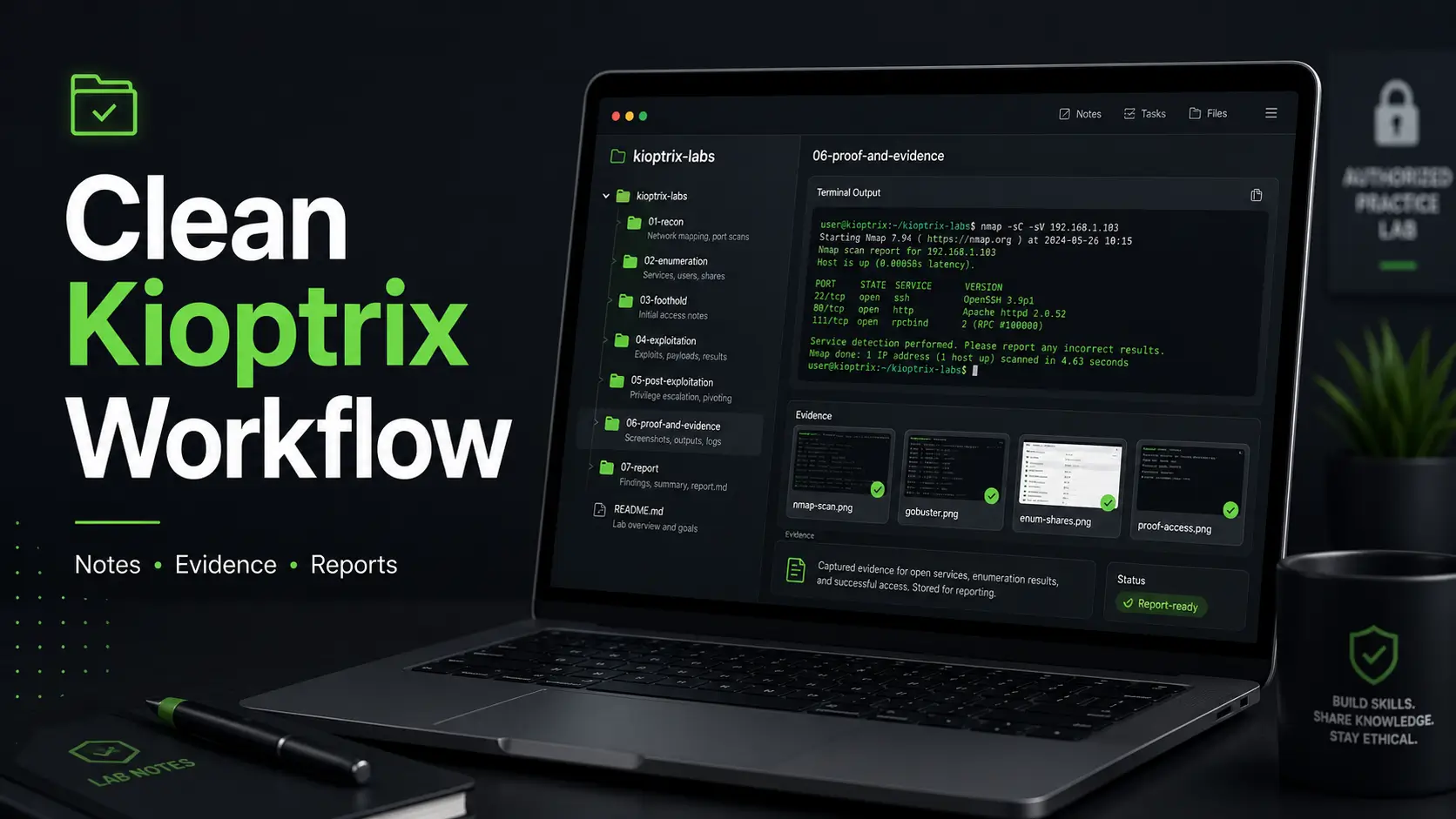
Mastering the Kioptrix Workflow: From Chaos to Clarity
A Kioptrix folder does not become chaos all at once. It starts quietly: one Nmap scan named scan.txt, a screenshot with no command visible, and a “final” note file that somehow has three cousins. A clean folder naming system fixes that before the mess hardens.
The real pain is not storage—it is retrieval. Stop performing digital archaeology on your own files. This guide provides a repeatable, disciplined CTF workflow designed for OSCP-prep, home labs, and professional bloggers.
- → Start with the skeleton: One case folder per level.
- → Maintain context: Numbered phase folders and clear screenshot names.
- → Report-ready: Disciplined scan outputs and evidence management.
Intentionally boring, tested against real lab friction, and designed for authorized practice only. Let future-you understand the story in seconds.
Table of Contents
Why Folder Names Break First
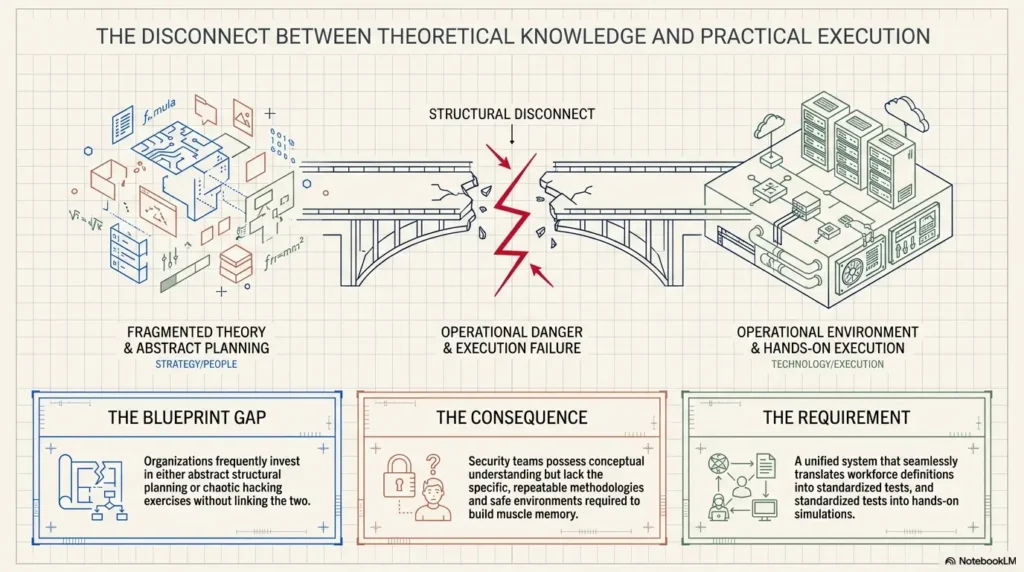
The Real Problem Is Not Storage
Most Kioptrix learners think the problem is note-taking. It usually is not. The real problem is retrieval. Can you find the scan that showed port 139? Can you find the screenshot where SMB shares appeared? Can you find the command that worked before the caffeine wore off and your terminal history became a fossil bed?
Kioptrix is often used as a beginner-friendly vulnerable VM series for learning vulnerability assessment and exploitation in controlled environments. That means the work is not just “solve the box.” The work is learning how to observe, record, compare, and explain what happened. If you are still building your foundation, a simple Kioptrix for beginners workflow can make the first few sessions feel less like wandering through a dark server closet.
A good folder system turns a lab session into a trail. A bad one turns it into digital soup. Soup has its place. Evidence management is not one of them.
Evidence Has a Memory Problem
Screenshots, terminal logs, copied commands, payload notes, exploit references, and final proof files all lose meaning quickly. During the session, everything feels obvious. Tomorrow, the same files look like cave paintings made by someone with strong opinions about SMB.
I learned this the dull way: by reopening an old lab folder and finding five files named scan.txt. One of them mattered. None of them volunteered which one.
The naming system has one job: preserve context when your memory stops being helpful.
The Tiny Naming Choice That Saves Hours
Every folder and file should quietly answer five questions:
- What Kioptrix level is this?
- What phase of the workflow does it belong to?
- What tool, service, or finding does it involve?
- What does the artifact prove?
- Should it support the final write-up?
- Use names that explain purpose.
- Keep phases separate.
- Make evidence easy to cite later.
Apply in 60 seconds: Rename one vague file today from screenshot.png to a name that states what it proves.
Start With One Master Folder
Use a Root Folder That Survives Every Tool Change
Begin with one plain parent folder:
kioptrix-labs/This is intentionally boring. That is the point. A tool-neutral root folder survives your changing habits. Today you may use Obsidian. Tomorrow you may try CherryTree, Notion, VS Code, Logseq, Joplin, or plain Markdown in a terminal. Your folder system should not care. It should sit there calmly, wearing sensible shoes.
Do not name the root folder after your note app. Do not name it after Kali. Do not name it hacking-stuff unless you enjoy creating future legal and organizational fog.
Keep Kioptrix Separate From Random CTF Clutter
Mixing Kioptrix with TryHackMe, Hack The Box, PortSwigger labs, random VulnHub machines, and “one day I’ll organize this” downloads creates slow chaos. At first, it feels efficient. Then you spend 20 minutes hunting for a single screenshot while your motivation quietly leaves through the side door.
A clean split could look like this:
cyber-labs/ kioptrix-labs/ hack-the-box/ tryhackme/ portswigger-academy/ notes-and-cheatsheets/One parent, clear children, no swamp. Future-you sends a small thank-you note.
Pattern Interrupt: Don’t Build a Cathedral for Five Boxes
Kioptrix does not need a majestic knowledge palace with seven taxonomies, colored tags, and a dashboard that requires maintenance like a houseplant with trust issues.
Build the system you will use after midnight. Build the one that still works when the coffee has become a personality trait and your eyes are doing that little unfocused dance.
Decision card:
| Choose this | When it fits | Trade-off |
|---|---|---|
| Simple folder tree | You are learning Kioptrix, OSCP-style documentation, or CTF basics. | Fast to maintain, slightly less searchable than a database. |
| Full note app system | You already maintain Obsidian, Notion, or CherryTree daily. | Powerful, but easy to overbuild. |
| Flat folder only | You want maximum speed for a short session. | Becomes messy after 20 artifacts. |
Neutral action: Start with the simple folder tree. Upgrade only when the pain is real.
Name Each Level Like a Case File
Use Level Number, Box Name, and Status
Each Kioptrix level should have its own folder. Think of it like a case file. Not dramatic. Not cinematic. Just practical.
kioptrix-labs/ kioptrix-level-01-in-progress/ kioptrix-level-02-not-started/ kioptrix-level-03-rooted/ kioptrix-level-04-report-done/ kioptrix-level-05-archived/This naming style does three things well. It sorts cleanly. It tells you where you left off. It avoids mystery folders with names that feel funny once and useless forever. For learners moving through a sequence, a broader Kioptrix level guide can help connect each folder to the larger practice path.
When I return to a lab after a week, I do not want a riddle. I want a label that says, “You rooted this box, but the report still needs cleaning.” That is not glamorous. It is mercy.
Why Status Belongs in the Folder Name
Status tags help you resume work without rereading half your notes. For Kioptrix, use a small set:
not-startedin-progressfootholdrootedreport-donearchived
Keep the status simple. Do not create 14 emotional states for one VM. Your folder system is not a weather app for your confidence.
Avoid Cute Names That Age Badly
Names like almost_root_lol, pain_box, kioptrix_real_final, and try_again_final_final feel expressive in the moment. Later, they become evidence of a small organizational crime.
Use names that work when you are calm, tired, rushing, or writing a blog post from the notes six months later.
- Keep level numbers padded.
- Use lowercase words.
- Use one status vocabulary.
Apply in 60 seconds: Rename your current folder with this pattern: kioptrix-level-##_status.
The Evidence Tree That Stays Calm
Use Numbered Phase Folders
Inside each Kioptrix level, use numbered folders that follow the usual lab workflow:
kioptrix-level-01-in-progress/ 00-admin/ 01-recon/ 02-enumeration/ 03-vulnerability-research/ 04-exploitation/ 05-privilege-escalation/ 06-proof-and-evidence/ 07-report/ 99-archive/The numbers are not decoration. They protect workflow order across macOS, Windows, Linux, cloud drives, terminals, and code editors. Alphabetical sorting is polite until it is not. Numbered sorting behaves.
Why Numbers Beat Alphabetical Order
Without numbers, exploitation may appear before enumeration. report may float in the middle. proof may wander around like a lost suitcase. Numbering keeps the story in the right order.
This matters because a Kioptrix write-up is not just a pile of artifacts. It is a sequence:
- You identified the target.
- You discovered services.
- You enumerated details.
- You researched a path.
- You gained access.
- You escalated privileges.
- You proved and explained the result.
The “99-archive” Safety Net
The 99-archive folder is where dead ends go to rest without haunting your main workflow. Failed exploit attempts, duplicate screenshots, rough logs, half-useful references, and rabbit holes can live there.
Do not delete too quickly. Failed paths often teach the most. They also stop you from repeating the same mistake next week, which is a quieter kind of victory.
Kioptrix Folder Flow: From Mess to Report
Admin
Scope, timeline
Recon
Nmap, discovery
Enum
Web, SMB, SSH
Research
Refs, CVEs, notes
Exploit
Attempts, working path
Privesc
Checks, proof
Evidence
Screens, logs
Report
Draft, final
Screenshot Names That Explain Themselves
Use Date, Level, Service, and Finding
Screenshots are seductive because they feel like proof. But a screenshot without context is only a tiny haunted postcard. It says, “Something happened.” It does not explain what, where, why, or whether it mattered.
Use this pattern:
YYYY-MM-DD_kioptrix-l01_service_finding_context.pngExamples:
2026-05-15_kioptrix-l01_smb-enum_share-list.png 2026-05-15_kioptrix-l01_web-dirb_admin-panel.png 2026-05-15_kioptrix-l01_root-proof_whoami-id.pngThe Screenshot Rule: No Context, No Value
A useful screenshot should show enough information to support the story. Ideally, it includes the command, output, service, target context, or proof detail. A cropped result can be pretty, but pretty is not the goal. Report-ready is the goal. For a deeper naming habit, a ShareX screenshot naming pattern can help you standardize evidence captures before files start breeding in the dark.
I have taken beautiful screenshots that later proved almost useless. The command was missing. The target was not visible. The output was ambiguous. It was evidence-shaped confetti.
Here’s What No One Tells You…
Your screenshot naming system should make image previews less important. You should know what the file contains before opening it. That one change can save several minutes per write-up and a surprising amount of irritation.
Eligibility checklist: Is a screenshot worth keeping?
| Question | Yes / No | Next step |
|---|---|---|
| Does it show a meaningful finding? | Yes | Name it by service and result. |
| Does it show the command or context? | Preferably yes | Retake if context is missing. |
| Will it help your report? | Maybe | Add it to the evidence index. |
Neutral action: Keep screenshots that prove something. Archive the rest.
Scan Output Needs Its Own Discipline
Save Raw, Clean, and Summary Versions
Scan output deserves its own system because scans are often the spine of the whole Kioptrix path. The first Nmap scan may reveal the service that matters. A later script scan may confirm the version. A screenshot may show the command that produced the result.
Use a dedicated scan folder like this:
01-recon/ nmap/ raw/ parsed/ screenshots/The raw folder keeps original output. The parsed folder holds cleaned summaries or greppable versions. The screenshots folder captures visual proof when needed.
Name Scan Files by Tool and Scope
Good scan names tell you what happened without opening the file:
2026-05-15_kioptrix-l01_nmap-initial-tcp.txt 2026-05-15_kioptrix-l01_nmap-full-tcp.txt 2026-05-15_kioptrix-l01_nmap-udp-top100.txt 2026-05-15_kioptrix-l01_nmap-scripts-smb.txtNotice the scope words: initial-tcp, full-tcp, udp-top100, scripts-smb. These are not fancy. They are useful. Useful beats fancy by a mile and usually has better shoes. If Nmap is still the noisy toolbox in the corner, this guide to using Nmap in Kali Linux for Kioptrix gives the scanning stage more shape.
Don’t Overwrite the First Scan
The first scan often matters later. It captures your original view of the target. If you overwrite it, you lose the beginning of the story.
Instead of saving everything as nmap.txt, save each meaningful scan separately. Storage is cheap. Confusion is expensive.
Show me the nerdy details
For scan artifacts, raw output is the original record, parsed output is the working interpretation, and screenshots are visual support. Keeping all three prevents accidental loss of context. If a later enumeration step depends on a port, version, banner, or script result, the raw file lets you verify the exact source instead of trusting memory or copied notes.
Notes Folder vs Evidence Folder
Keep Thinking Separate From Proof
Notes and evidence are cousins, not twins. Notes can be messy, conversational, and half-formed. Evidence should be clean enough that a reader can understand what it proves.
A helpful split looks like this:
00-admin/ scope.md timeline.md commands-cheatsheet.md 06-proof-and-evidence/ screenshots/ terminal-output/ credentials/ final-proof/Your notes folder is where you think. Your evidence folder is where you support claims. Mixing the two is how a final report becomes archaeology.
Notes Are Messy; Evidence Should Be Clean
Scratch notes can include guesses, “try this later,” half-formed theories, and small emotional noises. That is fine. Learning is not sterile.
Evidence, though, needs enough clarity to support a final write-up. A terminal output file should say what command ran. A screenshot should say what it proves. A credentials file should identify where the credential was found and whether it worked.
I keep a messy timeline.md because it gives the session a pulse. It might say, “Tried SMB first. Got distracted by web. Came back after version clue.” That is not polished, but it helps me reconstruct the work. A dedicated Kioptrix technical journal can keep those thoughts readable without forcing every note to wear a tie.
The “I Know What Happened” Trap
During the session, memory feels reliable. By tomorrow morning, it has packed a small suitcase and left. This is why your folder system must capture context as you go.
- Use admin files for scope and timeline.
- Use evidence folders for proof files.
- Keep credentials in one controlled place.
Apply in 60 seconds: Create timeline.md and add the first three actions you took.
Who This Is For / Not For
Best For Kioptrix Beginners and OSCP-Prep Learners
This system is best for cybersecurity learners who need repeatable habits. It is especially useful if you are working through Kioptrix, preparing for OSCP-style documentation, practicing report writing, or trying to stop your Downloads folder from becoming a threat model.
It also helps if you are the kind of learner who solves something once, then forgets the path. That is most of us. Anyone claiming perfect memory after three hours of enumeration should be offered water and gentle skepticism.
Also Useful for Blog Write-Ups
If you publish walkthroughs, tutorials, or study reflections, this structure saves you from hunting through random artifacts later. Your screenshots are already named. Your evidence is already grouped. Your report folder already contains polished images.
That means your blog post can focus on explanation instead of recovery. There is a difference between writing and excavating. One feels creative. The other feels like arguing with a drawer. When the folder is clean, turning the work into a technical write-up becomes less about rescue work and more about teaching.
Not For Unauthorized Testing
This workflow is for owned labs, intentionally vulnerable VMs, classroom environments, employer-approved training ranges, and authorized practice. It is not a workflow for testing real systems without permission.
That boundary matters. Good documentation habits are professional habits. So is staying inside scope.
Quote-prep list for a lab report or blog write-up:
- Target name and level.
- Lab source and scope statement.
- Initial scan summary.
- Key enumeration evidence.
- Working exploitation path.
- Privilege escalation proof.
Neutral action: Write a one-sentence scope statement before the first scan.
Common Mistakes That Turn Notes Into Soup
Mistake 1: Mixing Every Box in One Folder
A folder called ctf-stuff/ feels flexible for about three machines. Then it becomes a swamp with terminal logs, screenshots, payloads, wordlists, old reports, and a file named important.txt that contains no emotional support whatsoever.
One box, one case folder. That single rule prevents most mess.
Mistake 2: Saving Only Screenshots, Not Commands
Screenshots show what happened. Commands show how it happened. You need both. A screenshot of a shell is useful. A terminal log showing the command sequence is better. A report that includes the relevant command, output, and explanation is best.
Mistake 3: Renaming Files Only at the End
Renaming everything at the end sounds efficient until every file looks familiar and suspicious at the same time. Rename as you capture. It adds seconds now and saves minutes later.
Mistake 4: Hiding Credentials in Random Notes
Credentials should live in one controlled file:
06-proof-and-evidence/credentials/credentials-found.mdInclude where each credential came from, what service it worked on, and whether it was reused. Do not scatter passwords across screenshots, scratch notes, and terminal scrollback like confetti at a very anxious parade.
Mistake 5: Treating Failed Paths as Trash
Failed paths are not always trash. They show your reasoning. They help you avoid repeated mistakes. They can make a final write-up more honest, especially when explaining why one path was abandoned. A review habit, especially after a messy session, can turn those failed paths into durable lessons instead of loose cables on the floor.
- Separate each box.
- Name files immediately.
- Archive failed paths instead of erasing them.
Apply in 60 seconds: Add a 99-archive folder to your current Kioptrix level.
A Simple File Naming Formula
The Five-Part Naming Pattern
Use this file naming formula:
date_box_phase_tool_or_service_result.extExamples:
2026-05-15_kioptrix-l02_enum_http_login-page.png 2026-05-15_kioptrix-l02_exploit_web-shell-upload.txt 2026-05-15_kioptrix-l02_privesc_kernel-version.txtThe exact words can vary, but the logic should not. Date first. Box second. Phase third. Tool or service fourth. Result last.
Use Hyphens Inside Ideas, Underscores Between Ideas
This is a small habit with a large payoff:
- Use underscores to separate major parts.
- Use hyphens inside a phrase.
- Keep everything lowercase.
So instead of:
Kioptrix Level 2 Web Shell Upload Final Screenshot.pngUse:
2026-05-15_kioptrix-l02_exploit_web-shell-upload.pngKeep Everything Lowercase
Lowercase names reduce friction across systems, terminals, scripts, shell autocompletion, cloud sync, and your own tired eyes. Capitalization is not evil. It is just one more tiny thing that can go sideways.
Mini calculator: filename clarity score
Give yourself 1 point for each item your filename includes:
- Date
- Kioptrix level
- Phase
- Tool or service
- Result or proof value
Score: 4–5 is report-ready. 2–3 needs context. 0–1 is a mystery object.
Neutral action: Fix any file scoring below 3 before ending the session.
Build a Report-Ready Workflow
Put Final Evidence Where Your Report Can Find It
Your report folder should be clean. It should not contain every experiment, screenshot, half-written command, and abandoned idea. Those belong elsewhere.
Use this:
07-report/ draft.md final.md images/ references.mdThe report folder is for polished or report-bound material. Think of it as the dining table, not the garage. If you want the finished document to feel more professional, these Kioptrix report writing tips can help translate evidence into a clear reader-friendly narrative.
Use One Evidence Index
An evidence index turns your artifacts into a usable map. Create this file:
06-proof-and-evidence/evidence-index.mdUse simple fields:
Evidence ID: File name: What it proves: Related command: Related note section: Use in report? yes/noThis does not need to be elaborate. Five useful entries are better than an empty perfect template.
Don’t Make the Report Folder a Junk Drawer
When everything goes into the report folder, the report folder stops meaning anything. Keep raw scans in recon. Keep rough attempts in exploitation. Keep screenshots in evidence. Copy only final, polished images into 07-report/images/ when needed.
- Index evidence as you go.
- Separate draft files from raw artifacts.
- Move only polished images into the report folder.
Apply in 60 seconds: Create evidence-index.md with one entry for your strongest proof file.
Short Story: The Screenshot That Couldn’t Testify
I once had a perfect-looking screenshot from a lab session. The terminal was crisp. The output looked important. The image had that “this belongs in the write-up” confidence. Then I opened it two weeks later and realized it did not show the command, the target, or the service.
It was a dramatic photograph of a conclusion with no witness statement. I spent 30 minutes retracing the path just to prove what the image should have explained in 10 seconds. Since then, I name evidence like I am writing a note to a future stranger. Because in practice, I am. Future-me has the same face, but far less context and a much shorter temper.
The Minimal Template to Copy
Starter Folder Tree
Here is the full starter structure. Copy it, adjust it, and keep it boring enough to survive real use:
kioptrix-labs/ kioptrix-level-01-in-progress/ 00-admin/ scope.md timeline.md 01-recon/ nmap/ network-discovery/ 02-enumeration/ web/ smb/ ssh/ other-services/ 03-vulnerability-research/ references.md exploit-notes.md 04-exploitation/ attempts/ working-path/ 05-privilege-escalation/ system-info/ privesc-checks/ working-path/ 06-proof-and-evidence/ screenshots/ terminal-output/ credentials/ final-proof/ evidence-index.md 07-report/ draft.md final.md images/ 99-archive/Starter File Naming Pattern
Use this pattern for most artifacts:
YYYY-MM-DD_kioptrix-l##_phase_tool-service_result.extFor example:
2026-05-15_kioptrix-l01_recon_nmap-initial-tcp.txt 2026-05-15_kioptrix-l01_enum_smb-share-list.png 2026-05-15_kioptrix-l01_privesc_whoami-id.txt 2026-05-15_kioptrix-l01_report_final-images-root-proof.pngPattern Interrupt: Boring Is the Upgrade
The best naming system should feel almost too plain. That is the upgrade. Fancy folders impress you once. Boring folders rescue you repeatedly.
If your system requires inspiration, it will fail on tired days. If it requires only small predictable choices, it will keep working.
Coverage tier map: how much structure do you need?
| Tier | Best for | What changes |
|---|---|---|
| Tier 1 | One quick Kioptrix attempt | Use level folder plus screenshots and notes. |
| Tier 2 | Beginner practice | Add numbered phase folders. |
| Tier 3 | OSCP-style habits | Add evidence index and report folder. |
| Tier 4 | Blog publishing | Add polished images and references. |
| Tier 5 | Repeatable lab portfolio | Add templates across all boxes. |
Neutral action: Most learners should start at Tier 2 or Tier 3.
FAQ
What is the best folder structure for Kioptrix notes?
The best folder structure uses one folder per Kioptrix level, then separates recon, enumeration, vulnerability research, exploitation, privilege escalation, proof, and reporting into numbered subfolders. This keeps the workflow in order and prevents screenshots, scans, and notes from merging into one confusing pile.
Should I keep screenshots and notes in the same folder?
Usually no. Keep notes and evidence separate. Notes can be messy because they capture thinking. Evidence should be cleaner because it supports a final report, walkthrough, or study review. A simple split between 00-admin, 06-proof-and-evidence, and 07-report works well.
How should I name Kioptrix screenshots?
Name Kioptrix screenshots with the date, Kioptrix level, phase or service, and what the screenshot proves. A useful pattern is YYYY-MM-DD_kioptrix-l##_phase_service-result.png. For example, 2026-05-15_kioptrix-l01_enum_smb-share-list.png is much clearer than Screenshot_238.png.
Should failed exploit attempts be saved?
Yes. Save failed attempts in an attempts folder or 99-archive. Failed paths help you understand your reasoning, avoid repeating mistakes, and explain why the final path worked. Just keep them out of the polished report folder so they do not clutter final evidence.
Is this folder system useful for OSCP prep?
Yes. A repeatable Kioptrix evidence system builds habits that transfer well to OSCP-style lab documentation: clean scans, clear commands, separated proof files, controlled credentials notes, and report-ready images. The structure is simple enough for beginners but disciplined enough for serious practice.
Can I use this system with Obsidian, Notion, CherryTree, or plain Markdown?
Yes. The system is tool-neutral. It works with Obsidian, Notion exports, CherryTree, VS Code, Logseq, Joplin, or plain Markdown folders. Markdown is especially portable because it stays searchable, easy to back up, and readable outside a single app. If you are choosing tools, a practical Kioptrix note-taking tool comparison can help you avoid building a museum when you only need a workbench.
Where should I store found credentials in a Kioptrix lab?
Store found credentials in one controlled file, such as 06-proof-and-evidence/credentials/credentials-found.md. Include the source, service, username, password or hash, whether it worked, and any related screenshot or command output. Do not scatter credentials across random notes.
How detailed should my Kioptrix evidence index be?
Keep it simple. Each entry should include the evidence ID, file name, what it proves, related command, related note section, and whether it belongs in the report. The index is not meant to become another project. It is a map back to your proof.
Next Step: Build One Empty Level Folder Today
The cleanest Kioptrix folder system does not begin after root. It begins before the first scan. That is the small trick that closes the loop from the opening problem: you are not trying to organize the mess afterward. You are building a little net that catches evidence as it happens.
Create this folder today:
kioptrix-labs/kioptrix-level-01-in-progress/Then add the numbered subfolders from the starter template. Do not wait until the box is solved. By then, the trail has already gone cold, and your screenshots have started speaking in riddles.
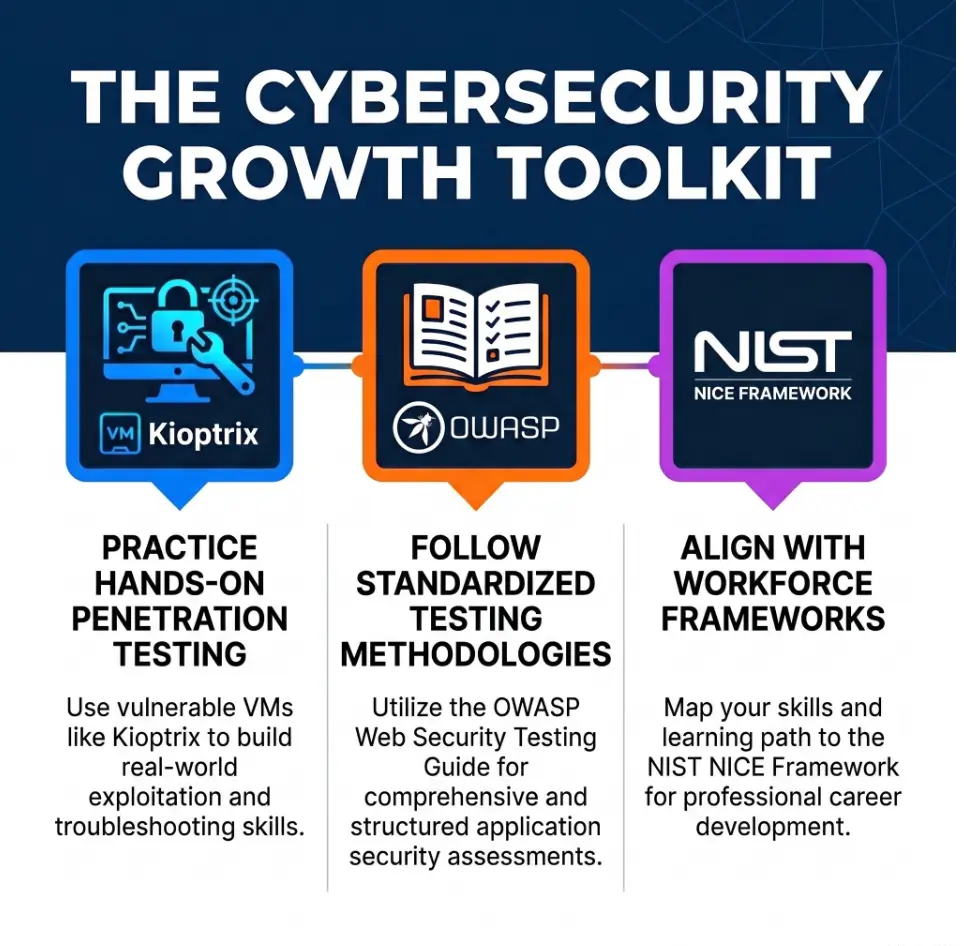
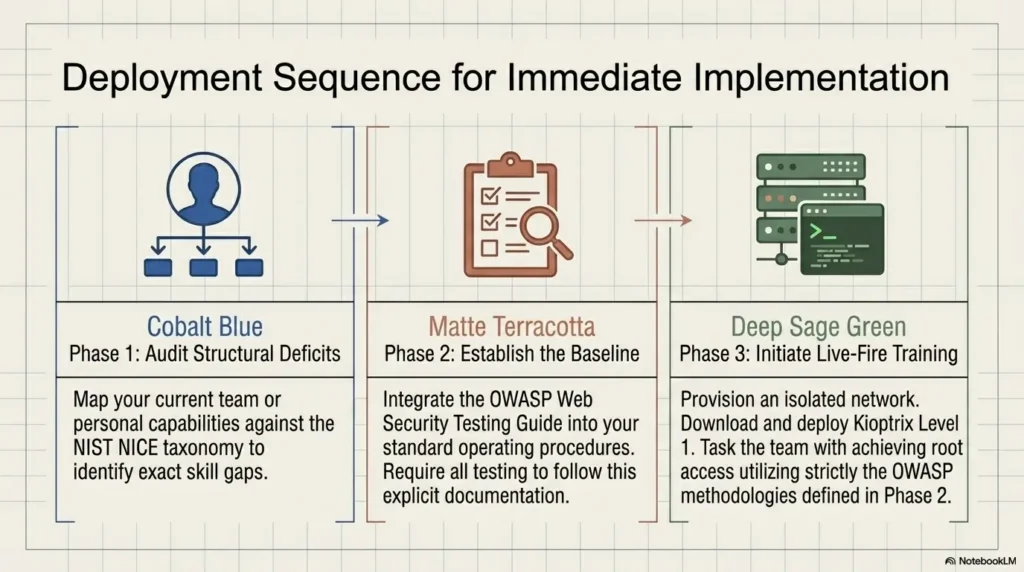
For broader cybersecurity learning structure, NIST’s NICE framework is useful because it treats cybersecurity knowledge and work roles as organized building blocks rather than random tricks. That same mindset applies here: name the work so you can repeat the work. If you want to build the habit beyond one box, a Kioptrix lab consistency system can keep your practice from turning into a heroic burst followed by three weeks of silence.
Your 15-minute action: create the skeleton, add scope.md, add timeline.md, and save your first scan with a real name. That is enough. The folder does not need to sing opera. It only needs to help future-you find the truth without opening 37 mystery files.
Last reviewed: 2026-05.