Sources, review date and section shortcuts
Key claims reviewed: October 19, 2026. A sortable screenshot name is an index, not proof of capture time, target identity or exam compliance.
Primary documentation · Related practical guide
Go straight to: Decision check · Main workflow · Further detail
Open the Screenshot retrieval acceptance test for this guide’s task-specific fields and next action.
Check the saved file and its upload path
Use fixed-width date/time fields, a documented timezone and a collision-resistant suffix for rapid captures. Verify the current ShareX pattern preview instead of assuming tokens work in every build. Preserve target and stage in a separate evidence record. Review after-capture tasks so exam or client material is not automatically uploaded to an unintended destination. Keep originals unchanged and identify redacted copies separately. Screenshot content and required target-IP proof remain independent checks. Source and scope.
Stop Fighting Your Screenshots: Evidence That Behaves Under Pressure
At some point in an OSCP-style run, the clock stops feeling like time and starts feeling like pressure. You captured the proof—yet your screenshot folder looks like confetti at 2:13 AM, and every “IMG_” file becomes an argument with your future self.
ShareX OSCP proof screenshots don’t fail because you forgot the hotkey. They fail because the filename can’t carry a timeline once the files leave the app and enter Explorer, ZIPs, or your final report. Every guess is a tiny tax: re-opening images, re-checking context, and rewriting sections out of order.
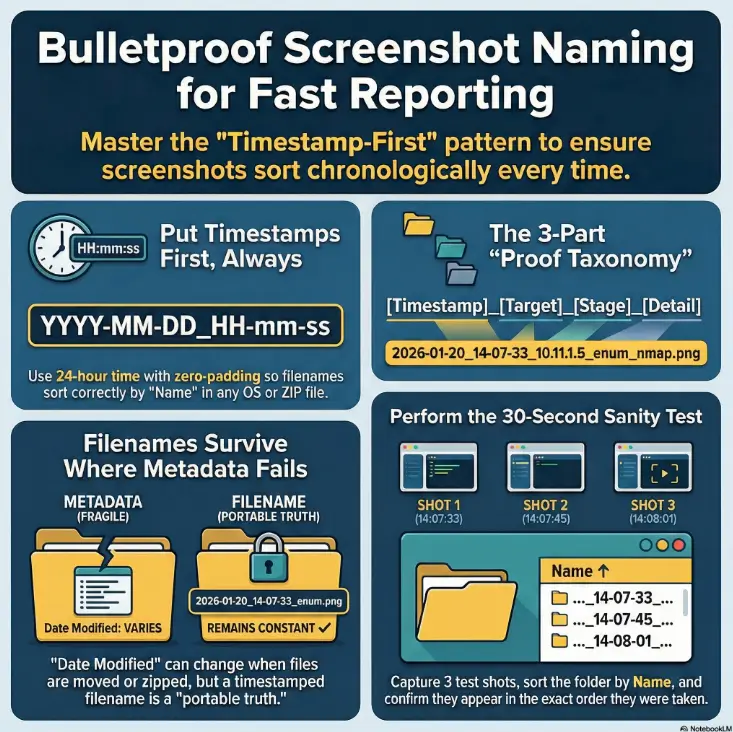
YYYY-MM-DD_HH-mm-ss) so alphabetical order always equals chronological order—even after copy, zip, or upload. This approach introduces a minimalist proof taxonomy so each filename explains itself at a glance:
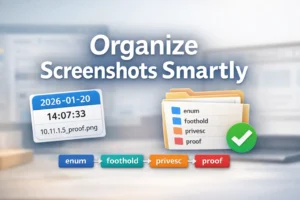
Use a timestamp-first filename with the ShareX pattern %y-%mo-%d_%h-%mi-%s. Confirm the installed version’s preview produces zero-padded year, month, day, and time values. Keep the clock and timezone consistent, then add target and proof labels manually or use per-target folders. Name sorting reflects the recorded timestamp; it is not proof of the true event order if the clock changes.
1) Who this is for / not for
For you if…
- You’re doing OSCP / OSCP-like labs and need screenshots that prove each step cleanly (especially the “grader-facing” moments described in OSCP proof screenshot requirements).
- You want evidence that sorts correctly in Windows Explorer, ZIPs, Git repos, and report folders
- You’ve felt the specific dread of “I know I captured it… but where?”
Not for you if…
- You don’t use screenshots at all and rely only on full terminal logs (rare, but valid)
- Your program requires a strict naming scheme already—follow their rulebook first (and align it with your OSCP VM lockdown checklist so your evidence workflow still holds under constraints).
- Sort by Name, not by metadata
- Put time first, always
- Use small, consistent tags so filenames explain themselves
Apply in 60 seconds: Create one folder called OSCP_Evidence and promise yourself: “timestamp first, every time.”
2) Timestamp-first naming: the only sorting rule that never betrays you
Put time first, always
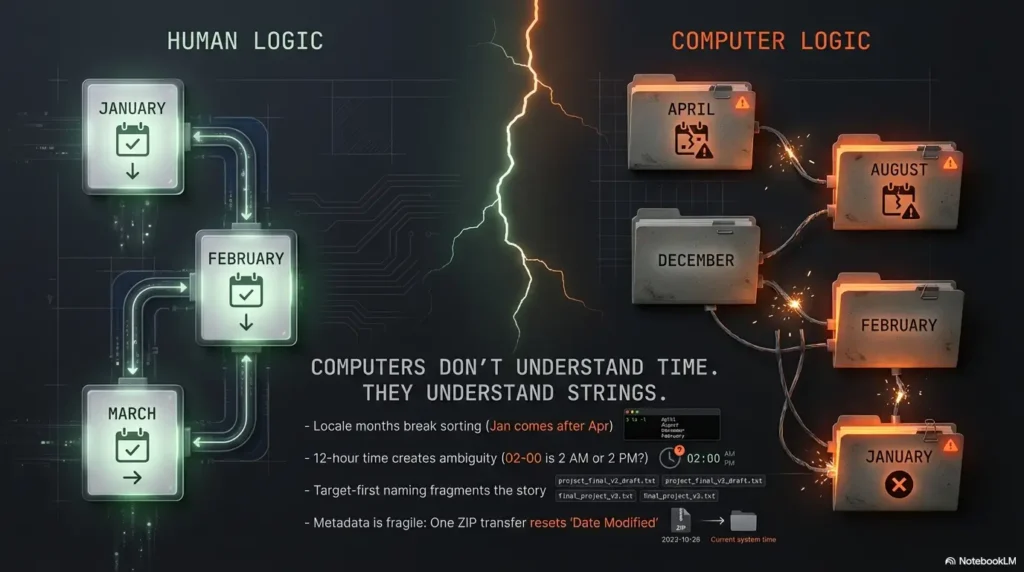
Computers don’t “understand” that Jan comes before Feb the way humans do. They sort strings. That’s the whole trick. So you build filenames that behave like time even when treated like plain text.
- Use an ISO-style date: YYYY-MM-DD
- Use a zero-padded 24-hour clock: HH-mm-ss
- Use separators that won’t break Windows or sync tools: _ and –
Timestamp-first filenames preserve a useful recorded order across copies and archives when the format, clock, and timezone stay consistent. A clock correction, daylight-saving change, or captures within the same second can break strict chronological ordering. Keep logs for those cases.
The open loop: what breaks chronological order even when “it looks fine”?
- Locale months (Jan/January): visually readable, algorithmically messy
- 12-hour time (AM/PM): easy for humans, easy to misconfigure across patterns
- Missing zero padding (2026-1-2): string sorting will punish you
- Metadata reliance: “Date taken” and “Date modified” can shift during copy/zip/upload
- Yes/No: Do your files sort correctly by Name today?
- Yes/No: Can you find a screenshot in 10 seconds without opening images?
- Yes/No: Can you reconstruct the sequence after a ZIP + upload?
Apply in 60 seconds: Take 3 screenshots across 2 minutes, sort by Name, and confirm the order matches reality. (Neutral next step: write down the result.)
3) The OSCP “proof taxonomy”: make filenames explain themselves
Your 3-part filename payload (after timestamp)
- Target (IP / hostname / box name)
- Stage tag (enum / foothold / privesc / proof)
- Artifact hint (nmap / smb / creds / hash / flag / config / exploit)
Think of this like the spine of a book. The timestamp is your page number. The rest is the chapter title. You’re not trying to write a novel in the filename—you’re trying to stop future-you from guessing.
A tiny, workable tag set
- enum — discovery that narrows the search (this pairs well with your Obsidian OSCP enumeration template so screenshots and notes share the same “labels”).
- foothold — first code execution / shell / session (a nice complement to an OSCP initial access checklist when you’re moving fast).
- privesc — escalation steps and proofs
- proof — proof file, flag, or required confirmation screenshot
- clean — the “final” screenshot you want to show a grader (optional)
Why “proof” gets its own tag: because requirements tend to care about it. For example, OffSec’s OSCP+ Exam Guide explicitly emphasizes retrieving the proof files (like local.txt or proof.txt) and including them in a screenshot with your documentation. When the folder is chaotic, the “proof” tag becomes a lifesaver.
I keep this honest: I don’t tag everything perfectly. Nobody does. But I always tag the screenshots that would hurt the most to lose: proofs, pivots, and the one command output that explains the whole chain (especially when you’re hopping hosts and your Obsidian OSCP host template starts filling with parallel threads).
4) ShareX setup: where to change it (without breaking your flow)
Set it once in the right place
ShareX is a workflow engine wearing a screenshot hat. The file naming pattern lives in the place you might not expect: your Task Settings. This matters because you probably have multiple capture tasks (fullscreen, region, active window), and each can have its own naming behavior.
- Configure the naming pattern at the task level you actually use (e.g., Capture region / Fullscreen / Active window)
- Keep screenshots landing in a single evidence root folder, then branch into predictable subfolders
- Run one sanity test after changes: don’t trust “I think it’s correct” at 1 AM
Sanity check (the 30-second test)
- Take 3 screenshots over ~2 minutes
- Open the folder and sort by Name (not Date)
- If they appear in the exact order you took them, you’re done
5) Pattern templates you can copy
The patterns below use actual ShareX variables. Paste them into Task Settings → File naming, inspect the filename preview, and take test captures. YYYY-MM-DD is a format illustration, not a ShareX token. TARGET, STAGE, and DETAIL are labels you set manually or keep in target folders; ShareX does not infer the remote IP or proof stage.
Minimal, bulletproof (fastest)
%y-%mo-%d_%h-%mi-%s
If you do nothing else, do this. It will sort correctly, survive zip/upload moves, and remove the “which day was this?” friction.
OSCP-friendly (recommended)
%y-%mo-%d_%h-%mi-%s_10.11.1.5_enum
Example: 2026-01-20_14-07-33_10.11.1.5_enum_nmap.png
Report-assembly mode (best when you’re disciplined)
%y-%mo-%d_%h-%mi-%s_10.11.1.5_proof_terminal
Example: 2026-01-20_14-18-02_10.11.1.5_foothold_revsh_powershell.png
Let’s be honest: if you won’t reliably type “DETAIL,” don’t include it. A “perfect” pattern you don’t follow is worse than a simple one you do.
Show me the nerdy details
ShareX supports name pattern tokens for date/time and context. In ShareX’s own project notes, a classic date-time pattern often looks like %y-%mo-%d_%h-%mi-%s, and a commonly used “include process name” version looks like %pn_%y-%mo-%d_%h-%mi-%s. ShareX has also used random alphanumeric tokens for uniqueness (e.g., a random string appended) in some default setups. The key operator move is to keep the timestamp at the front even if you add process/target tags afterward.
- Time-first if you write reports as a narrative (recommended)
- Target-first only if you always write per-host and never need cross-host chronology
- Add a uniqueness suffix if you capture rapidly (bursts, scrolling, multi-monitor)
Apply in 60 seconds: Decide: are you more often searching by when or by which host? Then commit to the pattern that serves that reality. (Neutral next step: update your pattern once and test.)
6) Folder strategy that doesn’t rot
One root folder, many clean lanes
- Root:
OSCP_Evidence/ - Per target:
OSCP_Evidence/10.11.1.5/ - Optional per phase:
.../01_enum/,.../02_foothold/,.../03_privesc/,.../99_proof/
Here’s the trap: folders feel like control… until your workflow zigzags. Maybe you enum host A, pivot, then come back to A later. Or you bounce between an AD set and a standalone box (and if you’re doing AD without graph tooling, AD enumeration without BloodHound tends to produce exactly this kind of “zigzag”). If your folder structure assumes a linear story, you’ll end up duplicating files, re-sorting, or “temporarily” dropping everything into one messy folder.
The curiosity gap: should the folder hold the story, or the filename?
- If your phases are clean and linear, folders can carry more structure
- If your work zigzags (most real life), let filenames carry context and keep folders simple
My compromise: I keep folders boring and filenames smart. Folders answer “where is this host’s evidence?” Filenames answer “what happened, in what order, and why do I care?”
Operator tip: If you use Git for notes, don’t commit raw images unless you have a reason (repo bloat is real). But even if you never commit images, a Git-style mindset helps: consistent naming, predictable structure, minimal surprises.
7) Common mistakes (the ones that silently ruin sorting)
Mistake: using “Date taken” instead of filename sorting
Metadata is fragile. It can change on copy, zip/unzip, upload/download, and “helpful” sync tools. The filename is stubborn. The filename survives.
Mistake: mixing underscores, spaces, and parentheses
Pick one separator style and stick to it. I recommend:
- Underscore between “big chunks” (timestamp, target, stage)
- Hyphen inside the timestamp (HH-mm-ss) to avoid forbidden characters
Mistake: relying on IMG_#### or auto-increment alone
Counters reset. Counters collide across folders. Counters don’t carry meaning. They’re fine as a suffix for uniqueness—but not as the spine of your evidence timeline.
8) “Don’t do this” pitfalls (proof gaps are born here)
Don’t use 12-hour time or AM/PM in filenames
Humans read it fine. Systems sort it unpredictably when formats vary. Also: you do not want a future debate about whether 02-07 meant 2 AM or 2 PM.
Don’t start with the target name
You’ll sort by host, not by time. Then your narrative becomes fragmented and you’ll constantly “jump around” while writing (which is exactly how people end up in OSCP rabbit holes while trying to reconstruct what happened).
Don’t use forbidden filename characters
Windows paths have restrictions. The big one people accidentally include is the colon in time (14:07:33). Use hyphens instead (14-07-33). You want boring filenames that never break during compression, sync, or upload.
Don’t let “perfect” be the enemy of “consistent”
The best naming scheme is the one you’ll still follow when you’re tired, behind schedule, and your brain is basically a browser with 47 tabs open.
- Your evidence root folder path (where files must land)
- Your required proof items (e.g., proof file screenshot rules)
- Your preferred tags (enum/foothold/privesc/proof)
Apply in 60 seconds: Write those three items on a sticky note (digital or physical) and keep it next to your capture hotkey list. (Neutral next step: keep it visible for a week.)
9) The quiet superpower: report assembly speed (and fewer disputes)
“Proof pack” thinking
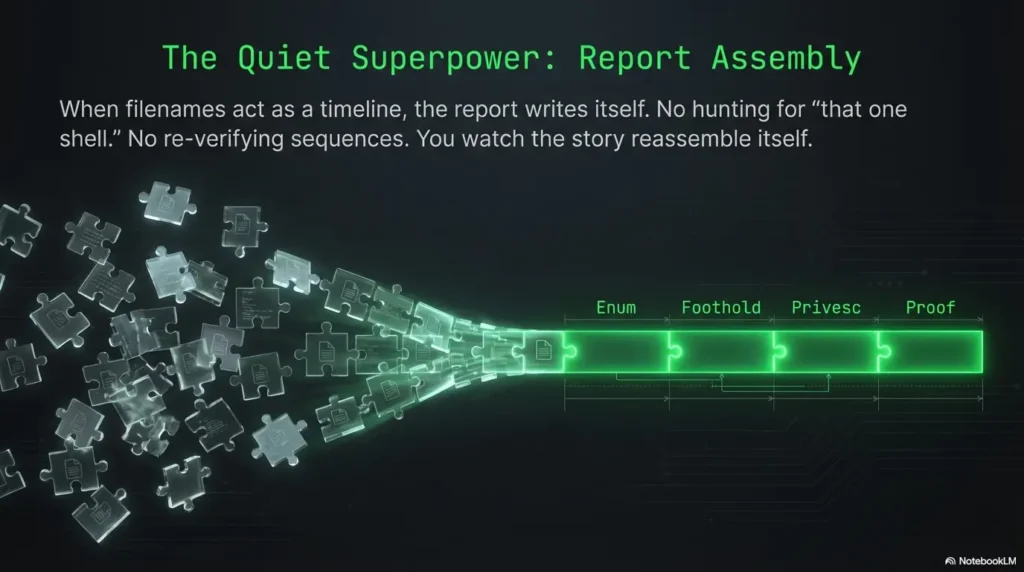
A good naming scheme turns your screenshot folder into a timeline you can trust. That trust buys you speed. Not hype-speed. The real kind: fewer pauses, fewer rechecks, fewer “open 12 images to find the one with the right prompt.”
OffSec’s OSCP+ workflow also has a very real time shape: the exam window is 23 hours and 45 minutes, and then you get another window to upload your documentation. That’s not the moment you want to be reverse-engineering your own evidence trail (it’s also why pairing evidence with a repeatable Kali lab logging habit is quietly powerful).
The open loop: what if you need to prove sequence, not just results?
Sometimes the story matters: “I enumerated, then pivoted, then escalated.” A timestamp-first naming scheme makes “what happened when” visible without opening files. It’s subtle, but it changes how calm you feel while writing.
I didn’t panic because the filename itself was the map. I sorted by Name. The timeline snapped into place. I could literally watch the story reassemble: enum → foothold → privesc → proof. I didn’t have to trust my memory. I just had to trust the clock I baked into the file. That’s the quiet superpower: your folder tells the truth even when you’re tired.
10) FAQ (quick answers that prevent dumb pain)
1) What’s the best timestamp format for screenshots that sort correctly on Windows?
YYYY-MM-DD_HH-mm-ss is the safe, portable choice. It sorts correctly as plain text and avoids forbidden characters like colons. If you want even tighter filenames, YYYYMMDD_HHmmss also works—but the dashed version is easier to read under stress.
2) Should I use YYYY-MM-DD or YYYYMMDD in ShareX file names?
Both sort correctly. Use YYYY-MM-DD if you want human readability. Use YYYYMMDD if you want shorter filenames. The key is consistency and zero padding—don’t mix styles mid-project.
3) How do I include the target IP/hostname in ShareX filenames efficiently?
Use a short “target token” you can type fast: IP for standalone hosts, and short hostnames for AD environments. If you can’t type reliably while capturing, keep the filename minimal and put the target in the folder name (OSCP_Evidence/10.11.1.5/).
4) Will screenshot metadata (“Date taken”) survive zipping and uploading to portals?
Sometimes. Not always. Different tools preserve metadata differently, and “Date modified” can shift during transfers. That’s why timestamp-first filenames are the safer anchor: the sorting logic travels with the file.
5) Should I name files by phase (enum/foothold/privesc) or by artifact (nmap/creds/flag)?
If you’re a beginner: start with phase—it’s easier to keep consistent. If you’re more experienced: phase + artifact gives you the best searchability. Either way, keep the tag set small enough that you’ll actually use it (and if you’re routinely doing service verification, be mindful of Nmap -sV false positives so your “enum” screenshots don’t become misleading later).
6) How long should an OSCP evidence filename be before it becomes counterproductive?
If you can’t skim it in 2 seconds, it’s too long. Keep it to: timestamp + target + 1–2 tags. Any more detail belongs in your notes, not in the filename.
7) What separators are safest for Windows + cloud sync (_ vs – vs spaces)?
Underscore and hyphen are the safest. Spaces usually work, but they can be annoying in terminals and scripting. Avoid punctuation that’s path-sensitive or visually ambiguous.
8) How do I avoid duplicate names when taking rapid screenshots?
Include seconds (HH-mm-ss) at minimum. If you capture multiple times within one second, add a uniqueness suffix (like a short counter or random string) or include milliseconds if your tooling supports it.
9) Can I standardize naming across ShareX + terminal logs for a single timeline?
Yes—by making timestamp-first the shared rule. Use the same date/time style in your notes (or log filenames) so your “evidence pack” sorts as one story. Even if the content differs (images vs text), the timeline aligns.
10) What’s a “minimum viable” proof screenshot set for OSCP-style reports?
At minimum: proof file screenshot(s) with clear context, plus the key command outputs that explain how you got there. OffSec’s guidance specifically emphasizes including the relevant proof file in a screenshot with your documentation. Build outward from that minimum: each extra screenshot should justify itself as “this prevents a grading dispute or narrative confusion.”
11) Next step
Set the capture pattern to %y-%mo-%d_%h-%mi-%s and take three test shots. Sort by Name and check the preview, saved names, and same-second collision handling. Add target/stage labels manually only after this works; they are not built-in automatic detection variables.
If you want one small “discipline upgrade” that pays back fast: create a 99_proof subfolder per target and move only the final proof screenshots there. Not everything. Just the ones you’d cry over if they vanished (and when you start assembling, a consistent pentest report template makes those “proof” shots land exactly where they should).
Infographic: the “report-ready filename” in one glance
Chronology spine
IP / hostname
enum / foothold / privesc / proof
nmap / creds / flag / config
Example: 2026-01-20_14-07-33_10.11.1.5_enum_nmap.png
If you can read this filename cold, you can usually write the report faster than you can panic.
FAQ
Q1) Where exactly do I change ShareX file naming?
A: In ShareX, file naming patterns are configured in Task Settings for the capture workflows you use. Update the pattern, then run the 30-second test: capture 3 images, sort by Name, confirm correct order.
Q2) What does “timestamp-first” practically mean?
A: The very first characters of the filename should be the sortable timestamp (year → month → day → hour → minute → second). With consistent zero padding, timezone, and clock settings, alphabetical sorting matches recorded timestamps. Same-second captures still need a tie-breaker.
Q3) Do I have to include the target in the filename?
A: No—but it helps. If typing target info slows you down, put the target in the folder name and keep filenames time-first + stage tag.
Q4) What if I take multiple screenshots in the same second?
A: Add a uniqueness suffix (counter/random) or capture with higher time precision if available. The goal is: never overwrite, never collide, never guess.
Q5) How do I keep filenames short but still useful?
A: Keep two tags only: TARGET + STAGE. Put all other details in your notes or your report draft. Short filenames reduce friction and improve compliance.
Q6) Why not just rely on ShareX history?
A: ShareX history is helpful, but your report workflow usually lives outside ShareX—folders, zips, uploads, and editors. Timestamp-first filenames keep the “truth” attached to the file itself.
Conclusion
Here’s the loop we opened at the top: “What breaks chronological order even when it looks fine?” It’s not your memory. It’s not a lack of discipline. It’s that the default file ecosystem is indifferent to narrative. So we build narrative into the filename—quietly, mechanically, reliably.
If you do one thing in the next 15 minutes: set a timestamp-first pattern, run the 30-second test, and capture one proof-style screenshot with your new taxonomy. Your future self will feel the difference immediately—less searching, fewer doubts, faster writing.
Original review: 2026-01.
Keep exam evidence local: Review ShareX’s After capture tasks and disable automatic upload tasks for these screenshots. Test that a capture saves locally without uploading. Filename formatting does not replace required proof evidence. See the official ShareX pattern examples and the current OffSec exam guide.
Technical guidance updated: 2026-10-13. Replaced illustrative placeholders with ShareX filename variables and clarified manual labels, clock assumptions, and local evidence storage.
Screenshot retrieval acceptance test
Use these fields for your own task. Keep the actual conditions, evidence and unresolved questions beside the next decision.
On a small screen, scroll the table sideways to read all columns.
| Field | What to record | Your evidence / next check |
|---|---|---|
| Capture context | Record target, stage, time zone and original evidence reference. | To complete |
| Filename preview | Check the actual saved name and collision behavior. | To complete |
| Transfer destination | Confirm which after-capture tasks and upload paths are enabled. | To complete |
| Retrieval check | Open the original and distinguish any redacted publication copy. | To complete |
Next action: Test two rapid synthetic captures before trusting the naming pattern.
Related task: Use Kali Pentest Report Template: Markdown and PDF Workflow for that separate part of the workflow.
Worksheet change record — October 20, 2026
Added four task-specific fields, a next action and a related guide. This is a blank editorial working aid, not a completed test or validated assessment. Existing source-review dates retain their own scope; this addition is not a new verification of every statement.