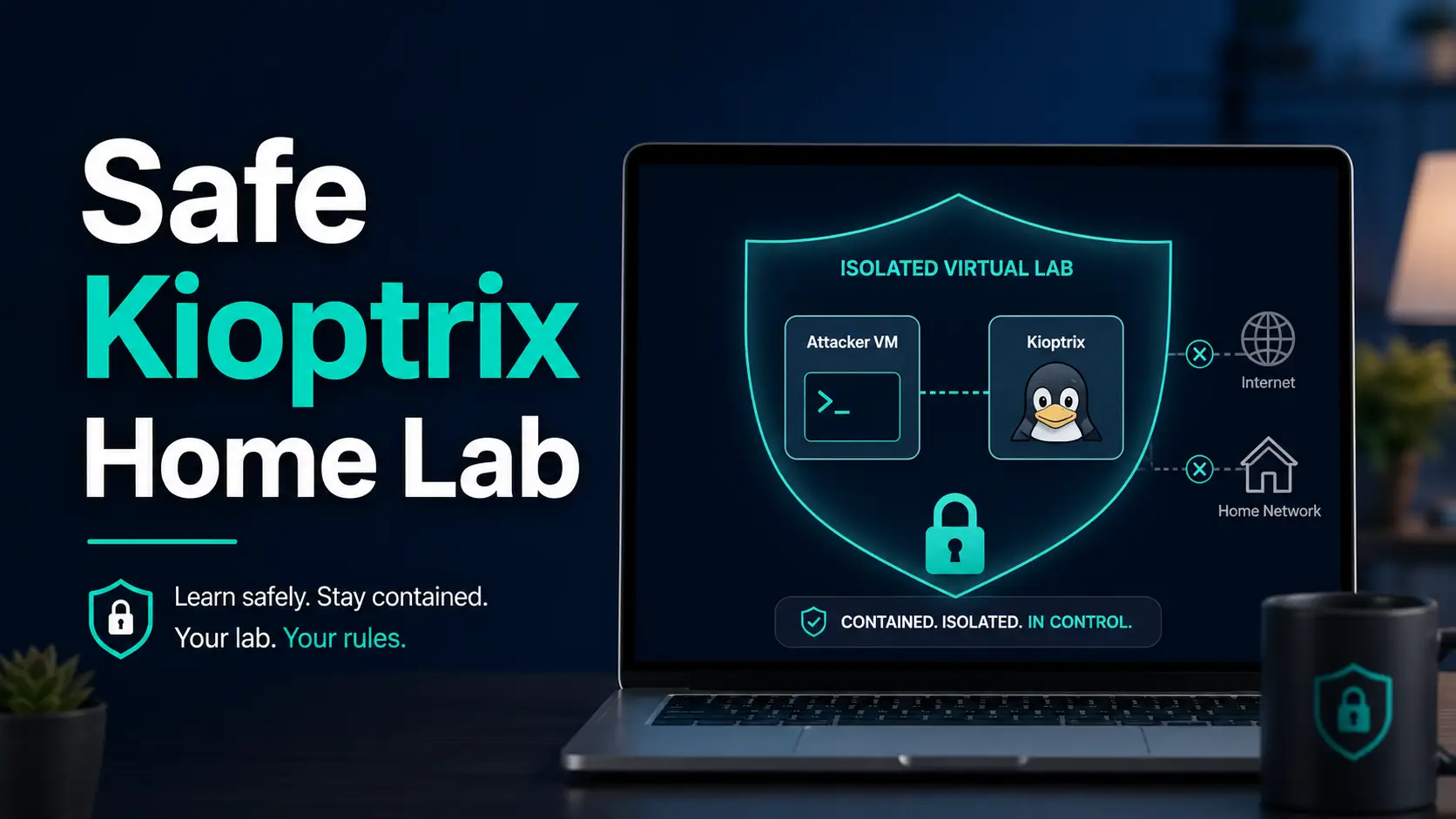
Open the practical working record to connect this guide to your scope, evidence and next decision.
Confirm the environment before measuring progress
Record the image release, host architecture, network paths and evidence destination. A private address or a browser profile is not a containment guarantee. Verify the actual permitted communication and preserve evidence outside snapshot rollback. A successful boot is setup evidence, not a security assessment or proof of learning outcomes. Reference and scope.
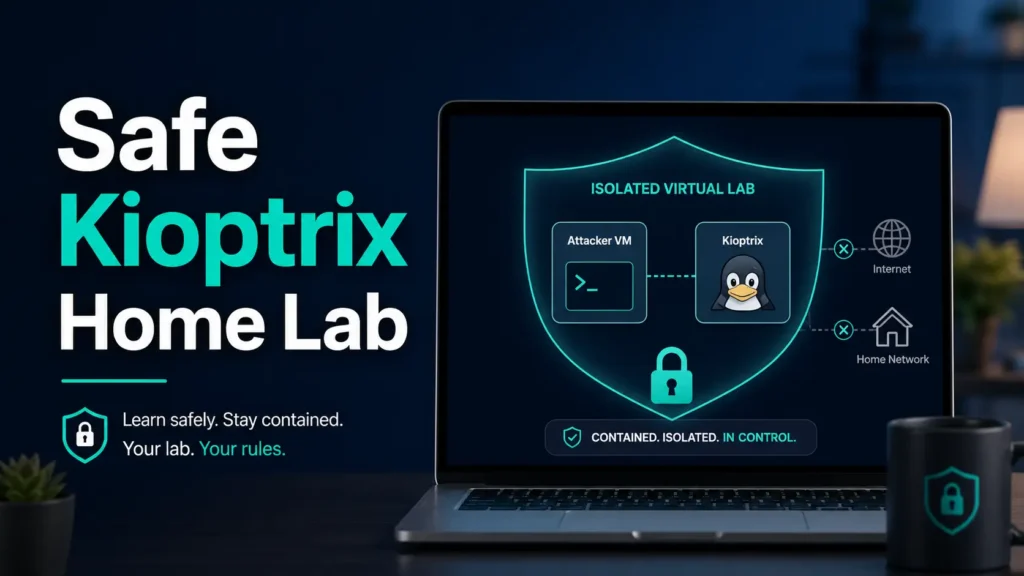
Beginner Cybersecurity Lab Guide
Kioptrix for Absolute Beginners:
Build a Safe Home Lab
Start with a supported VM setup, an explicit target boundary and a recoverable state.
The safe approach is pleasantly unglamorous: two virtual machines, one private virtual network, no direct internet connection for the target, and a short isolation test before any security work begins. The setup may feel slower than copying commands from a walkthrough, yet it prevents the sort of mistake that turns a Saturday learning project into a long evening of router archaeology.
This guide walks through the containment choices, pre-boot checks, resource decisions, snapshots, troubleshooting steps, and first-session routine. It deliberately stops before exploitation. Your first victory is not gaining access to Kioptrix. It is proving that the machine cannot wander beyond the lab.
Contain the target
Choose a network mode that keeps Kioptrix away from the household LAN and public internet.
Avoid setup traps
Remove shared folders, extra adapters, clipboard sharing, and unnecessary device passthrough.
Save a clean baseline
Verify communication and isolation, then capture a snapshot before reconnaissance begins.
The rule is simple: Kioptrix may speak to your attacker VM, but it should have nowhere else to go. 🔒
Snapshot
Who this is for: first-time cybersecurity learners using a personal computer for authorized practice. What it solves: unsafe VM networking, confusing adapter choices, and fragile first-lab setups. What you will do next: create a two-VM private network, verify its boundaries, and save a reusable clean baseline.
Table of Contents
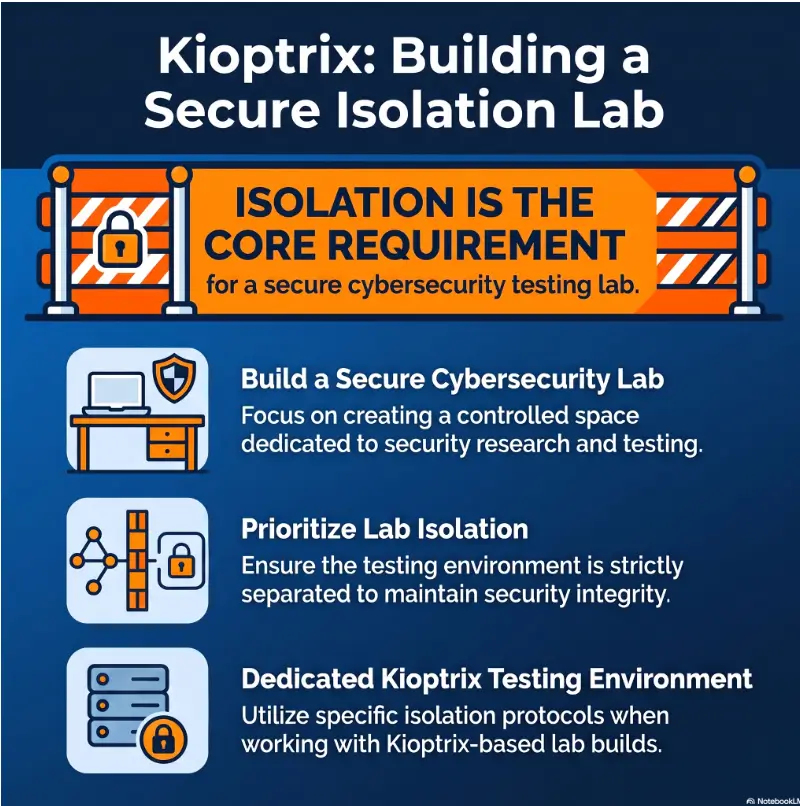
Before You Boot: Set the Legal and Safety Boundary
Keep every action inside systems you own or may test
Kioptrix is a deliberately vulnerable virtual machine created for security practice. It belongs in a controlled environment where you own the host, control both virtual machines, and have explicitly chosen the target.
That permission does not extend to your school network, employer, public cloud account, neighbor’s Wi-Fi, shared apartment router, or a random address found during a scan. A home lab is safe because its boundaries are narrow and intentional, not because the activity carries a friendly label.
Before You Act
This guide explains general lab containment and beginner workflow. It cannot inspect your router, host firewall, hypervisor, employer policies, or local laws. Confirm every adapter and sharing setting on your own system. When a computer contains sensitive work, family, financial, or client data, consider using a separate noncritical host for intentionally vulnerable machines.
Treat every downloaded virtual machine as untrusted
A vulnerable lab image is not a normal desktop appliance. It may contain old services, weak credentials, unsupported software, and flaws that are trivial to abuse. The safest habit is to download from the original project page or an established mirror, compare the published checksum when available, and store the archive away from important working files.
VulnHub also warns that community-provided machines cannot be treated as automatically safe. Review the official Kioptrix Level 1 listing before downloading, and read the file information rather than clicking the first mirror that appears in a search result.
Key takeaway: The target should be considered unsafe before the first boot, not after a scan confirms that it is old and vulnerable.
Who Kioptrix Helps, and Who Should Start Elsewhere
A good fit for beginners learning how evidence connects
Kioptrix works well for learners who have used Linux commands, understand that an IP address identifies a network interface, and want to practice moving from discovery to structured investigation. The machine is old enough to display recognizable services without burying the learner beneath a modern enterprise stack.
It is also useful for help-desk workers, IT generalists, career changers, and certification students who want to understand why enumeration matters. The lesson is not merely “run a tool.” It is to notice how one observation changes the next question.
Readers who need a broader orientation can begin with what Kioptrix is and what it teaches, then return here for the isolated setup.
Three skills that make the first session much less foggy
- Opening a terminal and reading basic command output.
- Recognizing an IPv4 address, subnet mask, and default route.
- Changing virtual-machine settings while both guests are powered off.
None of these needs to be advanced. You do not need to calculate subnets in your head while dramatic music plays. You do need enough familiarity to notice when two machines have landed on different networks.
Pause if virtualization itself is still the main puzzle
If terms such as guest, host, virtual disk, DHCP, snapshot, and network adapter all feel new at once, spend a short session on networking fundamentals for security labs. Kioptrix will still be there tomorrow, sitting patiently in its antique digital cardigan.
People using an ARM-based computer should also confirm that their chosen hypervisor can run the legacy guest format before building the rest of the lab. Older appliances do not behave identically on every modern processor or operating system.
The One Network Toggle That Can Break Containment
Why Bridged Adapter is the wrong choice
Bridged networking connects a virtual machine to the physical network much like another household device. The guest may receive an address from your router and become reachable by systems that were never meant to participate in the exercise.
That convenience is useful for ordinary server testing. It is a poor bargain for an intentionally vulnerable target. “Networking just works” is not a safety result when it works in the wrong place.
Bridged, NAT, Host-Only, and Internal Network in plain English
| Network mode | Who the guest can usually reach | Kioptrix target verdict |
|---|---|---|
| Bridged | Physical LAN, router, and potentially other household devices | Do not use |
| NAT | External networks through the host’s connection | Unnecessary and unsafe for the target |
| Host-Only | Other guests on the private segment and the host | Usable with precautions |
| Internal Network | Only guests attached to the same named virtual network | Strongest simple separation |
Some hypervisors use different labels, such as private, custom, isolated, or VMnet. Read the description rather than trusting the name. The key questions are whether the target can reach the physical LAN, whether it can reach the internet, and whether it can communicate with the host.
The safe lab shape has one narrow conversation
Safe Kioptrix Network Flow
1. Host computer
Runs the hypervisor and keeps its normal network separate from the lab target.
2. Private virtual switch
Carries traffic only between the two lab guests.
3. Attacker VM
Observes and tests only the defined private subnet.
4. Kioptrix target
Has one adapter, no shared folders, and no route to the router or internet.
Blocked paths: target to host data, target to home LAN, and target to public internet.
For a deeper adapter comparison, see the site’s guide to VirtualBox NAT, Host-Only, and Bridged networking.
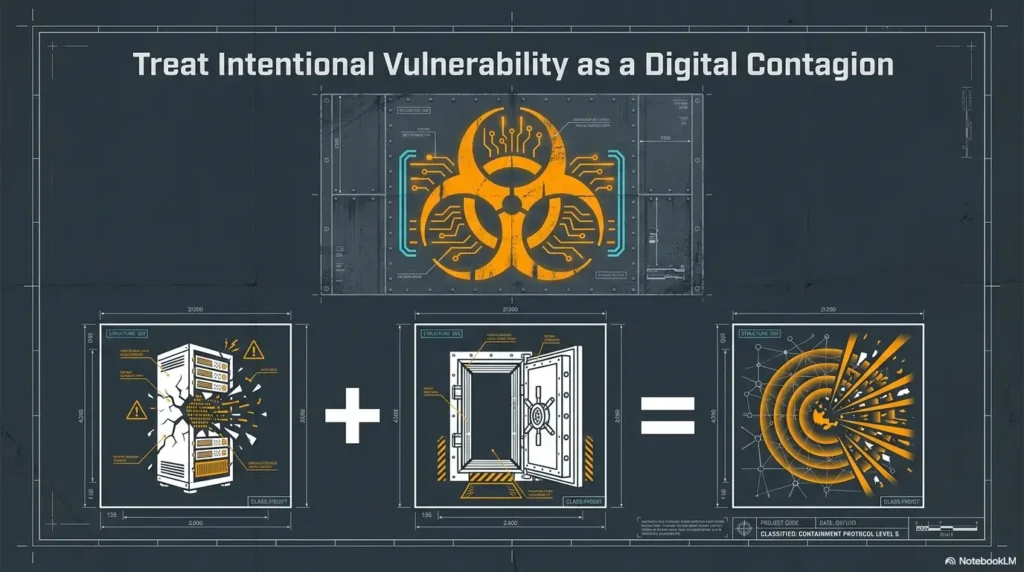
Build the Two-VM Lab Without Tangling Your Daily Computer
Choose one hypervisor and keep the first build boring
VirtualBox and desktop VMware products can both support a small two-VM lab. The better choice is usually the one that runs reliably on your host operating system, supports the imported appliance, provides private networking, and offers snapshots you understand how to restore.
Do not install three hypervisors because a forum thread praised each one in a different paragraph. Multiple virtualization products can introduce competing network adapters, kernel extensions, and troubleshooting noise. A comparison of hypervisors for Kioptrix can help when compatibility is unclear.
Prepare the attacker VM before introducing the target
Install or import the attacker VM first. Update it while Kioptrix is powered off and not attached to any active network. Once updates are complete, shut down the attacker VM and change its adapter to the private lab network.
For the simplest beginner session, use one active adapter on the attacker VM: the private lab adapter. A dual-adapter configuration can provide internet access and lab access at the same time, but it creates more paths to inspect and more opportunities to scan the wrong interface.
Kali publishes official virtualization documentation for several hypervisors. Use those instructions for the attacker system rather than an anonymous repackaged image.
Import Kioptrix without accepting every inherited setting
Kioptrix Level 1 is distributed as a legacy VMware-format virtual machine. Depending on the hypervisor, you may open the existing configuration, create a new VM around the supplied virtual disk, or convert the disk format.
The important part is what happens after import. Review every virtual device. Imported appliances can retain adapter choices, USB controllers, optical media, or sharing settings that made sense on someone else’s machine years ago.
Use the detailed Kioptrix VM import guide when the supplied files do not open cleanly in your chosen hypervisor.
Spend memory and storage where they actually help
Kioptrix itself is lightweight. The attacker VM usually consumes more memory and disk space because it runs a graphical desktop, browser, terminal sessions, updates, and security tools. Avoid allocating so much RAM that the host begins swapping to disk, which makes two modest VMs feel like they are walking through wet cement.
| Setup tier | Target VM | Attacker VM | Best for |
|---|---|---|---|
| Good | 512 MB to 1 GB RAM, 1 virtual CPU | 2 GB RAM, 2 virtual CPUs | Basic terminal-led practice on a constrained host |
| Better | 1 GB RAM, 1 virtual CPU | 4 GB RAM, 2 virtual CPUs | Comfortable browser, notes, and several tools |
| Best for repeated study | 1 GB RAM, 1 virtual CPU | 4 to 8 GB RAM, 2 to 4 virtual CPUs | Longer sessions, packet capture, and larger notes |
These are planning ranges, not promises. Host capacity, desktop environment, hypervisor overhead, and storage speed matter. Check the Kioptrix resource requirements guide before increasing allocations simply because a slider permits it.
Key takeaway: Most beginners need no paid lab software. Reliable private networking, snapshots, and enough host memory matter more than premium features.
Host-Only or Internal Network? Choose With Your Eyes Open
Internal Network offers the cleaner boundary
In VirtualBox, Internal Network connects virtual machines that share the same internal network name without adding the host itself to that segment. This makes it an attractive containment choice: attacker VM and target VM can communicate, while the host and physical LAN remain outside the conversation.
The wrinkle is address assignment. Kioptrix expects DHCP. Some internal-network configurations do not provide a DHCP service automatically. When that happens, the target may boot successfully but never receive an address.
A technically confident user can configure private DHCP for that internal network. An absolute beginner may reasonably choose Host-Only instead, provided the host boundary is understood and checked.
Host-Only is easier, but the host joins the room
Host-Only networking creates a private network shared by the selected guests and a virtual adapter on the host. It often provides simpler DHCP management and allows the host to reach the guests.
That host access is convenient for administration, but it is not invisible. If the host runs file-sharing services, development servers, remote-management tools, or permissive firewall rules, the vulnerable target may be able to see more than intended.
Keep the host firewall enabled, disable host services you do not need, and do not bridge or share the host’s internet connection into the Host-Only adapter.
Show me the nerdy details
A virtual network is a software-defined Layer 2 segment. Guests attached to the same segment can exchange Ethernet frames even when no physical cable exists.
DHCP is separate from the virtual switch itself. A switch can connect two guests while neither guest receives an IP address. That is why “both adapters are set to Internal Network” does not always mean the machines will immediately discover each other.
Host-Only commonly adds a host-side virtual interface and an optional DHCP service. Internal Network omits the host-side interface, which improves separation but may require additional address planning.
A practical decision rule for the first lab
| Your situation | Choose | Extra check |
|---|---|---|
| You can configure private DHCP or static addressing confidently | Internal Network | Confirm both VMs use the exact same internal network name |
| You need simple automatic addressing | Host-Only | Confirm host internet sharing and forwarding are disabled |
| You need to update the attacker VM | Temporary NAT while target is powered off | Remove or disable NAT before the lab session |
| You are tempted to select Bridged because discovery is failing | Stop and troubleshoot | Never solve a private-network problem by exposing the target |
Oracle’s networking documentation describes the behavior of its current network modes in more detail.
VMware users can apply the same questions when working with custom VM networks and Host-Only adapters. The menu names may differ, but containment logic remains the same.
Key takeaway: Internal Network usually creates the stronger boundary. Host-Only may be the easier first setup, but it requires protecting the host as part of the lab design.
Do Not Boot Yet: Remove the Quiet Escape Hatches
Disable convenience features that connect guest and host
Shared folders, bidirectional clipboard, and drag-and-drop are designed to make ordinary virtual machines pleasant to use. Kioptrix is not an ordinary virtual machine. It should not receive a convenient path into your documents simply because copying a text file might save thirty seconds.
- Set shared clipboard to disabled.
- Set drag-and-drop to disabled.
- Remove all shared folders from the target VM.
- Do not install guest-integration tools inside Kioptrix.
- Keep sensitive host directories outside the VM storage folder.
Disconnect unnecessary hardware passthrough
A beginner target needs a virtual disk, basic display, and one private network adapter. It does not need your phone, external backup drive, security key, Bluetooth controller, webcam, microphone, or USB storage.
Remove or disable unnecessary USB controllers and automatic device capture. If an external drive contains the VM files, mount only what the hypervisor needs and avoid exposing the device to the guest.
The six-line pre-boot checklist
Target VM Pre-Boot Card
- Exactly one virtual network adapter is enabled.
- The adapter is Internal Network or carefully configured Host-Only.
- No NAT, Bridged, or secondary adapter remains attached.
- Shared folders, clipboard sharing, and drag-and-drop are disabled.
- USB and host-device passthrough are disabled unless essential.
- The attacker VM uses the same named private network.
Recheck these settings after importing, cloning, moving, or restoring the VM. Hypervisors occasionally ask whether a moved machine was copied, and the answer can alter identifiers or adapter behavior.
Prove the Lab Is Isolated Before You Trust It
Record the attacker VM’s private subnet first
Boot the attacker VM with only the private adapter enabled. Use its network settings or terminal tools to identify the active interface, assigned address, subnet, and route table. Write them down before searching for Kioptrix.
The point is to define the room before looking for the furniture. A host-discovery command is safe only when you have confirmed that the interface belongs exclusively to your private lab segment.
Discover the target only on that private segment
After booting Kioptrix, use a local ARP discovery tool or a host-discovery scan limited to the recorded private subnet. Do not scan every adapter and do not paste a subnet from a walkthrough without checking your own configuration.
A typical workflow is to inspect the attacker VM with ip addr and ip route, then perform host discovery only against the private range shown there. For example, the conceptual pattern is nmap -sn <your-private-subnet>, not a copied household range.
Pass the three-part isolation test
| Test | Expected result | If it fails |
|---|---|---|
| Attacker VM to Kioptrix | The target is discoverable on the private subnet | Check adapter state, network name, DHCP, and guest boot status |
| Kioptrix visibility on the household router | The target does not appear as a LAN client | Power it off and remove Bridged or unintended NAT connectivity |
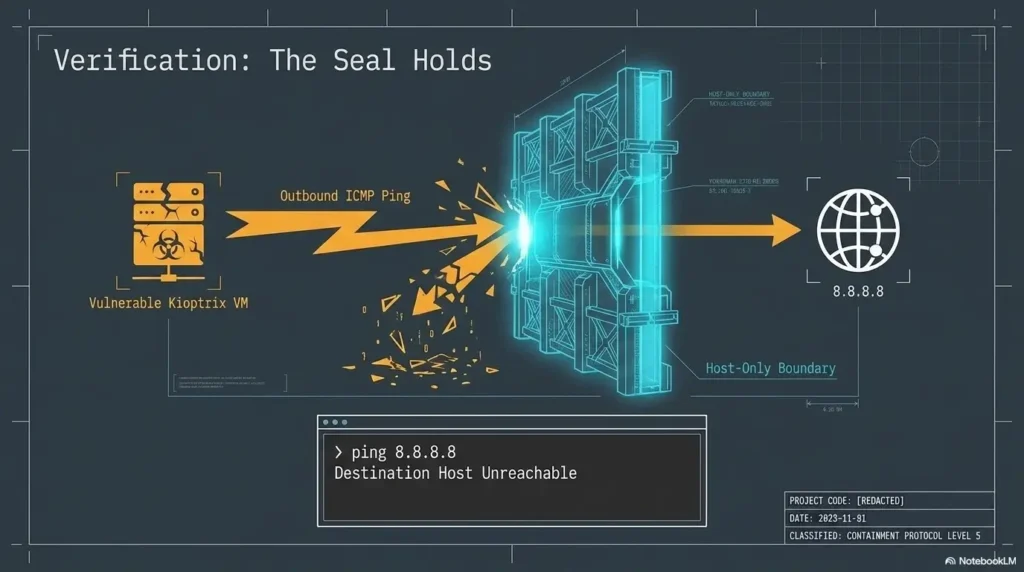
| Target path to public internet | No external route exists | Inspect secondary adapters, host forwarding, internet sharing, and custom NAT rules |
A failed domain lookup alone is not proof of isolation. DNS can fail while direct IP routing still works. Your strongest evidence is the combination of a private adapter mode, no gateway toward the physical network, no secondary adapter, no host forwarding, and no router visibility.
Illustrative example: the target that appeared too easily
A learner imports Kioptrix, starts Kali, and finds the target immediately. The scan works, the web page loads, and the setup feels perfect.
Then the learner notices that the target address resembles every other device on the home router. Kioptrix is not on a private segment at all. The imported appliance retained a Bridged adapter, and the “successful” discovery was evidence of exposure.
The safer response is not to continue because the scan already worked. Both machines should be shut down, moved to the same private network, and tested again from the beginning.
The lesson is wonderfully inconvenient: fast success can be a configuration warning. In a vulnerable lab, the right result is not merely that the attacker can see the target. It is that nobody else can.
Key takeaway: VM-to-VM communication proves connectivity. It does not prove containment. Router visibility and internet isolation must be checked separately.
Snapshots and a First Session That Stops at the Right Point
Create the clean baseline after verification, not before
A snapshot taken before networking is verified merely preserves uncertainty. First pass the isolation checks, shut the target down cleanly, and then save a snapshot named Clean Isolated Baseline.
This snapshot becomes the reset point for future sessions. If a configuration change breaks discovery or an experiment leaves the machine unstable, restore the baseline rather than turning repair into a second hobby.
The site’s Kioptrix snapshot strategy explains how to separate reusable milestones from disposable experiments.
Name snapshots by state and purpose
| Weak name | Useful name | What it tells you |
|---|---|---|
| Sunday | Clean Isolated Baseline | Network verified, no active testing performed |
| Before stuff | Pre-Recon Checkpoint | Ready for service discovery |
| Working | Enumeration Notes Complete | Discovery evidence has been recorded |
| Backup 3 | Disposable Web Test | Temporary branch that may be deleted |
Let the first session end with evidence, not exploitation
Your first session can be successful without opening a single exploit framework. Confirm the target address, identify visible services within the private subnet, record what you observed, and stop.
- Start the attacker VM and confirm its private interface.
- Start Kioptrix and discover its address only on the lab subnet.
- Record the date, network mode, subnet, target address, and discovery method.
- Note visible services without trying to gain access.
- Shut down the target and review whether any command touched a non-lab interface.
A simple notebook is enough. The value comes from consistent fields and honest observations. The Kioptrix note-taking workflow provides a reusable structure for later sessions.
Common Kioptrix Setup Mistakes and Safer Fixes
Mistake: choosing Bridged because it works immediately
Bridged networking can make target discovery effortless because the household router provides addressing. That ease is precisely the problem. Shut down both guests, switch them to the same private segment, and repeat the isolation checks.
Mistake: giving Kioptrix temporary internet access
There is no practical reason to update an intentionally vulnerable target. An update may break the challenge, change the expected evidence, or expose a machine whose entire purpose is to contain weak software.
Update the attacker VM while Kioptrix is powered off. Then remove the attacker’s internet-facing adapter before the target starts.
Mistake: attaching the guests to similarly named but different networks
“Internal Network,” “intnet,” “Host-Only Adapter,” and “VMnet1” are not interchangeable labels. Both guests must use the same network type and the same named virtual segment.
Compare the settings side by side while the VMs are powered off. One character in a custom network name can create two silent islands.
Mistake: disabling the host firewall to fix discovery
The host firewall is part of your containment, especially with Host-Only networking. Do not switch it off globally because ping or discovery is not behaving as expected.
Check the virtual adapter, DHCP service, interface state, subnet, and network name first. The guide to fixing Kioptrix Host-Only networking with no IP address addresses the common failure without turning off broad protections.
Troubleshooting Order
- Confirm both virtual machines are fully powered on.
- Confirm each guest has one enabled network adapter.
- Confirm the network type and custom network name match exactly.
- Confirm the attacker VM received an address on the private subnet.
- Confirm DHCP exists when the target depends on automatic addressing.
- Restart the guests before changing firewall or security controls.
- Restore the clean baseline if several experimental changes have accumulated.
VMware users who need to inspect custom virtual networks can consult the official virtual network editor guidance.
Kioptrix Home Lab FAQ
Is Kioptrix legal to run on my own computer?
Running a deliberately vulnerable machine you lawfully obtained inside a system you own is generally intended as authorized security practice. Keep all testing inside the isolated lab and do not treat the exercise as permission to test other systems. Local laws, school rules, employment agreements, and shared-network policies may add restrictions.
Should the Kioptrix VM ever have internet access?
No direct internet access is needed for the target. Kioptrix is intentionally old and vulnerable. Connect the attacker VM temporarily for legitimate updates only while the target is powered off, then return the attacker to the private lab network.
Is Host-Only networking safe enough for a beginner?
It can be a practical beginner choice when Internal Network address assignment is too complex. Host-Only keeps the target away from the physical LAN by default, but the host joins the virtual segment. Keep the host firewall enabled, disable sharing features, and confirm internet forwarding is off.
Why can my attacker VM not find Kioptrix?
The common causes are mismatched virtual networks, a disconnected adapter, missing DHCP, an incomplete target boot, or scanning the wrong interface. Compare both VM settings while powered off, then inspect the attacker VM’s address and subnet before scanning.
Can I use VirtualBox instead of VMware?
Yes, although the original Kioptrix files use a VMware virtual-machine format. VirtualBox users may need to create a compatible VM around the supplied disk or convert the disk. Network isolation matters more than keeping the original hypervisor.
How much RAM and storage does a basic lab need?
The Kioptrix target is lightweight, while the attacker VM needs more room. A modest starting point is 512 MB to 1 GB for the target and 2 to 4 GB for the attacker. Leave enough memory for the host operating system and reserve extra disk space for updates, snapshots, notes, and packet captures.
Should I disable my host firewall or antivirus?
No. Those controls protect the host and should not be disabled broadly to make a lab command work. Troubleshoot the private adapter, subnet, DHCP service, and guest configuration first. A narrowly scoped exception should be considered only when you understand exactly what traffic it permits.
Can I leave Kioptrix running while using my normal computer?
Shutting the target down after each session is the cleaner habit. It reduces exposure time, prevents forgotten adapter changes from lingering, and makes the next session begin from a known state. On a shared or work-sensitive computer, use a dedicated host instead.
Your 15-Minute Next Step: Save a Verified Baseline
Do these three things before learning a single exploit
- Open both VM settings and place them on the same Internal Network or carefully configured Host-Only segment.
- Confirm that the attacker VM can discover Kioptrix, while the target remains absent from the household router and has no internet-facing adapter.
- Shut down the target and create a snapshot named Clean Isolated Baseline.
That snapshot is the small brass key to the whole lab. It gives every future session a trustworthy beginning and turns troubleshooting from guesswork into a reversible experiment.
Write one baseline card and keep it beside your notes
Clean Isolated Baseline
- Hypervisor and version recorded
- Private network mode and name recorded
- Attacker VM private address recorded
- Kioptrix target address recorded
- No Bridged or NAT adapter attached to the target
- No shared folders, clipboard, drag-and-drop, or USB passthrough
- Router visibility check passed
- Snapshot created after clean shutdown
Once all eight lines are true, move to a controlled discovery session using the Kioptrix first-lab workflow. Until then, resist the siren song of the walkthrough tab. A secure lab begins with a boundary you can explain, test, and restore.
Final takeaway: Your first Kioptrix achievement is not compromising the target. It is building a target that can be compromised without placing anything else in reach.
Last reviewed: 2026-08
Technical guidance updated: 2026-10-13. Repaired table-of-contents navigation for the lab isolation, pre-boot checks, troubleshooting, and baseline sections.
A snapshot and a recoverable backup solve different failures
A snapshot makes a known lab state easy to revisit; it is not an independent replacement for the VM files on a failed host disk. VirtualBox snapshots can depend on base and differencing disks. Copying one child disk alone can leave an unusable chain.
Keep a recoverable backup or supported full clone of the powered-off lab, its configuration, and separate notes. Confirm what your chosen export or clone includes rather than assuming it preserves the complete snapshot tree. Review the VirtualBox snapshot and cloning documentation for your installed version. Test recovery in the same isolated network conditions, with the original VM powered off to avoid duplicate identities and addresses.
Editorial review: 16 October 2026. Examples are illustrative; this review does not represent an audit or live control test.
Beginner home-lab baseline record
Use this when: you are a beginner validating an isolated practice environment before measuring progress. Copy these fields into your notes and replace each prompt with a dated response. Keep assumptions and unresolved questions visible.
| Field | What to record | Your evidence / owner / next check |
|---|---|---|
| Lab identity | Record the exact VM releases, host architecture and hypervisor. | To complete |
| Connectivity boundary | List intended peers and observations supporting containment. | To complete |
| Recovery boundary | Distinguish a saved VM state from a tested recoverable backup. | To complete |
| First exercise | Define one permitted task and the evidence to keep. | To complete |
Next action: Confirm the network and recovery baseline before beginning the first exercise. Mark the relevant row confirmed, provisional or unresolved. Keep the supporting record, responsible person and next check beside it so another reader can continue the work without treating an assumption as a result.
This is a blank practice record, not a report of a test performed by Kioptrix. Add the actual versions, approved conditions and observations from your own session.
Worksheet change record — October 20, 2026
Added this beginner home-lab baseline record with four article-specific fields and an evidence-based next action. Existing source notes retain their own review dates. This addition is not a fresh verification of every statement or a newly executed test.