Sources, review date and section shortcuts
Editorial review: October 20, 2026. Measure host and guest behavior before attributing poor performance to encryption.
Reference documentation · Related practical guide
Go straight to: Decision check · Main workflow · Further detail
Compare a repeatable workload without weakening protection
Record memory pressure, host swapping, storage behavior, CPU allocation and virtualization state for the same workload. More than one bottleneck can coexist, and an encrypted disk is not proof that encryption caused the delay. Preserve recovery options and change one relevant variable at a time; do not remove protections as a routine speed fix. Reference and scope.
Open the practical working record to document this decision with evidence and an accountable owner.
Kali Linux • VirtualBox • Encrypted VM Performance
Kali Encrypted VM Slow on VirtualBox?Find the Bottleneck Before You Break Security
Measure host and guest behavior before attributing poor performance to encryption.
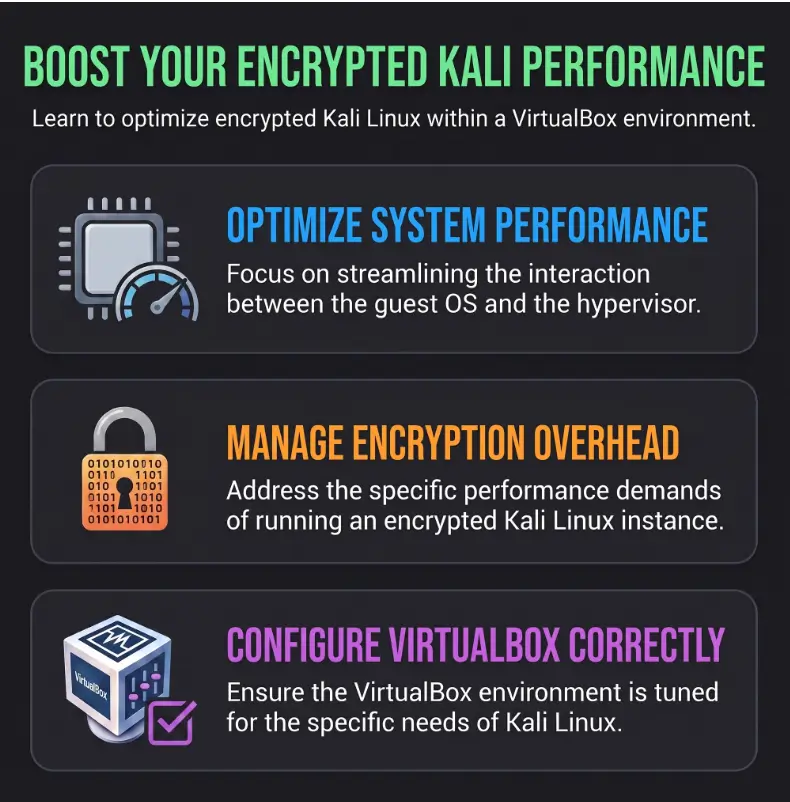
That distinction matters because the wrong fix can cost more than performance. Disabling LUKS, weakening host protection, throwing every CPU core at Kali, or buying new hardware before measuring the bottleneck can trade a solvable configuration problem for a security problem, a stability problem, or an unnecessary bill.
This guide takes the quieter route: classify the lag, capture a few numbers, change one variable at a time, and keep encryption in place unless the evidence actually points to it. Think less wrench-flinging, more laboratory notebook.
The rule that saves the most time: measure first, isolate second, optimize third. 🔐
Snapshot
Who this is for: Kali Linux users running an encrypted x86 guest in VirtualBox, especially cybersecurity learners and lab builders. What you will solve: unexplained slowness without immediately blaming LUKS. What you can do next: run a short diagnostic pass that tells you whether CPU, memory, storage, VirtualBox, Windows virtualization, graphics, snapshots, or encryption deserves your attention.
Before You Act
This guide is for defensive troubleshooting of your own lab systems. Back up important VM data before changing storage controllers, consolidating snapshots, or modifying disk settings. Do not disable encryption, Windows security controls, or other protections solely to gain speed unless you understand the security tradeoff and have a suitable alternative. Performance results also vary by host CPU, storage, operating system, VirtualBox release, and workload.
Encryption First: Find Out Which Layer You Are Actually Testing
Three kinds of encryption can sit under the same Kali desktop
A phrase such as “encrypted Kali VM” can describe several very different storage paths. Troubleshooting gets muddy when they are treated as one thing.
- Guest encryption: Kali uses LUKS and dm-crypt on one or more virtual block devices.
- VirtualBox disk encryption: encryption is applied to disks attached to the virtual machine through VirtualBox.
- Host encryption: the physical host storage is protected by BitLocker, FileVault, Linux disk encryption, or another host-level mechanism.
Kali’s cryptsetup package configures encrypted block devices through Linux dm-crypt and supports LUKS. VirtualBox also supports encryption of virtual disks, so two machines that both look like “encrypted Kali” from the desktop may be doing their cryptographic work at different layers.
If you are unsure which arrangement you have, start inside Kali with a read-only inspection:
lsblk -fEntries associated with LUKS or device-mapper mappings are a useful clue that guest-side encryption is active. You can also review the VM’s storage configuration in VirtualBox and the host operating system’s disk-protection settings.
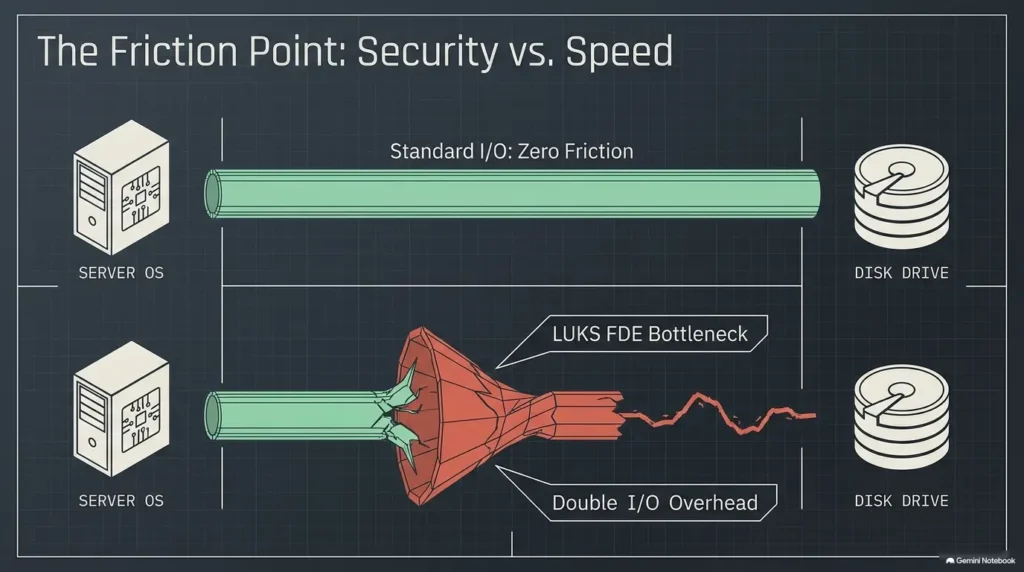
Double encryption changes the question, not automatically the verdict
If a LUKS-encrypted Kali guest lives inside an encrypted VirtualBox disk which itself sits on encrypted host storage, multiple encryption layers may be touching the same I/O path. That does not mean performance becomes three times worse. Modern CPUs can process common encryption workloads surprisingly quickly.
What multiple layers do change is attribution. A slow package installation may involve guest encryption, virtual-disk translation, host caching, host encryption, filesystem metadata, and the physical drive. Blaming the first lock icon you see is therefore a poor diagnostic method.
Key Takeaway
Do not benchmark “encryption” as one giant category. Write down exactly where encryption exists: inside Kali, at the VirtualBox disk layer, on the host, or in more than one place.
Here is the part people miss: classify the slowdown first
Before changing anything, decide when the VM feels slow. The symptom often points toward the subsystem more accurately than the word “encrypted” does.
| Symptom | First suspect | What to inspect next |
|---|---|---|
| Package installs crawl | Storage I/O | I/O wait, host disk load, snapshots, free space |
| Burp, browsers, compilers, or scanners peg CPU | CPU allocation | Guest CPU, host CPU, vCPU count |
| Everything stutters after opening host apps | RAM pressure | Host swap plus Kali swap |
| Windows resize and mouse movement feel choppy | Guest graphics integration | Guest Additions and display settings |
| VM is slow only on a Windows host | Hypervisor path | Hyper-V-related configuration |
| Disk tasks alone suffer | Storage or encryption path | Controller, physical drive, snapshots, cryptographic throughput |
The 5-Minute Test: Find the Bottleneck Before Tweaking Anything
Record four signals while the VM is actually slow
A benchmark that runs while nothing is wrong tells you surprisingly little. Reproduce the annoying workload: install packages, decompress a large archive, open your usual browser tabs, update a tool database, or run the development task that normally triggers the slowdown.
Then watch four things:
- Host CPU utilization
- Kali CPU utilization
- Kali I/O wait or disk activity
- Host and guest RAM or swap pressure
Inside Kali, a small collection of ordinary commands gives you a useful first pass:
free -h
swapon --show
df -h
vmstat 1 10
In vmstat, sustained activity in the swap columns or consistently elevated CPU wait associated with I/O deserves attention. Do not obsess over one momentary spike. You are looking for a pattern that appears at the same time as the lag.
CPU pinned and disk quiet? Look above LUKS
If the guest is consuming all of its available CPU while disk activity remains modest, encryption may not be your primary problem. Security tools can be CPU hungry in their own right. Compilers, browsers, compression, Java-based applications, scanners, proxy tools, and large parsing jobs can all turn a small VM into a very warm calculator.
Now look at the host. If the host is also near saturation, adding another vCPU may simply invite more competition. The VM and host do not occupy separate universes; they are roommates sharing the same kitchen at 7 p.m.
RAM pressure has a recognizable fingerprint
A classic bad configuration gives Kali plenty of memory on paper while leaving the host almost none. The host begins paging. Kali may begin swapping too. Every click can then trigger storage work at two layers, and because storage is involved, the user understandably concludes that disk encryption must be slow.
For a beginner lab, closing a few heavy host applications can be more informative than changing ten VirtualBox settings. If performance immediately recovers, you have learned something valuable for free.
Build a clean baseline without decrypting the real VM
If the diagnosis remains murky, create a temporary Kali VM using similar CPU, memory, and virtual-disk settings. You do not need to move sensitive files into it. Its purpose is comparison.
A clean throwaway guest helps answer a sharper question: is this host-and-VirtualBox combination slow in general, or has the long-lived encrypted VM accumulated something specific such as snapshots, disk growth, low free space, software changes, or configuration drift?
The Slow-Kali Diagnostic Flow
Trigger the exact workload that feels slow.
Watch CPU, I/O, RAM, and swap.
CPU, disk, memory, desktop, or hypervisor?
Avoid mystery-setting soup.
Keep the change only if the same workload improves.
Nested Paging and Hyper-V: Check the Virtualization Layer
Check hardware virtualization before blaming disk encryption
VirtualBox depends heavily on hardware-assisted virtualization on normal x86 hosts. If firmware settings, another hypervisor, or host security configuration changes the execution path, a VM that previously felt crisp can begin to drag even though nothing inside Kali changed.
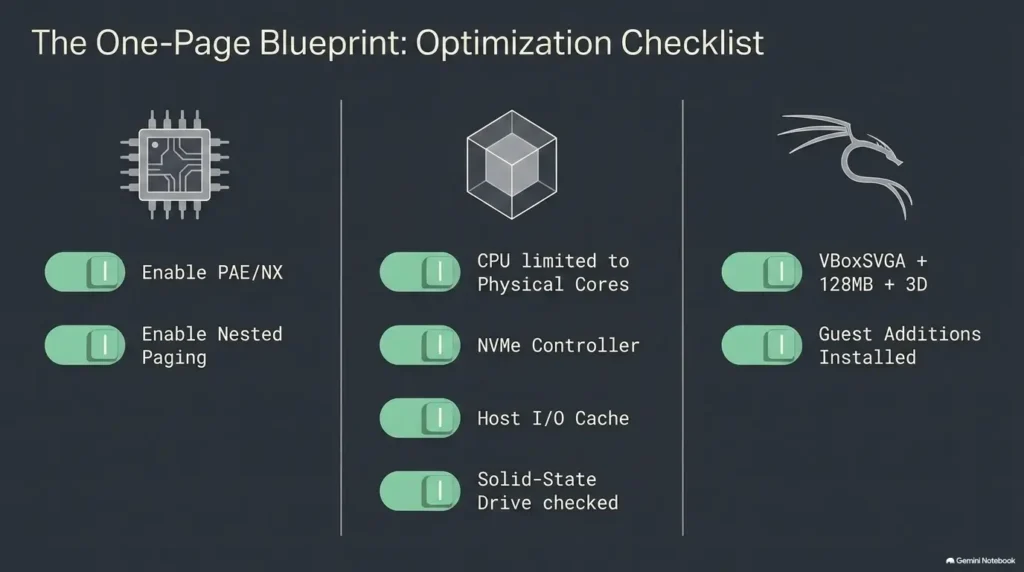
In VirtualBox settings, inspect the acceleration-related configuration rather than toggling every checkbox you can find. Nested paging is especially important because it reduces virtualization overhead associated with guest memory translation. Oracle’s documentation describes it as providing a significant virtualization performance improvement on supported CPUs.
Paravirtualization deserves a check, not a guessing contest
VirtualBox provides paravirtualization interfaces that help guests interact efficiently with the hypervisor. For a normal Linux guest, the safest starting point is usually the appropriate default behavior rather than cycling through providers hoping one unlocks secret speed.
If you inherited an old VM, imported an appliance, or copied settings from an unrelated tutorial, however, it is worth confirming that the configuration still makes sense for Kali and your current VirtualBox installation.
The Windows trap: Hyper-V can make a healthy Kali VM feel underpowered
On Windows, VirtualBox may have to coexist with Microsoft’s virtualization stack. Oracle’s current documentation continues to identify poor performance when VirtualBox and Hyper-V are used on the same host.
This is one of the highest-value checks when an encrypted Kali VM is slow on Windows because the symptom can masquerade as weak hardware: sluggish booting, higher CPU overhead, uneven desktop responsiveness, and generally disappointing VM performance.
Do not disable Windows virtualization components casually. First check whether your development workflow, virtual machines, containers, sandboxing, or security configuration depends on them. The correct answer may be to keep those protections and accept the tradeoff, separate workloads, or reconsider which hypervisor best fits the machine.
Key Takeaway
If a Windows-hosted Kali VM became slow without an obvious guest change, confirm the host virtualization path before touching LUKS. A host-level change can make encryption look guilty while never changing the encrypted guest at all.
Show me the nerdy details
Nested paging lets hardware assist with the translation between guest virtual addresses, guest physical addresses, and host physical memory. Without efficient second-level translation, memory-management work can require more hypervisor intervention.
Encryption is a different operation. LUKS and dm-crypt transform data as blocks move through the guest storage stack. That means a VM can suffer virtualization overhead even when cryptographic throughput is excellent, or suffer storage latency even when memory virtualization is working perfectly.
If you want a synthetic view of guest cryptographic capability, cryptsetup benchmark can be informative. Treat it as a CPU-oriented clue, not a complete disk benchmark. A fast cipher benchmark does not prove your VDI, snapshots, controller, host filesystem, or physical drive is fast.
Storage I/O: Where Encryption Meets the Virtual Disk
Inspect the controller before replacing anything
A Kali virtual disk is not attached directly to your physical SSD. VirtualBox presents a virtual storage controller, the guest talks to that controller, VirtualBox translates the requests, and the host eventually sends work to its own filesystem and storage device.
That chain means an accidental legacy controller configuration, an imported VM with unusual settings, or a poorly matched storage configuration can become part of the bottleneck. Do not change controller types blindly, though. A guest that lacks the expected boot path or driver configuration may stop booting after a controller change.
For most readers, the goal is not to discover the theoretically fastest controller on the internet. It is to verify that the VM uses a sensible, supported controller and then benchmark the same workload before and after any controlled change.
Host I/O cache is a test, not a magic checkbox
VirtualBox lets host I/O caching be configured per storage controller. Oracle’s documentation specifically treats the cache as a controller-level setting rather than a universal performance switch.
Caching can influence both performance and data-write behavior. That is exactly why forum recipes saying “always enable it” or “always disable it” are less useful than they appear. Test with the workload you care about, document the result, and avoid making storage changes while important VM data exists only in one place.
The real storage question: where does the VDI live?
A well-configured encrypted guest can still feel miserable if its virtual disk sits on slow physical storage. Check the host path before buying more RAM or modifying cryptographic settings.
- Internal SSD or NVMe: often a strong baseline for a frequently used security lab.
- External SSD: potentially fine, but interface speed, hubs, cables, thermal behavior, and enclosure quality add variables.
- Hard disk drive: random I/O from updates, browsers, databases, and snapshots can become noticeably expensive.
- Network-mounted storage: latency and network variability enter the storage path.
- Nearly full host drive: leaves the host filesystem and dynamically growing virtual disks less breathing room.
If you are building a dedicated practice environment, the broader Kioptrix lab setup guide can help you think about the host and guest as one system rather than tuning Kali in isolation.
SSD signaling and discard can help housekeeping, but security still matters
VirtualBox exposes settings related to SSD behavior and discard, while Linux filesystems and encrypted-device layers can also participate in discard handling. Oracle documents virtual-disk discard support, and current cryptsetup tooling includes an option to allow discard requests through an encrypted mapping.
Do not enable discard solely because the word “SSD” appears in a performance article. In encrypted environments, passing discard information to lower layers can reveal which regions of storage are unused. Whether that matters depends on your threat model. For a disposable home lab, your answer may differ from a VM containing sensitive client data or research material.
Key Takeaway
Before tuning LUKS, confirm the physical storage underneath the VM. A slow drive, crowded host filesystem, network path, or snapshot-heavy VDI can dominate the experience long before encryption becomes the limiting factor.
CPU, RAM, and Swap: More Resources Are Not Always Faster
Do not hand Kali every host core
The “more vCPUs equals faster VM” assumption has a wonderfully simple shape and an inconveniently messy relationship with reality. The host still needs CPU time for VirtualBox itself, storage processing, encryption outside the guest, the desktop, your browser, communication tools, and everything else you forgot was running.
If the host has limited cores and Kali receives nearly all of them, both sides may compete harder. A better method is to start with a moderate allocation, run the exact workload, increase the vCPU count once, and compare completion time and responsiveness.
Host headroom beats impressive-looking VM settings
The same logic applies to memory. Giving Kali enough RAM to avoid unnecessary swapping is useful. Giving Kali so much RAM that the host starts paging is not.
Imagine a student running Kali, several browser tabs, a note-taking app, a video lesson, and another target VM. The relevant memory budget is not “How much can Kali use?” It is “How much can Kali use while the whole lab remains healthy?”
Guest swapping can create an ugly little I/O loop
When Kali swaps, memory pages become disk traffic. If that disk traffic passes through LUKS, a virtual disk, host caching, and host storage encryption, a memory shortage suddenly looks like an encrypted-storage problem.
Watch both layers. If Kali has free memory but the host is swapping heavily, reduce guest allocation or close host applications. If the host is comfortable while Kali swaps continuously, Kali may genuinely need more memory for that workload.
| What you observe | Likely adjustment | What not to assume |
|---|---|---|
| Guest CPU maxed, host has capacity | Test a modest vCPU increase | Disk encryption is slow |
| Host CPU maxed too | Reduce contention or workload | More vCPUs will fix it |
| Kali swaps, host has free RAM | Consider more guest RAM | Storage controller is broken |
| Host swaps after VM starts | Reduce VM RAM or host load | Kali simply needs more RAM |
| Both host and guest swap | Rebalance the entire lab | Encryption is the first thing to disable |
Guest Additions: Fix Desktop Lag Before Rebuilding Kali
Kali may already have the correct guest package
Kali’s own documentation says its installer has normally detected VirtualBox and installed the appropriate guest tools automatically since Kali Linux 2019.3. For graphical VirtualBox guests, the documented package is virtualbox-guest-x11.
That means “install Guest Additions” should not automatically be step one. First check whether the package is present:
dpkg -l | grep virtualbox-guestIf the guest tooling is damaged or clearly missing, Kali’s documentation provides a reinstall path. Update the system appropriately first, especially if the VM has package problems. If updates themselves are being held back, the Kali packages kept back guide may be more relevant than changing VirtualBox performance settings.
Mouse lag is not disk-encryption lag
Desktop symptoms and storage symptoms feel surprisingly similar when you are the person waiting for the machine. Separate them deliberately.
- Choppy window movement points toward graphics or desktop integration.
- Slow resizing points toward graphics, display, or guest-tool behavior.
- Cursor lag may be an integration or host-load problem.
- A terminal command that waits on disk can be storage related.
- Slow package installation is far more relevant to storage than slow mouse movement.
- Slow file copies deserve disk, controller, host-storage, and snapshot checks.
Reinstall only when the evidence points there
Kali documents the following reinstall command for its VirtualBox graphical guest package:
sudo apt update
sudo apt install --reinstall virtualbox-guest-x11
Run the two commands separately, stop if apt update reports errors, and review the proposed package changes before confirming installation. Reboot afterward as appropriate. If the desktop becomes smooth but package installs remain painfully slow, congratulations: you solved one problem and proved there is still another. Troubleshooting sometimes hands out victories in installments.
Snapshots, VDI Growth, and the VM That Aged Badly
Snapshots change the storage path
A pristine VM and a three-year-old security lab may share the same RAM and CPU settings yet behave very differently. Snapshots create differencing storage. As the lab evolves, the active state can depend on a chain of historical disk states rather than one simple virtual disk.
This does not mean every snapshot causes visible slowness. It means a VM with a long or complicated snapshot history should not be treated as equivalent to a clean disk when troubleshooting storage performance.
Before consolidating anything, shut down the VM and keep an independent backup of the complete VM, including its configuration and all disks needed by its snapshot chain. A snapshot on the same storage is not an independent backup. Use VirtualBox’s supported snapshot or VM move controls rather than deleting or moving differencing-disk files manually, and allow adequate host free space for merges. Understand what each snapshot represents. A snapshot may be your “before exploit,” “clean target,” “before upgrade,” or “known working network” state. Removing the wrong one in a hurry can cost far more time than the performance problem you were trying to fix.
For lab-specific planning, see the Kioptrix snapshot strategy guide.
“I have 40 GB free” is only half an answer
There are at least two free-space numbers worth checking: space inside Kali and space on the host filesystem holding the VDI and snapshot files.
Inside Kali, low free space can interfere with package operations, temporary files, logs, databases, and normal filesystem behavior. On the host, low free space can constrain dynamically growing virtual disks, snapshots, caching, and the host operating system itself.
Illustrative example: the “encryption slowdown” that was not encryption
Suppose a Kali lab ran smoothly for months. The owner added several snapshots, moved the VDI to an older external drive, increased Kali from two to six vCPUs, and raised guest RAM until the host had very little left. A month later, package upgrades felt dreadful.
Disabling LUKS would be a terrible first experiment because four other variables changed. A cleaner test would restore host memory headroom, compare storage on the faster drive, inspect the snapshot history, and reduce CPU contention one step at a time.
If performance returns before encryption changes, the mystery is solved without sacrificing protection.
Key Takeaway
When a VM used to be fast, investigate what changed around it. Host updates, VirtualBox changes, storage moves, new snapshots, fuller disks, and resource reallocations often tell a better story than “encryption got slower.”
Good, Better, Best: Choose the Right Level of Performance Fix
Start with free evidence before paid hardware
The best upgrade is the one aimed at the actual bottleneck. That sounds painfully obvious until a slow VM turns an SSD shopping tab into emotional support.
| Level | Best for | What to do | Spend level |
|---|---|---|---|
| Good | Configuration or contention problems | Verify nested paging, rebalance RAM and vCPUs, close heavy host apps, inspect Guest Additions, check Hyper-V path | Free |
| Better | Storage-bound VM on slow media | Move the VM to healthy faster local storage with adequate free space and simplify unnecessary snapshot history | Low to moderate |
| Best | Heavy multi-VM labs that consistently exhaust the host | Increase host memory or storage performance, or evaluate a virtualization platform better suited to the workload | Moderate to high |
When the simple option is enough
If Kali is mainly a learning VM for terminal work, browser-based research, reconnaissance practice, and one target machine at a time, you may not need an expensive host. Balanced allocation and decent storage often matter more than spectacular specifications.
For a budget-conscious learner, the highest-return fixes are usually diagnostic: stop host swapping, avoid keeping unnecessary snapshot chains forever, place active VMs on suitable storage, and confirm the virtualization configuration is sane.
When paying for more capacity may actually make sense
Hardware becomes a rational discussion when measurement repeatedly shows the same resource exhausted during legitimate workloads. If two or three simultaneous VMs force the host into swap every session, more host RAM may materially improve the experience. If disk-heavy tasks consistently saturate old physical storage while CPU and RAM remain comfortable, faster storage is the cleaner purchase.
If VirtualBox itself no longer fits your use case, compare alternatives based on host OS, networking needs, snapshots, device passthrough, lab scale, management features, and total setup effort rather than switching because one benchmark chart won the internet that afternoon. The VirtualBox vs VMware vs Proxmox comparison offers a broader decision framework.
Before spending money, answer these five questions
- Which resource actually saturates during the slow workload?
- Does the problem disappear in a clean test VM?
- Does closing host applications fix it?
- Is the active VDI already on healthy local SSD-class storage?
- Would a hardware upgrade improve other lab workloads too?
Seven Performance Fixes That Often Miss the Real Problem
Mistakes 1–4: changing the loudest setting first
- Blaming LUKS before measuring I/O wait. Encryption becomes a hypothesis because it is visible, not because evidence supports it.
- Giving Kali nearly every CPU core. This can starve host work and increase contention rather than reducing it.
- Allocating RAM until the host swaps. The guest looks generously provisioned while the whole computer slows down.
- Ignoring the Windows Hyper-V path. Oracle specifically documents poor VirtualBox performance when Hyper-V is operating on the same host.
Mistakes 5–7: tuning by superstition
- Toggling host I/O cache without a before-and-after test. A change without measurement gives you a story, not evidence.
- Treating desktop lag as encrypted-disk lag. Mouse and window problems should send you toward guest integration and host load first.
- Disabling encryption to make the benchmark faster. A temporary benchmark win may remove protection while leaving the actual bottleneck untouched.
Use the one-change rule
If you change RAM, CPUs, storage cache, graphics settings, snapshots, and encryption simultaneously, the VM may become faster and you still will not know why.
Change one meaningful variable. Run the same workload. Record the result. Keep or revert the change. Then continue.
This method feels slower for the first five minutes and faster for the next five hours.
FAQ: Kali Encrypted VM Performance
Why is my encrypted Kali VM so slow in VirtualBox?
The likely causes extend well beyond encryption. Check CPU saturation, host CPU contention, guest and host swap, storage latency, the VDI’s physical location, snapshot history, Guest Additions, nested paging, and the Windows virtualization path. Encryption becomes the stronger suspect when disk-heavy tasks remain slow after the surrounding virtualization stack looks healthy.
Does LUKS make Kali much slower in a virtual machine?
It can add cryptographic work to storage operations, but the visible impact varies with CPU capability, guest workload, virtual-disk performance, storage latency, resource contention, and the rest of the encryption path. A fast CPU with suitable cryptographic support may make LUKS overhead far less noticeable than a slow physical drive or swapping host.
Should I disable Kali disk encryption for better VirtualBox performance?
Not as the first fix. Measure the virtualization and storage stack first. If you eventually test an unencrypted configuration, use a disposable comparison VM rather than removing protection from a VM containing sensitive work simply to obtain a benchmark.
How much RAM should I give Kali in VirtualBox?
There is no single correct number because Kali may be a lightweight terminal lab for one reader and a browser-heavy multi-tool workstation for another. Allocate enough to avoid routine guest swapping while preserving meaningful host headroom. If starting the VM causes the host to page heavily, the guest allocation is probably too aggressive for that machine and workload.
How many CPU cores should Kali VirtualBox use?
Begin conservatively and benchmark upward. The best count depends on the host CPU, other host workloads, the number of simultaneous VMs, and what Kali is doing. Assigning nearly every host core can be counterproductive because the host and VirtualBox still need scheduling capacity.
Does Hyper-V make VirtualBox slower on Windows?
It can. Oracle documents poor performance when VirtualBox and Hyper-V operate on the same host. Before changing Windows virtualization or security features, check what else on the machine depends on them and decide whether performance or those dependencies matter more.
Should I enable Host I/O Cache for Kali?
Treat it as a workload-specific test, not a universal recommendation. VirtualBox supports host I/O caching per storage controller. Compare the same disk-heavy workload before and after any change, and keep important VM data backed up when experimenting with storage configuration.
Do VirtualBox Guest Additions make Kali faster?
They can improve the guest experience, particularly display behavior, mouse integration, resizing, and related VirtualBox integration. Kali normally installs the appropriate VirtualBox guest package automatically when the installer detects the environment. They are therefore especially relevant when the “slow VM” complaint is actually a choppy desktop rather than slow storage.
Can cryptsetup benchmark prove encryption is the problem?
No. cryptsetup benchmark can tell you about cryptographic throughput under synthetic conditions, which is useful evidence, but it does not reproduce the entire VirtualBox storage path. Your VDI, filesystem, snapshots, host cache, host encryption, and physical storage still matter.
Run One Controlled Performance Pass in the Next 15 Minutes
You do not need to rebuild Kali, decrypt the disk, buy an SSD, or migrate hypervisors tonight. You need one clean set of observations.
Your 15-minute checklist
- Reproduce the slowdown. Use the task that genuinely annoys you.
- Record host CPU load. Note whether the host itself is saturated.
- Record Kali CPU behavior. Look for sustained guest saturation.
- Check memory and swap. Run
free -h,swapon --show, and inspect host memory pressure. - Check free space. Inspect both Kali and the host drive containing the VM.
- Classify the symptom. CPU, storage, memory, desktop integration, or everything at once?
- Verify virtualization settings. Confirm hardware acceleration and nested paging are sensible for the VM.
- On Windows, inspect the Hyper-V situation. Do not disable anything until you understand what uses it.
- Review the VDI location and snapshot history. Old or complicated storage deserves scrutiny.
- Change one variable. Repeat the exact same workload and record whether it helped.
Use this testing order when you are unsure where to start
Hardware virtualization & nested paging → Windows Hyper-V path → RAM and swap → storage controller and host drive → Guest Additions → VDI and snapshot health → encryption-specific testing
That final ordering is intentional. Encryption is close enough to the symptom to attract suspicion, but far enough down the storage stack that several more ordinary bottlenecks can impersonate it.
If your measurements eventually show that cryptographic work really is the limiting factor, you will reach that conclusion with evidence. If they point toward RAM, storage, Hyper-V, snapshots, or guest integration instead, you will have fixed the machine without weakening the reason you encrypted it in the first place.
Your next move: capture four numbers during one slow workload today: host CPU, Kali CPU, Kali I/O activity, and host/guest memory pressure. Those four clues will usually narrow the problem faster than another hour spent toggling VirtualBox settings.
Last reviewed: 2026-10-13
Technical guidance updated: 2026-10-13. Separated diagnostic and Guest Additions commands, limited vmstat sampling, added package-review and independent-backup guidance, and repaired section navigation.
Kali VM controlled performance record
Use this when: you are an authorized local lab measuring a repeatable workload without weakening protections. Complete the editable record below and copy it into your working notes with a dated response. Keep unresolved items visible rather than filling them with a default assumption.
Edit here, then select and copy the text to your own notes before leaving. This field has no submission or storage function; reloading resets it. Do not enter passwords, tokens or private client information. The 12,000-character limit applies to this working note.
How to use the result: Repeat the baseline workload before attributing slowness to encryption. Mark each row confirmed, provisional or unresolved, and link the source that supports the status. Keep a reviewer and review date beside decisions that affect spending, deployment or external claims.
This is a blank observation template. It does not report a test performed by Kioptrix; add your own versions, conditions and results after an authorized check.
Worksheet change record — October 20, 2026
Added this kali vm controlled performance record with four article-specific working fields, evidence ownership and a next action. The article’s existing source notes retain their own review dates. This addition does not represent a new verification of every statement or a newly executed lab test.
VM performance: compare repeats before blaming a setting
Illustrative example — not a performed lab test.
- Observation
- A page loads faster after increasing guest RAM and rebooting, but the original measurement was a cold run.
- Supported interpretation
- Two conditions changed: memory allocation and starting state.
- Still unresolved
- Which change caused the difference, whether the host began swapping, and whether the result repeats.
- Next authorized check
- Repeat the same task after an unchanged reboot first. Compare several runs under similar host load, keep individual observations, and restore the original allocation if host pressure worsens.
Practice-aid update: October 20, 2026. Added the illustrative decision case and editable note. No new VM execution or full-article revalidation is claimed.