
OSCP Proctored Exam Environment Lockdown
Three toggles. Two minutes of fail-tests. One calm check-in.
This checklist is for the night-before moment when “Disabled” still feels like a guess—and guessing is what makes your hands shake at check-in. The problem isn’t skill. It’s uncertainty: shared clipboard, drag-and-drop, and shared folders can quietly stay available in VirtualBox or VMware if you changed the wrong profile, resumed a saved state, or reverted a snapshot.
Keep guessing, and you pay the worst exam tax: starting stressed, troubleshooting in public, and burning focus before the first target loads.
It’s change control for your nervous system—two passes, no surprises. Small steps. Clean environment. Boring setup. That’s the goal.
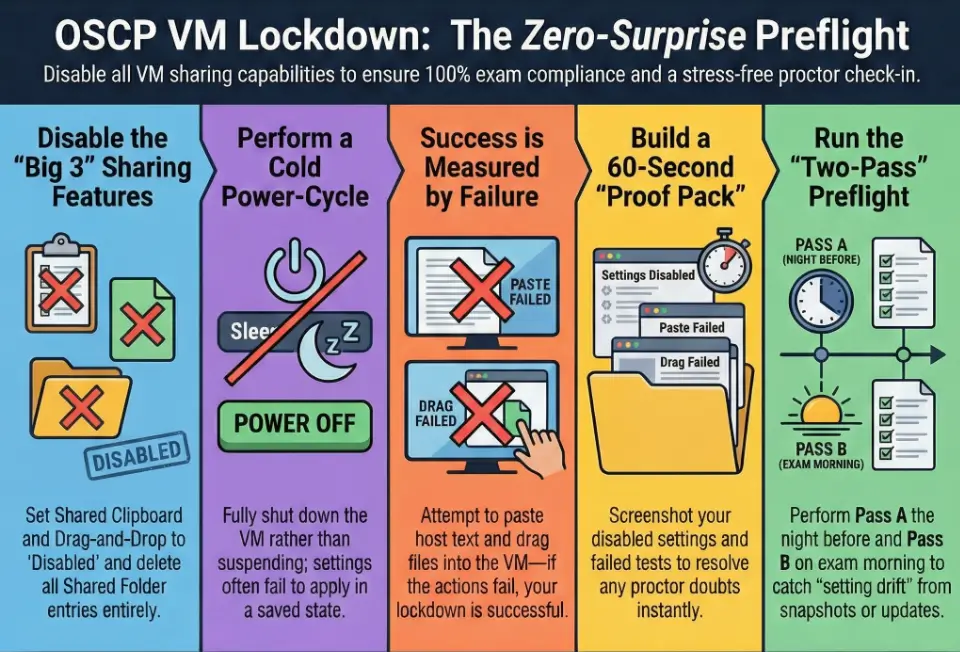
- Disable the Big 3 (clipboard, drag-and-drop, shared folders)
- Power-cycle (not suspend) so changes actually apply
- Fail-test + screenshot settings = calm check-in
Apply in 60 seconds: Try to paste a unique host string into the guest. It should fail.
Table of Contents
1) Who this is for / not for
For you if…
- You’re taking an OSCP proctored exam and want a compliance-first VM setup you can repeat.
- You used convenience features in labs (clipboard sync, shared folders) and don’t trust “I’ll remember.”
- You want a 10-minute preflight that works when you’re running on coffee and adrenaline.
Not for you if…
- You’re not using a VM at all, or your exam environment is fully managed and you can’t change hypervisor settings.
- You want a study plan. This is setup compliance and “don’t surprise the proctor,” not learning strategy.
Tiny confession: the first time I sat down for a proctored technical exam (not OSCP—different beast, same nerves), I spent 12 minutes arguing with myself about whether “Disabled” really meant disabled. It wasn’t the tech that shook me—it was the doubt. This checklist exists to delete doubt.
Money Block: Eligibility checklist (fast yes/no)
- Yes/No: Are you running the proctoring session on the same machine you’ll use for the exam?
- Yes/No: Can you show your full desktop(s) to the proctoring tool without “mystery monitors”?
- Yes/No: Is your VM currently free of shared clipboard, drag-and-drop, and shared folders?
- Yes/No: Can you fail-test those features in under 2 minutes?
Next step: If any answer is “No,” fix it now—don’t postpone the stress.
2) Disable the “Big 3” first: clipboard, drag-and-drop, shared folders
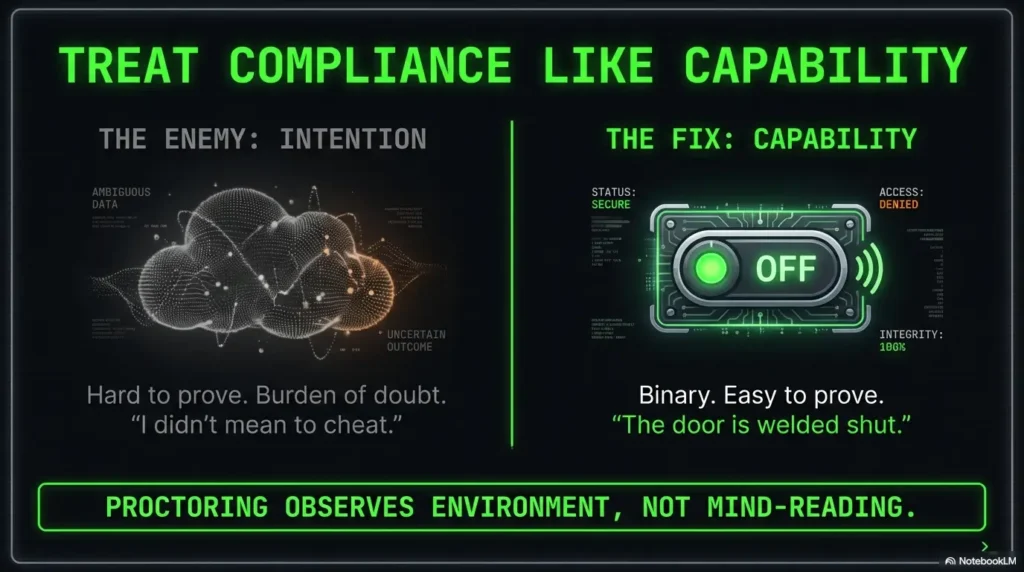
Think of these three features like a backstage door at a concert hall. You might never use it, but if it’s unlocked, it changes what’s possible. Proctoring isn’t reading your mind—it’s observing your environment and capability. So we lock the door.
Shared Clipboard: disable + verify it’s truly dead
- Set Shared Clipboard to Disabled (not Bidirectional, not Host to Guest, not Guest to Host).
- Power off the VM completely, then boot it again. (Suspend/saved state is where settings go to hide.)
- Fail-test: copy a unique string on the host (example: CLIPBOARD-FAIL-4381) and try to paste in the guest. It should not paste.
Anecdote you might recognize: I once disabled clipboard, felt proud, then discovered the VM had been “saved” and politely ignored me. It’s like telling your future self “we’re starting a diet tomorrow” and then buying donuts tonight. Power off. Boot clean.
Drag-and-Drop: disable + verify it can’t silently move files
- Set Drag-and-Drop to Disabled.
- Fail-test: try dragging a harmless file (a tiny .txt) from host into the VM window. It should fail.
Why this matters: file movement can look like “outside assistance” even when it’s just you moving your own notes. Disable it so there’s nothing to misunderstand.
Shared Folders: remove mounts, not just “auto-mount”
- Delete shared folder entries entirely (don’t only uncheck auto-mount).
- Power-cycle the VM.
- Fail-test: look for typical shared mount points inside the guest and confirm they don’t exist.
- Remove shared folder definitions
- Reboot from a fully powered-off state
- Verify no host path is visible inside the guest
Apply in 60 seconds: Search your guest file manager for the shared folder name you used in labs. It should be gone.
A small, practical note: OffSec’s current proctoring requirements emphasize controlling what’s in your environment and what devices/screens are used during the session. Your job is to make your setup boring—in the best way. (Their Proctored Exam Requirements FAQ is worth reading once with a highlighter.)
3) The hidden “still sharing” switches people forget
Most people disable the Big 3… and still leave a little trapdoor open. Not because they’re sloppy—because virtualization tools love convenience, and convenience loves hiding in menus.
Guest tools & integrations that behave like sharing
VM “guest additions/tools” can enable clipboard syncing, drag-and-drop, and file integration. In many setups, those features are controlled by the hypervisor settings you already disabled— but it’s worth knowing what’s installed so you don’t get confused when something behaves oddly.
- If you see copy/paste working after disabling it, assume one of three things: the VM wasn’t fully powered off, the wrong VM profile was edited, or an older snapshot restored settings.
Keep your exam workflow independent of host-to-guest movement:
store notes inside the VM using a stable system (for example, an Obsidian OSCP host note template),
use the exam portal processes as intended, and avoid “I’ll just paste one thing.”
Show me the nerdy details
Clipboard and drag-and-drop in common desktop hypervisors often depend on guest-side services plus host-side integration channels. If the VM is suspended, those channels may remain established even after you “change” a setting. A cold power-off breaks the integration session. That’s why a fail-test after a power cycle is stronger evidence than trusting a toggle.
Network modes that feel harmless—but change your testing surface
This checklist isn’t a networking tutorial, but here’s the proctoring-relevant angle: surprise network behavior creates panic. Panic creates mistakes. Keep your VM networking stable and predictable.
If you’ve used multiple adapters (NAT + host-only + bridged) in labs, simplify.
If you need a quick refresher on what each mode actually changes, keep
VirtualBox NAT vs host-only vs bridged bookmarked so you don’t improvise under stress.
- Do not “experiment” with network settings on exam morning unless you truly have to.
Anecdote: I once swapped a VM from NAT to bridged “because it felt faster,” then spent 9 minutes wondering why a route changed. It wasn’t a huge problem—just a needless tax on focus. Don’t pay taxes you didn’t owe.
Snapshots & templates that re-enable settings behind your back
Snapshots are time machines. Time machines don’t care about your compliance intentions. If you revert to an older snapshot, treat it like you just installed a fresh VM: re-check the Big 3 immediately.
Money Block: Decision card (VirtualBox vs VMware for “no surprises”)
Choose VirtualBox if…
- You already know where the Big 3 toggles live
- Your VM profile is stable and tested
- You can fail-test fast without hunting menus
Choose VMware if…
- Your exam VM is designed for VMware and runs smoother there
- You prefer Guest Isolation toggles for copy/paste + drag/drop
- You want fewer “conversion” or compatibility variables (and you’ve already decided between VMware Player vs Workstation vs Fusion)
Neutral action line: Pick one platform and run the full two-pass preflight twice before exam day.
4) What proctors notice (and what they don’t tell you upfront)
The compliance lens: “Can the host help you?”
Proctors aren’t looking for perfection. They’re looking for obvious risk. If your host can feed your VM text and files easily, it can look like assistance—even if it’s just your own notes. That’s why this post frames compliance as capability, not intention.
Proof beats vibes: build a tiny “evidence pack”
You don’t need a binder. You need a small, calm set of artifacts you can pull up if asked:
- Screenshot of VM settings showing Shared Clipboard = Disabled
- Screenshot of Drag-and-Drop = Disabled
- Screenshot of Shared Folders list showing no entries
A one-line note: “Fail-tested at 07:15 local; paste + drag/drop failed.”
(If you want this to be effortlessly consistent, use the same
OSCP proof screenshot naming and packing routine every time.)
Anecdote: I’ve watched smart people talk themselves into a spiral because they had “proof in their head” but nothing visible. Screenshots are cheap. Calm is expensive. Buy calm.
Here’s what no one tells you (but your future self will love)
Even if you disabled settings once, a restore, update, or new VM profile can flip them back. The safest habit is a two-pass check: night-before + exam-day. It’s not paranoia. It’s basic change control.
5) 10-minute “two-pass” preflight you can run under stress
This is the checklist you can run half-asleep. The goal is not elegance; it’s repeatability.
Pass A (night before): set → reboot → fail-test
- Disable Shared Clipboard.
- Disable Drag-and-Drop.
- Remove Shared Folders entries.
- Power off the VM (not saved state).
- Boot and run the three fail-tests (paste, drag/drop, shared folder path check).
Capture screenshots (your proof pack).
If you want a “no thinking required” system, store them using a consistent structure like
report-ready OSCP evidence screenshots.
Pass B (exam day): confirm nothing drifted
- Open VM settings and confirm the Big 3 are still Disabled.
- Run the fail-tests again. Time target: under 2 minutes.
Let’s be honest: at 6:58 AM, you won’t remember what you changed at 11:42 PM. You also won’t want to troubleshoot. This is why we do Pass B.
Money Block: Mini calculator (stress-proof time planning)
Inputs (max 3): (1) How many VMs/profiles do you have? (2) Minutes per fail-test run? (3) Do you plan a snapshot revert?
- Total prep minutes = VMs × minutes-per-run × 2 passes
- Add buffer = +10 minutes if any snapshot revert is planned
Neutral action line: Put the result on your calendar as a hard block, not a “maybe.”
Anecdote: my favorite trick is writing the fail-test string on a sticky note (real paper). Something like “CLIPBOARD-FAIL-4381.” When it doesn’t paste, it’s weirdly soothing. Like hearing the first note of a familiar song in a noisy room.
6) Common mistakes (the ones that cause “panic debugging” on exam day)
Mistake: turning off “auto-mount” but leaving the shared folder entry
- Why it bites: The folder definition still exists; future toggles or tools can re-mount it.
- Fix: Remove the shared folder entry entirely, then power-cycle the VM.
Mistake: changing settings while the VM is “saved” or suspended
- Why it bites: Integration channels can remain alive in a saved state.
- Fix: Fully power off, apply changes, boot clean.
Mistake: copying notes from host without realizing clipboard is still bidirectional
- Why it bites: The toggle might not have applied, or you changed the wrong VM profile.
- Fix: Confirm paste fails (don’t trust the toggle alone).
Mistake: reverting a snapshot that reintroduces sharing
- Why it bites: Snapshots restore configuration states along with system state.
Fix: Rerun Pass B after any revert—no exceptions.
(This is the same “don’t disappear into side quests” discipline behind the
OSCP rabbit hole rule—tight loops beat heroic guessing.)
- Power off beats suspend
- Fail-test beats “I’m pretty sure”
- Snapshot revert = re-check everything
Apply in 60 seconds: If anything feels odd, shut down the VM completely and reboot before you troubleshoot deeper.
Anecdote: I once tried to be clever and keep my VM suspended to “save time.” It saved 45 seconds and cost me 8 minutes of confusion later. That’s a terrible trade. The exam is already hard; don’t add self-made puzzles.
7) Don’t do this: “convenience hacks” that backfire
Don’t rely on “I won’t use it” compliance
This is the big mindset shift: proctoring is about what your environment allows, not what your intentions are. If a feature is available, it creates ambiguity. Disable it so the story is simple.
Don’t build your exam workflow around host-to-guest movement
If your workflow depends on pasting commands from a host notes app into the guest, redesign now. Put your notes inside the VM. Use a text file in the guest. Keep your “working memory” inside the environment you’re being evaluated in— and if you want it structured, use something like an Obsidian OSCP enumeration template instead of scattered host notes.
Don’t wait until check-in to discover your settings are wrong
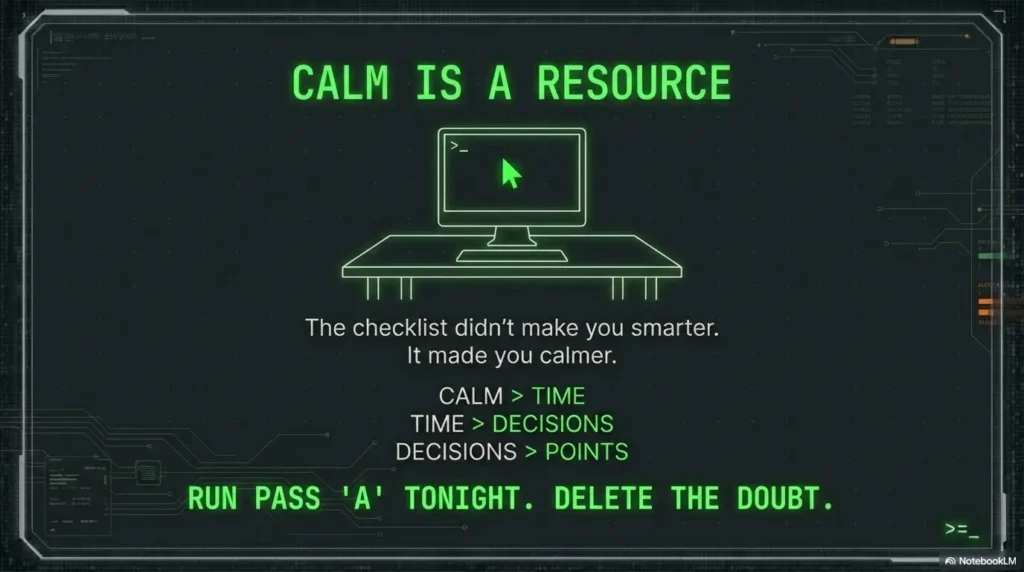
The earlier you catch it, the calmer your exam start. Calm is performance. Performance is points.
Money Block: Quote-prep list (what to gather before comparing setups)
- Your host OS + version (Windows/macOS/Linux)
- Your hypervisor (VirtualBox / VMware Workstation / VMware Fusion)
- Whether you’re using guest tools/additions
- Your exam-day monitor plan (one screen vs two shared screens)
- Any planned snapshot use (yes/no)
Neutral action line: Write these in one place so you’re not reconstructing facts under stress.
8) Quick verification tests (failures are success here)
These tests are intentionally simple. You’re not proving cryptography. You’re proving convenience is dead.
Clipboard test (30 seconds)
- Copy a unique string on the host (example: CLIPBOARD-FAIL-4381).
- Try to paste in the guest.
- Expected result: paste fails, nothing appears.
Drag/drop test (30 seconds)
- Drag a tiny harmless file from host into the VM window.
- Expected result: it doesn’t transfer.
Shared folder test (60 seconds)
- Check for any known shared folder mount points you’ve used in labs.
- Look for suspicious “host” paths exposed inside the guest file browser.
- Expected result: nothing host-like exists.
Anecdote: the first time I did these fail-tests back-to-back, it felt like closing three windows and suddenly hearing silence. It’s not dramatic—it’s relief. And relief is a resource.
Short Story: The morning my own checklist saved me (120–180 words) …
I woke up early, smugly confident, and did the exam-day Pass B “just to be safe.” Clipboard: disabled. Drag-and-drop: disabled. Shared folders: none. I was about to close settings when I noticed I’d opened the wrong VM profile—the one I used for labs, with all the convenience turned on like a cozy fireplace. My exam VM was fine; my muscle memory was not.
I switched to the correct VM, re-ran the fail-tests, and felt my shoulders drop. Nothing heroic happened after that. That was the point. The exam started with a clean mind instead of a small internal argument. Later, when fatigue hit, I didn’t have to wonder if I’d accidentally crossed a line. The checklist didn’t make me smarter. It made me calmer. Calm turned into time. Time turned into better decisions.
Money Block: Compliance tier map (what “locked down” really means)
- Tier 1: Toggles disabled (clipboard/drag-drop/folders off) but no fail-tests.
- Tier 2: Toggles disabled + fail-tests once.
- Tier 3: Tier 2 + power-cycle from full shutdown.
- Tier 4: Tier 3 + screenshots (proof pack).
- Tier 5: Tier 4 + two-pass routine (night-before + exam-day).
Neutral action line: Aim for Tier 4 minimum; Tier 5 if you want a truly boring check-in.
FAQ
Does OSCP allow shared clipboard during the proctored exam?
If you want “zero-surprise,” treat it as not allowed in practice for your own workflow. The safest approach is disabling host-to-guest convenience features so there’s no ambiguity about outside text/file injection. OffSec’s proctoring requirements focus on keeping the environment controlled and observable; disabling these features makes your setup easier to explain.
How do I disable shared clipboard in VirtualBox for OSCP?
In VirtualBox, the Shared Clipboard setting is typically under the VM’s settings (often in General → Advanced). Set it to Disabled, then fully power off the VM and boot it again. Finish with the clipboard fail-test (paste should fail).
How do I disable drag-and-drop in VirtualBox for OSCP?
Set Drag-and-Drop to Disabled in your VM’s settings, then power-cycle the VM. Don’t stop at the toggle: try dragging a small file into the VM window. If it fails, you’re in a good place.
How do I remove shared folders in VirtualBox (not just disable auto-mount)?
Remove the shared folder entry entirely in the Shared Folders list. “Auto-mount off” still leaves a defined share. After removal, fully shut down and reboot, then confirm no shared mount exists inside the guest.
If I disabled sharing yesterday, can it re-enable itself today?
Settings can “come back” if you reverted a snapshot, edited a different VM profile, updated your hypervisor, or resumed from a saved state where integrations were still active. That’s why the exam-day Pass B exists: re-check toggles and run the fail-tests again.
Should I uninstall Guest Additions / VMware Tools before OSCP?
Not necessarily. The goal is not “remove all tools,” it’s “disable host convenience channels.” If uninstalling tools risks breaking your display, networking, or usability, that’s a bad trade. Keep the VM stable, and lock down the sharing features with toggles + fail-tests.
Can I use a second monitor or separate device for notes during OSCP?
Follow OffSec’s current proctoring requirements for permitted devices and screens. If you use multiple displays, assume they must be shared/visible as required by the proctoring tool session. When in doubt, simplify: one machine, clearly shared screens, and notes kept inside the VM.
What should I do if the proctor flags a VM setting during check-in?
Don’t argue. Switch to “operator mode”: power off the VM, disable the setting, reboot, run the fail-test in front of yourself, then show the updated settings screenshot. If you want a quick mindset reset for that moment, keep your OSCP exam-day mental checklist nearby. Keep it factual and quick. Your goal is a clean start, not a debate.
How can I prove I disabled shared clipboard and folders before the exam?
A tiny proof pack works: screenshots of each setting + a timestamped note that you ran fail-tests. The screenshots reduce back-and-forth and keep you calm. (Also: if anything changes—snapshot revert, update—redo the pack.)
10) Conclusion + next step
Remember the curiosity loop from the beginning—the quiet fear that one forgotten toggle could wreck your start? Here’s the truth: it’s rarely the toggle itself. It’s the uncertainty. Your fix is not more willpower. It’s a repeatable two-pass routine that turns compliance into muscle memory.
A one-screen infographic you can glance at under pressure
Step 1
Disable Clipboard, Drag-and-Drop, Shared Folders
Goal: host can’t feed the VM.
Step 2
Power off (not suspend), then boot clean
Goal: settings actually apply.
Step 3
Run fail-tests: paste, drag/drop, mount check
Goal: prove the door is locked.
Step 4
Screenshot settings = proof pack
Goal: calm check-in conversation.
Step 5
Repeat on exam day (Pass B)
Goal: no drift, no surprises.
- Disable the Big 3
- Power-cycle
- Fail-test + screenshots
Apply in 60 seconds: Do Pass B now: open settings and run the paste/drag/drop checks once.
If you want the most boring, professional check-in possible, skim two official references once so you know what the proctoring tool expects from your screens and environment— and keep a vendor doc handy if you’re on VMware or VirtualBox and need to flip a setting quickly.
Your next step (15 minutes): Run Pass A tonight—even if your exam isn’t tomorrow. Do the three fail-tests. Save three screenshots. Put the proof pack somewhere you can open in two clicks. Then run Pass B once in the morning, just to confirm nothing “time-traveled.”
Last reviewed: 2026-01.