From Forensic Swamps to Tactical Evidence: Mastering Your Lab Documentation
A folder full of Kioptrix screenshots can look productive and still be almost useless later. If your organization depends on memory, future you is going to inherit a tiny forensic swamp.
Messy lab notes blur your reasoning and weaken your write-ups. This guide provides a practical system for CTF practice and professional cybersecurity study, built around one standard: Every screenshot should answer, “What did this prove?”
Table of Contents
Safety / Scope Note
This article is for authorized cybersecurity labs, CTFs, personal learning notes, and defensive skill development only. Kioptrix-style vulnerable machines are commonly used for penetration-testing practice in controlled lab environments. Keep your screenshots, commands, exploit notes, and write-ups limited to systems you own or have explicit permission to test.
That boundary matters. A screenshot system should make you a clearer learner, not a sloppier operator. If a machine is not yours, not assigned to you, and not inside an authorized training environment, do not test it. Full stop. The little padlock on ethics is not decorative.
- Use this system for labs, CTFs, and owned practice environments.
- Do not document unauthorized testing as if it were study.
- Separate personal learning screenshots from public write-up images.
Apply in 60 seconds: Add a small scope-note.md file to each lab folder before you begin.
Screenshot Chaos Is Not Documentation
The folder full of Screenshot 2026-05-05 at 9.41.22 PM.png is where learning goes to nap.
At first, screenshot chaos feels harmless. You finish a scan, something interesting appears, and you capture it. Then another terminal window. Then a browser result. Then a failed exploit attempt. Then a root shell. By the end, your desktop looks like a raccoon organized a security conference.
The problem is not that you took too many screenshots. The problem is that most of them have no decision value. They do not say what changed. They do not say what you learned. They do not say why the next step made sense. If that sounds familiar, pairing screenshots with a simple Kioptrix technical journal can turn the image pile into a real learning trail.
The folder full of “Screenshot 2026-05-05 at 9.41.22 PM” is where learning goes to nap
Default screenshot names are fine for 5 minutes and terrible for 5 weeks. They preserve time, but not meaning. A timestamp can tell you when the image was born. It cannot tell you why you cared.
I learned this the dull way: by opening 38 screenshots from one lab and realizing I had captured my confusion in high resolution. The terminal output was readable. My thinking was not.
A screenshot becomes documentation only when it preserves context. That context can live in the filename, folder, caption, or nearby notes. Ideally, it lives in all four.
A useful Kioptrix screenshot must preserve context, not just pixels
For Kioptrix practice, context usually means:
- Which level or machine you were working on
- Which phase you were in: discovery, enumeration, web testing, privilege escalation, proof, or review
- Which command, page, or clue produced the result
- What the result suggested
- What you decided to try next
That may sound like extra work. It is actually less work. You either spend 20 seconds naming and captioning now, or 20 minutes later trying to reconstruct your own detective novel from screenshots of fog.
The real goal is recall: what you found, why it mattered, and what you tried next
Good screenshots help you recover your reasoning. They are not trophies. They are breadcrumbs. The best ones say, “Here is the clue that moved the session forward.”
In beginner labs, that clue may be simple: an open SMB port, a web login form, an unusual server header, a kernel version, a failed exploit message, or a permission error that points toward the next test.
The screenshot’s job is not to impress anyone. It is to make the next session easier to restart.
Start With One Rule: Proof Before Pretty
There is a dangerous little pleasure in making lab notes look beautiful before they become useful. Pretty folders. Fancy icons. Color-coded tags. A note template that looks like it should have its own subscription plan.
Resist the velvet trap.
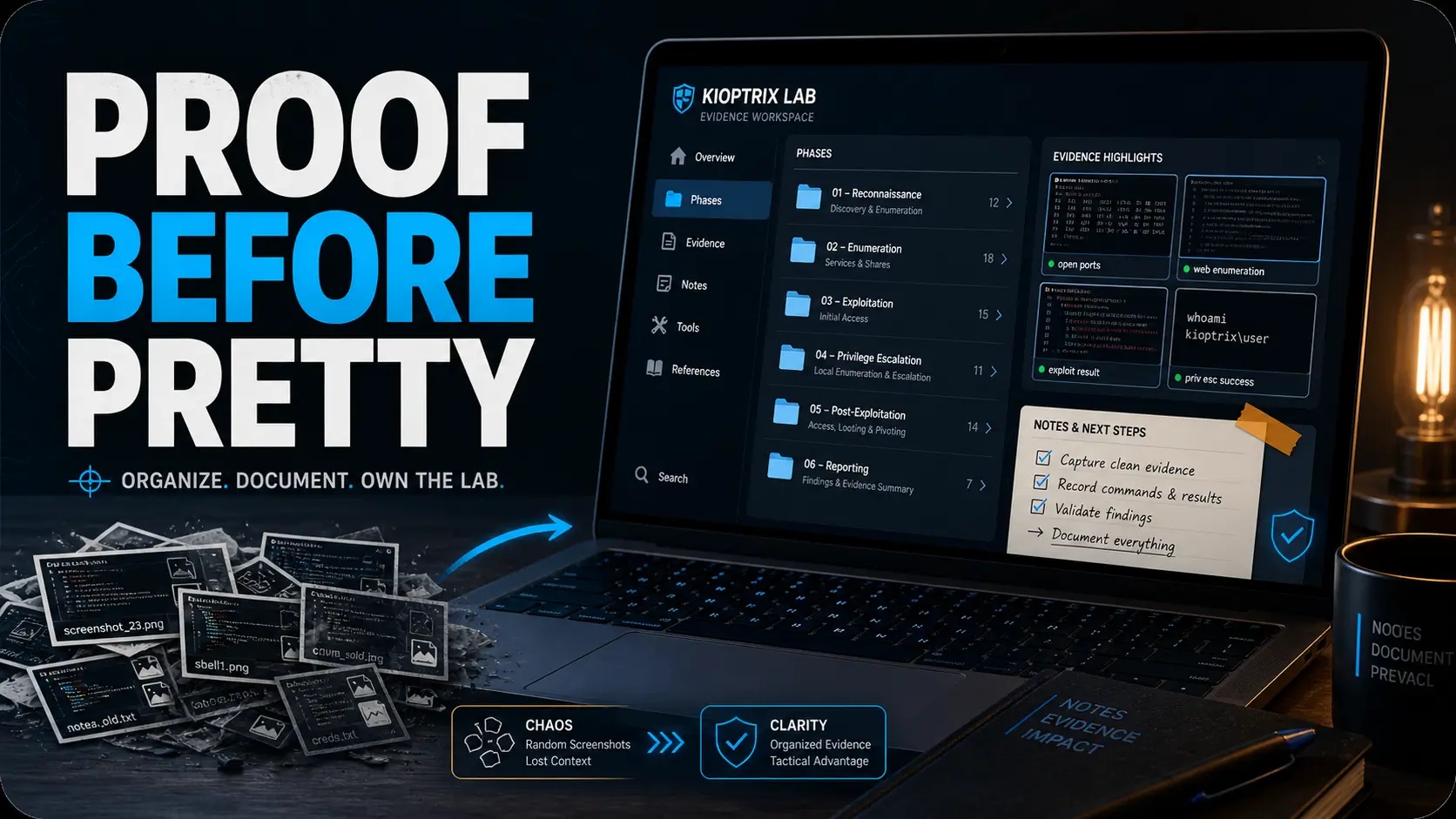
In Kioptrix practice, your first screenshot rule should be: proof before pretty. Capture evidence that changes what you do next. Everything else can wait.
Capture the evidence that changes your next action
Before taking a screenshot, ask:
- Did this reveal a service, version, path, username, file, permission, or error?
- Did this confirm or reject a hypothesis?
- Would I need this image to explain my decision later?
- Would this help me write a clean walkthrough?
If the answer is yes, capture it. If the answer is “I am nervous and clicking the screenshot shortcut feels productive,” pause. The keyboard is not a stress ball, though it often suffers that fate.
Don’t screenshot every terminal blur just because it feels productive
More screenshots can make a session feel serious. But volume is not the same as evidence. A 90-image swamp usually hides the 9 screenshots that actually mattered.
A better beginner target is to capture the major turning points:
- Target discovery
- Open services
- Important version clues
- Promising web pages or forms
- Failed paths worth remembering
- Privilege escalation clues
- Final proof
That is enough to preserve the story without turning your folder into a surveillance archive of your own indecision.
The “future me” test: could you explain this image in 30 seconds next month?
This test is wonderfully unforgiving. Open a screenshot and imagine explaining it one month later with no other context. If you cannot explain it in 30 seconds, the screenshot needs a better filename, a caption, or both.
I like to imagine my future self as tired, mildly suspicious, and holding cold coffee. That person deserves mercy.
- Capture turning points, not every flicker of terminal activity.
- Use the 30-second future-self test.
- Pair important screenshots with short written meaning.
Apply in 60 seconds: Delete or rename 3 vague screenshots from your most recent lab folder.
Build a Kioptrix Folder System That Mirrors the Attack Path
Your folder system should match how the lab unfolds. That sounds obvious until you see someone store discovery scans, browser screenshots, exploit failures, and final proof in one giant folder called kioptrix stuff. We have all been near that swamp. Some of us built cabins there.
Use one parent folder per machine or level
Start with one parent folder per Kioptrix level. Then divide the screenshots by phase, not by mood, date, or tool obsession.
kioptrix-level-1/ 00-setup/ 01-discovery/ 02-enumeration/ 03-web-notes/ 04-exploit-attempts/ 05-privilege-escalation/ 06-proof-and-summary/ 99-failed-paths/This structure works because it mirrors the mental route of the lab. You can open the folder and see the investigation move from “What is the target?” to “What did I prove?” If you are still shaping your study order, a broader Kioptrix learning path can help each folder match the skill you are trying to build.
Why phase-based folders beat date-based folders
Date-based folders are useful for journals. They are less useful for technical reconstruction. If you only organize by date, you still have to remember which screenshots belonged to discovery, enumeration, privilege escalation, and proof.
Phase-based folders reduce mental friction. They let you answer specific questions fast:
- Where did I confirm the target IP?
- Where did I capture the open ports?
- Where did I test the web app?
- Where did privilege escalation begin?
- Which failures should I review?
For a beginner, that matters. The folder system becomes a quiet tutor. It teaches the process every time you use it.
Keep failed paths, because they become your best teacher later
The 99-failed-paths/ folder may be the most emotionally important folder in the system. Failed attempts feel embarrassing while they are fresh. Later, they become the evidence of how your judgment improved.
Do not delete every failed exploit attempt, weird error, or wrong hypothesis. Keep the ones that taught you something. You are not building a museum of perfection. You are building a map of learning.
A service, error, page, version, or proof appears.
What does this prove or change?
Screenshot only the useful evidence.
Add phase, tool, clue, and result.
Finding, meaning, next action.
Eligibility checklist: Is this screenshot worth keeping?
| Question | Yes | Next Step |
|---|---|---|
| Does it prove a finding? | Keep | Rename with the result. |
| Does it show a failed but useful path? | Keep | Move to 99-failed-paths/. |
| Is it a duplicate? | Review | Keep the clearest version. |
| Would it confuse you next month? | Fix | Add a caption now. |
Neutral action: Use the checklist during your 10-minute review, not during the scan itself.
Name Screenshots Like Tiny Lab Reports
A screenshot filename should not be a decorative label. It should be a tiny lab report. Small, plain, and useful.
The best filenames are boring in the most beautiful way. They tell you the phase, tool, clue, and result without forcing you to open the image.
Use filename ingredients: phase, tool, target clue, result
Here is a practical pattern:
[phase]_[tool-or-source]_[clue]_[result].pngExamples:
02-enumeration_nmap_samba-ports-open_445-139.png 03-web_http-login-command-injection-test_failed.png 05-privesc_kernel-version-centos-4-5_possible.png 04-exploit-attempts_samba-null-session_denied.png 06-proof-and-summary_root-shell-confirmed_final.pngNotice what these filenames do. They do not merely say “Nmap.” They say what Nmap revealed. They do not merely say “web.” They say what was tested and what happened.
Put the discovery in the filename, not just the tool
Tool-only filenames age badly. A screenshot called nmap.png is a sealed envelope. A screenshot called 02-enumeration_nmap_ssh-http-smb-open.png is already doing work.
When naming screenshots, prioritize the finding over the tool. Your future self can infer the tool from the image if needed. What your future self cannot infer easily is why you saved it. A dedicated guide to a screenshot naming pattern can help if you want the file names to stay consistent across tools and machines.
Here’s what no one tells you: filenames are part of your memory system
Filenames are not administrative leftovers. They are recall hooks. When you scan a folder, your brain builds the session again from the names before you open a single image.
This is especially useful for bloggers. A clean filename can later become a caption, alt text draft, or paragraph prompt. The screenshot begins its second life as teaching material.
Show me the nerdy details
Use lowercase filenames, hyphens inside phrases, and underscores between metadata chunks. For example, 02-enumeration_nmap_samba-ports-open_445-139.png is easier to scan than a long sentence. Avoid spaces if you sync files across tools, because command-line handling and URL encoding can become needlessly annoying.
Decision card: short names vs detailed names
- You also keep detailed captions.
- The screenshot is only for private review.
- The folder is already highly specific.
- You plan to write a walkthrough.
- You study across multiple machines.
- You want searchable evidence later.
Neutral action: Pick one naming pattern and use it for the entire level.
Capture Commands and Outputs Together Whenever Possible
A screenshot without the command is half a breadcrumb. It shows the result, but not the path. That is tolerable for a trophy image. It is weak for learning.
A screenshot without the command is half a breadcrumb
When possible, capture the command and the relevant output in the same screenshot. This helps you later answer:
- What exact command produced this?
- Did I use flags that changed the result?
- Was the output filtered, truncated, or redirected?
- Was I testing a specific hypothesis?
For example, a screenshot showing open ports is useful. A screenshot showing the exact scan command and the open ports is much better. It has both the question and the answer in one frame. If your early scan notes tend to blur together, a Kioptrix recon log template gives those commands a cleaner home beside the images.
Show enough terminal history to prove how you got the result
You do not need to show your entire terminal life story. But you should include enough context to prove the result. A few lines above the output can prevent future confusion.
I once found a screenshot of a service banner and had no idea whether I captured it from Nmap, Netcat, a browser, or pure wishful thinking. That screenshot had the confidence of a witness and the memory of a goldfish.
Better framing would have saved it.
Use text notes for copyable commands, screenshots for visual proof
Screenshots are great for visual proof. They are bad for copying commands. Keep commands in a text file beside your images.
A simple commands.md file can carry the reusable parts:
# Kioptrix Level 1 Commands ## Discovery - command here - result summary here ## Enumeration - command here - result summary here ## Web Notes - page checked - clue found ## Privilege Escalation - clue checked - outcomeDo not rely on screenshots as your only command archive. Your future blog post, report, or study review will need searchable text.
Separate Evidence Screenshots From “Thinking” Screenshots
Not all screenshots do the same job. Some prove findings. Others preserve the mess of thinking. Both can be valuable, but they should not be treated as the same type of evidence.
Evidence screenshots prove a finding
Evidence screenshots are the clean ones. They show a result you may need to reference later:
- A confirmed target IP
- Open ports and service versions
- A discovered web path
- A permission issue
- A successful login
- A privilege escalation clue
- Final proof in the lab
These screenshots belong in the phase folders. They are the bones of your walkthrough.
Thinking screenshots preserve messy hypotheses, dead ends, and rabbit holes
Thinking screenshots are different. They may show browser tabs, error messages, partial notes, comparison windows, or an experiment that failed but taught you something.
They are less polished, but they can be powerful review material. Put them in a dedicated folder or tag them clearly.
99-failed-paths/ web-login-sql-test-no-obvious-response.png exploit-db-version-match-uncertain.png smb-null-session-denied.pngLet’s be honest: the failed tabs are often where the lesson lives
Beginners often delete failed paths because they feel messy. But failed paths show your method. They teach you why a clue did not matter, why a version match was not enough, or why a copy-pasted idea from a walkthrough did not fit your lab state.
If your notes only show success, they flatter you. If they show useful failure, they teach you. This is where a calm Kioptrix decision process matters more than a folder full of victory images.
- Keep proof images clean and phase-based.
- Keep messy learning images in a failed-paths or thinking folder.
- Review failures before reading a walkthrough.
Apply in 60 seconds: Create a 99-failed-paths/ folder before your next lab session.
Use a Three-Line Caption Before You Move On
A caption is where a screenshot becomes memory.
You do not need a full paragraph. You need three lines. That is enough to preserve the finding, meaning, and next step before your brain gallops toward the next shiny terminal command.
What did I see?
Start with the observable fact. Not your theory. Not your hopes. The fact.
Finding: Nmap shows ports 80, 139, and 445 open.What does it suggest?
Next, write the interpretation. Keep it modest. Use words like “suggests,” “may indicate,” or “worth checking.” Cybersecurity learning gets cleaner when your notes separate observation from assumption.
Meaning: Web and SMB enumeration are both worth checking.What will I try next?
Finally, write the next action. This is the line that saves you when you return tomorrow morning and your memory has become a locked drawer.
Next: Run targeted SMB enumeration and inspect HTTP headers/pages.Put together, the caption looks like this:
Finding: Nmap shows ports 80, 139, and 445 open. Meaning: Web and SMB enumeration are both worth checking. Next: Run targeted SMB enumeration and inspect HTTP headers/pages.This habit takes less than 60 seconds. It can save an entire session from becoming a fog bank. If you want the same habit in a reusable form, a Kioptrix session summary can carry these captions into a clean restart note.
Mini calculator: screenshot review time
Use this simple estimate:
Useful screenshots × 45 seconds = cleanup timeExample: 12 useful screenshots × 45 seconds = about 9 minutes.
Neutral action: Plan a 10-minute review block after each Kioptrix session.
Common Mistakes That Make Kioptrix Screenshots Useless Later
Most screenshot problems are not dramatic. They are small, repeatable leaks in your documentation system. Fix those leaks, and your notes become calmer almost immediately.
Mistake 1: Saving screenshots with no filename pattern
No pattern means every screenshot becomes a tiny guessing game. Use a consistent formula, even if it is imperfect. Consistency beats elegance here.
Mistake 2: Capturing output after the important line has scrolled away
This one hurts. You capture the terminal, but the actual clue is gone. Before screenshotting, scroll or resize so the important command and output are visible together.
Mistake 3: Mixing Kioptrix levels in one folder
Never let multiple machines share one image pile. It creates false connections. Keep each level separate so your evidence trail stays clean.
Mistake 4: Screenshotting spoilers instead of your own reasoning
If you use walkthroughs or tutorials, keep reference screenshots separate from your own work. Otherwise, your notes become a smoothie of outside answers and personal reasoning. That smoothie tastes like confusion.
Mistake 5: Deleting failed attempts because they feel embarrassing
Failed attempts are often where your learning becomes visible. Keep the useful ones. Add a caption explaining why the path failed or became less likely. For beginners, this habit pairs well with a slower Kioptrix review habit that treats mistakes as material instead of clutter.
- Use one naming pattern.
- Capture commands with outputs.
- Separate your own work from tutorial references.
Apply in 60 seconds: Rename one screenshot so it says what the result proved.
Don’t Turn Screenshots Into a Trophy Wall
The root shell screenshot is satisfying. It has a little drumroll inside it. But if that is the only screenshot you keep, your notes skip the actual learning.
The root shell screenshot is not the whole story
Root proof shows the destination. It does not show the route. For beginner-to-intermediate learners, the route is the point.
A useful Kioptrix archive should explain how you moved through the level:
- How you discovered the target
- Which services looked promising
- Which assumptions failed
- Which clues created a pivot
- Which privilege escalation checks mattered
The final proof is one scene. Your notes need the whole act.
Keep the boring middle: scans, version clues, strange errors, and pivots
The boring middle is where skill develops. It is not glamorous to capture a strange error message, a version clue, or a failed login test. But those images often explain why your final path made sense.
When I review old lab notes, I rarely learn from the victory screenshot. I learn from the moment where I wrote, “This looked promising, but the version mismatch means I should slow down.” That is judgment being born in a slightly wrinkled notebook.
Your future write-up needs a trail, not confetti
If you plan to publish a blog walkthrough, screenshots should support the story. Readers do not need every image you captured. They need the images that explain decisions.
Think in story beats:
- Setup and target confirmation
- Discovery result
- Most important enumeration clue
- One or two failed paths that teach something
- The successful path
- Privilege escalation clue
- Final proof and lesson summary
That sequence helps readers follow your thinking without drowning them in terminal wallpaper. When you are ready to turn private notes into a public article, Kioptrix report writing tips can help you decide which screenshots belong in the final draft.
Quote-prep list: what to gather before comparing your notes with a walkthrough
- Your scan summary
- Your top 3 clues
- Your failed paths and why they failed
- Your current hypothesis
- Your next planned action
Neutral action: Compare your reasoning first, then compare commands.
Who This Is For, and Who It Is Not For
A screenshot system is not just file hygiene. It is a study habit. It helps you translate lab activity into evidence of learning.
This is for beginners building repeatable CTF habits
If you are new to Kioptrix, screenshots can help you slow down. They create natural checkpoints. Instead of racing from scan to exploit attempt, you pause and ask, “What did I actually prove?”
That question is gold. It keeps you from confusing motion with progress. If you are still early in the lab world, a gentle Kioptrix for beginners path can help you build the same rhythm before your screenshot folder starts growing teeth.
This is for career-pivoters who want cleaner evidence of learning
If you are moving from help desk, IT support, networking, or general tech into cybersecurity, organized lab notes can help you explain your thinking more clearly.
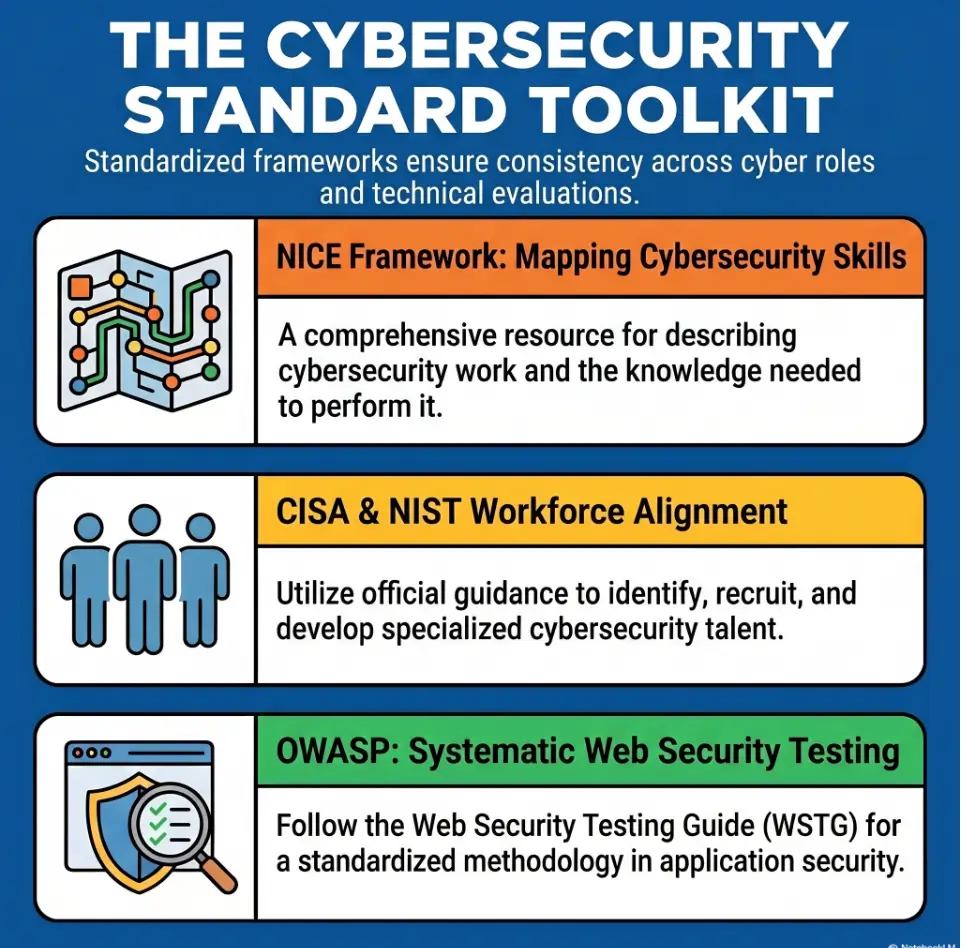
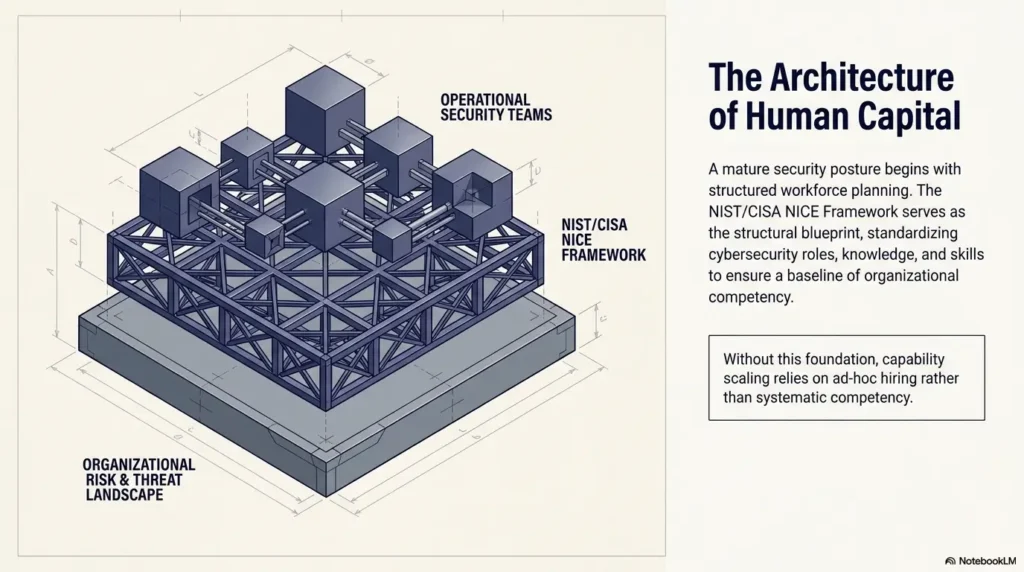
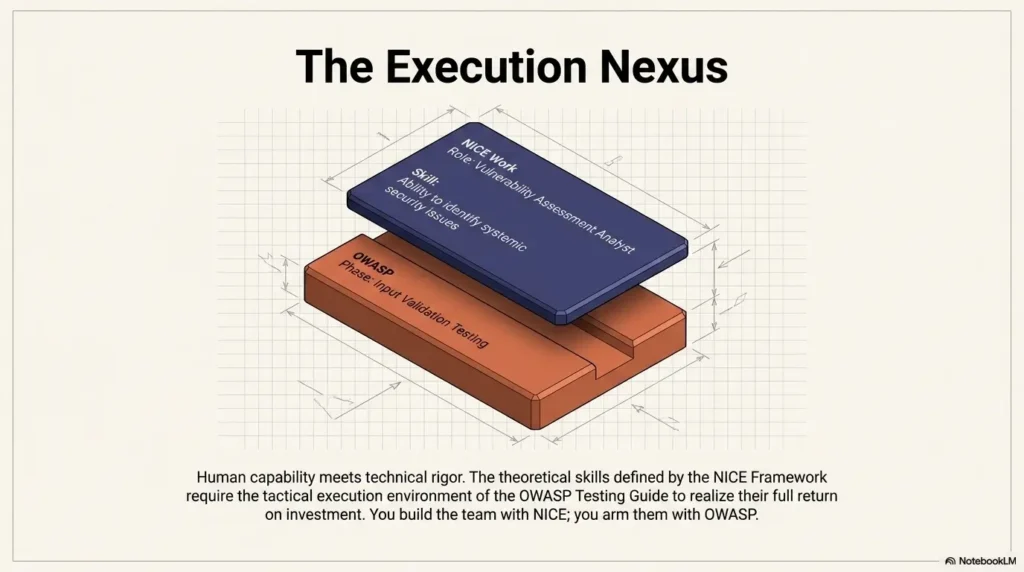
The NICE Framework is commonly used in the United States as a shared language for cybersecurity work roles, tasks, knowledge, and skills. You do not need to force every Kioptrix screenshot into workforce language. But structured notes make it easier to describe what you practiced: discovery, analysis, documentation, troubleshooting, and methodical testing. That is especially useful for career changers using Kioptrix practice to show process, not just enthusiasm.
This is not for unauthorized testing, real-world targets, or shortcut collecting
This guide is not for testing random websites, public IPs, employer systems, school networks, or anything outside explicit permission. It is also not for collecting screenshots from walkthroughs and pretending they show your own work.
There is no portfolio value in borrowed proof. It has the nutritional value of cardboard soup.
Coverage tier map: from messy folder to portfolio-ready archive
| Tier | What It Looks Like | Upgrade Move |
|---|---|---|
| 1 | Random desktop screenshots | Create one folder per level. |
| 2 | Folders by level only | Add phase folders. |
| 3 | Phase folders with vague filenames | Use result-based names. |
| 4 | Named screenshots plus captions | Add session summaries. |
| 5 | Blog-ready evidence trail | Curate story beats for readers. |
Neutral action: Identify your current tier, then make only the next upgrade.
The Screenshot Review Ritual: Ten Minutes After Each Session
The best time to organize screenshots is right after the session, while the work is still warm. Not next week. Not after three more machines. Not after your desktop becomes a digital junk drawer with a keyboard attached.
Delete duplicates while the session is still warm
Review duplicates while the context is fresh. Confirm that both images show the same target, time, input, and result before keeping only the clearest copy. Preserve originals used as evidence; create a separate publication copy, redact credentials, tokens, private account details, and unrelated systems, and check the exported image before sharing it.
This takes 2 or 3 minutes. It prevents later archaeology.
Rename vague files before they become archaeological artifacts
Do not wait to rename screenshots. Meaning fades quickly. A screenshot that feels obvious now may become cryptic after one dinner, one commute, and one poor night of sleep.
Use a simple review rhythm:
- Move each screenshot into the right phase folder.
- Rename it with phase, source, clue, and result.
- Delete duplicates.
- Caption the important ones.
- Write a session summary.
Add one “session summary” note beside the images
Your session summary does not need literary wings. It needs clarity.
session-summary.md - Target: Kioptrix Level 1 - Goal: Identify exposed services - Confirmed: Web server and SMB ports open - Best clue: Samba version needs deeper review - Next action: Enumerate shares and check known version issuesThis summary turns a folder into a restart point. When you return, you do not have to re-enter the session through fog. You have a door. For learners studying around work and life, that door matters; a Kioptrix level restart guide can make the next session feel less like starting from ashes.
- Delete duplicates immediately.
- Rename while the meaning is fresh.
- Write one plain session summary.
Apply in 60 seconds: Create a reusable session-summary.md template now.
Turn Screenshots Into a Blog-Ready Walkthrough Later
If you are a self-study blogger, your screenshot system can make future writing much easier. A blog-ready walkthrough is not an image dump. It is a guided reconstruction of decisions.
Group images by story beat, not by upload order
Upload order is rarely reader-friendly. Story order is. When preparing a post, group screenshots around the learning path:
- What was the lab goal?
- How was the target identified?
- Which services mattered?
- What did enumeration reveal?
- Which path failed, and why?
- What finally worked?
- What would you do differently next time?
That structure serves beginners and experienced readers at the same time. Beginners get a path. Experienced readers get your reasoning without needing every keystroke.
Use captions that explain decisions instead of narrating the obvious
A weak caption says, “Nmap scan results.” A stronger caption says, “Nmap confirmed SMB and HTTP exposure, so the next step was targeted enumeration instead of guessing at exploits.”
The screenshot already shows the visual. The caption should explain the decision. When those captions turn into paragraphs, a clean technical write-up structure can keep the article useful instead of theatrical.
Keep sensitive details out of public posts unless they belong to your lab
Private lab IPs are usually fine in private notes. Public posts require more care. Crop or anonymize details if they could confuse readers or expose non-lab information. Make clear that the work occurred in an authorized practice environment.
For public posts, keep tutorial references separate from your own evidence. That protects both your credibility and your reader’s understanding.
FAQ
How many screenshots should I take during a Kioptrix level?
Take enough to prove major decisions: target discovery, service enumeration, key findings, exploit attempts, privilege escalation clues, final proof, and meaningful failures. For most beginner sessions, a small curated set beats a 90-image swamp.
Should I screenshot every command?
No. Screenshot commands that produce important evidence. Keep routine commands in text notes so you can copy, search, and reuse them later. Screenshots prove what happened. Text notes preserve what you may need to run again.
What is the best file format for Kioptrix screenshots?
PNG is usually best for terminal text because it keeps sharp edges and readable output. JPG can blur command lines and make later review harder. If the screenshot includes small terminal output, choose readability over file size.
Should failed exploit attempts get their own folder?
Yes. Failed attempts help you understand why one path worked and another did not. They are especially useful when writing a learning journal or comparing your process against a walkthrough.
How do I keep screenshots useful for a future cybersecurity portfolio?
Use clean filenames, short captions, and a summary note that explains what each screenshot proved. Portfolio readers care less about spectacle and more about method. Show your process, not just your finish line.
Should I include IP addresses in screenshots?
For private lab notes, it is usually fine. For public blog posts, consider cropping or anonymizing details that could confuse readers or expose non-lab information. Always keep the context clearly limited to authorized labs.
What should I do with screenshots from walkthroughs or tutorials?
Keep them separate from your own evidence. A good folder split is my-screenshots/ and reference-screenshots/. That way your learning trail stays honest and easy to review.
How soon should I organize screenshots after finishing a session?
Immediately, or at least before starting the next session. Screenshot meaning fades quickly. A tiny caption now can save a full reconstruction later. If your sessions tend to spill past your energy limit, a Kioptrix session length plan can help you leave enough time for cleanup.
Next Step: Create Your “Screenshot Intake” Folder Before the Next Scan
The curiosity loop from the beginning closes here: a screenshot stays useful later when it carries its own reason for existing.
You do not need a perfect system. You need a small system that catches meaning before it evaporates.
Make the folders first, then start the lab
Before your next Kioptrix session, create the folder structure first. This changes the session’s posture. Instead of dumping images and sorting later, you are giving each screenshot a home before it is born.
kioptrix-level-[number]/ 00-setup/ 01-discovery/ 02-enumeration/ 03-web-notes/ 04-exploit-attempts/ 05-privilege-escalation/ 06-proof-and-summary/ 99-failed-paths/Use one naming pattern for the entire Kioptrix level
Do not redesign your naming system mid-level. That is how folders become tiny bureaucracies. Pick one pattern and stay with it.
01-discovery_target-ip-confirmed_[tool-or-method].pngWrite one caption after every important screenshot
Use the three-line caption:
Finding: Meaning: Next:That little structure is the whole lantern. It tells your future self where you were, what you saw, and where the path continued. For a bigger weekly rhythm, you can fold this into a Kioptrix practice routine so screenshot review becomes part of the work, not a guilt invoice at the end.
- Create phase folders first.
- Name screenshots by what they prove.
- Caption important images before starting the next action.
Apply in 60 seconds: Create kioptrix-level-[number]/01-discovery/ and save your first screenshot with a result-based name.
Your next step is small enough to do in 15 minutes: create the folder tree, add a blank session-summary.md, and write the three-line caption template inside it. Then start the lab. Let the screenshots become evidence, not confetti.
Last reviewed: 2026-05.
Technical guidance updated: 2026-10-13. Added evidence-preservation and redaction checks before deleting duplicates or publishing screenshots.