

Master Your Kioptrix Session Without the Tab Chaos
The fastest way to lose a Kioptrix session is not a bad command. It is a browser that slowly becomes a junk drawer with Wi-Fi. One tab has a VulnHub page. Another has an old forum thread. Three more have documentation you opened “just for a second.” By midnight, your notes say “try thing?” and your screenshots are named Screenshot 2026-05-25 at something-something.png.
The best browser workflow for Kioptrix Level is not about collecting more tabs. It is about preserving learning context while you research safely inside an authorized lab. For CTF beginners, OSCP-prep students, and self-study homelab users, that means separating lab notes, evidence, official references, and walkthrough spoilers before the first research rabbit starts wearing a tiny hat.
Good news: You do not need a fancy platform. You need a browser system that remembers what your tired brain forgets.
This guide gives you a practical, lawful, spoiler-resistant workflow for Kioptrix practice: four browser windows, one-question tabs, evidence capture, bookmark folders, and a decision log that helps you learn the method instead of only chasing the flag.
A Context-Safe Kioptrix Browser Workspace
Think of your browser as the quiet desk beside the lab bench. The terminal does the noisy work. The browser keeps the map, the receipts, and the little notes that explain why you turned left instead of right.
The goal is simple: one place for active lab thinking, one place for notes and screenshots, one place for trusted references, and one locked-away place for spoilers you open only when the learning has already happened.
Table of Contents
Safety / Disclaimer
This guide is for authorized cybersecurity training only, such as a local Kioptrix or VulnHub lab that you own, control, or have explicit permission to test. It is not guidance for scanning, probing, exploiting, or accessing public systems, company systems, school networks, neighbor devices, cloud assets, or anything outside a lawful lab environment.
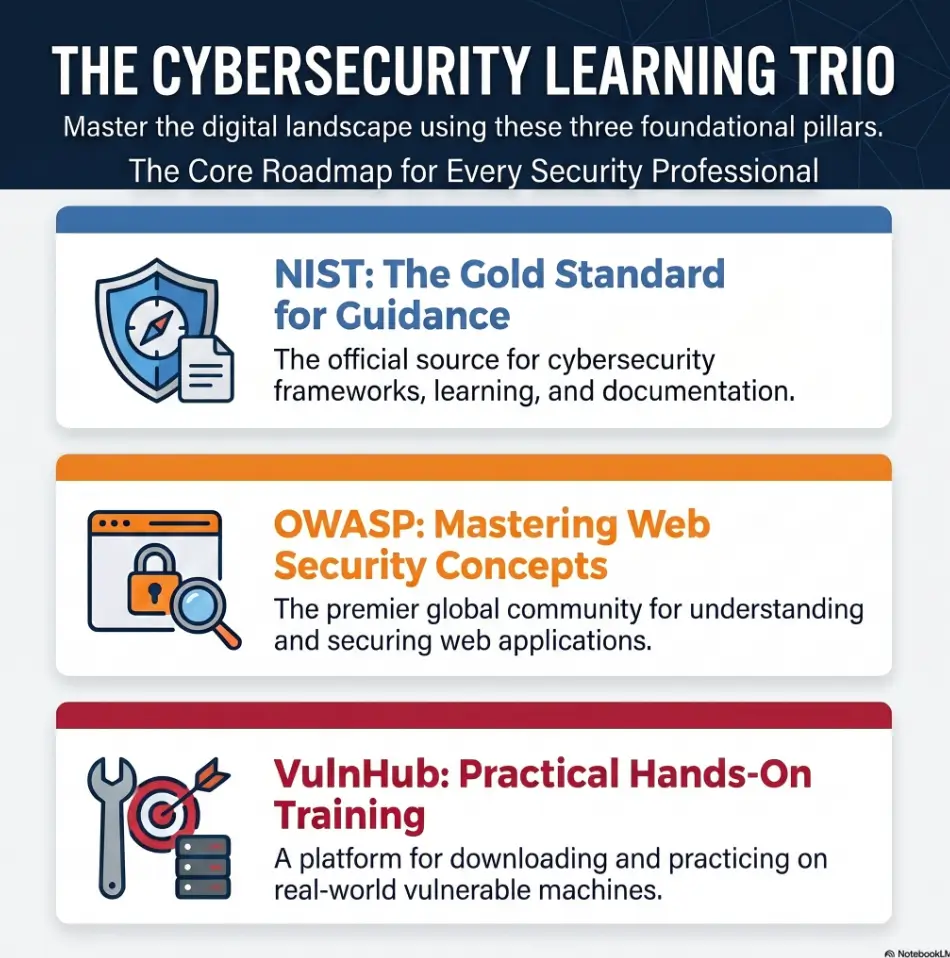
The focus here is browser organization, research hygiene, documentation, evidence tracking, and learning retention. Keep your practice local, isolated, and intentional. If a research page starts nudging you toward real-world targets, close it and return to your lab boundary. NIST’s cybersecurity materials often emphasize structured processes, repeatability, and documentation. That same spirit applies here: safe practice begins with scope.
- Use only systems you own or have permission to test.
- Keep research framed around learning concepts, not attacking real targets.
- Write the lab boundary at the top of your notes before beginning.
Apply in 60 seconds: Add one line to your note: “Scope: local Kioptrix lab only.”
Start With the Lab Boundary, Not the Browser
Define “authorized” before opening a single tab
Before you open search, documentation, or a walkthrough, define what you are allowed to touch. A simple boundary sentence is enough: “I am working only on my local Kioptrix virtual machine and my attacker VM inside my private lab network.”
That sentence sounds plain. Good. Plain keeps people out of trouble.
For beginners, the dangerous moment is rarely dramatic. It is usually a tiny drift. You search an error, see a public-looking target, copy a test command, and forget that the internet is not your sandbox. Scope is the fence. The browser is the gate. Put a sign on the gate.
If you are still building your environment, pair this workflow with a clean Kioptrix network setup so your browser research supports an isolated lab instead of a foggy collection of assumptions.
Keep Kioptrix research inside a local-only learning frame
Use search terms that keep your intent educational. Search for concepts, documentation, and error meanings. Avoid search patterns that point toward live third-party systems. Your goal is to understand why a service behaves a certain way, why a scan result matters, or how to document a finding responsibly.
For example, “Apache old version documentation lab notes” is a learning search. “Find public servers running X version” is not part of this workflow. One keeps the kettle on the stove. The other carries the kettle into traffic.
The tiny rule that prevents accidental real-world wandering
Use a rule simple enough to remember when tired: if a page is not helping you understand your local lab, your notes, or a trusted reference, close it.
This is not moral theater. It is practical concentration. Kioptrix already gives you enough to learn from. You do not need a circus tent of unrelated tabs to feel productive.
Money Block: Lab Boundary Checklist
Answer yes or no before starting:
- Is the target a local VM or authorized training box?
- Is the network isolated from systems you do not own?
- Did you write the exact lab scope in your notes?
- Do your browser bookmarks separate references from spoilers?
- Can you explain why each open tab belongs to this lab?
Neutral action: If any answer is “no,” pause and fix the boundary before continuing.
Build a Four-Window System Before the First Scan
A four-window browser system feels almost too simple. That is why it works. It gives each kind of thinking a home. Your brain stops paying tab rent to every random thought that wanders in wearing muddy boots.
Window 1: active lab console references
This window is for what you are doing now. Not what you might do later. Not what someone did in a 2013 forum post with the confidence of a raccoon opening a safe.
Keep only active, phase-specific tabs here. If you are identifying services, this window may hold your local lab dashboard, a trusted command reference, and a current hypothesis note. When you move from one phase to another, close or bookmark old tabs.
Readers who need a broader structure can connect this with a repeatable Kioptrix lab workflow so the browser mirrors the lab phases instead of fighting them.
Window 2: notes, screenshots, and evidence
Your second window is the evidence desk. Keep your note-taking app, screenshot folder, findings tracker, and session summary open here. This is where you write down what happened before memory turns into soup.
When you capture a screenshot, add one sentence: what it shows and why you saved it. A screenshot without context is a postcard from a place your future self no longer remembers visiting.
For a cleaner evidence trail, use a dedicated Kioptrix evidence tracking habit and a clear Kioptrix screenshot organization pattern.
Window 3: trusted documentation and version research
The third window is for official documentation, vendor references, framework docs, standards pages, and reputable learning resources. This window answers, “What does this thing normally mean?”
Keep this separate from walkthroughs. Documentation helps you form a hypothesis. Walkthroughs often hand you one. There is a difference between being handed a compass and being teleported to the treasure chest.
Window 4: the spoiler vault you do not touch too early
The spoiler vault is a separate window, profile, or bookmark folder for walkthroughs. It is not evil. It is just strong medicine. Use it late, in small doses, and only after you can state what you tried.
Label it clearly: “Spoilers: open only after full attempt.” Silly? Maybe. Effective? Very. Sometimes the best security control is a tiny label that shames your impatient thumb.
Money Block: Four-Window Decision Card
| Window | Use it for | Close it when |
|---|---|---|
| Active Lab | Current phase and immediate questions | The phase changes |
| Evidence | Notes, screenshots, findings, logs | Almost never during the session |
| References | Trusted docs and concept research | The answer is captured in notes |
| Spoilers | Walkthrough comparison after effort | Immediately after extracting one hint |
Neutral action: Open four windows before the lab starts, then assign each new tab to one window or close it.
Don’t Let Tabs Become Digital Laundry
Name tabs by question, not by website
A tab titled “Apache” is not enough. A tab titled “What does this Apache banner imply in an old Kioptrix lab?” is better, even if you write that title in your note rather than the browser itself.
Every research tab should answer a question. If you cannot name the question, you are browsing, not investigating. Browsing has its place. So does eating cereal over the sink. Neither should be confused with methodology.
Close anything that does not answer the current phase
Beginners often keep tabs open because closing them feels like losing progress. The fix is not to keep everything. The fix is to capture the useful part before closing.
Use this mini-ritual:
- Copy the page title into your notes.
- Add one sentence about why it mattered.
- Bookmark it only if it may help again.
- Close the tab.
That rhythm turns tab hoarding into knowledge gardening. Fewer weeds. More tomatoes.
Let’s be honest: 37 tabs is not methodology
Many Kioptrix learners do not fail because the lab is impossible. They fail because their context gets shredded. They forget which service they were researching, which finding was confirmed, which idea failed, and which article was a spoiler in disguise.
A messy browser creates fake difficulty. It makes a normal learning challenge feel like a cursed attic.
- Write the question that caused you to open the tab.
- Capture the useful answer before closing it.
- Do not let unrelated tabs share the same research window.
Apply in 60 seconds: Close three tabs that do not answer your current Kioptrix question.
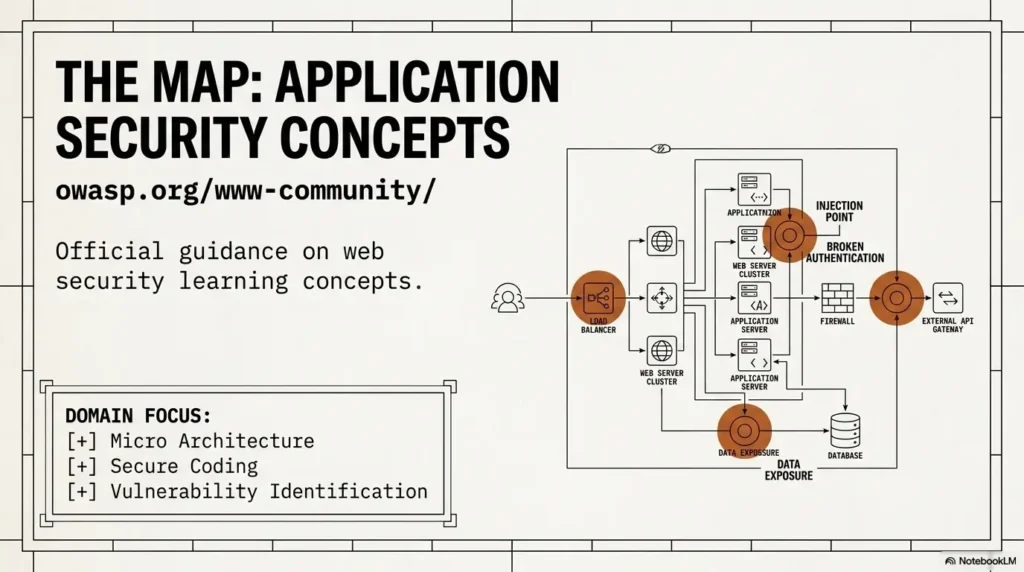
Use Browser Profiles to Separate Learning From Rabbit Holes
Create a dedicated CTF profile for Kioptrix work
A dedicated browser profile separates bookmarks, history, extensions, and saved sessions from daily browsing. Configure a lab-specific download folder explicitly; a new profile does not guarantee that downloaded files use a separate directory. A profile organizes browser data, but it is not a network-isolation or malware-containment boundary. Keep the vulnerable lab isolated through VM networking and avoid syncing sensitive lab credentials into personal accounts.
Name the profile something obvious, such as “CTF Lab” or “Kioptrix Practice.” Use a different theme color if your browser supports it. Visual separation reduces accidental cross-contamination.
Disable distracting extensions that pollute evidence
Extensions can change page behavior, add overlays, rewrite links, block scripts, capture requests, inject helpers, or create unexpected noise. In a learning lab, that noise can make evidence harder to trust.
You do not need to uninstall everything. Just keep your CTF profile minimal. Use only extensions that have a clear purpose for note-taking or accessibility. Avoid anything that modifies page content unless you intentionally need it and document it.
Keep bookmarks, history, and downloads lab-specific
Create bookmark folders that match your workflow:
- Active
- Notes
- References
- Spoilers
- Session Review
Downloads should also go to a lab-specific folder. A good Kioptrix folder naming system reduces the “where did I put that?” tax. It is not glamorous, but neither are seatbelts, and we keep using those.
Capture Context While It Is Still Warm
Save the “why” behind each search, not just the link
A link answers where you went. It does not answer why you went there. That is the part your future self needs.
Instead of writing:
Apache docs
Write:
I searched Apache documentation because the lab banner suggested an older web service, and I wanted to understand what normal behavior looked like before assuming a vulnerability.
That sentence is small. It holds the whole lantern.
Screenshot evidence before changing your path
Screenshot before you pivot, change settings, restart services, reset a VM, or abandon a hypothesis. Evidence gets fragile when you move quickly.
A screenshot should include enough context to be useful later: browser tab, relevant result, timestamp if possible, and a matching note. If you want a stronger routine, combine browser capture with a Kioptrix recon log template or a full Kioptrix lab report.
Build a decision log that survives the midnight fog
A decision log is not a diary. It is a sequence of “I saw X, so I tried Y, and Z happened.” It turns your lab into a learning record.
Use this format:
- Observation: What did I see?
- Question: What am I trying to answer?
- Reference: What source helped me understand it?
- Action: What did I try inside the authorized lab?
- Result: What changed?
- Next thought: What will I test next?
Short Story: The Tab That Lied at Midnight
A beginner once told me Kioptrix had “suddenly changed.” The box felt different, the clue trail felt broken, and every tab seemed to contradict the last. We opened the browser together. There were 42 tabs, three walkthroughs, two unrelated exploit discussions, an official documentation page, and a half-written note titled “maybe samba??” The lab had not changed.
The context had dissolved. So we rebuilt the session from evidence. One screenshot showed the original service list. One bookmark revealed the real question. One note showed which idea had already failed. Within 20 minutes, the fog lifted. The practical lesson was not heroic: your browser can either preserve thinking or grind it into confetti. Capture the reason before the result. Name the question before the search. Close the tab after the lesson is saved.
Local lab only. Write the boundary first.
Active, notes, references, spoilers.
One research mission per tab.
Screenshot, note, result, next thought.
Use spoilers only after a full attempt.
Research Without Spoiling the Box Too Early
Search for concepts before searching for Kioptrix answers
If you search the exact lab plus the exact service plus the exact symptom, you may get the answer before you understand the problem. That feels efficient for five minutes. Then it quietly steals the lesson.
Start broader:
- What does this service normally do?
- What does this banner usually reveal?
- What does this error message mean?
- What documentation explains this behavior?
Then narrow. This mirrors the thinking pattern used in solid Kioptrix methodology: observe first, interpret second, act third.
Use version documentation before walkthroughs
Older labs often teach old technology. That is part of the point. But old does not mean “guess wildly.” Use version documentation, official manuals, and reputable references first. They help you separate normal behavior from suspicious behavior.
If the reference explains the clue, capture it in your notes. If it does not, write that down too. Negative evidence is still evidence. The dead end may become useful later, especially if you review your Kioptrix dead ends after the session.
The spoiler vault rule: open late, skim slowly, copy nothing blindly
When you finally open a walkthrough, do not read it like a novel. Read it like a mechanic checking one measurement.
Use the spoiler vault rule:
- Write your current hypothesis first.
- Open one walkthrough tab.
- Skim only until you find the next conceptual hint.
- Close the tab.
- Return to your own notes and reconstruct the reasoning.
If you copy steps blindly, your browser becomes a conveyor belt. If you extract one hint, it becomes a teacher.
Show me the nerdy details
The workflow works because it lowers context-switching cost. Each browser window stores one cognitive mode: active investigation, evidence capture, reference research, or spoiler review. Mixing those modes forces your brain to rebuild state each time you change tabs. The “one question per tab” rule also creates a lightweight audit trail. Instead of remembering every search, you record the question, the reference, and the decision that followed. This supports retrieval practice, which is more durable than passive reading.
Money Block: Spoiler Timing Calculator
Use this tiny self-check before opening a walkthrough.
Result: Enter your numbers, then check.
Neutral action: Use the output as a pause signal, not a commandment carved into stone.
Common Mistakes That Make Kioptrix Feel Harder Than It Is
Mistake 1: mixing notes, walkthroughs, and commands in one messy tab swarm
When everything lives in one browser window, everything feels equally urgent. Notes, docs, spoilers, old forum posts, and command references all compete for attention. The result is a tab thunderstorm.
Separate the roles. Your notes should not sit beside spoilers like two cats glaring across a windowsill.
Mistake 2: chasing every clue before finishing one hypothesis
Kioptrix labs often present several possible leads. Beginners sometimes treat every lead as a siren. They open ten tabs, try five partial ideas, and finish none.
Pick one question. Work it until it is answered, blocked, or disproved. Then move on. A good Kioptrix decision process is calmer than a clue chase.
Mistake 3: reading the answer before naming the problem
Walkthroughs are most useful after you can say what you were trying to solve. Without that, the answer has nowhere to land.
Before reading, write: “I am stuck because…” Then finish the sentence. If you cannot finish it, you are not ready for the walkthrough. You are ready to review your observations.
Mistake 4: forgetting what changed between attempts
One of the quietest ways to sabotage a lab is to make changes without recording them. Browser tabs can help here. Use your evidence window to log changes immediately.
Record resets, browser changes, VM snapshots, network settings, downloaded references, and any altered notes. If the lab suddenly “acts weird,” your log may show the reason.
- Separate research, evidence, references, and spoilers.
- Finish one hypothesis before chasing the next clue.
- Record every meaningful change before continuing.
Apply in 60 seconds: Add a “Changed” line to your current lab note.
The “One Question Per Tab” Method
Turn each tab into a research mission
The method is simple: open a tab only when you can attach one question to it. That question becomes the tab’s job.
Examples:
- What does this service banner usually reveal?
- What does this HTTP response code mean in an old web lab?
- What is the safe way to document this finding?
- Which official reference explains this protocol behavior?
Once the question is answered, capture the answer and close the tab. If the question changes, open a new tab. This sounds strict until you experience the relief. Suddenly the browser stops being a hallway of doors and becomes a row of labeled drawers.
Keep source titles specific enough to recover your thinking
When you save a reference, rename the bookmark or note line so it explains its purpose. “Docs” is weak. “Reference: why this HTTP status matters during Kioptrix web enumeration” is useful.
This is especially helpful when you later write a Kioptrix write-up or build a reusable Kioptrix knowledge base.
Here’s what no one tells you: your browser is part of your lab notebook
Your terminal history shows what you typed. Your notes show what you understood. Your browser shows what you researched. Together, they form the learning record.
If you treat the browser as disposable, your reasoning becomes harder to reconstruct. If you treat it as part of the notebook, you can return days later and still understand the path.
Money Block: One-Question Tab Template
Copy this into your notes for each important research tab:
- Question: What am I trying to answer?
- Source: What page did I consult?
- Useful detail: What did I learn?
- Lab relevance: Why does it matter for this Kioptrix session?
- Next step: What will I test or document next?
Neutral action: Use the template for your next three research tabs, then adjust it to fit your notes.
Create a Spoiler-Resistant Note Structure
Section 1: observations
Observations are what you saw, not what you assume. Keep them plain. Service names, page behavior, error messages, scan summaries, screenshots, and timestamps belong here.
For stronger structure, use a dedicated Kioptrix lab notes format so observations do not get tangled with guesses.
Section 2: hypotheses
Hypotheses are your possible explanations. Write them as testable statements, not vibes in a trench coat.
Weak: “Maybe web thing.”
Better: “The web service may expose an outdated behavior worth researching through documentation before trying any lab action.”
Section 3: references
Store trusted references separately from walkthroughs. This helps you see whether your reasoning came from documentation or from the answer key.
Useful reference notes include page title, link, what you learned, and whether it supports or rejects a hypothesis.
Section 4: tried, failed, learned
This is where your growth hides. Failed attempts are not trash. They are ruled-out paths. Write them down in a way that keeps them useful.
Format each failure like this:
- Tried: The lab action or research path.
- Expected: What you thought would happen.
- Actual: What happened instead.
- Learned: What this rules out or clarifies.
This structure works well with a Kioptrix session review because it converts frustration into reusable judgment.
Section 5: final reconstruction in your own words
After the lab, write the path again without copying a walkthrough. Explain the flow as if teaching a careful friend. This final reconstruction is where learning thickens.
If your reconstruction has gaps, mark them. Then revisit references. That is far better than pretending the path was obvious all along. No one learns from a fake victory lap.
- Keep observations factual.
- Make hypotheses testable.
- Rewrite the final path in your own words.
Apply in 60 seconds: Add five headings to your current note: Observations, Hypotheses, References, Tried/Failed/Learned, Final Reconstruction.
Who This Is For, and Who Should Skip It
Best for beginners who lose track mid-lab
This workflow is especially useful if you understand individual steps but lose the thread. Maybe you can read scan output, search documentation, and follow hints, but after an hour the story disappears.
That is normal. Cybersecurity learning has many moving parts. A context-safe browser system gives those parts little name tags and sensible shoes.
If you are just starting, pair this workflow with a beginner-friendly Kioptrix for beginners path or a first-session guide such as Kioptrix first lab.
Useful for OSCP-style note discipline without the panic glitter
OSCP-prep learners often need stronger notes, cleaner evidence, and better time discipline. This browser system helps without turning every practice night into a military parade.
Use it with an OSCP time management plan if you are preparing for exam-style pressure. The goal is not to copy exam conditions every night. The goal is to build calm habits before pressure arrives carrying a clipboard.
Not for anyone testing systems they do not own or control
This workflow is not for unauthorized testing. Browser organization does not make unsafe behavior safe. The boundary is still permission.
If you are unsure whether you have authorization, stop. Work only in a training platform, local VM, company-approved lab, or environment where scope is explicit.
Not for readers who only want copy-paste walkthrough steps
If your only goal is finishing the box as fast as possible, this guide may feel too careful. That is fine. But for long-term learning, speed without understanding is a paper crown in the rain.
The stronger goal is to finish and remember why the path worked.
When to Seek Help Without Breaking the Learning Spell
Ask for a hint when you cannot explain your next move
There is no shame in asking for help. The key is asking at the right layer. Ask for a hint after you can explain:
- What you observed
- What you tried
- What you expected
- What happened instead
- What you think the next decision is
That kind of question invites guidance without turning someone else into your remote-control operator.
Compare your notes with a walkthrough only after a full attempt
A full attempt does not mean suffering forever. It means giving the problem honest structure before reading the solution.
Use your decision log as the threshold. If you have at least two hypotheses, one trusted reference, and a documented result, a small walkthrough hint can help. If your notes are empty, the walkthrough will do the learning for you.
Get community help safely by sharing observations, not target abuse instructions
When asking for help in a forum, Discord, study group, or classroom, frame your question around learning and lab scope. Share sanitized observations, screenshots when appropriate, and what you tried in your authorized environment.
A safe help request sounds like this:
“I am working in a local Kioptrix lab. I observed X, checked Y documentation, and tried Z. The result was A. Am I thinking about the next research step correctly?”
That keeps the conversation educational, bounded, and useful.
FAQ
What is the best browser setup for Kioptrix Level?
The best setup is a dedicated CTF browser profile with four separate windows: active lab work, notes and evidence, trusted references, and a spoiler vault. This keeps research, documentation, screenshots, and walkthroughs from collapsing into one confusing tab pile.
Should I use one browser or multiple browsers for CTF labs?
One browser with a dedicated profile is usually enough for beginners. Multiple browsers can work, but they add friction. The more important move is separating your CTF profile from daily browsing and assigning each window a clear job.
How do I avoid walkthrough spoilers while learning Kioptrix?
Search for concepts before exact Kioptrix answers. Use documentation and reputable references first. Put walkthroughs in a separate spoiler folder or window, and open them only after you have written your observations, hypotheses, and failed attempts.
What should I bookmark during a Kioptrix lab?
Bookmark official documentation, reputable explanations, your lab notes, your screenshot folder, and any walkthrough you plan to review later. Rename bookmarks with the question they answered, not just the website name.
How should beginners take notes during VulnHub practice?
Use five sections: observations, hypotheses, references, tried-failed-learned, and final reconstruction. This gives your notes enough structure to support learning without becoming a paperwork dragon.
Is it safe to use browser extensions during cybersecurity labs?
Use fewer extensions in your CTF profile. Some extensions modify pages, block content, inject scripts, or alter evidence. Keep only tools you understand and document anything that changes browser behavior.
How do I organize screenshots and evidence from a CTF box?
Create a lab folder with subfolders for screenshots, notes, references, and session summaries. Name screenshots by date, phase, and finding. Pair each screenshot with one sentence explaining what it proves or why it matters.
When should I read a Kioptrix walkthrough?
Read a walkthrough after a full attempt, not at the first sign of friction. A practical threshold is 45 minutes on a specific blocker, at least two written hypotheses, and one trusted reference checked. Then read only enough to extract a hint.
Can this workflow help with OSCP prep?
Yes. It builds habits that matter in exam-style work: clean notes, evidence capture, time boundaries, decision logging, and disciplined research. It will not replace technical practice, but it helps you keep your reasoning intact.
What if I only have 30 minutes to practice?
Use the same structure, just smaller. Set up the four bookmark folders, open only two windows if needed, and finish with a three-line session summary. A short clean session beats a long chaotic one with confetti-tabs everywhere.
Next Step: Set Up Your Context-Safe Browser Workspace
Create one dedicated CTF browser profile today
Open your browser settings and create a profile named “CTF Lab” or “Kioptrix Practice.” Give it a visual theme that looks different from your everyday profile. Then remove unnecessary extensions that alter page content, while keeping security protections and needed accessibility tools enabled.
This small separation creates a useful mental click. When you enter that profile, you are in lab mode. Not email mode. Not shopping mode. Not “why are there twelve tabs about desk lamps?” mode.
Add four bookmark folders: Active, Notes, References, Spoilers
Inside the CTF profile, create four bookmark folders:
- Active: Current lab phase and immediate research questions.
- Notes: Lab notes, evidence trackers, screenshot folders, session summaries.
- References: Official documentation and reputable concept explanations.
- Spoilers: Walkthroughs and answer-heavy pages for late-stage review.
Then add your favorite note structure, such as Kioptrix documentation, Kioptrix technical notes, or a weekly improvement loop like Kioptrix weekly review template.
Run one Kioptrix session using only the “one question per tab” rule
For your next session, do not try to perfect everything. Use only one rule: every research tab must answer one written question. When the question is answered, save the useful detail and close the tab.
That is the whole first step. Fifteen minutes is enough to create the profile, add the folders, and start a clean note. The next time Kioptrix feels difficult, you will at least know whether the problem is technical or whether your browser has quietly turned into digital laundry again.
- Use one dedicated CTF browser profile.
- Separate active work, notes, references, and spoilers.
- Record the question behind each tab before chasing answers.
Apply in 60 seconds: Create the four bookmark folders now: Active, Notes, References, Spoilers.
Kioptrix practice is not only about finding the path through a vulnerable machine. It is also about learning how your own attention behaves under uncertainty. The browser can either scatter that attention into glitter or hold it steady like a clean notebook on a quiet desk.
Start small. Create the CTF profile, open four folders, and write one question before your next tab. Within 15 minutes, you will have a workspace that makes the next session calmer, safer, and easier to reconstruct.
Last reviewed: 2026-05.
Technical guidance updated: 2026-10-13. Corrected the limits of browser profiles and download separation while preserving browser security protections.